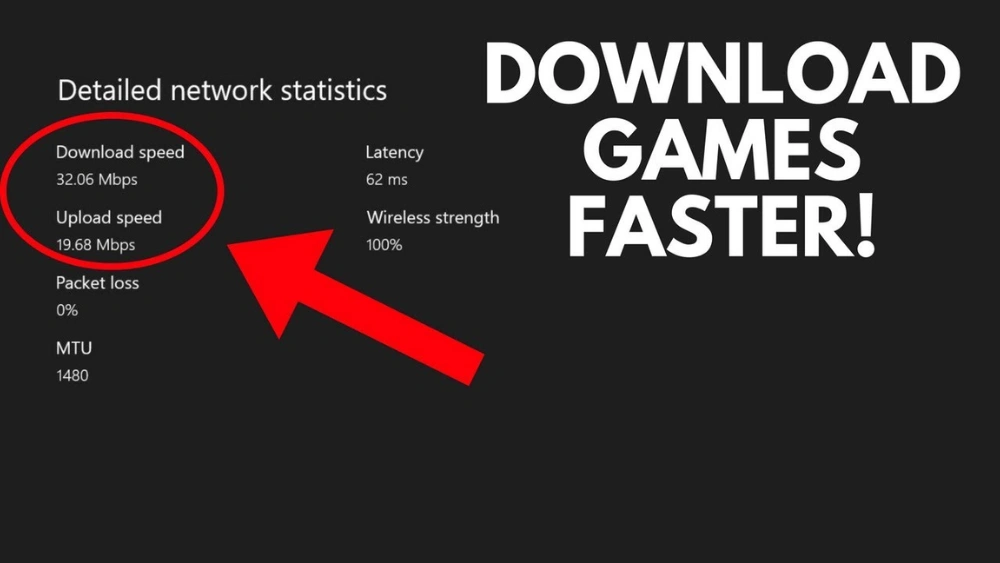
Are you tired of waiting forever for your Xbox games to download? Imagine cutting that time down and getting your favorite games faster than ever before.
If you want to boost your Xbox game download speed to a lightning-fast 200 Mb, you’re in the right place. You’ll discover simple, effective steps that anyone can follow to speed up downloads and get straight to the action. Keep reading, because faster downloads mean more gaming and less waiting—and who doesn’t want that?

Credit: www.facebook.com
Check Your Internet Speed
Before trying to boost your Xbox game download speed to 200 Mb, it’s essential to check your current internet speed. Knowing your actual download rate helps you understand whether your connection supports such speeds or if there’s an issue holding you back. This step ensures you’re not chasing a speed your internet simply can’t deliver.
Use Speed Test Tools
Speed test tools give you a quick snapshot of your internet’s download and upload speeds. Tools like Speedtest by Ooklaor Fast.comare simple to use and free. Just run the test on your device connected to the same network as your Xbox to get accurate results.
Keep in mind, running these tests at different times of the day can reveal speed fluctuations caused by network congestion. If you notice speeds way below 200 Mb consistently, it’s a clear sign something needs adjustment.
Compare With Your Plan
Once you know your current speed, compare it with the internet plan you’re paying for. Check your provider’s contract or billing statement for the promised download speeds. Are you getting close to that 200 Mb mark or falling short?
Sometimes, internet providers advertise “up to” speeds that rarely hit the maximum in real life. If your speed test results are far below your plan, you might want to contact your provider or consider upgrading your plan. Don’t accept slow downloads as normal if your plan supports higher speeds.
Optimize Network Settings
Optimizing your network settings can significantly improve your Xbox download speed. Small changes in your router and console settings help reduce lag and increase stability. This can push your download speed closer to 200 Mb, making game updates faster and smoother.
Set Static Ip Address
Assigning a static IP address to your Xbox prevents IP conflicts. This keeps your console connected without interruptions.
- Find your Xbox’s current IP address in network settings.
- Access your router’s admin page through a web browser.
- Reserve the Xbox’s IP address in the DHCP settings.
- Enter the reserved IP address manually on your Xbox.
This ensures your Xbox always uses the same IP, improving connection consistency.
Enable Qos On Router
Quality of Service (QoS) prioritizes gaming traffic over other devices. This reduces lag and speeds up downloads on your Xbox.
- Log in to your router’s admin panel.
- Locate the QoS settings, usually under advanced options.
- Add your Xbox’s IP address or MAC address to the priority list.
- Set the priority level to high or gaming.
QoS ensures your Xbox gets the bandwidth it needs during downloads and gameplay.
Improve Wi-fi Connection
Improving your Wi-Fi connection is key to faster Xbox game downloads. A strong and stable Wi-Fi signal helps maintain high speeds. Small changes in your network settings can boost your download rate significantly. Focus on optimizing your Wi-Fi for the best performance.
Choose The Best Wi-fi Channel
Wi-Fi routers use channels to send signals. Some channels are crowded, causing slow speeds. Find the least busy channel on your router settings. Use apps or software to check channel traffic in your area. Switching to a quieter channel reduces interference and improves speed.
Reduce Interference
Other electronics can disturb your Wi-Fi signal. Devices like microwaves, cordless phones, and Bluetooth gadgets cause interference. Keep your router away from these devices. Also, place the router in an open space, not hidden in a cabinet. Clear paths between router and Xbox help maintain strong signals.
Use 5 Ghz Band
Your router may support two frequency bands: 2.4 GHz and 5 GHz. The 5 GHz band offers faster speeds and less interference. Connect your Xbox to the 5 GHz band for better download performance. Keep in mind, 5 GHz works best within shorter distances from the router.
Use Wired Ethernet Connection
Downloading games on your Xbox can sometimes feel like watching paint dry, especially when your download speed isn’t up to scratch. If you’re tired of waiting hours for your favorite game, consider switching to a wired Ethernet connection. This simple change can make a world of difference in your gaming experience. Let’s dive into why Ethernet is the magic bullet for faster downloads and how you can set it up effortlessly.
Benefits Of Ethernet
Wondering why Ethernet is often touted as the superior choice for online gaming? The benefits are plenty.
- Stable Connection:Unlike Wi-Fi, which can be unpredictable, Ethernet provides a stable and consistent connection. You won’t face sudden drops or interference.
- Faster Speeds:Ethernet connections typically offer faster download speeds compared to Wi-Fi. This means your Xbox game downloads can hit the coveted 200 Mb speed.
- Lower Latency:Ethernet reduces latency, which is crucial for online gaming. You’ll notice smoother gameplay and quicker response times.
Imagine never having to wait hours for that game patch again. Isn’t that worth the switch?
How To Connect Xbox Via Ethernet
Connecting your Xbox via Ethernet is simpler than you might think. Here’s how you can do it in just a few steps:
- Locate the Ethernet Port:Your Xbox has an Ethernet port at the back. Locate it and have your Ethernet cable ready.
- Connect the Cable:Plug one end of the Ethernet cable into the Xbox and the other end into your router or modem.
- Test the Connection:Go to your Xbox settings and check the network status. It should show a wired connection. If not, recheck the cable connections.
Doesn’t it feel satisfying to take control of your download speeds? Setting up a wired connection is straightforward, and the payoff is well worth the effort.
Have you tried using an Ethernet connection before? What was your experience? Share your thoughts and let’s see if Ethernet can transform your gaming nights!
Limit Background Downloads And Apps
Limiting background downloads and apps is a simple yet powerful way to boost your Xbox game download speed. When your console is busy downloading updates or running apps in the background, it divides your internet bandwidth. This can slow down your game downloads significantly.
Pause Other Downloads
Check if your Xbox is downloading multiple games or updates at the same time. Pausing all but the one you want to download speeds up the process. This frees up bandwidth exclusively for your game.
To pause downloads, go to the “Queue” on your Xbox dashboard. Highlight the downloads you want to pause and select “Pause.” You can resume them later when your main game has finished downloading.
Close Background Apps
Background apps consume data and processing power even if you’re not actively using them. Closing these apps can improve your download speed and overall console performance.
Press the Xbox button on your controller to open the guide. Navigate to the running apps section, select the apps you want to close, and choose “Quit.” Doing this stops unnecessary data use and focuses your Xbox on the download.
Have you noticed a sudden jump in your download speed after closing background apps? It’s a quick fix you can try before tweaking network settings or buying new hardware.
Adjust Xbox Download Settings
Adjusting your Xbox download settings can make a noticeable difference in how fast your games download. You have control over several options that affect speed and efficiency. Tweaking these settings helps your console focus its resources on downloading, pushing your speed closer to 200 Mb if your internet supports it.
Enable Instant-on Mode
Instant-On mode keeps your Xbox ready to download updates and games even when it looks off. This means your console uses less power but stays connected to the internet. By enabling this mode, downloads continue quietly in the background, avoiding delays when you want to play.
To enable Instant-On mode:
- Go to Settingson your Xbox.
- Select Power & startup.
- Choose Power mode & startupand pick Instant-On.
Have you noticed how downloads sometimes pause when your console enters sleep mode? Enabling Instant-On solves that problem and keeps your game downloads rolling.
Manage Download Queue
Xbox allows you to download multiple games or updates at once, but this can slow down your download speed. Prioritizing one download at a time helps focus bandwidth and speeds up the process.
To manage your download queue:
- Press the Xbox button to open the guide.
- Go to My games & apps> Manage> Queue.
- Select the game or update you want to prioritize and choose Start download.
Try pausing less urgent downloads and letting the most important one finish first. Have you ever felt frustrated by slow downloads when multiple updates happen at once? Managing the queue can fix that.
Update Router Firmware
Updating your router’s firmware can improve your Xbox download speed significantly. Firmware updates fix bugs and enhance performance. They also add support for new features and improve network stability.
Many routers receive updates to optimize wireless speed and reduce interference. Running the latest firmware ensures your router works at its best. This can help reach higher download speeds like 200 Mb on your Xbox.
Check For Updates
Access your router’s settings through its IP address in a web browser. Common addresses are 192.168.1.1 or 192.168.0.1. Login using your router’s username and password. Look for a section called “Firmware Update” or “Router Update.”
The router will check if a new firmware version is available. If yes, it will show the latest version number and release date. Compare it with your current firmware version to confirm if an update is needed.
Steps To Update Firmware
- Download the latest firmware file from the router manufacturer’s website if manual update is required.
- In the router settings, upload the firmware file if there is an option for manual updates.
- Click the “Update” or “Upgrade” button to start the process.
- Wait patiently as the router installs the update. Do not turn off or disconnect the router during this.
- The router will restart automatically after the update finishes.
- Check the firmware version again to make sure the update was successful.
Regularly updating your router firmware keeps your network fast and reliable. This simple step helps your Xbox reach better download speeds for smoother gaming.

Credit: www.reddit.com
Restart Your Network Devices
Restarting your network devices is a simple yet powerful way to boost your Xbox game download speed. It clears out temporary glitches and refreshes your internet connection, which often gets bogged down over time. If your downloads are crawling, a quick restart might be all you need to hit that 200 Mb speed.
Power Cycle Modem And Router
Turning off your modem and router completely can help fix slow download speeds. Unplug both devices from power and wait for about 60 seconds. This pause lets the hardware reset and clear any cached errors.
After waiting, plug your modem back in first. Give it a couple of minutes to fully reconnect to your internet service. Then plug in your router and wait until all the indicator lights show a stable connection.
When I tried this, my download speed jumped noticeably. Have you noticed how your internet sometimes feels faster right after a power cycle? That’s because it’s re-establishing a fresh, clean connection.
Restart Xbox Console
Restarting your Xbox is just as important as rebooting your network devices. It closes background processes that might be hogging bandwidth and refreshes your console’s connection to Xbox Live.
To restart, press and hold the Xbox button on your controller until the console powers off. Wait 10 seconds before turning it back on. This simple action often resolves download speed issues without any extra fuss.
Try this after power cycling your modem and router. You might be surprised how much smoother your downloads run when both your network and console get a fresh start. What speed improvements will you see after the restart?
Consider Internet Plan Upgrade
Consider upgrading your internet plan to improve your Xbox download speed. Your current plan may limit the maximum speed you can achieve. A better plan offers faster speeds and more reliable connections. This can reduce download times significantly, especially for large game files.
Check Current Data Caps
Data caps can slow down your internet after reaching a limit. Many plans reduce speed once you use a certain amount of data each month. Check if your current plan has a data cap. Knowing this helps you decide if an upgrade is necessary. Unlimited data plans prevent slowdowns during heavy gaming downloads.
Choose Higher Speed Plans
Select an internet plan with higher download speeds. Plans with 200 Mb or more can support fast Xbox game downloads. Compare plans from different providers in your area. Look for plans that guarantee consistent speeds without throttling. Higher speed plans often include better customer support and improved stability.

Credit: www.reddit.com
Frequently Asked Questions
How Can I Increase Xbox Download Speed To 200 Mb?
Improve your Xbox download speed by using a wired Ethernet connection. Close background apps and pause other downloads. Restart your router and Xbox. Also, check for network congestion and optimize your DNS settings for better performance.
Does A Wired Connection Boost Xbox Download Speeds?
Yes, a wired Ethernet connection provides a stable and faster download speed than Wi-Fi. It reduces interference and packet loss, which improves overall speed and reliability. For achieving 200 Mb, a wired connection is highly recommended.
What Router Settings Improve Xbox Download Speed?
Enable Quality of Service (QoS) on your router to prioritize Xbox traffic. Use the 5 GHz Wi-Fi band if wired is unavailable. Also, update your router firmware and avoid peak usage times to enhance download speeds.
Can Xbox Network Settings Affect Download Speed?
Yes, Xbox network settings like DNS and IP configuration impact speed. Use a static IP and set DNS to Google DNS (8. 8. 8. 8) or Cloudflare DNS (1. 1. 1. 1) for faster resolution and improved download performance.
Conclusion
Improving your Xbox download speed takes some effort and patience. Check your internet connection and use a wired cable for better results. Close other apps and pause downloads on other devices. Keep your Xbox updated and restart it regularly. These small steps can make a big difference.
Enjoy faster downloads and more game time. Try these tips and see the change yourself.