
Have you ever wished your tablet could do more than just browse the web or stream videos? What if you could use it to make calls, just like your phone?
Imagine the convenience of dialing friends, family, or colleagues right from your tablet—whether you’re at home, in a café, or on the go. You’ll discover simple, step-by-step ways to turn your tablet into a powerful calling device. Ready to unlock this hidden feature and stay connected like never before?
Let’s dive in!
Choosing The Right Tablet
Choosing the right tablet for making calls is crucial if you want a smooth and efficient experience. Not all tablets come with calling features, and even those that do vary widely in capabilities and compatibility. Understanding your options will help you pick a device that fits your lifestyle and communication needs.
Tablets With Calling Features
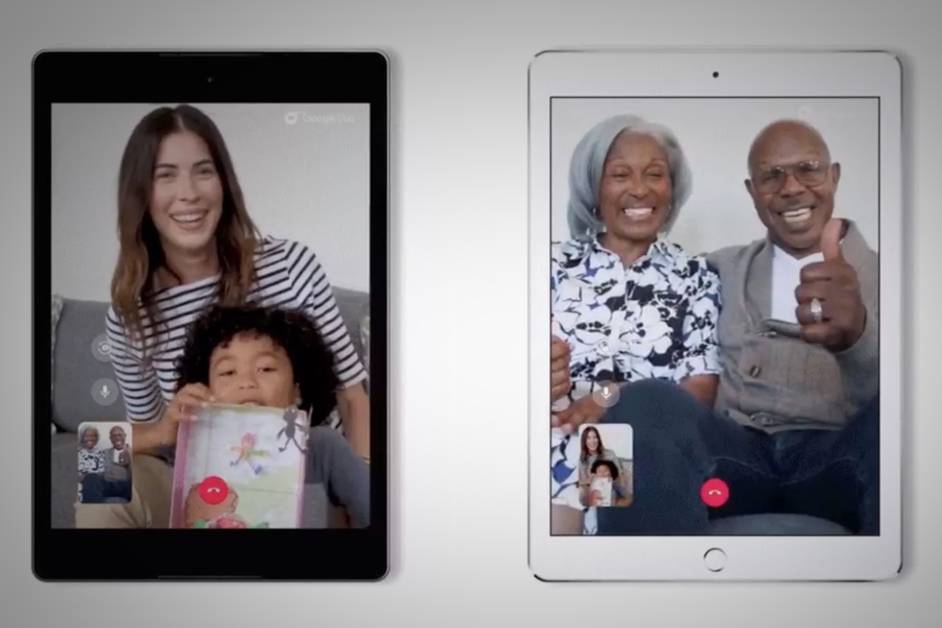
Some tablets come equipped with built-in calling functions, allowing you to use them like a phone. These devices usually have a SIM card slot and support voice calls directly through the tablet. Brands like Samsung and Apple offer models with these features, but it’s important to check if the tablet supports standard voice calls or just apps like FaceTime or Google Duo.
Think about how often you’ll make calls and whether you want the convenience of a single device for both browsing and calling. Tablets with calling features can save you from juggling multiple gadgets.
Wi-fi Vs. Cellular Models
Wi-Fi-only tablets rely on internet connections for calls, using apps like WhatsApp or Skype. Cellular models include SIM card support and can make traditional voice calls without Wi-Fi. If you travel a lot or often find yourself in places without reliable Wi-Fi, a cellular model might be a better fit.
Consider your daily routine—do you have constant access to Wi-Fi, or do you need the flexibility to call anywhere? This choice impacts your calling options and monthly costs since cellular tablets usually require a data plan.
Compatibility With Carriers
Not every tablet works with all mobile carriers. Some tablets are locked to specific networks, while others are unlocked and can be used with any carrier. Before buying, check if the tablet supports the frequency bands and SIM cards of your preferred provider.
Have you ever bought a device only to realize it won’t connect to your carrier? Avoid this frustration by verifying compatibility first. You can often find this information on the manufacturer’s website or by contacting your carrier directly.
Setting Up Calling Apps
Setting up calling apps on your tablet transforms it into a handy communication tool. Tablets usually lack built-in phone functions, but apps fill this gap easily. These apps allow voice and video calls over the internet. Setting up involves choosing the right app, installing it, and managing contacts and permissions. This process is simple and quick, even for beginners.
Popular Calling Apps For Tablets
Several calling apps work well on tablets. Some are free and widely used. Here are a few popular options:
- Skype – Great for video and voice calls worldwide.
- WhatsApp – Known for easy messaging and calls using your number.
- Google Meet – Used for video meetings and calls.
- Facebook Messenger – Connects with Facebook friends for calls.
- Zoom – Commonly used for video calls and group meetings.
Choose one based on your needs and the people you want to call.
Installing And Configuring Apps
Download calling apps from the official app store on your tablet. Search the app name, then tap install. After installation, open the app to start setup.
Create an account if needed. Some apps ask for your phone number or email. Follow the instructions to verify your identity. Grant permissions for the app to access the microphone and camera. This step is necessary for calls to work properly.
Adjust notification settings to stay informed about incoming calls. Explore app settings to customize call quality and other options. Proper configuration improves your calling experience.
Managing Contacts And Permissions
Import contacts from your tablet or add them manually in the app. This makes calling faster and easier. Organize contacts into groups or favorites for quick access.
Review app permissions regularly. Ensure the app has access to contacts, microphone, and camera. Denying permissions can block calling features.
Keep your contacts updated for smooth communication. Remove outdated or incorrect contacts to avoid confusion.
Using Sim Cards In Tablets
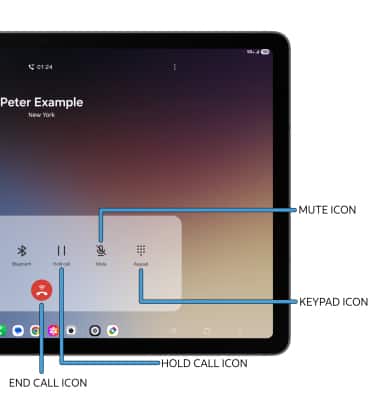
Tablets with SIM cards let you call like a phone. Just insert the SIM, use a calling app, and start talking. No need for Wi-Fi or extra devices.
Tablets have transformed from being solely media consumption devices to versatile gadgets capable of making calls. A key component enabling this feature is the SIM card. SIM cards unlock the potential for cellular connectivity, allowing you to use your tablet like a mini phone. But how do you get started? Let’s dive into the steps of using SIM cards in tablets for calling.
Inserting A Sim Card
Inserting a SIM card into your tablet is straightforward but crucial for enabling cellular services. First, locate the SIM card slot, typically found along the side of the tablet. Use a SIM eject tool or a small pin to gently pop open the tray. Place your SIM card into the tray, ensuring it aligns with the indicated direction. Slide the tray back into the tablet until it clicks. Voila! Your tablet is now ready to connect to cellular networks.
Activating Cellular Service
After inserting the SIM card, the next step is activating the cellular service. Your tablet might automatically recognize the SIM card and prompt you to activate it. Follow the on-screen instructions, which usually involve connecting to your mobile carrier’s network. If not prompted, go to the settings menu, select ‘Cellular’, and manually activate the service. This process might require restarting your tablet. Have you ever wondered how seamless it can be to have your tablet act as both a phone and a device for browsing?
Data Plans And Calling Options
Choosing the right data plan and calling options is pivotal. Look for plans specifically tailored for tablets, as they often provide a balance between data and call minutes. Consider how you use your tablet. If you make frequent calls, opt for a plan with ample talk time. For data-heavy activities, prioritize high-speed data allowances. Many carriers offer flexible plans where you can customize data and calling minutes. This flexibility can save you money and cater directly to your usage habits. Have you found a plan that fits your lifestyle perfectly? Share your experiences and insights!
Credit: www.tiktok.com
Making Calls Without Sim Cards
Making calls without a SIM card might sound tricky, but it’s entirely possible with the right tools. Tablets, which often lack cellular capabilities, can still connect you to friends, family, or colleagues through internet-based services. This means you can stay in touch even if you don’t have a traditional phone line or SIM card.
Using Wi-fi Calling
Wi-Fi calling lets you make phone calls using a wireless internet connection instead of cellular networks. If your tablet supports this feature, you can place calls just like you would on a smartphone.
To use Wi-Fi calling, ensure your tablet is connected to a strong Wi-Fi network. Some tablets may require you to install specific apps or enable settings within your device’s options.
Have you ever tried calling someone from a spot with poor cell coverage? Wi-Fi calling can solve that problem by routing your call through the internet, making your voice clearer and connection more reliable.
Voip Services And Features
Voice over Internet Protocol (VoIP) services are the most popular way to make calls without a SIM card. Apps like Skype, WhatsApp, Zoom, and Google Meet allow you to call anyone worldwide using your tablet’s internet connection.
These apps often come with extra features like video calls, group chats, and instant messaging. You just need to create an account and add contacts to start calling immediately.
Remember, using VoIP apps means your tablet must stay online. Do you know which app your contacts use most? Choosing the right platform can make your calls smoother and more accessible.
Limitations To Consider
Calls made without SIM cards rely entirely on internet access, which means no connection equals no calls. If your Wi-Fi is slow or unstable, your call quality might suffer, causing delays or dropped calls.
Emergency calls can be another limitation. Many Wi-Fi and VoIP services don’t support emergency dialing, so you’ll need a traditional phone or SIM-based device for urgent situations.
Also, some apps require both you and the person you’re calling to have the same app installed. This can sometimes complicate quick or spontaneous calls if your contact isn’t set up yet.
Troubleshooting Call Issues
Making calls with a tablet can sometimes face issues that interrupt clear communication. Troubleshooting these call problems helps restore smooth calling experiences. Many call issues come from simple causes and have easy solutions.
Understanding common problems and how to fix them saves time and frustration. Enhancing call quality ensures conversations stay clear. Keeping apps and devices updated prevents many call errors before they start.
Common Problems And Fixes
- No sound during calls:Check if the tablet’s volume is muted or very low.
- Calls drop unexpectedly:Verify your internet connection is stable and strong.
- Microphone not working:Ensure the app has permission to access the microphone.
- Cannot connect to the call:Restart the tablet and try the call again.
- Frozen screen during calls:Close background apps to free up memory and improve performance.
Improving Call Quality
- Use a Wi-Fi connection instead of mobile data for better stability.
- Position yourself in a quiet area to reduce background noise.
- Use headphones or earbuds with a built-in microphone for clearer sound.
- Keep the tablet close to your mouth to improve voice pickup.
- Limit other internet activities that consume bandwidth during calls.
App And Device Updates
Regularly check for updates to your calling app. Updates fix bugs and add new features. They often improve call performance.
Keep your tablet’s operating system up to date. This ensures compatibility with the latest apps. Updated software also enhances security and stability.
Restart your device after updates. This helps apply changes and refresh system functions.
Credit: www.pocket-lint.com
Tips For Better Call Experience
Making calls on your tablet can be smooth and clear with the right tips. Small changes can improve sound, connection, and privacy. These tips help create a better call experience every time.
Using Headsets And Accessories
Use a good headset to reduce background noise. Earphones with a built-in microphone work well. They keep your hands free and improve sound clarity.
- Choose wired or Bluetooth headsets based on your comfort.
- Check that the microphone is near your mouth for clear audio.
- Use a tablet stand to keep the device steady during calls.
Optimizing Network Settings
Strong internet is key for clear calls. Connect to a stable Wi-Fi network or use mobile data with a good signal. Turn off background apps that use internet to boost speed.
- Switch to 5GHz Wi-Fi for faster and stable connection.
- Close other apps to prevent slowdowns during calls.
- Restart your tablet to refresh network settings regularly.
Ensuring Privacy And Security
Keep calls private by using secure apps with encryption. Avoid public Wi-Fi for sensitive conversations. Always update your tablet’s software to fix security flaws.
- Use strong passwords and two-factor authentication on calling apps.
- Disable app permissions that are not needed for calls.
- Log out from calling apps after use on shared tablets.
Credit: www.att.com
Frequently Asked Questions
Can I Make Calls Directly From My Tablet?
Yes, most tablets support calling through cellular networks or apps. Use a SIM-enabled tablet or apps like Skype or WhatsApp to make calls easily.
What Apps Are Best For Calling On Tablets?
Popular calling apps include Skype, WhatsApp, Google Duo, and Zoom. These apps offer clear voice and video calls over Wi-Fi or cellular data.
Do Tablets Need A Sim Card For Calls?
Tablets with cellular capabilities require a SIM card for traditional calls. Otherwise, use internet-based calling apps to make calls without a SIM card.
How To Set Up Calling On An Android Tablet?
Install a calling app like Google Voice, sign in, and follow setup instructions. For SIM tablets, activate cellular services through your carrier.
Conclusion
Making calls with a tablet is easy and useful. You just need the right apps or settings. Tablets can help you stay in touch without a phone. Try different methods to find what works best. Use Wi-Fi or cellular data to make calls.
Keep your tablet charged and connected. Now, you can talk to friends and family anytime. Tablets offer a simple way to communicate on the go. Give it a try and enjoy the convenience today.