
Do you ever wonder why your mouse sometimes feels too fast or too slow? The secret often lies in your mouse’s DPI, or dots per inch.
Knowing your mouse DPI can change the way you work, game, or browse, making every movement smoother and more precise. You’ll discover simple ways to find out your mouse DPI and why it matters to you. Keep reading, and you’ll unlock a small but powerful trick to improve your everyday computer experience.
What Is Mouse Dpi
Mouse DPI is a term that many people hear but few truly understand. It stands for “dots per inch.” This number shows how sensitive your mouse is. A higher DPI means the cursor moves faster on the screen. A lower DPI means slower, more precise movements.
DPI affects how your mouse reacts to your hand movements. It is important for tasks that need accuracy, like gaming or graphic design. Knowing your mouse DPI can help you set your device for better control and comfort.
Understanding Mouse Sensitivity
Mouse sensitivity depends on DPI. If the DPI is high, a small hand movement moves the cursor a large distance. If the DPI is low, the cursor moves less for the same hand movement. This helps users choose the right speed for their work or play.
How Dpi Impacts Performance
High DPI can be good for fast-paced games. It lets you react quickly. Low DPI works better for detailed tasks, like drawing. Choosing the right DPI improves accuracy and comfort.
Common Dpi Settings
- 400 DPI: Good for precise work and slow movements.
- 800 DPI: A balanced setting for many users.
- 1600 DPI: Good for fast actions and general use.
- 3200+ DPI: Used by advanced gamers for quick response.
Credit: gamemaxpc.com
Why Dpi Matters
DPI, or dots per inch, shows how sensitive a mouse is. It affects how fast the cursor moves on your screen. Knowing your mouse DPI helps you control your cursor better.
DPI matters for many reasons. It changes how precise your movements are. It also affects comfort during long use. Let’s explore why DPI plays a key role.
Precision And Accuracy
Higher DPI means the cursor moves more with small hand motions. This helps in tasks needing fine control, like graphic design or gaming.
Lower DPI makes the cursor move slower. This helps with steady and careful movements, perfect for detailed work.
Comfort And Fatigue
Using the right DPI reduces hand strain. Too high DPI can cause jerky cursor jumps. Too low DPI means more hand movement. Both can cause fatigue over time.
Adjusting DPI to your comfort level helps you work longer without pain.
Performance In Different Activities
DPI settings can change based on the task. For gaming, higher DPI can improve reaction time. For office work, lower DPI helps with reading and clicking precisely.
Choosing the right DPI for each activity improves your overall performance.
Check Dpi Through Mouse Software
Understanding your mouse DPI is crucial for a smooth computing experience. DPI, or dots per inch, measures your mouse’s sensitivity. The higher the DPI, the faster the pointer moves across the screen. Checking DPI through mouse software is effective and precise. Many modern mice come with dedicated software for adjusting DPI settings.
Popular Software Options
Several brands offer software for their mice. Logitech has the Logitech G HUB software. Razer users can utilize Razer Synapse. Corsair provides iCUE software for their devices. These programs offer various customization options. They help in adjusting sensitivity and performance settings.
Navigating Settings
Open the software related to your mouse. Locate the DPI settings tab or section. You’ll find sliders or numeric fields to adjust DPI levels. Some software shows current DPI on the main dashboard. Use the interface to set your preferred DPI value. Save changes to ensure the new settings apply.
Find Dpi Without Software
Not everyone has access to specialized software to check their mouse DPI, but that doesn’t mean you’re left in the dark. You can find your mouse DPI without any extra programs by using built-in system settings or a simple manual calculation. These approaches give you a clear idea of your mouse’s sensitivity and help you adjust it for better control.
Using Windows Settings
Windows offers a basic way to understand your mouse sensitivity, which indirectly relates to DPI. Open your Control Panel and navigate to Mousesettings. Here, you can see the pointer speed slider that controls how fast the cursor moves across the screen.
While this doesn’t show DPI directly, a higher pointer speed usually means higher sensitivity. You can test this by moving your mouse a fixed distance and observing how far the cursor travels on your screen. This method helps you estimate if your DPI is set high or low without any extra tools.
Manual Dpi Calculation
You can calculate your mouse DPI manually with a simple test. Take a ruler and place your mouse on a flat surface.
- Move your mouse exactly 2.54 cm (1 inch) in a straight line.
- Count how many pixels your cursor moves on the screen during this motion.
To find the pixels moved, you can use an image editing program like MS Paint with a visible ruler or grid. Once you have the pixel count, the DPI is roughly equal to the number of pixels the cursor moved per inch of physical mouse movement.
This approach might take a few tries for accuracy but gives you a concrete number to work with. Have you ever tried measuring your mouse movement like this? It can be surprisingly revealing.
Test Dpi For Accuracy
Testing your mouse DPI for accuracy is essential if you want precise cursor movement, especially in gaming or detailed design work. Knowing the true DPI helps you adjust settings to match your style and improve control. There are simple ways to check your mouse’s DPI without specialized equipment, so you can be sure your device performs as expected.
Online Dpi Test Tools
Online DPI test tools offer a quick way to measure your mouse’s sensitivity. These websites usually ask you to move your mouse a certain distance and then calculate the DPI based on the movement on screen.
To use these tools effectively:
- Place a ruler or measuring tape on your mousepad.
- Move your mouse exactly 2 inches (or 5 centimeters) in a straight line.
- Follow the on-screen instructions to drag your cursor accordingly.
These tools then show your mouse’s calculated DPI, allowing you to see if it matches the settings you’ve selected in your software. If you notice a significant difference, you might need to recalibrate or update your mouse drivers.
Physical Measurement Method
This method involves measuring your mouse’s physical movement and comparing it to the cursor’s movement on screen. It’s a straightforward way to confirm DPI without relying on software.
Here’s how you can do it:
- Open a blank document or a drawing app with a grid or ruler visible.
- Set your mouse DPI to a known value (like 800 or 1600).
- Place a ruler on your desk and move your mouse exactly 2 inches in one direction.
- Observe how far the cursor moves on the screen.
If your cursor moves exactly the expected distance, your DPI setting is accurate. If it’s off, you might need to adjust your settings or check for hardware issues. Have you ever realized your mouse was set to a DPI that didn’t suit your tasks? This method helps you avoid that mismatch and work more efficiently.

Credit: www.facebook.com
Adjust Dpi For Better Precision
Adjusting your mouse DPI (dots per inch) can dramatically improve your control and accuracy. Whether you’re gaming or working, fine-tuning the sensitivity helps you move the cursor exactly where you want it. Understanding the right DPI setting for your needs can reduce frustration and boost your performance.
Gaming Vs. Productivity Settings
Gaming usually demands quicker, more responsive mouse movements. Many gamers prefer a DPI range between 800 and 1600 for fast-paced action. This helps with quick turns and precise aiming without over-sensitivity.
For productivity tasks like graphic design or spreadsheet work, lower DPI settings often work better. A setting around 400 to 800 DPI allows for careful, detailed control. Have you noticed how your hand moves differently when working on complex tasks versus playing a game? That’s why adjusting DPI based on activity makes sense.
Customizing Dpi Profiles
Most modern mice let you create multiple DPI profiles. This means you can switch settings instantly depending on what you’re doing. For example, set one profile for gaming and another for office work.
Many mice come with software that lets you assign DPI buttons or shortcuts. This lets you adjust sensitivity on the fly without pausing your activity. Think about moments when you needed to be extra precise or suddenly faster—custom profiles make those transitions smooth.
- Set a low DPI profile for tasks requiring precision, like photo editing.
- Create a high DPI profile for fast navigation or gaming.
- Switch between profiles with a button press or keyboard shortcut.
Have you tried setting DPI profiles tailored to your daily tasks? It could save you time and improve accuracy in both work and play.
Troubleshooting Dpi Issues
Troubleshooting DPI issues can be frustrating, especially when your mouse doesn’t feel as responsive as it should. Sometimes, the problem isn’t with the hardware but with settings or software conflicts. Understanding common problems and knowing how to fix them can save you time and improve your mouse performance immediately.
Common Problems
You might notice your cursor moves too slowly or too quickly, making precise actions difficult. This often happens when the DPI setting resets unexpectedly or your mouse software isn’t configured correctly.
Another frequent issue is inconsistent cursor speed, which can be caused by dirty mouse sensors or surface problems. Have you checked if your mouse sensor is clean or if you’re using a suitable mouse pad? Sometimes, even a small speck of dust can throw off tracking accuracy.
Software conflicts are also common. Running multiple mouse or gaming software simultaneously can cause DPI settings to clash, resulting in erratic cursor behavior. Are you sure only one mouse configuration tool is active?
Fixes And Tips
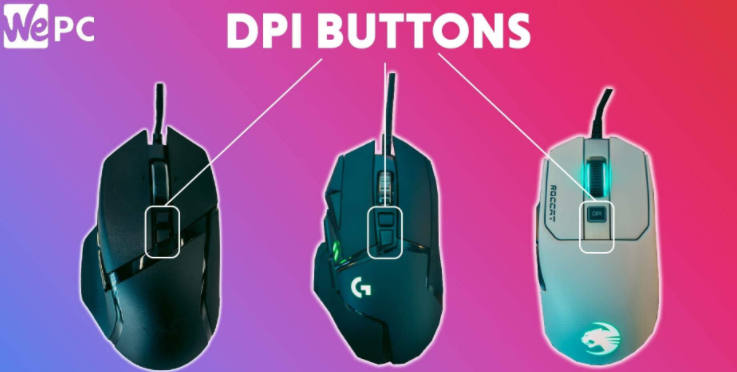
- Adjust DPI settings through software:Open your mouse’s dedicated software and set the DPI to your preferred level. If you don’t have software, check if your mouse has a DPI button to cycle through preset levels.
- Clean your mouse sensor:Use a soft cloth to gently wipe the sensor area. Avoid abrasive materials that can damage the sensor lens.
- Try a different surface:Switch to a high-quality mouse pad or a smooth, non-reflective surface. This often stabilizes sensor tracking.
- Close conflicting programs:Check your task manager for other mouse-related software and close unnecessary ones. This helps avoid settings overlap.
- Update drivers and software:Outdated drivers can cause DPI misreads. Visit the manufacturer’s website to download the latest versions.
Have you ever experienced your mouse behaving unpredictably right before an important task? Fixing DPI issues quickly can make all the difference. Sometimes, a simple restart of your computer or unplugging and plugging the mouse back in refreshes its settings.

Credit: redragonshop.com
Frequently Asked Questions
What Is Mouse Dpi And Why Is It Important?
Mouse DPI measures sensitivity, showing how far the cursor moves per inch. Higher DPI means faster cursor movement. It affects precision in gaming and design tasks. Knowing your DPI helps customize settings for comfort and accuracy.
How Can I Check My Mouse Dpi Settings?
Check DPI using your mouse software or settings app. Many gaming mice have dedicated DPI buttons. You can also find DPI details on the manufacturer’s website or manual. Some online tools test DPI by tracking cursor movement.
Can I Change The Dpi On Any Mouse?
Not all mice allow DPI changes. Gaming or advanced mice usually offer adjustable DPI. Basic or office mice often have fixed DPI. Always check product specs before assuming DPI is adjustable.
Does Higher Dpi Improve Gaming Performance?
Higher DPI offers faster cursor response, useful in fast games. But too high DPI can reduce control and accuracy. Optimal DPI depends on game type and personal preference. Balance sensitivity for best results.
Conclusion
Knowing your mouse DPI helps improve your computer use. It controls how fast the cursor moves on the screen. You can check DPI in your mouse settings or use special software. Changing DPI can make tasks easier, like gaming or work.
Try different DPI levels to find what feels best. Remember, a good DPI setting fits your needs and comfort. Keep these tips in mind for better control and accuracy. Simple steps lead to smoother mouse use every day.