
Are you struggling to figure out if your router supports Wi-Fi calling? This feature can make a huge difference in how clear and reliable your calls are, especially when your cell signal is weak.
But not all routers allow Wi-Fi calling, and it’s not always obvious how to check. You’ll learn simple, practical ways to find out if your router works with Wi-Fi calling. By the end, you’ll have the confidence to set up better calls right from your home network.
Keep reading to discover the easy steps that can save you time and improve your phone experience.
Credit: www.debugbar.com
Check Router Specifications
Checking your router’s specifications helps determine if it supports Wi Fi Calling. This step ensures your device can handle the feature before setting it up. Technical details reveal compatibility and help avoid connection issues.
Locate Model Number
Find the model number on the router’s label. It is usually on the back or bottom side. The model number is a mix of letters and numbers, such as “RT-AC68U” or “Nighthawk X6.” Write it down for easy reference.
Visit Manufacturer Website
Go to the official website of your router’s brand. Enter the model number in the search bar or support section. This page provides detailed specs, user manuals, and firmware updates. It is the most reliable source for information.
Look For Wi Fi Calling Support
Check the specifications list for Wi Fi Calling or VoIP support. Some routers mention “Voice over IP” or “VoIP” features. If not listed, search the user manual or FAQs for related terms. Confirming this ensures the router can handle Wi Fi Calling smoothly.
Access Router Settings
Accessing your router settings is the key to discovering if your device supports Wi-Fi calling. This process lets you peek under the hood of your home network and check for voice-related features. It’s easier than you might think, and doing this yourself gives you control over your connectivity options.
Connect To Router Network
First, make sure you are connected to your router’s network. This can be done via Wi-Fi or an Ethernet cable. Being on the same network as your router is essential because the settings page won’t load otherwise.
If you’re unsure about your network name or password, check the label on your router or ask someone who set up your internet. Once connected, you’re ready to move on.
Open Router Admin Page
Next, open a web browser and type your router’s IP address into the address bar. Common addresses include 192.168.1.1or 192.168.0.1, but this can vary.
If you don’t know your router’s IP, you can find it by checking your device’s network settings. After entering the IP, you’ll be asked for a username and password—often “admin” for both, unless changed.
Find Voice Or Calling Features
Once inside the admin page, look for sections named “Voice,” “Telephony,” or “Calling Features.” These terms indicate options related to Wi-Fi calling and VoIP services.
Not all routers have these options visible at first glance. Try expanding menus or checking under advanced settings. If you find features related to SIP, VoIP, or voice services, your router likely supports Wi-Fi calling.
Have you checked your router settings before? It can reveal hidden capabilities you didn’t know existed, improving your home communication setup.
Test Wi Fi Calling On Your Device
Testing Wi Fi calling on your device helps confirm if your router supports it. This process is simple and quick. It checks if your phone can make calls using your Wi Fi network. Follow these steps to test Wi Fi calling on your device.
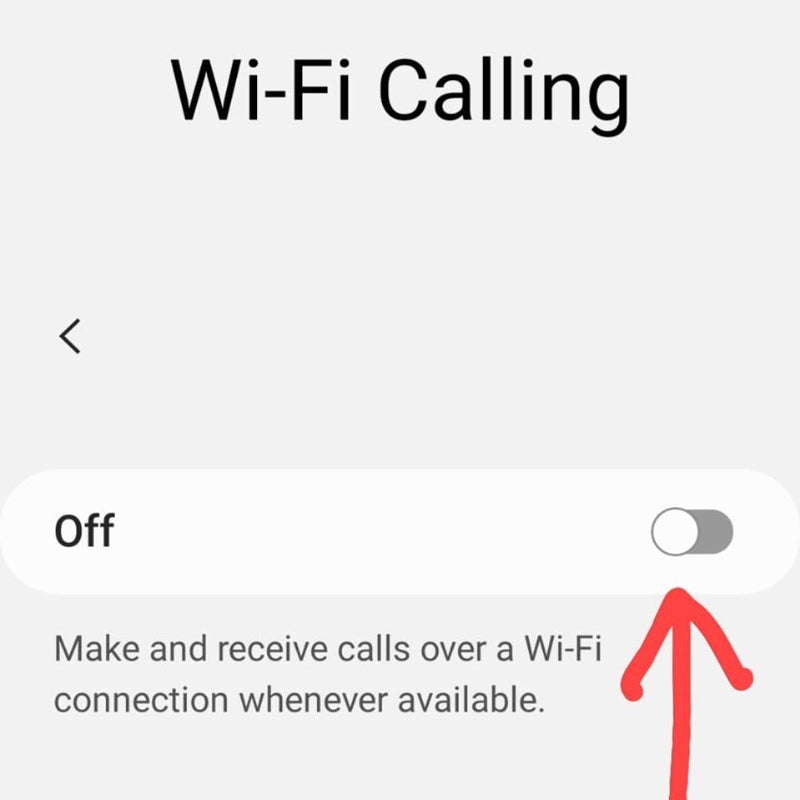
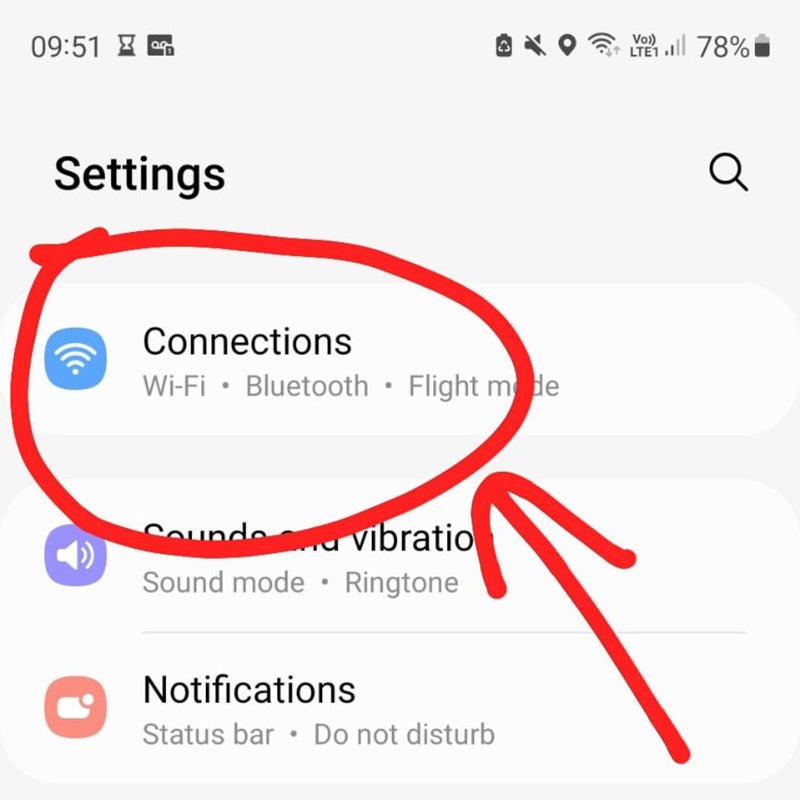
Enable Wi Fi Calling In Phone Settings
Open your phone’s settings menu. Find the option called “Wi Fi Calling.” Turn it on. This setting lets your phone use Wi Fi for calls. If you don’t see this option, your phone or carrier might not support Wi Fi calling.
Connect Phone To Router Wi Fi
Make sure your phone connects to the Wi Fi network your router provides. Check the Wi Fi icon on your phone’s screen. It should show a strong connection. A good Wi Fi signal is important for clear calls.
Make A Test Call
Try calling a friend or your voicemail. Listen carefully to the call quality. If the call works well and uses Wi Fi, your router allows Wi Fi calling. If the call drops or does not connect, check your settings or router compatibility.
Credit: www.techrepublic.com
Check Firmware Updates
Checking for firmware updates on your router is a key step to find out if it supports Wi-Fi calling. Firmware is like the software inside your router that controls its features and performance. Sometimes, a simple update can add new capabilities, including Wi-Fi calling support.
Access Firmware Section
Start by logging into your router’s web interface. Usually, you enter the router’s IP address into a web browser—common ones are 192.168.1.1or 192.168.0.1. You’ll need your router’s username and password, often found on a sticker on the device or in the manual.
Once logged in, look for a section labeled Firmware, System, or Update. This area will show your current firmware version and options for updating.
Download Latest Firmware
Check the router manufacturer’s official website for the latest firmware version. Compare the version number with what you see in your router’s interface. If the website shows a newer version, download the update file to your computer.
- Make sure to download firmware specifically for your router model.
- Read the update notes to see if Wi-Fi calling or VoIP features are mentioned.
This step can reveal whether your router has recently added Wi-Fi calling support through firmware improvements.
Install And Restart Router
Back in the router’s firmware section, use the option to upload the firmware file you downloaded. The installation process usually takes a few minutes and requires the router to restart. Do not turn off the router during this time to avoid damage.
After the restart, check your router’s settings again. You might find new options related to Wi-Fi calling or enhanced network features. Have you noticed how a quick update can sometimes solve problems you didn’t know you had?
Contact Customer Support
Contacting customer support can be a crucial step in figuring out your router’s compatibility with Wi-Fi calling. It offers direct access to reliable information from the experts who know your device inside and out. Their insights can help you navigate technical details and clarify any uncertainties. Let’s explore how reaching out to customer support can provide clarity and assistance.
Reach Out To Router Manufacturer
Connecting with the router manufacturer is often the best starting point. They have detailed records of each device’s capabilities. Use their official website to find contact details. Most manufacturers provide phone numbers or email addresses for customer inquiries. Prepare your router model number and serial number before reaching out. These details help the support team provide accurate information.
Ask About Wi Fi Calling Compatibility
Directly inquire about your router’s Wi-Fi calling compatibility. Ask if your model supports this feature. Manufacturers can explain technical specifications. They may also guide you through settings adjustments if needed. Their expertise ensures you get the most accurate information. This saves you time and effort searching online.
Request Additional Assistance
If you encounter difficulties, request further help. Ask for step-by-step guidance if settings need adjustments. Many support teams offer remote assistance. This ensures proper setup without confusion. They can also advise on firmware updates that enhance functionality. Reach out again if issues persist. It’s essential to have a smooth experience with your router.
Credit: www.techrepublic.com
Frequently Asked Questions
How To Check If Router Supports Wi-fi Calling?
Check your router’s specifications or user manual for Wi-Fi Calling support. You can also visit the manufacturer’s website for compatibility details. Some routers have settings labeled “Wi-Fi Calling” or “VoIP” that indicate support.
Can All Routers Enable Wi-fi Calling Features?
Not all routers support Wi-Fi Calling. Only routers with VoIP or SIP protocol compatibility can enable this feature. Modern routers from major brands typically support it, but older models may not.
Why Won’t My Router Allow Wi-fi Calling?
Your router may block Wi-Fi Calling due to outdated firmware, disabled SIP settings, or lack of carrier support. Ensure your router firmware is updated and check network settings to enable VoIP features.
Does Router Firmware Affect Wi-fi Calling Functionality?
Yes, router firmware affects Wi-Fi Calling. Updated firmware improves compatibility and security. Always keep your router firmware up to date to ensure smooth Wi-Fi Calling performance.
Conclusion
Knowing if your router supports Wi-Fi calling helps improve your phone’s signal. Check the router’s manual or settings for Wi-Fi calling features. Some routers show this option clearly. You can also visit the manufacturer’s website for details. Testing Wi-Fi calling on your device is a quick way to confirm.
Strong Wi-Fi and compatible routers make calls clearer and more reliable. Understanding this helps you stay connected without interruptions. Keep your router updated to ensure the best performance. Simple steps lead to better call quality at home or work.