
Are you tired of waiting forever for your games to download on your PS5? Slow download speeds can be frustrating, especially when you’re eager to jump into the action.
But what if you could boost those speeds and start playing faster? You’ll discover simple, effective ways to improve your PS5 download speed. By the end, you’ll know exactly how to cut down waiting times and get back to gaming without the annoying delays.
Keep reading, and take control of your download experience today.

Credit: www.youtube.com
Optimize Network Settings
Optimizing network settings can greatly enhance your PS5 download speeds. It reduces lag and prevents slow downloads. Small changes in the network setup can make a big difference. Focus on improving connection stability and reducing interference.
Set Up A Wired Connection
Use an Ethernet cable to connect your PS5 directly to the router. Wired connections are faster and more stable than Wi-Fi. This reduces packet loss and interference. Avoid using powerline adapters if possible; they can slow down speeds.
Adjust Dns Settings
Changing your DNS can improve how quickly your PS5 finds servers. Use public DNS servers like Google DNS or Cloudflare. Enter these numbers in your PS5 network settings:
- Primary DNS: 8.8.8.8 (Google) or 1.1.1.1 (Cloudflare)
- Secondary DNS: 8.8.4.4 (Google) or 1.0.0.1 (Cloudflare)
Faster DNS means quicker connections to game servers and download sources.
Enable Rest Mode Downloads
Allow your PS5 to download updates and games while in Rest Mode. This keeps downloads running without interruption. Go to Settings > System > Power Saving > Features Available in Rest Mode. Turn on “Stay Connected to the Internet” and “Enable Turning On PS5 from Network.”
Downloads in Rest Mode often complete faster than during active play.
Manage Background Activity
Managing background activity on your PS5 is crucial for boosting download speeds. Often, downloads slow down because your console is juggling multiple tasks without you realizing it. Taking control of what runs in the background lets you dedicate more bandwidth and processing power to your current download.
Pause Other Downloads
Multiple downloads happening at the same time can divide your internet speed and extend wait times. You can easily pause other downloads to focus all your bandwidth on the game or update you want right now.
Just go to the Downloads section on your PS5, highlight the items you want to pause, and select the pause option. This simple step can significantly speed up your current download.
Close Unused Apps
Apps running in the background can consume system resources and slow down your internet connection. Closing apps you aren’t actively using helps free up memory and bandwidth.
To close apps, press the PS button, navigate to the control center, and quit any applications that are open but not needed. This quick action can give your download an immediate boost.
Limit Multiplayer Sessions
Playing multiplayer games while downloading can reduce your available bandwidth, impacting download speed. Multiplayer sessions send and receive data constantly, which competes with your downloads.
Try limiting or pausing multiplayer gaming during big downloads to see faster results. Have you noticed how downloads pick up when you stop online play? It’s a simple trade-off that can save you valuable time.
Enhance Router Performance
Improving your PS5’s download speed begins with optimizing your router’s settings. Placing the router closer and using a wired connection can reduce lag and boost performance. Adjusting channel settings helps avoid interference from nearby networks.
Improving your PS5 download speed starts with enhancing your router’s performance. A well-optimized router can significantly boost your internet connection. This means faster downloads and smoother gameplay. Here are three essential steps to enhance your router’s performance.Update Firmware
Keeping your router firmware up-to-date is crucial. Manufacturers often release updates to fix bugs and improve performance. Check your router settings to see if updates are available. Updated firmware can enhance speed and security.Change Wi-fi Channel
Wi-Fi channels can become crowded, especially in dense areas. Choose a less congested channel for better performance. Access your router settings and select a different channel. This can reduce interference and improve your connection.Position Router Strategically
Router placement impacts signal strength. Ensure your router is in a central, open location. Avoid placing it near metal objects or thick walls. Proper positioning can enhance signal coverage and speed.
Credit: www.reddit.com
Use Quality Of Service (qos)
Quality of Service (QoS) helps manage your internet traffic. It gives priority to important devices like your PS5. This reduces lag and speeds up downloads. Using QoS improves your gaming experience by controlling how much bandwidth each device uses.
Prioritize Ps5 Traffic
Prioritizing PS5 traffic means the router sends game data first. This reduces delays and speeds up downloads. Most modern routers have a QoS setting for this.
- Access your router’s settings page.
- Find the QoS or Traffic Control section.
- Add your PS5’s IP or MAC address.
- Set it to high priority.
This ensures your PS5 gets the best connection when downloading games or updates.
Set Bandwidth Limits For Other Devices
Setting bandwidth limits stops other devices from using too much internet. This keeps more speed available for your PS5 downloads.
- Open your router’s QoS settings.
- Identify other devices on your network.
- Assign lower bandwidth limits to these devices.
- Save changes to enforce limits.
By limiting other devices, your PS5 gets more bandwidth and faster downloads.
Choose Optimal Download Times
Choosing the right time to download games and updates on your PS5 can make a noticeable difference in speed. Download speeds often slow down when many users connect simultaneously. Picking optimal download times helps you bypass this congestion and get your content faster.
Avoid Peak Hours
Peak internet usage times usually fall in the evening, between 6 PM and 11 PM. During these hours, many people stream videos, play online games, or download large files, which clogs the network. If you start your downloads outside these hours, you’ll likely experience faster speeds.
I once waited until late afternoon to download a big game update and noticed it finished twice as fast compared to trying at night. Have you ever tried downloading during off-peak hours and seen a difference?
Schedule Downloads Overnight
Scheduling downloads to run overnight takes advantage of low internet traffic while you sleep. Your PS5 lets you set automatic downloads, so your games are ready when you wake up. This way, you don’t have to wait around for long downloads during the day.
Try setting your console to download updates between 2 AM and 6 AM. This window is usually quiet for most internet providers, giving you the best chance at maximum speed. Have you set up automatic downloads on your PS5 yet?
Clear Cache And Update System
Clearing the cache and keeping your PS5 system updated can boost download speeds. Cache stores temporary data that may slow down your console. Removing it frees up resources and improves performance. System updates often fix bugs and optimize network functions. Together, these actions help your PS5 run smoother and download faster.
Restart Ps5 Regularly
Restarting your PS5 clears the cache automatically. It closes background processes that use bandwidth. Turn off your console completely. Wait a few seconds before turning it back on. This simple step refreshes the system and can improve download speed.
Keep System Software Updated
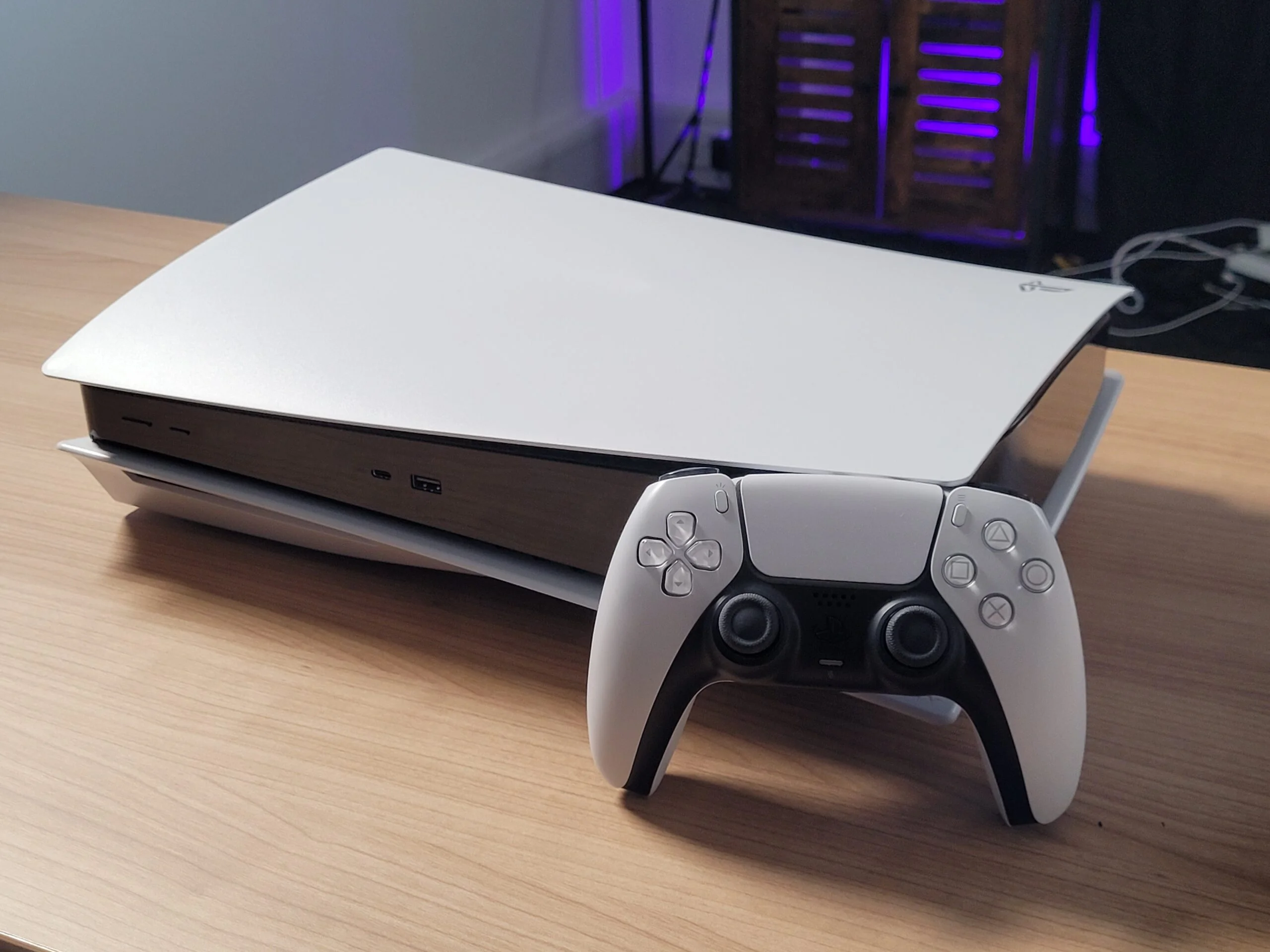
System updates add important fixes and enhancements. They improve network stability and download efficiency. Check for updates often in the settings menu. Download and install the latest version. Running the current software ensures your PS5 works at its best.
Credit: www.gearupbooster.com
Frequently Asked Questions
How Can I Boost My Ps5 Download Speed Quickly?
To boost PS5 download speed, use a wired Ethernet connection. Restart your router and pause other downloads. Also, close unused apps on your PS5 to free bandwidth.
Does Using Wi-fi Affect Ps5 Download Speed?
Yes, Wi-Fi can cause slower downloads due to interference or weak signals. A wired connection offers more stable and faster speeds for downloads.
Can Changing Dns Settings Improve Ps5 Downloads?
Changing DNS to a faster server like Google DNS can improve download speeds. It reduces latency and may speed up data routing to your PS5.
Why Are My Ps5 Downloads Slow During Peak Hours?
Slow downloads during peak hours happen because many users share bandwidth. Try downloading games late at night or early morning for faster speeds.
Conclusion
Improving your PS5 download speed is easier than you think. Try simple steps like using a wired connection or pausing other downloads. Restart your router and close background apps to help. Keep your system updated for better performance. Small changes can make a big difference.
Faster downloads mean less waiting and more playing. Stay patient and test different methods to see what works best. Enjoy smoother gaming without long delays.