
Imagine needing to work, stream, or connect with friends on your laptop—but no WiFi in sight. Frustrating, right?
You want to stay online wherever you go, without hunting for a hotspot or draining your phone’s data. What if you could get WiFi on your laptop anywhere, anytime? You’ll discover simple, effective ways to stay connected no matter where you are.
Keep reading, and you’ll never have to worry about losing your internet connection again.
Choosing The Right Hardware
Choosing the right hardware to get WiFi on your laptop anywhere can make a big difference in your online experience. The hardware you pick affects how fast, reliable, and convenient your connection will be. It’s important to match your hardware choice to your lifestyle and connectivity needs.
Built-in Wifi Vs External Adapters
Most laptops come with built-in WiFi cards that handle everyday wireless connections well. However, if you often find yourself in places with weak signals or need faster speeds, an external USB WiFi adapter might be a smart upgrade.
External adapters can support newer WiFi standards and stronger antennas. They are easy to carry and plug in, giving you a quick boost when your laptop’s built-in card falls short. Have you noticed your laptop struggling to catch signals in crowded cafes or airports? An external adapter could solve that.
Portable Wifi Hotspots
Portable WiFi hotspots create their own wireless networks by connecting to cellular data. They let you connect multiple devices, including your laptop, without relying on public WiFi.
These devices are compact and often come with rechargeable batteries, making them ideal for travel or outdoor work. If you value security and want consistent internet without hunting for free WiFi, a portable hotspot is worth considering.
Mobile Tethering Options
Using your smartphone as a WiFi hotspot is one of the quickest ways to get online anywhere. Most modern phones allow you to share your cellular data with your laptop through tethering.
This option is convenient since you likely carry your phone everywhere. However, keep an eye on your data plan and battery life. Have you ever been surprised by a huge data bill after tethering? Setting limits and monitoring usage helps avoid that.
Finding Public Wifi Networks
Finding public WiFi networks is your key to staying connected when you’re away from home or the office. It opens up countless possibilities to work, stream, or chat without burning through your mobile data. Knowing where and how to find these networks can save you both time and money.
Locating Free Wifi Spots
Many cafes, libraries, airports, and hotels offer free WiFi to visitors. You might already pass by several of these spots daily without realizing their connection potential. Look for businesses with signs advertising “Free WiFi” or ask staff directly about access.
Public parks and city centers sometimes provide open networks too. Keep an eye on local community boards or websites that list nearby hotspots. You might be surprised how many places offer free access just waiting for you to connect.
Using Wifi Finder Apps
WiFi finder apps are designed to locate nearby public networks quickly and easily. Apps like WiFi Map, Instabridge, or even your phone’s built-in hotspot finder show detailed maps of available connections. These tools often include user reviews and passwords for secured hotspots.
Using these apps can save you from wandering around aimlessly. They also highlight signal strength and security levels, helping you pick the best option. Have you tried any WiFi finder apps before? They can turn your laptop into a powerful connection tool wherever you go.
Safety Tips For Public Networks
Public WiFi can be risky without the right precautions. Always avoid logging into sensitive accounts like banking or email on unsecured networks. Use a VPN to encrypt your data and protect your privacy.
Turn off file sharing and enable your laptop’s firewall before connecting. Be cautious of networks that don’t require a password—these are often less secure. Taking these steps helps you enjoy public WiFi without putting your information at risk.
Using Mobile Data For Internet
In today’s fast-paced world, staying connected is more important than ever. Whether you’re traveling, working remotely, or simply out and about, having internet access on your laptop can be a game-changer. One of the most convenient ways to achieve this is by using mobile data. Imagine turning your smartphone into a personal hotspot, providing Wi-Fi access to your laptop anywhere. It’s surprisingly easy and incredibly useful. Let’s delve into how you can make this happen seamlessly.
Setting Up Phone Hotspot
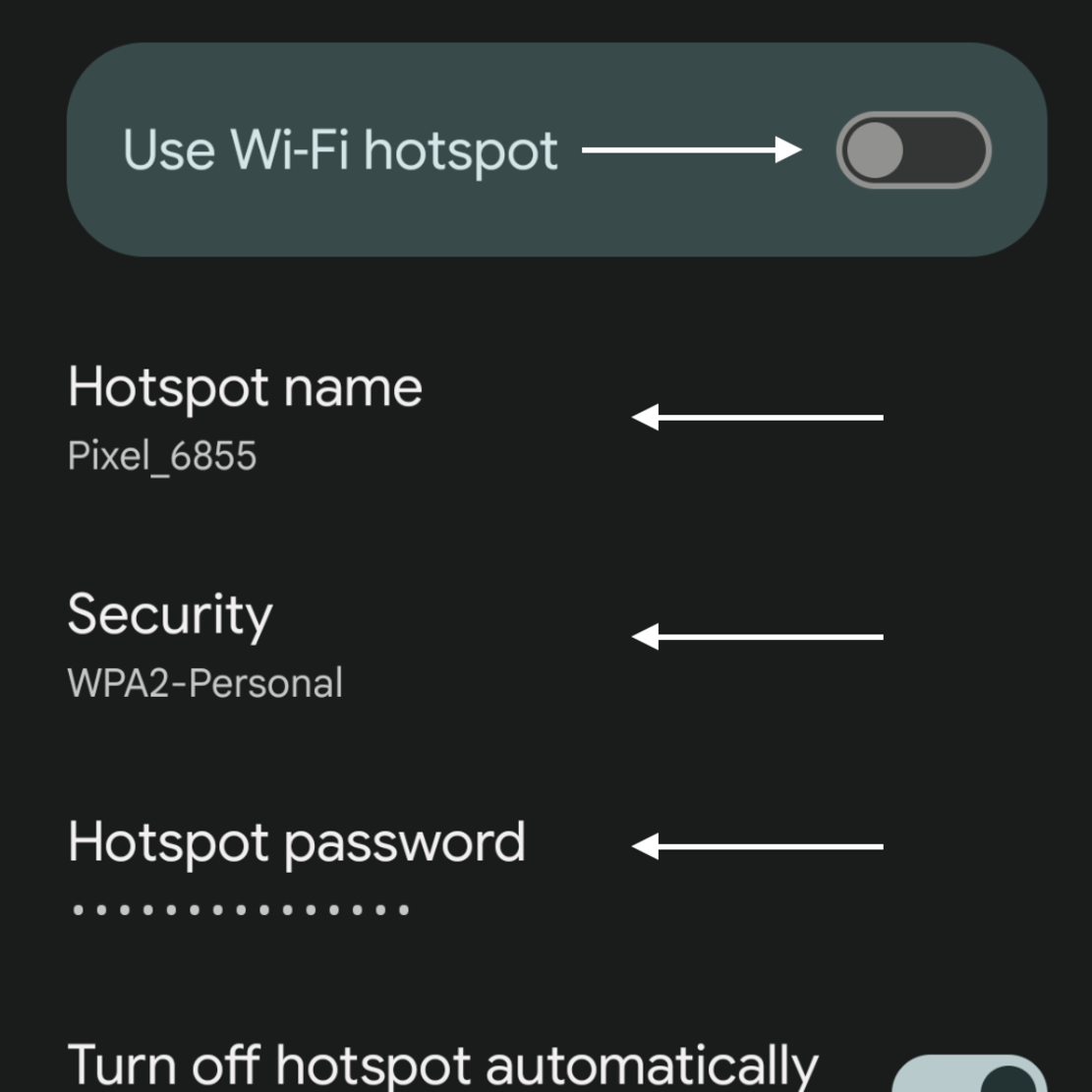
Turning your smartphone into a mobile hotspot is a straightforward process. Access your phone’s settings and look for the ‘Hotspot’ or ‘Tethering’ option. Once you enable it, your phone becomes a Wi-Fi router.
Give your hotspot a memorable name and secure it with a strong password. This ensures only your devices can connect, keeping your internet secure.
Before you start, check your phone’s battery life. Using it as a hotspot can drain power quickly, so keep a charger handy.
Data Plans And Limits
Not all data plans are created equal. Some offer unlimited data, while others have strict limits. Be aware of your plan’s specifications to avoid unexpected charges.
Consider upgrading to a plan that suits your connectivity needs. If you frequently use your phone as a hotspot, a plan with higher data limits may be beneficial.
Keep track of your usage. Many smartphones provide tools to monitor data consumption, helping you manage your limits effectively.
Boosting Mobile Signal Strength
A strong mobile signal is crucial for a stable internet connection. Position your phone in a location with the best signal strength, such as near a window or higher ground.
Consider using apps or tools that enhance signal strength. Some apps can help identify areas with better reception, maximizing your connection.
If you’re in a remote area, investing in a signal booster might be worthwhile. These devices amplify the mobile signal, ensuring reliable internet access.
Have you ever been caught in a place with poor reception just when you needed internet the most? Ensuring optimal signal strength is key to avoiding this frustration.
Credit: medium.com
Optimizing Wifi Connection Speed
Optimizing WiFi connection speed is key to a smooth online experience. A stronger, faster connection helps with streaming, browsing, and work. Simple changes can improve your laptop’s WiFi speed anywhere you go.
Choosing The Best Wifi Channel
WiFi routers use different channels to send signals. Some channels get crowded with many devices. Choosing a less busy channel reduces interference and speeds up your connection.
Use free apps or tools to scan nearby WiFi channels. Pick the channel with the least traffic. This step boosts your connection quality quickly.
Positioning Your Laptop For Signal
Signal strength changes with your laptop’s location. Place your laptop near windows or open spaces. Avoid thick walls and metal objects that block signals.
Raise your laptop or use a stand to reduce obstacles. Small moves can improve signal strength and speed.
Managing Background Data Usage
Background apps can slow your WiFi speed. Close programs that use the internet without your knowledge. Update settings to limit automatic downloads and syncing.
Check your task manager or system monitor to see active apps. Reducing background data saves bandwidth for what matters most.
Securing Your Connection
Using public Wi-Fi can be a real lifesaver when you’re on the move, but it also opens the door to security risks. Securing your connection is crucial to protect your personal data and keep your laptop safe from hackers. Let’s dive into practical ways you can shield yourself while enjoying internet access anywhere.
Using Vpns On Public Networks
A VPN (Virtual Private Network) is your best friend on public Wi-Fi. It encrypts your internet traffic, making it nearly impossible for others to snoop on your activities.
Think about the last time you connected at a coffee shop. Without a VPN, your passwords, emails, and personal info are exposed. With a VPN, you create a secure tunnel that keeps your data safe even on risky networks.
Many reliable VPNs are affordable and easy to use. Choose one with strong encryption and no-logs policy to maximize your security.
Keeping Software Updated
Outdated software is an open invitation to hackers. Your operating system, browser, and security tools all need regular updates to patch vulnerabilities.
Imagine using your laptop in an airport lounge without updating your software. Cybercriminals often exploit known security flaws in old versions to steal data.
Set your laptop to update automatically or check for updates weekly. It only takes a few minutes but can save you from major headaches later.
Avoiding Suspicious Networks
Not every free Wi-Fi hotspot is safe. Some networks are set up specifically to trick users into connecting and stealing their info.
Ask yourself: Do you really trust this network? Look out for suspicious names, no password requirement, or multiple networks with similar names in one place.
Whenever possible, connect to networks you know or ask staff for the official Wi-Fi details. If you’re unsure, it’s better to wait or use your mobile hotspot instead.

Credit: www.getnomad.app
Troubleshooting Common Issues
Troubleshooting common WiFi issues helps maintain a smooth internet experience on your laptop. Many problems arise from simple causes and can be fixed quickly. This section guides you through frequent WiFi challenges and their solutions.
Wifi Not Connecting
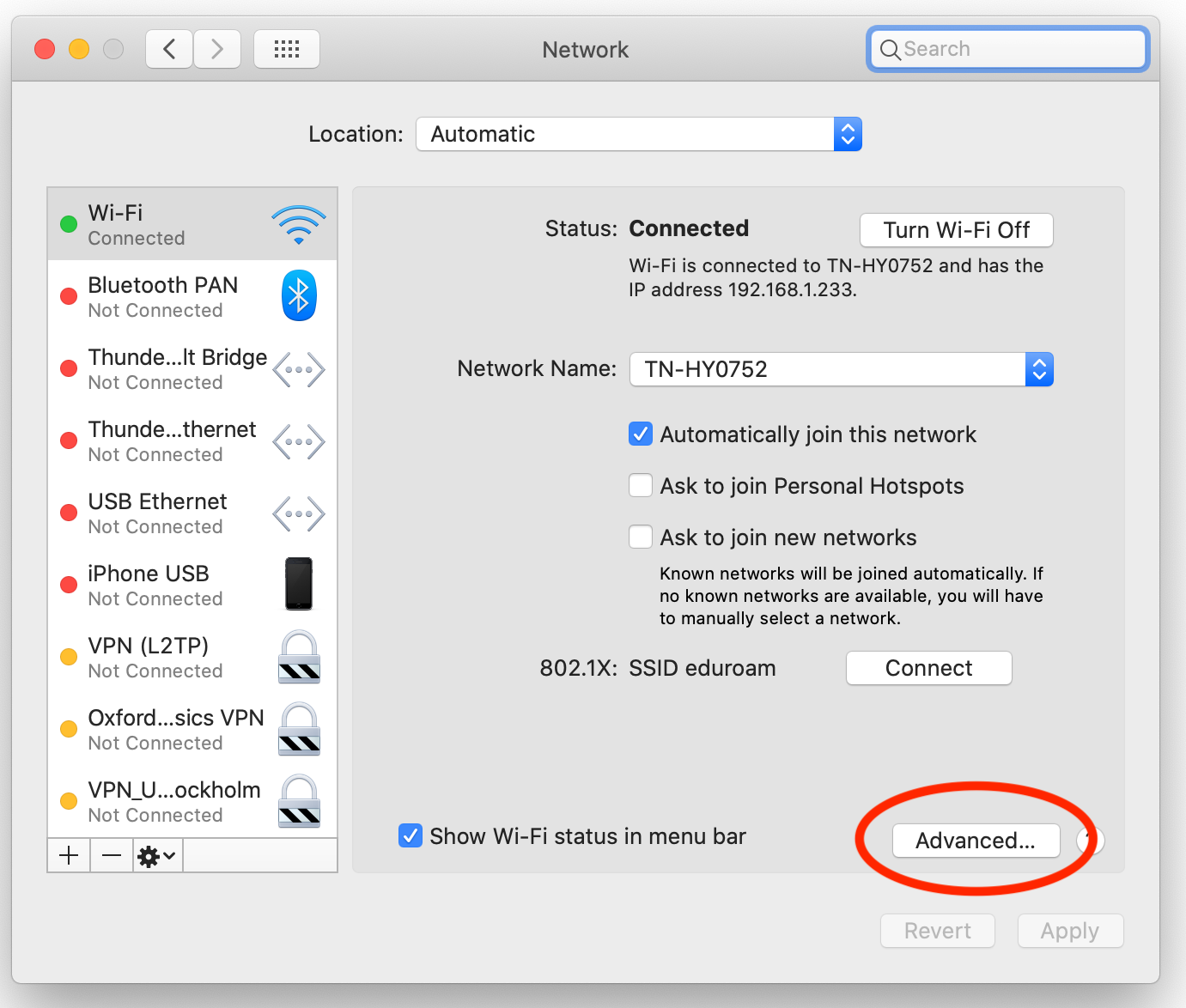
Check if your laptop’s WiFi is turned on. Restart your laptop to refresh network settings. Confirm the correct network name and password are entered. Forget the network and reconnect to clear saved errors. Update your network adapter drivers for better compatibility. Restart the router to reset the connection. Disable any VPN or firewall temporarily to test access.
Slow Internet Speeds
Close unused apps that use the internet in the background. Run a speed test to compare actual speeds with your plan. Move closer to the router to get a stronger signal. Restart your router and laptop to clear temporary issues. Check for software updates that might improve performance. Limit the number of devices connected to the network.
Interference And Range Problems
Keep the laptop away from microwaves and cordless phones. Use the 5 GHz band if your router supports dual bands. Avoid physical barriers like walls and furniture blocking the signal. Change the router’s channel to reduce interference from neighbors. Use WiFi extenders or mesh networks to increase coverage. Position the router in a central, elevated spot for best range.
Credit: beambox.com
Frequently Asked Questions
How Can I Get Wifi On My Laptop Anywhere?
You can use mobile hotspots, public wifi, or a USB wifi adapter. Mobile hotspots share cellular data with your laptop. Public wifi is available in cafes, libraries, and airports. USB adapters connect to cellular networks for internet access on the go.
What Devices Provide Wifi Access For Laptops Remotely?
Mobile hotspots, smartphones with tethering, and portable wifi routers provide remote wifi. They use cellular networks to offer internet. These devices are compact and easy to carry. They ensure you stay connected even without traditional wifi networks.
Is Using Public Wifi On A Laptop Safe?
Public wifi can be risky due to security threats. Use a VPN to encrypt your data. Avoid accessing sensitive information or banking sites on public networks. Always keep your firewall and antivirus updated to protect your laptop.
Can I Use My Phone As A Wifi Hotspot For My Laptop?
Yes, smartphones can create wifi hotspots through tethering. Enable hotspot in phone settings and connect your laptop. This method uses cellular data, so watch your data limits. It’s a quick and convenient way to get internet anywhere.
Conclusion
Getting WiFi on your laptop anywhere is simple with the right tools. Use public hotspots, mobile hotspots, or USB modems to stay connected. Always check for safe networks to protect your data. Carrying a portable WiFi device can help in remote places.
Remember to keep your laptop settings updated for the best connection. Staying online is easier than ever with these easy tips. Enjoy internet access wherever you go without much hassle. Stay connected, stay productive, and explore the web anytime you want.