
Are you frustrated by lag ruining your PS5 gaming experience? You’re not alone.
Lag can turn exciting gameplay into a slow, annoying struggle. But don’t worry—fixing these issues is easier than you think. You’ll discover simple, effective ways to eliminate lag and get your PS5 running smoothly again. Keep reading, and get ready to enjoy every game without interruptions.
Credit: www.online-tech-tips.com
Common Causes Of Ps5 Lag
PS5 lag can ruin gaming sessions. Understanding what causes lag helps fix it faster. Several issues can slow down your console. Some come from the network, others from the console itself.
Knowing these common causes guides you to the right solution. It also improves your overall gaming experience.
Network Connectivity Problems
Slow or unstable internet often causes PS5 lag. Wi-Fi signals may be weak or interrupted. Network congestion affects game downloads and online play. Using an Ethernet cable can improve stability. Router settings and distance from the console matter too.
Software Glitches
Outdated system software can cause lag and crashes. Bugs in game updates affect performance. Background apps running on the PS5 might slow it down. Regular updates and restarting the console help keep it smooth.
Overheating Issues
Heat buildup inside the PS5 causes lag and freezes. Poor ventilation or blocked air vents increase temperature. Dust inside the console can block airflow. Keeping the console cool prevents performance drops.
Hardware Limitations
Older or damaged hardware parts may slow the PS5. Hard drive space filled up affects loading speeds. Faulty RAM or GPU can cause lag during games. Hardware repairs or upgrades might be needed for smooth play.
Credit: www.online-tech-tips.com
Improving Network Performance
Improving your network performance can make a big difference in reducing PS5 lag issues. A stable and fast connection ensures smooth gameplay and minimizes frustrating delays. Let’s look at some practical ways you can boost your network setup to get the most out of your PS5 experience.
Using Wired Connections
Connecting your PS5 directly to your router with an Ethernet cable is one of the most effective ways to improve network performance. Wired connections are more stable and faster compared to Wi-Fi, reducing packet loss and latency. Have you noticed how much smoother games run when you switch from Wi-Fi to a wired connection? It’s a game-changer for lag reduction.
Optimizing Wi-fi Settings
If using a wired connection isn’t possible, optimizing your Wi-Fi can still help. Make sure your PS5 is close to the router to get a stronger signal. You can also change your router’s channel settings to avoid interference from neighboring networks.
- Switch to 5 GHz band if your router supports it, as it offers faster speeds over shorter distances.
- Limit the number of devices connected to your network while gaming.
- Disable background downloads or streaming on other devices during your gaming session.
Simple tweaks like these can significantly improve your connection quality and reduce lag.
Resetting Your Router
Sometimes, your router just needs a fresh start. Resetting your router clears temporary glitches that might be slowing down your connection. Try turning off your router for 30 seconds, then turning it back on.
This quick reset can improve your network speed and stability. Have you ever noticed your internet speeds improve after a router reboot? It’s a quick fix worth trying before diving into more complicated solutions.
Checking Internet Speed
Knowing your actual internet speed is crucial. Use online speed tests to check your download and upload speeds, as well as ping times. If your speeds are lower than what your plan promises, lag could be caused by your internet service provider.
Consider contacting your provider if speeds are consistently slow. Also, check if your current plan matches the demands of online gaming. Are you sure your internet package supports smooth gaming sessions?
Updating And Resetting Software
Lag issues on your PS5 can be frustrating, but fear not—updating and resetting your software might be the solution you’ve been searching for. The PS5, like any other gaming console, occasionally needs a little TLC to ensure it runs smoothly. By focusing on software updates and resets, you can breathe new life into your gaming experience and enjoy seamless gameplay once more.
Installing System Updates
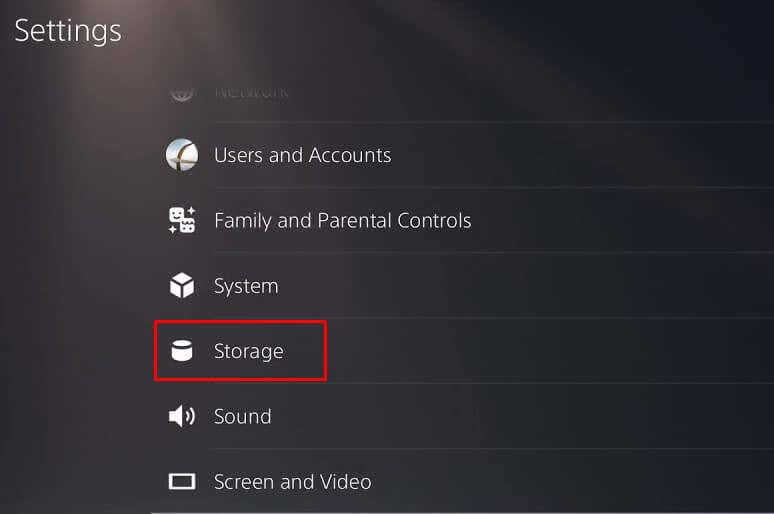
Keeping your PS5 updated is crucial. Imagine your console as a car that needs regular oil changes to function at its best. System updates often include patches that fix bugs and enhance performance. Ensure your console is connected to the internet, navigate to the settings menu, and check for any pending updates. This simple task can drastically improve your gaming experience.
Restarting The Console
Restarting your PS5 might seem like a basic step, but it can work wonders. Just like turning off your phone when it starts acting up, a quick restart can resolve minor issues. Hold the power button until you hear two beeps, and let your console rest for a minute before powering it back on. Sometimes, all it needs is a fresh start to get back in the game.
Rebuilding The Database
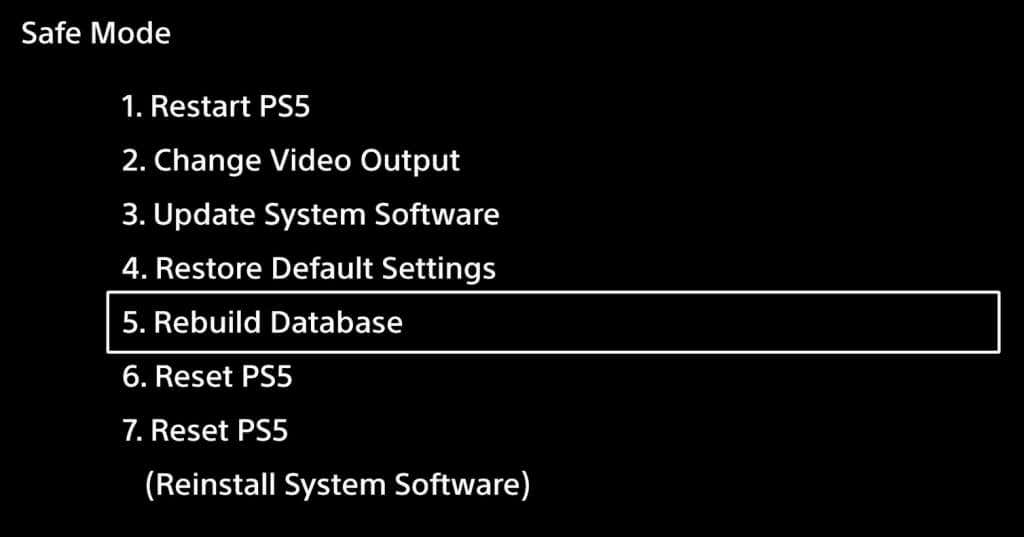
Rebuilding the database is akin to tidying up your room—it organizes your console’s data to improve efficiency. This process can fix lag issues by cleaning up corrupted files and optimizing storage. To initiate this, turn off your console and hold the power button until you hear the second beep. Choose ‘Rebuild Database’ from the safe mode menu. Have you ever experienced a tidier space boosting your productivity?
Restoring Default Settings
If all else fails, restoring your PS5 to its default settings can be a game changer. This option is like hitting the reset button on a chaotic day, offering a fresh start. Navigate to the settings and select ‘Restore Default Settings’. Remember, this won’t delete your data, but will reset system configurations. Why not give it a try if lag persists?
Managing Console Temperature
Managing your PS5’s temperature is key to reducing lag and maintaining smooth gameplay. Overheating can cause your console to throttle performance, which leads to frustrating delays and stutters. Paying attention to how your console cools down can make a big difference in your gaming experience.
Cleaning Air Vents
Dust buildup in your PS5’s air vents blocks airflow, making the system work harder and heat up faster. Regularly check and gently clean the vents using compressed air or a soft brush. This simple habit keeps air flowing freely and prevents internal components from overheating.
Think about how often you clean your gaming setup. A quick dusting session once a month can save you from unexpected lag during intense gaming sessions.
Using Cooling Accessories
Adding cooling accessories like external fans or cooling stands can help maintain a lower temperature for your PS5. These tools increase airflow around the console, especially during long gaming marathons. Choose accessories designed specifically for the PS5 to ensure compatibility and effectiveness.
Have you noticed your PS5 getting warm even in a cool room? A cooling stand might be what you need to keep performance steady without overheating.
Ensuring Proper Ventilation
Where you place your PS5 matters a lot. Avoid cramped spaces or enclosed cabinets that trap heat. Keep the console in an open area with at least a few inches of space around all sides to allow air to circulate freely.
- Don’t block vents with walls, furniture, or other objects.
- Place the console on a hard, flat surface rather than carpet or soft materials.
- Consider room temperature and avoid placing the PS5 near heat sources.
Have you ever experienced lag only when your room felt hot? Proper ventilation can help your console breathe better and stay cooler.
Avoiding Prolonged Usage
Extended gaming sessions increase the risk of overheating as the console runs continuously at high performance. Taking breaks allows your PS5 to cool down and reduces the chance of lag caused by thermal throttling.
Try setting a timer for breaks every couple of hours during your gaming sessions. Not only does this protect your console, but it also helps you stay refreshed and focused.
Optimizing Game Settings
Optimizing game settings is a key step to reduce lag on your PS5. Simple changes can improve your gaming experience. Adjusting settings helps the console run smoother. This keeps gameplay fast and responsive.
Adjusting Graphics Options
Lowering graphics settings can ease the load on your console. Try reducing resolution or turning off extra effects. This helps the system focus on performance. Games often have options like shadows, textures, and frame rate limits. Choose settings that balance visuals and speed. A stable frame rate reduces lag spikes.
Disabling Background Apps
Running apps in the background consume system resources. These apps can slow down your game. Close unnecessary apps to free up memory and processing power. Check the control center to see active apps. Disabling them gives your game more resources to run smoothly.
Closing Unused Applications
Unused applications take up valuable system power. Make sure to close apps not in use. This prevents conflicts and reduces lag. Open the game fully after closing others for the best results. Keeping only your game active helps maintain steady performance.

Credit: www.youtube.com
Additional Tips For Reducing Lag
Reducing lag on your PS5 enhances your gaming experience significantly. Beyond basic fixes, some additional steps help improve connection stability. These tips focus on external factors and hardware choices that affect network performance. Small changes can lead to smoother gameplay and fewer interruptions.
Checking For External Interference
Wireless signals face interference from many household devices. Microwaves, cordless phones, and baby monitors can disrupt Wi-Fi signals. Place your PS5 away from such devices for better connectivity.
Walls and metal objects also weaken wireless signals. Keep the console in an open area with fewer obstacles. This allows the Wi-Fi signal to reach the PS5 with less loss.
Using Quality Ethernet Cables
Wired connections offer more stability than wireless ones. Choose a high-quality Ethernet cable to connect your PS5 directly to the router. Look for cables rated Cat 6 or higher for better speed and less interference.
Check the cable for damage or wear regularly. A faulty cable can cause lag spikes and disconnects. Replace old or damaged cables to maintain a stable connection.
Monitoring Network Traffic
Network congestion slows down your internet speed and causes lag. Other devices streaming videos or downloading files consume bandwidth. Limit heavy internet use on other devices while gaming.
Use your router’s settings to check which devices use the most bandwidth. Some routers allow you to prioritize gaming traffic. Enable Quality of Service (QoS) settings to improve PS5 connection quality.
Frequently Asked Questions
Why Is My Ps5 Lagging During Gameplay?
PS5 lag often results from slow internet or network congestion. Ensure a stable, high-speed connection. Restart your router and close background apps to improve performance.
How Can I Reduce Ps5 Lag For Online Games?
Use a wired Ethernet connection for faster speeds. Update your PS5 system software regularly and clear cache. Limit other devices using bandwidth during gameplay.
Does Ps5 System Update Fix Lag Issues?
Yes, system updates often include performance improvements and bug fixes. Keep your PS5 updated to reduce lag and enhance stability.
Can Changing Dns Settings Improve Ps5 Lag?
Yes, switching to faster DNS servers like Google DNS can reduce lag. Go to network settings and manually set DNS for better connection speed.
Conclusion
Fixing PS5 lag improves your gaming experience greatly. Check your internet speed first. Keep your console software updated regularly. Clear cache to free up memory. Use a wired connection for better stability. Close background apps to reduce load. Restart your PS5 if problems persist.
Small steps can make a big difference. Enjoy smoother gameplay and less frustration. Stay patient and try these tips often. Your games deserve the best performance.