
Is your computer mouse acting up just when you need it most? A malfunctioning mouse can slow you down and cause serious frustration.
But don’t worry—fixing your mouse might be easier than you think. You’ll discover simple, step-by-step solutions that anyone can try. Whether your mouse is unresponsive, lagging, or behaving oddly, you’ll learn how to get it working smoothly again. Keep reading to take control and stop your mouse from holding you back.
Common Mouse Issues
Mouse problems can disrupt your workflow and test your patience. Knowing the common issues helps you quickly identify the root cause and fix it without unnecessary frustration. Let’s look at some frequent mouse troubles you might face and how they show up.
Unresponsive Cursor
Have you ever moved your mouse only to find the cursor stuck or frozen? This usually happens due to connection issues or dirt blocking the sensor. Try unplugging and plugging your mouse back in or cleaning the bottom sensor area with a soft cloth.
If you’re using a wireless mouse, check the batteries or try reconnecting it to the receiver. Sometimes, the problem lies in outdated or corrupted drivers, so updating your mouse driver can solve the issue quickly.
Erratic Movement
When your cursor jumps around or moves unpredictably, it can feel like your mouse is possessed. This erratic behavior often results from a dirty mouse pad or surface. Switching to a smooth, clean surface can drastically improve tracking.
Interference from other wireless devices or low battery power can also cause this. Have you tried using a different USB port or moving wireless devices farther apart? These small changes often bring stability back.
Double Clicking Problems
Does a single click sometimes register as a double click? This issue can mess up your work, causing files to open or close unexpectedly. It often signals a hardware problem with the mouse button or a software setting glitch.
Testing your mouse on another computer helps determine if the mouse itself is the culprit. You can also adjust the double-click speed in your system settings to reduce sensitivity, which might fix accidental double clicks.
Scroll Wheel Malfunctions
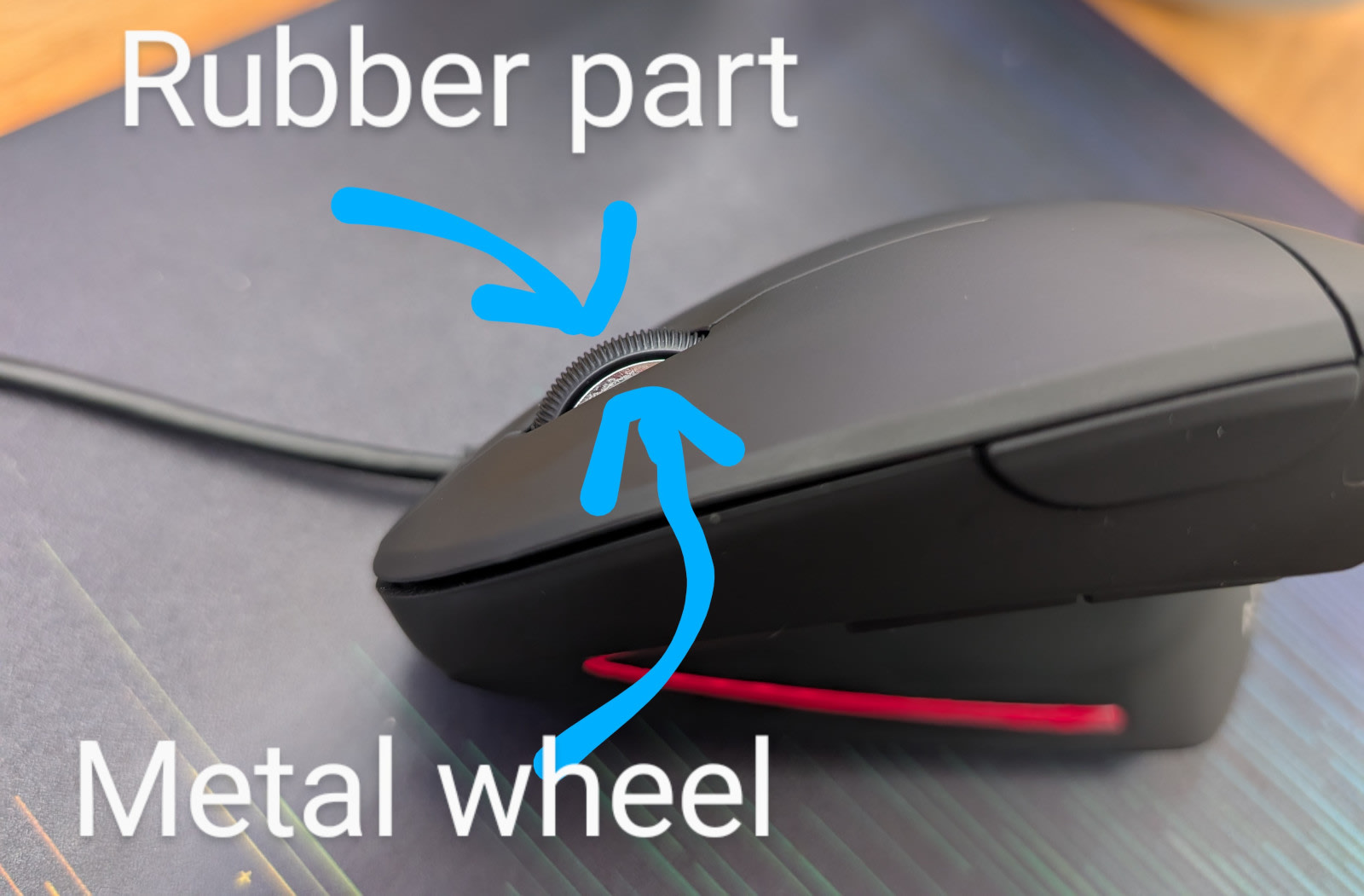
When your scroll wheel stops working or scrolls erratically, it’s more than just annoying—it slows you down. Dust and debris inside the wheel mechanism can cause this, so cleaning the scroll wheel gently with compressed air often helps.
In some cases, software glitches or outdated drivers affect scroll wheel behavior. Checking for driver updates or reinstalling the mouse software can restore smooth scrolling.
Basic Troubleshooting Steps
Troubleshooting your computer mouse might feel frustrating, but starting with basic checks can often solve the issue quickly. These simple steps help you identify common problems without needing advanced tools or technical help. Before considering replacements or repairs, make sure you’ve covered these essentials.
Check Connections
Is your mouse properly plugged in? A loose or disconnected cable is a frequent cause of a non-responsive mouse. If you use a USB mouse, unplug it and then reconnect it firmly into a different USB port to rule out port issues.
For wireless mice, ensure the receiver is securely connected to your computer. Sometimes dust or debris around the USB port can interfere with the connection, so give the port a quick clean if needed.
Replace Batteries
Wireless mice rely on batteries, which can drain faster than you expect. If your mouse suddenly stops working, swapping out old batteries with fresh ones often restores function immediately. Don’t just check the battery level on your computer; physically replacing them is the surest test.
Keep spare batteries handy, especially if you rely heavily on your mouse for work or gaming. This small habit can save you from unexpected interruptions.
Restart Your Computer
Sometimes, your mouse might be fine but your computer’s software isn’t responding correctly. Restarting your computer refreshes the system and can clear temporary glitches affecting mouse performance.
Have you noticed your mouse lagging or freezing before a restart? This simple action often solves those issues without needing further troubleshooting. Try it before jumping to more complex fixes.
Cleaning Your Mouse
Cleaning your mouse can fix common issues like sticky buttons or unresponsive clicks. Use a soft cloth and gentle cleaner to remove dirt from the surface and sensor area. Regular cleaning helps your mouse work smoothly and lasts longer.
Cleaning Your Mouse Keeping your computer mouse clean is essential for ensuring its smooth functionality. Over time, dirt and debris can build up, affecting its performance. Let’s dive into some simple steps to clean your mouse effectively, ensuring that it works like new.Remove Dirt And Debris
Your mouse can accumulate dust and crumbs that affect its movement. Begin by unplugging the mouse from your computer. Use a soft, lint-free cloth slightly dampened with water to wipe the exterior. For stubborn dirt, a cotton swab dipped in isopropyl alcohol can help. Gently clean around the buttons and the underside of the mouse. This prevents dirt from clogging the moving parts.Clean The Sensor
The sensor is crucial for detecting movement. Flip the mouse over and locate the sensor area. Use a microfiber cloth to gently clean the sensor. Avoid using any liquids directly on the sensor; it can damage the delicate components. A clean sensor ensures accurate tracking on your screen.Maintain Scroll Wheel
A sticky scroll wheel can be frustrating. Turn the mouse upside down and roll the wheel back and forth to dislodge any trapped particles. For deeper cleaning, use compressed air to blow out dust particles. If the wheel is still sticky, a cotton swab with a tiny drop of rubbing alcohol can help restore smooth scrolling. By regularly cleaning your mouse, you can prevent minor issues from turning into major headaches. Have you noticed a difference in your mouse’s performance after cleaning?Updating Drivers And Software
Updating drivers and software can solve many mouse problems. Outdated drivers cause lag, freezing, or unresponsiveness. Keeping them current ensures smooth performance and fixes bugs. Follow simple steps to update your mouse drivers and system software.
Find The Latest Drivers
Visit the mouse manufacturer’s official website. Search for your mouse model in the support or downloads section. Download the latest driver compatible with your operating system. Drivers often come with installation instructions. Save the file and run the installer.
Use Device Manager
Open Device Manager on your computer. Locate “Mice and other pointing devices.” Right-click your mouse device and select “Update driver.” Choose “Search automatically for updated driver software.” Windows will check online and install new drivers if found. Restart your computer after updating.
Update Operating System
System updates include important driver improvements. Open your computer’s settings and find the update section. Check for available operating system updates. Download and install all updates to keep your system compatible. Restart the PC to complete the process. This can fix mouse issues caused by software conflicts.
Adjusting Mouse Settings
Adjusting your mouse settings can improve how it works and feels. Small changes can make a big difference in comfort and control. These settings let you tailor the mouse to your needs.
Change Pointer Speed
Pointer speed controls how fast the cursor moves on the screen. A slow pointer speed can make the mouse feel unresponsive. A fast speed might cause the cursor to jump too far. Adjust this setting to find the right balance.
To change pointer speed:
- Open your computer’s Control Panel or Settings.
- Find the Mouse or Devices section.
- Look for Pointer Speed or Cursor Speed option.
- Move the slider to increase or decrease speed.
- Test the pointer movement and adjust as needed.
Modify Double-click Speed
Double-click speed affects how quickly you must click the mouse button twice. If set too fast, the computer may not register your clicks. Too slow, and double-clicks may trigger unintentionally. Adjust this setting to match your clicking style.
Steps to modify double-click speed:
- Go to Mouse settings in Control Panel or Settings.
- Find the Double-Click Speed slider.
- Slide left for slower speed or right for faster speed.
- Try double-clicking on a folder icon to test it.
- Keep adjusting until it feels comfortable.
Customize Button Functions
Many mice allow you to change what each button does. This customization can make tasks faster or easier. You can switch the primary button or assign new actions to extra buttons.
How to customize button functions:
- Open Mouse settings or a dedicated mouse software.
- Look for Button Configuration or Button Settings.
- Select the button you want to change.
- Choose a new function from the list or assign a custom action.
- Save changes and test the buttons.

Credit: www.youtube.com
Wireless Mouse Fixes
Wireless mice offer freedom from cords but can sometimes act up unexpectedly. Fixing these issues often involves simple checks and quick adjustments rather than expensive replacements. Let’s look at practical fixes that can get your wireless mouse working smoothly again.
Re-pair Bluetooth Devices
If your wireless mouse uses Bluetooth, connection problems might be the culprit. Try removing the mouse from your device’s Bluetooth list and then re-pair it. This can clear out glitches and reestablish a fresh connection.
On Windows, go to Settings > Devices > Bluetooth & other devices, select your mouse, and click Remove device. Then, turn your mouse off and on, and add it again by clicking Add Bluetooth or other device.
Have you noticed how sometimes a simple reconnection fixes issues that seemed complicated? This quick reset often restores normal function without extra hassle.
Check Wireless Interference
Wireless signals can be disrupted by other devices using the same frequency, such as Wi-Fi routers, cordless phones, or even microwaves. Identify sources of interference near your workspace and move your mouse or those devices to reduce overlap.
Try using your mouse closer to the receiver or in a different room to see if performance improves. This can help you determine if interference is the problem.
Have you ever moved your mouse setup just a few inches and noticed a huge improvement? Small changes in positioning can make a big difference in signal quality.
Use Usb Receiver Properly
Many wireless mice come with a USB receiver that must be plugged in correctly to work well. Avoid using USB hubs or ports that are far from the mouse, as these can weaken the connection.
Plug the receiver directly into a USB port on your computer, preferably one at the front or top. If your computer is a desktop, avoid ports on the back where the signal may be blocked by the case.
Also, keep the receiver away from metal objects that might block the signal. Have you checked whether your receiver’s location is optimal? Adjusting its position often resolves lag or disconnects instantly.
When To Replace Your Mouse
Knowing when to replace your computer mouse saves time and frustration. Some issues are easy to fix, but others mean the mouse is beyond repair. Detecting the right moment helps you stay productive without wasting money.
Signs Of Hardware Failure
Physical damage is a clear sign to replace your mouse. Check for:
- Buttons that don’t click or respond
- Cursor that jumps or freezes
- Scroll wheel that doesn’t work
- Loose or broken cables
- Unusual noises when clicking
These symptoms show the mouse’s internal parts may be damaged. Software issues usually don’t cause this kind of problem.
Cost Vs. Repair
Repairing a mouse can be costly and time-consuming. Small fixes like cleaning might work, but parts replacement often costs more than a new mouse. Consider the price of a new mouse before investing in repairs.
| Repair Type | Estimated Cost | When to Choose |
|---|---|---|
| Cleaning & Maintenance | Free – $10 | Minor issues like dirt or stuck buttons |
| Replacing Parts | $15 – $30 | When specific parts fail but mouse is otherwise fine |
| New Mouse | $10 – $50+ | Major hardware failure or frequent problems |
Choosing A New Mouse
Pick a mouse that fits your needs and budget. Consider:
- Wired vs. wireless connection
- Comfort and grip style
- Number of buttons and features
- Compatibility with your computer
- Brand reliability and warranty
Trying a mouse before buying helps ensure comfort. A well-chosen mouse improves work and gaming experience.
Credit: www.lesswrong.com

Credit: www.youtube.com
Frequently Asked Questions
How Do I Fix A Mouse That Won’t Click?
Check if the mouse buttons are stuck or dirty. Clean around the buttons carefully. Restart your computer and try again. Update or reinstall mouse drivers if the issue persists.
Why Is My Mouse Cursor Lagging Or Freezing?
Cursor lag can be caused by low battery, dirty sensor, or outdated drivers. Replace batteries if wireless. Clean the sensor and update drivers. Also, check for USB port issues or interference.
How Can I Fix A Mouse That Isn’t Detected?
Try unplugging and reconnecting the mouse. Use a different USB port. Restart your computer. If it’s wireless, re-pair the device. Update or reinstall mouse drivers to resolve detection problems.
What To Do If My Mouse Scroll Wheel Stops Working?
Clean the scroll wheel to remove dust and debris. Check mouse settings for scroll options. Update or reinstall drivers if needed. If broken, consider replacing the mouse for better performance.
Conclusion
Fixing your computer mouse can be quick and simple. Check the connection and clean the mouse first. Replace batteries or try a different USB port if needed. Restart your computer to refresh the system. These steps often solve common mouse problems.
Take time to handle your mouse carefully. Small fixes save time and money. Keep your mouse working smoothly by regular care. Now, you can enjoy better control and ease while using your computer.