
Is your D-Link Wi-Fi router acting up and slowing down your connection? You rely on your router every day, and when it stops working properly, it can be frustrating.
But don’t worry—fixing your D-Link router is easier than you think. In this guide, you’ll find simple, step-by-step solutions to get your internet back up and running quickly. Keep reading, and you’ll be connected again in no time.

Credit: www.youtube.com
Common Router Issues
Most D-Link Wi-Fi routers encounter a few common problems that can disrupt your internet experience. Understanding these issues helps you troubleshoot quickly and avoid unnecessary frustration. Whether your connection drops or the router refuses to power on, pinpointing the exact problem makes fixing it more straightforward.
No Internet Connection
Seeing no internet connection despite your router being on is frustrating. This issue can arise from incorrect settings, ISP outages, or faulty cables. Check if the Ethernet cable is firmly connected and restart your modem and router to refresh the connection.
If the problem persists, log into your router’s admin panel to verify your WAN settings. Sometimes, a simple firmware update resolves compatibility glitches causing the outage.
Slow Wi-fi Speeds
Slow speeds can ruin your streaming or work-from-home plans. Interference from other devices or placing your router in an enclosed space often causes this.
Try moving your router to a central, open location. Also, check for bandwidth-hogging applications on your network that might be slowing things down.
Frequent Disconnections
Are your devices constantly dropping the Wi-Fi signal? This can happen if your router overheats or has outdated firmware. Dust buildup around the router’s vents reduces airflow and causes overheating.
Keep your router clean and update its firmware regularly. You might also want to change the Wi-Fi channel in your router settings to avoid interference from nearby networks.
Router Not Powering On
Your router not turning on might be as simple as a loose power cable or a faulty power adapter. Double-check all connections before considering internal hardware failure.
If the power supply is intact but the router still won’t start, try plugging it into a different outlet. Persistent issues could mean it’s time to replace the power adapter or the router itself.
Basic Troubleshooting Steps
When your D-Link Wi-Fi router stops working properly, don’t rush to replace it just yet. Many common issues can be solved by simple troubleshooting steps that anyone can do at home. These quick checks help you identify the root cause and often get your internet back up in minutes.
Restarting The Router
Have you tried turning it off and on again? Restarting your router clears temporary glitches that might be causing slow or no connectivity. Just unplug the power cable, wait 30 seconds, and plug it back in.
This reset refreshes the router’s memory and reconnects it to your internet service provider (ISP). You’d be surprised how many problems vanish with this simple action.
Checking Cable Connections
Loose or damaged cables are often the silent culprit behind Wi-Fi issues. Make sure all cables—from the power adapter to the Ethernet and phone lines—are firmly connected and undamaged.
Look for bent or frayed cables and replace them if necessary. Sometimes, swapping a cable with a spare one can quickly reveal if the problem lies there.
Verifying Isp Service Status
Is your internet provider experiencing an outage? Checking your ISP’s service status page or calling their support line can save you hours of frustration.
Sometimes the issue isn’t with your router but with the provider’s network. Confirming this early helps you avoid unnecessary troubleshooting on your end.
Resetting The Router
Resetting your D-Link Wi-Fi router often solves connection issues. It clears temporary glitches and restores default settings. There are two main ways to reset: soft reset and hard reset. Each serves different purposes depending on the problem.
Soft Reset Via Web Interface
A soft reset restarts the router without deleting settings. Access the router’s admin page using its IP address, usually 192.168.0.1 or 192.168.1.1. Log in with your username and password.
Find the “System” or “Maintenance” tab. Look for a “Restart” or “Reboot” option. Click it and wait for the router to reboot. This process takes about one to two minutes.
Use a soft reset to fix slow speeds or minor connection drops. It is safe and does not erase your custom settings.
Hard Reset Using Reset Button
A hard reset restores the router to factory defaults. It deletes all your settings, including Wi-Fi name and password. Use this when the router is unresponsive or you forgot the password.
Locate the reset button, usually a small hole on the back of the router. Use a paperclip to press and hold the button for 10 to 15 seconds. Release the button and wait for the router to restart.
The router’s lights will blink during the reset. After reboot, the router returns to its original state.
Reconfiguring Router Settings
After a hard reset, reconfigure your router settings. Connect to the router using an Ethernet cable or default Wi-Fi network. Open the admin page in your browser.
Set a new admin password to keep your network secure. Change the Wi-Fi name (SSID) and password to your preference. Review other settings like DHCP, firewall, and parental controls.
Save all changes and restart the router if needed. Check if your devices connect properly to the network.
Firmware Updates
Firmware updates are crucial for keeping your D-Link Wi-Fi router running smoothly. They fix bugs, improve security, and sometimes add new features. Ignoring these updates can leave your network vulnerable or slow.
Checking Current Firmware Version
Start by logging into your router’s web interface. Usually, you type 192.168.0.1or 192.168.1.1into your browser’s address bar.
Look for a section labeled Firmware, System, or Device Info. Here, you’ll find the current firmware version number.
Knowing this version helps you decide if an update is necessary. Have you checked your firmware version recently?
Downloading Latest Firmware
Visit the official D-Link support website to find the latest firmware for your specific router model. Avoid third-party sites to prevent downloading malicious files.
Enter your router’s model number in the search bar, then download the firmware file to your computer.
Keep the downloaded file handy; you will need it for installation. Did you know outdated firmware can slow your internet speed?
Installing Firmware Safely
Before you install, connect your computer to the router via Ethernet cable to prevent interruptions. Wireless connections might drop and cause update failure.
In the router’s web interface, locate the firmware update option and upload the file you downloaded. Follow the on-screen instructions carefully.
Don’t turn off the router or close the browser during the process. Interrupting the update can damage the device permanently. Are you ready to improve your router’s performance with a simple update?
Optimizing Wi-fi Performance
Optimizing Wi-Fi performance can make your D-Link router faster and more reliable. Small changes often lead to big improvements in speed and connection quality. This section covers easy ways to boost your Wi-Fi signal and reduce interruptions.
Changing Wi-fi Channels
Wi-Fi channels can get crowded, especially in busy areas. Changing the channel helps avoid interference from nearby networks. Use your router’s settings to scan for the best channel with the least traffic. Select a channel that is less used for stronger signals and fewer dropouts.
Adjusting Router Placement
Where you place your router affects signal strength. Keep the router in an open, central spot in your home. Avoid placing it near walls, metal objects, or appliances that block signals. Higher positions, like shelves, usually provide better coverage than floors or cabinets.
Setting Up Guest Networks
Guest networks keep your main Wi-Fi secure and free from extra traffic. Enable a guest network on your D-Link router for visitors. This separates guest devices from your main network, reducing slowdowns and security risks. Keep the guest password different from your main Wi-Fi password.

Credit: www.youtube.com
Advanced Fixes
Advanced fixes help solve complex D-Link router problems. These settings improve network stability and performance. They require accessing the router’s admin panel. Make sure you know the router’s IP address and login details before starting.
Configuring Dhcp Settings
DHCP assigns IP addresses to devices on your network. Incorrect settings can cause connection issues. Open the DHCP section in the router’s admin panel. Check the IP address range to avoid conflicts.
- Set a range that matches your network size
- Reserve IP addresses for important devices
- Ensure the DHCP lease time suits your usage
Saving these settings often fixes IP address conflicts and improves device connectivity.
Managing Firewall And Security
The router’s firewall blocks harmful traffic. Sometimes it blocks safe connections too. Access the firewall settings in the admin panel. Review rules and exceptions carefully.
- Disable overly strict rules that block devices
- Add trusted devices to the whitelist
- Use basic security options like WPA2 encryption
Adjusting firewall settings balances security and access. This helps maintain a stable Wi-Fi connection without risks.
Using Quality Of Service (qos)
QoS controls how bandwidth is shared among devices. It prioritizes important tasks like video calls or gaming. Find the QoS settings in the router menu. Enable QoS and set priority rules.
- Assign high priority to critical devices
- Limit bandwidth for less important devices
- Test and adjust settings to fit your needs
QoS improves overall network performance. It reduces lag and interruptions on busy networks.
When To Seek Professional Help
If your D’Link Wi-Fi router is acting up and basic troubleshooting doesn’t seem to cut it, it might be time to consider seeking professional help. While some issues can be resolved with a quick reboot or a firmware update, others may require an expert’s touch. Knowing when to call in the pros can save you time and prevent further headaches. Let’s dive into the signs that indicate it’s time to reach out for assistance.
Identifying Hardware Failures
Have you ever noticed your router’s lights flickering erratically or heard unusual noises coming from the device? These could be signs of hardware failure. While we often blame connectivity issues on software glitches, sometimes the hardware is at fault. If you’ve tried restarting your router multiple times and the problem persists, it could be a hardware issue requiring professional intervention.
Don’t ignore persistent overheating or physical damage either. Overheating can lead to permanent damage, while physical wear and tear might affect performance. Are you willing to risk further damage by delaying professional help?
Contacting D’link Support
When your router troubles become overwhelming, reaching out to D’Link Support might be your best bet. They can offer specialized advice tailored to your specific model. Have you tried their online resources and troubleshooting guides? If those don’t resolve the issue, speaking directly to a support agent can provide clarity.
Keep your router’s model and serial number handy when contacting support. This information will help them quickly understand your situation and offer the best solution. A quick call or chat could save you hours of frustration.
Considering Router Replacement
Is your router more than a few years old? Technology evolves rapidly, and older models might not keep up with your connectivity demands. If your router frequently drops connections or struggles to support multiple devices, it could be time for an upgrade.
Consider the benefits of a new router: faster speeds, improved range, and enhanced security features. Investing in a modern device might be more cost-effective than repeatedly fixing an outdated one. Have you weighed the pros and cons of replacement versus repair?
Remember, while DIY fixes are great for minor issues, knowing when to seek professional help can save you time and prevent further stress. Don’t hesitate to reach out when your router throws a curveball your way.
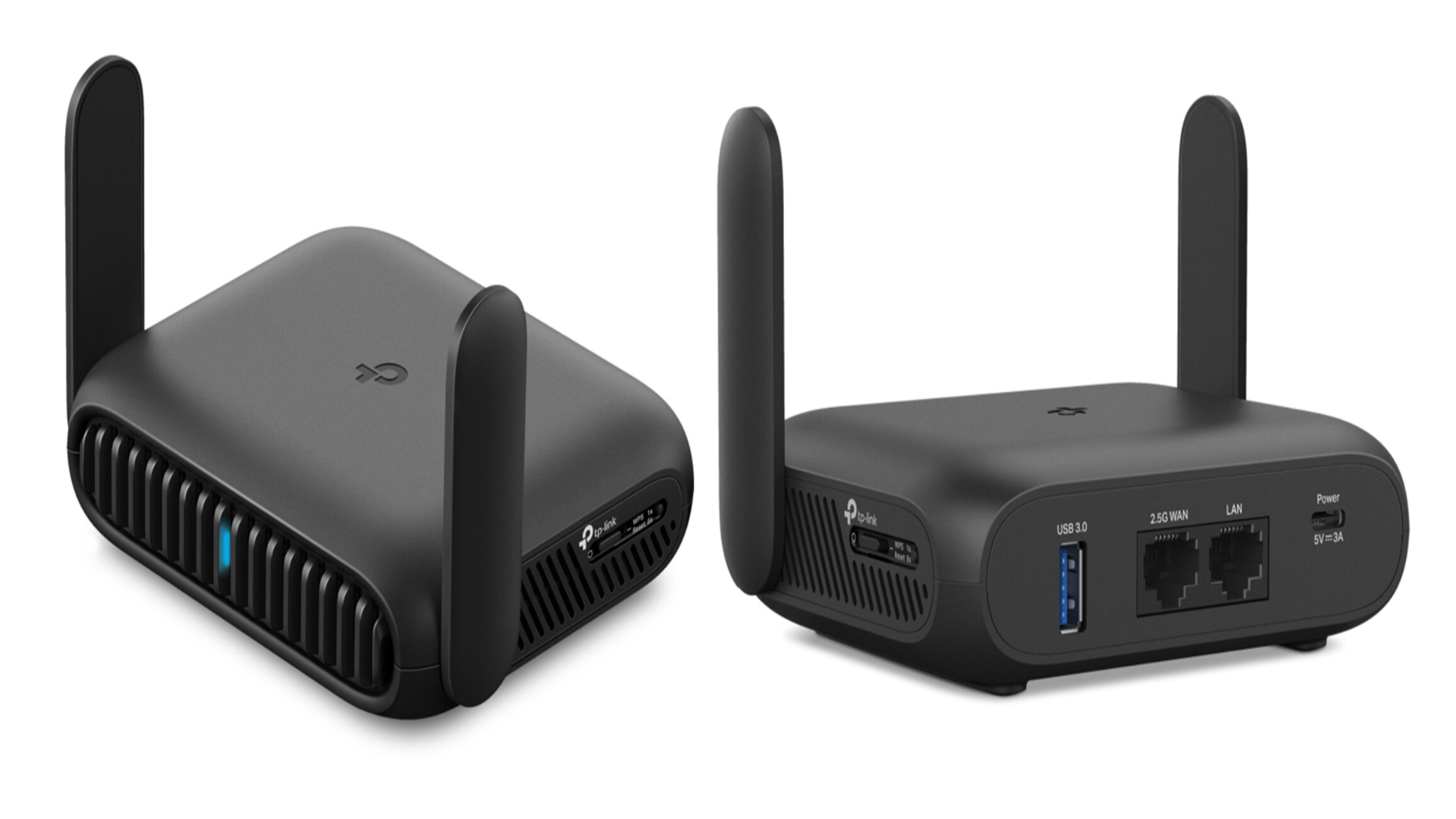
Credit: www.techradar.com
Frequently Asked Questions
How Do I Reset My D-link Wi-fi Router?
To reset your D-Link router, press and hold the reset button for 10 seconds. This restores factory settings and resolves many issues.
Why Is My D-link Router Not Connecting To Wi-fi?
Check if your router is powered on and cables are secure. Restart the router and device to fix common connection problems.
How Can I Update Firmware On A D-link Router?
Access your router’s admin page via a browser. Download and install the latest firmware from the D-Link support website.
What Causes Slow Wi-fi On A D-link Router?
Slow Wi-Fi can result from interference, outdated firmware, or too many connected devices. Position the router centrally for better coverage.
Conclusion
Fixing a D-Link Wi-Fi router can be simple with the right steps. Start by checking connections and restarting the device. Reset settings only if needed, to avoid losing important data. Keep the router’s firmware updated for better performance. Test your internet after each step to find the issue fast.
Troubleshooting bit by bit saves time and frustration. A steady Wi-Fi connection makes work and fun easier. Stay patient and follow the guide to get your router working well again.