
Are you tired of weak Wi-Fi signals in some areas of your home or office? You’re not alone.
Slow internet and constant buffering can be frustrating, especially when you need a reliable connection. The good news is, you don’t have to buy expensive equipment to fix this. By using another router, you can easily extend your Wi-Fi signal and enjoy strong, stable internet everywhere you need it.
You’ll discover simple, step-by-step ways to boost your Wi-Fi range and finally say goodbye to dead zones. Keep reading to transform your internet experience today!

Credit: www.reddit.com
Choose The Right Router
Choosing the right router is key to extending your Wi-Fi signal effectively. The router must work well with your current setup. It should support the features needed for signal extension. Picking a router that fits your needs avoids wasted time and effort.
Check Compatibility
Not all routers can extend Wi-Fi signals. The new router must support bridge mode or repeater mode. Check if both routers use the same Wi-Fi standards, like 802.11n or 802.11ac. Matching standards ensures better connection quality.
Look for routers from the same brand if possible. They often have better compatibility. Confirm the router supports the frequency bands your main router uses. Dual-band or tri-band routers offer more flexibility.
Select Router Mode
Routers have different modes for signal extension. Common modes include:
- Repeater Mode – Boosts the existing signal wirelessly.
- Access Point Mode – Connects via cable to extend the network.
- Bridge Mode – Links two routers to create one network.
Choose the mode that suits your home layout and wiring options. Repeater mode is easy but may reduce speed. Access Point mode offers better speed but needs a cable connection.
Prepare The Second Router
Before you connect your second router to boost your Wi-Fi signal, you need to get it ready. This preparation ensures the device works smoothly without conflicts from previous settings. Taking these steps helps avoid common connectivity issues and makes the setup process faster and more reliable.
Reset To Factory Settings
Start by resetting the second router to its factory settings. This clears out old configurations that might interfere with your new setup. Usually, there’s a small reset button on the back—press and hold it for about 10 seconds until the lights blink.
If you skip this step, old IP addresses or passwords could block your router from connecting properly. I learned this the hard way when my extender kept dropping connection until I did a reset. It’s a simple action that saves hours of troubleshooting later.
Update Firmware
Next, check if your router’s firmware is up to date. Firmware updates fix bugs and improve performance, which is crucial for extending your Wi-Fi network reliably. You can usually find the update option in the router’s admin panel under “System” or “Maintenance.”
Use a wired connection to update the firmware to avoid interruptions. If your router is running outdated software, it might cause slowdowns or disconnects once you start using it as a signal extender. Keeping firmware current means you benefit from the latest features and security patches.
Connect The Routers
Boosting your Wi-Fi signal with an extra router can enhance connectivity throughout your home. Position the secondary router in areas with weak signals. This setup creates a seamless network, ensuring devices stay connected without interruptions.
Connecting two routers can improve Wi-Fi coverage at home. This setup allows you to cover more areas with strong signals. It’s a practical way to enhance internet access throughout the house. You can connect routers using cables or wirelessly. Each method has its own benefits. Choose the one that suits your needs best.Using Ethernet Cable
Using an Ethernet cable provides a stable connection. It is often faster and more reliable. Plug one end of the cable into the LAN port of the main router. Connect the other end to the secondary router’s WAN or LAN port. Adjust settings on the second router. Disable its DHCP server to prevent conflicts. This setup offers a steady connection without interference.Wireless Connection Options
Wireless connections eliminate the need for cables. Position the second router within the range of the main router. Access the second router’s settings through its IP address. Enable Wireless Bridge or Repeater mode. This mode lets the second router extend the signal. Ensure both routers operate on the same channel. This prevents interruptions and keeps the connection smooth. Using these methods, you can effectively extend your Wi-Fi signal. Whether wired or wireless, each option enhances coverage. Enjoy better connectivity throughout your home.
Credit: www.amazon.ca
Configure Router Settings
Configuring your secondary router correctly is key to extending your Wi-Fi signal effectively. Adjusting the settings ensures both routers work well together, avoiding conflicts and improving coverage. This process involves setting a static IP, turning off the DHCP server, and matching the wireless network details.
Assign Static Ip Address
Give your second router a fixed IP address within your main router’s range. This prevents IP conflicts and keeps your network stable. Choose an IP outside the main router’s DHCP range to avoid overlaps.
- Access the secondary router’s settings page.
- Find the LAN or network settings section.
- Set a static IP like 192.168.1.2, different from the main router.
- Save the changes and restart the router.
Disable Dhcp Server
Turn off the DHCP server on the second router. The main router should manage IP addresses for all devices. Disabling DHCP prevents conflicts and ensures smooth device connections.
- Log into the secondary router’s admin panel.
- Locate the DHCP settings.
- Switch off the DHCP server option.
- Save the settings and reboot the router.
Match Ssid And Security
Set the second router’s Wi-Fi name (SSID) and password to match the main router. This creates one seamless network. Devices switch between routers without dropping the connection.
- Open the wireless settings on the second router.
- Enter the same SSID as the main router.
- Use the same security type (WPA2, WPA3) and password.
- Save the settings and restart the router.
Optimize Signal Placement
Optimizing the placement of your secondary router is key to getting the best possible Wi-Fi extension. Even the best hardware can struggle if it’s tucked away in a poor spot. Small changes in location can significantly boost your signal strength and coverage.
Find Ideal Location
Place the second router somewhere halfway between your main router and the area where you want better coverage. It should be close enough to get a strong signal from your main router but far enough to reach those dead zones.
Think about open spaces rather than enclosed cabinets or behind thick walls. I once moved my extender from a cramped shelf to a desk near a window and noticed the signal strength doubled instantly.
Try to keep the router elevated, like on a shelf or a high table, rather than on the floor. This helps the signal travel more freely through your home.
Avoid Interference
Wi-Fi signals can get easily disrupted by everyday electronics. Keep your router away from microwaves, cordless phones, baby monitors, and Bluetooth devices.
Metal objects and thick walls can also block or weaken the signal. Avoid placing the router near large metal filing cabinets or concrete walls.
Think about the channels your routers use. If you live in a crowded area, overlapping Wi-Fi channels from neighbors can cause interference. You can use apps like Wi-Fi Analyzer to find the least crowded channel and set your routers accordingly.
Have you checked if your router’s antennas are positioned correctly? Sometimes just adjusting their angle can reduce interference and improve coverage.
Test Your Extended Network
Testing your extended network is crucial to ensure your second router is boosting your Wi-Fi as expected. It helps you spot weak spots and confirm that your devices stay connected smoothly. Taking the time to test can save you from frustration later.
Check Signal Strength
Start by measuring the Wi-Fi signal strength in the area where you extended your network. Use a smartphone or laptop to check the signal bars or use apps like NetSpot or WiFi Analyzer for more detailed results.
Walk around the space while watching the signal levels. Are there any dead zones still? If the signal is weak, try repositioning the second router or adjusting its antennas for better coverage.
Verify Internet Access
Having a strong signal isn’t enough if you can’t browse the web or stream without interruptions. Open different websites and apps on multiple devices connected to the extended network.
Look out for slow loading times or dropped connections. If you notice any issues, check the second router’s settings and make sure it’s properly connected to the main router’s network.
Have you ever thought your Wi-Fi was strong, only to find out later your devices weren’t actually online? Testing both signal strength and internet access ensures your setup truly works for you.
Troubleshooting Tips
Troubleshooting your Wi-Fi extension setup can save time and frustration. Problems often arise from simple mistakes or overlooked settings. Knowing common issues helps fix them fast. Resetting and reconfiguring the router can clear many errors. Follow these tips to keep your extended network stable and strong.
Common Connection Issues
- The second router does not connect to the main router.
- Slow internet speed on extended network.
- Devices disconnect frequently from the extended Wi-Fi.
- Incorrect IP address or network settings cause conflicts.
- Wi-Fi signal still weak in some areas despite extension.
Check cables and power to both routers. Make sure the routers use compatible settings. Confirm the second router is set to the correct mode (bridge or repeater). Use the same Wi-Fi name (SSID) and password for easy connection. Avoid overlapping channels to reduce interference.
Reset And Reconfigure
Resetting the second router can fix many setup problems. Press and hold the reset button for 10 seconds. Wait for the router to restart. After reset, access the router’s settings page through a web browser.
Re-enter your network details carefully. Set the IP address to avoid conflicts with the main router. Choose the right mode for extension, usually repeater or access point. Save changes and restart the router again. Test the connection on several devices to ensure stability.
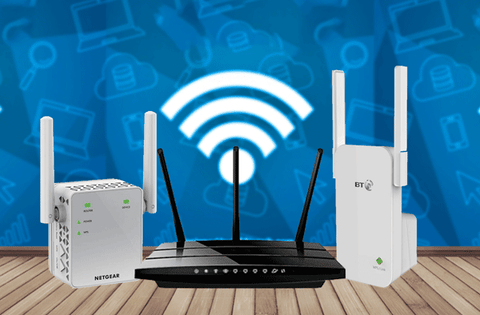
Credit: www.signalbooster.com
Frequently Asked Questions
How Can I Extend Wi-fi Range With Another Router?
You can extend Wi-Fi range by connecting a second router as an access point. Configure it with the main router’s settings to boost coverage effectively.
What Settings Are Needed To Link Two Routers For Wi-fi?
Set the second router to Access Point mode or disable DHCP. Use the same SSID and password to ensure seamless connectivity.
Can Any Router Be Used To Extend Wi-fi Signal?
Most modern routers support Access Point mode or repeater functions. However, older models may lack these features and require manual setup.
Should I Connect The Second Router Via Ethernet Or Wi-fi?
For best performance, connect routers with an Ethernet cable. Wireless bridging is possible but often results in slower speeds and higher latency.
Conclusion
Extending your Wi-Fi signal with another router is simple and effective. Set up the second router carefully to avoid connection issues. This method saves money compared to buying new equipment. You can enjoy better internet coverage in your home. Test your connection after setup to ensure strong signals.
Keep routers updated for smooth performance. Strong Wi-Fi makes working, streaming, and browsing easier. Try this solution to improve your internet experience today.