
Are you struggling to get your Wi-Fi modem router up and running? You’re not alone.
Many people find it tricky to detect and enable their devices, especially when the instructions seem complicated. But what if you could have your internet connection working smoothly in just a few simple steps? You’ll discover easy ways to detect your modem router and get it enabled quickly.
By the end, you’ll feel confident managing your Wi-Fi setup without any hassle. Keep reading, and take control of your internet connection today!

Credit: www.youtube.com
Choosing The Right Wi-fi Modem Router
Choosing the right Wi-Fi modem router can make a huge difference in your internet experience. It’s not just about picking the most expensive device but finding one that fits your specific needs. Understanding the types, features, and compatibility will help you avoid slow speeds and frequent disconnections.
Types Of Modem Routers
There are mainly three types of modem routers you can choose from:
- DSL Modem Routers:Ideal if your internet comes through a phone line. They combine a DSL modem and router in one device.
- Cable Modem Routers:Suitable for cable internet users. They often provide faster speeds and better reliability than DSL options.
- Fiber Modem Routers:These are for fiber-optic internet connections, offering the fastest speeds but are less common in some areas.
Knowing your internet connection type narrows down your choices quickly. Have you checked what kind of service you have before shopping?
Key Features To Consider
Look for features that match your usage. If you stream a lot or game online, a router with dual-band or tri-band support is essential to reduce interference.
- Speed Ratings:Higher ratings like AC1900 or AX3000 indicate better performance.
- Range:A router with a strong signal range covers your whole home without dead zones.
- Security:WPA3 encryption and automatic firmware updates keep your network safe.
- Ports:Check for enough Ethernet ports if you want wired connections for devices like gaming consoles.
Think about how many devices connect to your network daily. Can your current router handle that load?
Compatibility With Internet Service Providers
Not all modem routers work with every internet provider. Some ISPs require specific models or approve a list of compatible devices.
Before purchasing, check your ISP’s website or contact their support to confirm compatibility. This step can save you from the hassle of returns and setup issues.
Remember, even the best modem router won’t perform well if it’s not compatible with your internet service.
Credit: www.xcitium.com
Detecting Your Wi-fi Modem Router
Detecting your Wi-Fi modem router is the first step toward ensuring a stable internet connection at home or work. You might think it’s obvious where your router is, but sometimes it’s tucked away or mixed up with other devices. Knowing exactly which device is your modem router helps you manage settings, troubleshoot issues, or upgrade your network efficiently.
Physical Identification
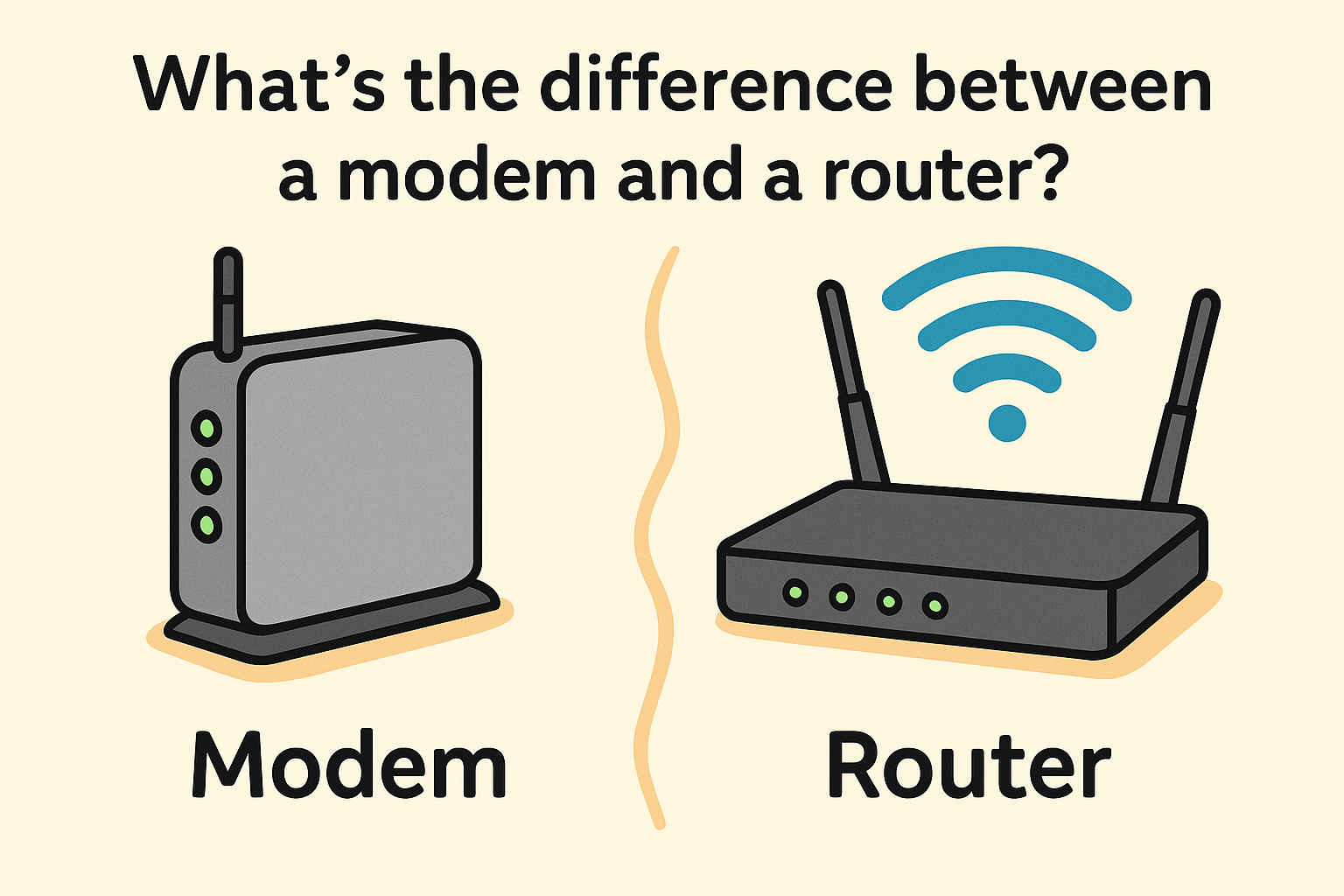
Your Wi-Fi modem router usually looks like a small box with several antennas or ports. It often sits near where your internet cable enters your home, like close to a phone jack or cable outlet. Look for blinking lights—these indicate power, internet activity, and Wi-Fi signals.
Sometimes, routers are combined with modems in one device, which can confuse you if you’re searching for separate units. If you see multiple devices, focus on the one connected to your internet cable and power source.
Checking Device Labels And Model Numbers
Turn your device around and find the label on the bottom or back. It usually contains the model number, manufacturer name, and sometimes the default network name (SSID). This information helps you identify the exact make and model of your modem router.
Knowing your model number is useful if you need to download manuals or firmware updates. If you’ve ever wondered why some devices have multiple names or numbers, this label clears up the confusion and guides you to the right support resources.
Using Network Settings On Your Computer
You can also find your modem router through your computer’s network settings. On Windows, open the Command Prompt and type ipconfig, then look for the “Default Gateway” address—this is usually your router’s IP. Enter that IP into your web browser to access your router’s admin page.
On a Mac, go to System Preferences > Network, select your Wi-Fi connection, then click Advanced and navigate to the TCP/IP tab to find the router’s IP address. This approach not only helps you detect the device but also allows you to configure settings right from your computer.
Connecting The Modem Router
Connecting your Wi-Fi modem router correctly is key to getting a stable and fast internet connection. It involves more than just plugging in cables—you need to ensure the hardware is set up properly, powered on the right way, and linked to your internet source securely. Let’s break down these steps to help you get online without frustration.
Setting Up The Hardware
Start by placing your modem router in an open area away from thick walls or metal objects. This placement helps your Wi-Fi signal reach all corners of your home or office effectively.
Next, connect the modem to the power adapter but don’t turn it on yet. Then, use the provided Ethernet cable to link the modem to your internet source, which could be a phone line, cable outlet, or fiber optic terminal.
Double-check that all cables are snug and secure. Loose connections are a common culprit behind spotty internet performance.
Powering On And Initializing
Once the hardware is ready, plug in the power adapter and switch on your modem router. Watch for the indicator lights; they tell you the device is booting up and initializing.
It’s normal for the lights to blink for a few minutes as the device runs self-checks and connects to your ISP. If the lights don’t stabilize or show errors, it’s worth rebooting or consulting the user manual.
Have you noticed how some routers have a reset button? It’s useful if you need to restore factory settings after a configuration mishap.
Connecting To The Internet Source
After powering up, the modem router attempts to establish a connection with your internet service provider. This step is crucial because without this handshake, your Wi-Fi won’t have internet access.
If your modem requires login credentials, enter them via the router’s admin panel—usually accessed through a web browser using the device’s IP address.
Check your ISP’s instructions carefully here; missing or incorrect details can block your connection. Once connected, try accessing a website to confirm your setup worked.
Accessing The Router Interface
Accessing the router interface is essential for setting up and managing your Wi-Fi modem router. This interface allows you to change settings, update passwords, and optimize your network. You need to connect your computer or phone to the router’s network before accessing the interface.
Most routers have a web-based control panel. You open this panel using a web browser and the router’s IP address. The process is simple and quick once you know the default IP and login details.
Finding The Default Ip Address
The default IP address is the key to entering the router’s interface. It is usually printed on the back or bottom of the router. You can also find it in the user manual or on the manufacturer’s website.
Common default IP addresses include:
- 192.168.0.1
- 192.168.1.1
- 192.168.1.254
On Windows, open Command Prompt and type ipconfig. Look for the “Default Gateway” under your network connection. That is your router’s IP address.
Logging Into The Admin Panel
Open any web browser like Chrome, Firefox, or Edge. Type the router’s IP address into the address bar. Press Enter to load the login page.
The page will ask for a username and password. Enter the correct details to access the admin panel. If the page does not load, check your connection or try another browser.
Common Login Credentials
Most routers use simple default usernames and passwords. These are easy to guess, so change them after the first login for security.
| Username | Password |
|---|---|
| admin | admin |
| admin | password |
| user | user |
| admin | (blank) |
Check your router label for the exact default credentials. Write them down to avoid forgetting.
Enabling Wi-fi On The Modem Router
Enabling Wi-Fi on your modem router is a straightforward process that can open up a world of connectivity for your devices. Whether you’re setting up a new network or troubleshooting connectivity issues, these steps will guide you through the process. From adjusting settings to securing your network, you’ll be well-equipped to manage your Wi-Fi with confidence.
Navigating To Wireless Settings
Begin by accessing your modem router’s control panel. This is typically done by typing the router’s IP address into your web browser’s address bar. Most devices use common IP addresses like 192.168.0.1or 192.168.1.1. Once you enter the correct IP address, log in using your router’s username and password.
Once logged in, find the section labeled “Wireless” or “Wi-Fi.” This is often located in the main menu or under a settings tab. If you’re unsure, consult your router’s manual or online support for guidance.
Activating The Wi-fi Network
In the wireless settings, look for a checkbox or toggle switch labeled “Enable Wireless.” Simply tick the box or flip the switch to activate Wi-Fi on your modem router. This action turns on your network’s wireless broadcasting capability.
When activated, your Wi-Fi network becomes visible to devices within range. Keep an eye out for any additional options that might need configuring, such as enabling dual-band frequencies if your router supports both 2.4GHz and 5GHz bands.
Setting Network Name (ssid) And Password
Next, customize your network’s name, also known as SSID (Service Set Identifier). Choose a name that is easily recognizable and unique to your household or business. Avoid using personal information that could compromise your security.
After setting the SSID, create a strong, secure password for your Wi-Fi network. A mix of uppercase and lowercase letters, numbers, and symbols is ideal. This ensures that only authorized users can access your network, keeping your data safe and secure.
As you finalize these settings, consider asking yourself: How often do I update my Wi-Fi password? Regular updates can prevent unauthorized access and keep your network secure.

Credit: www.linkedin.com
Securing Your Wi-fi Network
Securing your Wi-Fi network protects your personal data and devices. It stops unauthorized users from accessing your internet. A safe network ensures smooth and private online experiences. Simple security steps can make a big difference.
Choosing Encryption Types
Encryption keeps data safe while it travels over Wi-Fi. Use WPA3 if your router supports it. WPA2 is a good alternative for older devices. Avoid WEP as it is weak and easy to break. Strong encryption makes your network harder to hack.
Updating Default Passwords
Change the default router password right after setup. Use a mix of letters, numbers, and symbols. Avoid simple passwords like “password” or “123456.” Update passwords regularly to keep the network secure. A strong password blocks unwanted access effectively.
Enabling Firewall And Other Security Features
Turn on your router’s built-in firewall to block attacks. Use features like guest networks to separate visitors from main devices. Disable remote management unless you need it. These settings add extra layers of protection to your Wi-Fi.
Troubleshooting Common Issues
Troubleshooting common issues with your Wi-Fi modem router can save you a lot of time and frustration. Identifying the root cause of problems quickly helps you get back online without waiting for professional help. Let’s look at some practical ways you can tackle frequent challenges and maintain a smooth connection.
Connection Problems
Are you experiencing slow internet speeds or frequent disconnections? Start by checking if your modem router is properly plugged into the power source and the internet cable is securely connected. Sometimes, simple issues like loose cables can cause major connection drops.
Interference from other electronic devices or thick walls can also weaken your Wi-Fi signal. Try moving your router to a more central, open location in your home. Have you tested connecting multiple devices? If only one device struggles, the problem might be with that device rather than your network.
Resetting The Modem Router
Resetting your modem router often fixes stubborn connectivity issues. You can perform a soft reset by turning the device off, waiting 30 seconds, and then turning it back on. This refreshes your connection without losing any settings.
If problems persist, a hard reset might be necessary. Press and hold the reset button for about 10 seconds until the lights blink. Keep in mind, this restores the router to factory settings, so you will need to set up your Wi-Fi name and password again.
Firmware Updates And Maintenance
Outdated firmware can cause security vulnerabilities and performance problems. Check your router’s admin panel regularly to see if updates are available. Installing the latest firmware improves stability and adds new features.
Maintaining your modem router also means keeping it dust-free and cool. Overheating can lead to random disconnects or hardware failure. Have you noticed your router getting unusually warm? Placing it on a hard, flat surface with good airflow can prevent overheating.
Optimizing Wi-fi Performance
Optimizing Wi-Fi performance is crucial for smooth internet usage. Slow speeds can frustrate anyone trying to stream videos or browse the web. Enhancing your Wi-Fi setup helps maintain a strong, reliable connection. This involves strategic placement and effective management of devices. Let’s explore how you can optimize your Wi-Fi for better performance.
Best Placement For Signal Strength
Place your Wi-Fi modem router in a central location. Ensure it’s away from walls and obstructions. High spots work best for signal distribution. Avoid placing it near metal objects. These can interfere with signal strength. Try to elevate the router if possible. This aids in spreading signals evenly across your space.
Managing Connected Devices
Limit the number of devices connected simultaneously. Too many connections slow down your network. Disconnect devices not in use. Regularly update device software for better performance. Check for unknown devices on your network. Secure your Wi-Fi with a strong password. This prevents unauthorized access.
Using Quality Of Service (qos) Settings
QoS settings help prioritize traffic on your network. Access your router’s settings page. Locate the QoS settings option. Assign priority to important applications like video streaming. This ensures they get more bandwidth. Adjust settings based on your usage needs. Monitor performance and make changes as necessary.
Frequently Asked Questions
How To Check If My Wi-fi Modem Router Is Detected?
Go to your computer’s network settings and look for available Wi-Fi networks. If your modem router appears, it is detected. You can also check device manager on Windows or network preferences on Mac for the modem’s status.
How To Enable Wi-fi On My Modem Router?
Access your modem router’s admin page through its IP address in a browser. Navigate to wireless settings and enable the Wi-Fi option. Save changes and restart the router if necessary for the Wi-Fi to become active.
Why Is My Wi-fi Modem Router Not Detected?
Common reasons include improper connections, disabled wireless settings, or outdated drivers. Ensure cables are secure, Wi-Fi is enabled in settings, and update your device’s network drivers to fix detection issues.
Can I Enable Wi-fi Modem Router Without Admin Access?
No, enabling Wi-Fi requires access to the router’s admin interface. You need the username and password to change settings. Contact your network administrator if you don’t have these credentials.
Conclusion
Detecting and enabling your Wi-Fi modem router is simple. Start by checking the device’s lights and settings. Use the instructions to turn on the Wi-Fi feature. Make sure your computer or phone connects to the correct network. Restart the modem if needed for better results.
A stable connection helps with smooth internet use. Stay patient and follow each step carefully. This way, your internet will work well at home or office. Enjoy easy access to the web anytime you want.