
Connecting your Bose Bluetooth speaker shouldn’t be a hassle. Whether you want to enjoy crisp music, clear calls, or powerful sound, getting your speaker paired quickly makes all the difference.
If you’ve ever struggled with confusing settings or endless troubleshooting, this guide is here to help. Keep reading, and you’ll learn simple, step-by-step tips to connect your Bose speaker effortlessly every time. Imagine having your favorite tunes playing in seconds—sounds great, right?
Let’s make that happen.

Credit: www.youtube.com
Prepare Your Bose Speaker
Getting your Bose Bluetooth speaker ready is the key to a smooth connection experience. Before you dive into pairing, you want to make sure the speaker is fully charged, properly set to Bluetooth mode, and cleared of any old connections that might block new devices. Taking these steps helps you avoid common frustrations like sudden disconnections or failed pairings.
Charge The Speaker
Your Bose speaker needs enough power to maintain a strong Bluetooth signal. Plug it into a power source using the original charger or a compatible one. Look for a solid or blinking light that indicates charging status—this small detail can save you from unexpected shutdowns during your listening session.
Charging fully usually takes a few hours. If you notice the battery draining faster than usual, it might be time to check the charger or cable. Have you ever tried connecting your speaker only to find it dead? Avoid that hassle by starting with a full battery.
Turn On Bluetooth Mode
Once charged, switch your Bose speaker to Bluetooth mode. This is often done by pressing the Bluetooth button until you hear a tone or see a flashing light. The flashing light signals that the speaker is discoverable and ready to connect.
If the speaker doesn’t enter Bluetooth mode, it won’t show up on your device’s list of available connections. This is a common oversight that can waste your time. Try toggling the Bluetooth button or turning the speaker off and on again if it’s unresponsive.
Reset Previous Connections
Old connections can interfere with your new device pairing. Clearing these saved connections resets the speaker’s memory and makes room for new devices. To do this, press and hold the Bluetooth button for about 10 seconds until you hear a confirmation sound or see the indicator light change.
Think of it as clearing clutter before inviting new guests. This step is especially useful if your speaker suddenly stops connecting or keeps pairing with the wrong device. Have you ever struggled with your speaker connecting to a friend’s phone instead of yours? Resetting can fix that instantly.
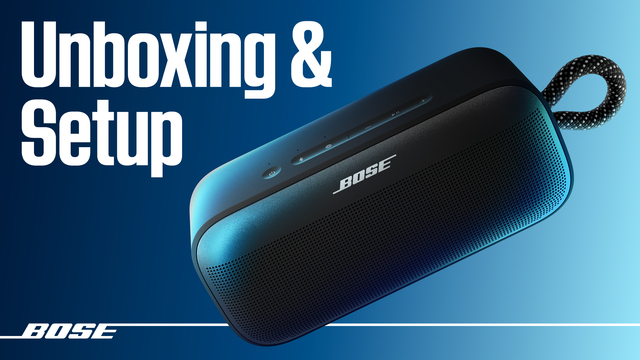
Credit: support.bose.com
Enable Bluetooth On Your Device
Enabling Bluetooth on your device is the essential first step to connect to your Bose Bluetooth speaker. Without activating Bluetooth, your device won’t recognize or pair with the speaker. Let’s break down how to turn on Bluetooth and make sure your device is ready to find your Bose speaker quickly.
Access Bluetooth Settings
Start by opening the settings app on your device. Look for the Bluetooth option, which is usually listed under “Connections” or “Wireless & Networks.”
On smartphones, you can often swipe down from the top of the screen to find the Bluetooth icon and tap it to turn it on instantly.
Have you noticed how some devices keep Bluetooth off by default to save battery? Turning it on manually ensures your device can search for nearby Bluetooth devices like your Bose speaker.
Make Device Discoverable
After enabling Bluetooth, you need to make your device discoverable so the Bose speaker can find it. This step is crucial, especially if your speaker doesn’t show up in the list of available devices right away.
Depending on your device, you might see an option like “Visible to other devices” or “Discoverable mode” within the Bluetooth settings. Turn this on to let your speaker detect your device.
Here’s a quick tip: Keep your device discoverable only for a limited time to maintain security. Have you ever wondered why some devices don’t appear immediately? Ensuring discoverability often solves that mystery.
Pairing Steps For Instant Connection
Connecting your Bose Bluetooth speaker is simple and quick. This guide explains the pairing steps for instant connection. Follow these steps to enjoy your favorite music wirelessly.
Select Bose Speaker From Device List
Start by turning on your Bose speaker. Ensure Bluetooth is activated on your device. Access the Bluetooth settings on your phone or computer. You will see a list of available devices. Find and select your Bose speaker from this list. This step connects your device to the speaker.
Confirm Pairing Request
Once selected, a pairing request may appear on your device screen. Click ‘Pair’ or ‘Connect’ to confirm the request. This allows your device to communicate with the speaker. The connection process begins automatically after confirmation.
Test The Connection
Play a song or audio file to test the connection. Ensure the sound comes from the Bose speaker. Adjust the volume to check the audio quality. If everything works, your speaker is successfully connected. Enjoy the seamless wireless experience.
Troubleshooting Common Issues
Troubleshooting common issues with your Bose Bluetooth speaker can save time and frustration. Many connection problems have simple fixes. Understanding these helps keep your music playing smoothly.
Start by checking the basics. Make sure the speaker is charged and in pairing mode. Confirm your device’s Bluetooth is turned on and ready to connect. If problems persist, try the following tips.
Speaker Not Showing Up
Ensure the speaker is fully powered on and near your device. Restart the speaker and your phone or computer. Clear old Bluetooth connections on your device. This frees up the list for new devices. Check that the speaker is not connected to another device. Sometimes, it won’t appear if already in use.
Connection Drops
Move closer to the speaker to improve the signal. Remove obstacles like walls or metal objects between devices. Turn off other Bluetooth devices to avoid interference. Update your device’s Bluetooth drivers or software. Restart both your speaker and device to refresh the connection.
Audio Quality Problems
Lower the volume on your device and the speaker to reduce distortion. Check for interference from Wi-Fi or other wireless devices. Adjust equalizer settings on your device for clearer sound. Make sure the speaker firmware is updated to the latest version. Try reconnecting the speaker to reset the audio link.
Tips For Better Bluetooth Experience
Getting a clear and stable Bluetooth connection with your Bose speaker improves your listening. Small changes can make a big difference. Follow these simple tips to enjoy better sound and fewer interruptions.
Keep Devices Close
Bluetooth works best when your speaker and device are near each other. Keep them within 30 feet for a strong connection. Walls or furniture between them can weaken the signal. Avoid moving too far while playing music.
Update Firmware
Check for software updates on your Bose speaker and connected device. Updated firmware fixes bugs and improves Bluetooth performance. Use the Bose app or your device settings to install the latest updates. This keeps your connection smooth and reliable.
Avoid Interference
Other wireless devices can disrupt Bluetooth signals. Keep away from Wi-Fi routers, microwaves, and cordless phones. Turn off unused Bluetooth devices nearby. Clear the area to reduce interruptions and enjoy uninterrupted sound.
Credit: greensafaris.com
Frequently Asked Questions
How Do I Pair My Bose Bluetooth Speaker?
Turn on your Bose speaker and enable Bluetooth on your device. Select the speaker from the Bluetooth list. If prompted, enter the pairing code. Once connected, you’ll hear a confirmation sound or see a solid Bluetooth indicator.
Why Won’t My Device Find The Bose Speaker?
Ensure the speaker is in pairing mode and close to your device. Restart Bluetooth on your device and the speaker. Remove old Bluetooth connections if necessary. Check the speaker’s battery level and try again.
Can I Connect Multiple Devices To One Bose Speaker?
Bose speakers typically connect to one device at a time. However, some models support multi-point pairing, allowing two devices to connect alternately. Check your speaker’s manual to confirm if multi-device connection is supported.
How To Reset My Bose Bluetooth Speaker?
Press and hold the power button for about 10 seconds until the speaker powers off. Release and turn it on again. This resets the Bluetooth settings and clears previous connections.
Conclusion
Connecting your Bose Bluetooth speaker is simple and quick. Just follow the steps carefully. Make sure your speaker is charged and in pairing mode. Select the speaker from your device’s Bluetooth list. Once connected, enjoy clear, wireless sound anywhere. This guide helps you stay connected with ease.
Keep your speaker updated for best performance. Now, you can listen to music, podcasts, or calls without any hassle. Enjoy the freedom of wireless audio today.