
If you want to enjoy crystal-clear sound from your TV, connecting your soundbar with HDMI is the best way to go. But if you’re not sure how to do it, don’t worry—this guide will walk you through each simple step.
By the time you finish reading, you’ll have your soundbar hooked up perfectly, making your favorite shows and movies sound amazing. Ready to upgrade your home entertainment? Let’s get started.

Credit: www.youtube.com
Choosing The Right Hdmi Port
Choosing the right HDMI port is crucial for getting the best sound quality from your soundbar. Not all HDMI ports are created equal, and using the correct one can make a noticeable difference in audio performance. Understanding the differences and knowing where to plug in your cables can save you from frustrating setup issues.
Hdmi Arc Vs. Earc
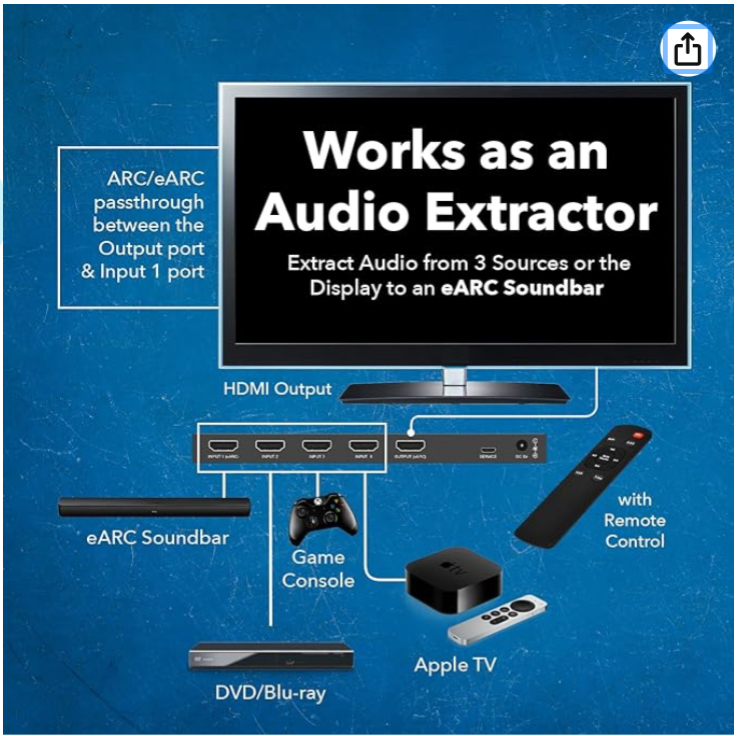
HDMI ARC (Audio Return Channel) allows your TV to send audio back to the soundbar through the same HDMI cable used for video. It’s handy for simpler setups and supports basic surround sound formats.
eARC (Enhanced Audio Return Channel) is the newer, more powerful version. It supports higher-quality audio like Dolby Atmos and DTS:X, offering a richer listening experience.
If your soundbar and TV both support eARC, always choose that port. It gives you the clearest sound and best compatibility with modern audio formats.
Locating Hdmi Ports On Devices
Not all HDMI ports on your TV or soundbar are labeled clearly. Look carefully for labels like “ARC” or “eARC” near the HDMI ports.
Sometimes these ports are grouped or color-coded to stand out. Check your device’s manual or quick start guide if you don’t see any markings.
Once you find the right port, connect your HDMI cable firmly. Loose connections can cause audio dropouts or no sound at all.
Credit: pls.faun.media
Preparing Your Devices
Before connecting your soundbar with HDMI, getting your devices ready is key. This simple prep work can save you from common setup headaches like no sound or connection errors. Taking a few moments to prepare ensures a smooth and quick connection process.
Powering Off Devices
Always power off your TV and soundbar before plugging in any cables. This helps prevent electrical shorts or unexpected damage to your devices. Have you ever plugged in a cable while the device was on and faced trouble? Turning off everything avoids this risk and allows your devices to recognize new connections properly once powered back on.
Checking Cable Compatibility
Not all HDMI cables are created equal. You need an HDMI cable that supports audio return channel (ARC) or enhanced audio return channel (eARC) for your soundbar to work seamlessly with your TV. Look closely at your HDMI ports—some TVs label ARC ports separately.
- Use a high-speed HDMI cable with Ethernet for best performance.
- Check if your soundbar and TV support eARC for higher quality sound formats.
- Avoid using old or damaged cables; they can cause connection issues.
Have you checked your cables recently? Using the right cable can be the difference between crystal-clear sound and frustrating silence.
Connecting The Soundbar
Connect the soundbar to your TV using an HDMI cable for clear audio. Plug one end into the soundbar’s HDMI ARC port and the other into the TV’s HDMI ARC port. Turn on both devices and select the HDMI input on your TV to enjoy better sound.
Connecting your soundbar to a TV or other devices using an HDMI cable can transform your audio experience dramatically. This method allows for high-quality sound transmission and simplifies your setup by using fewer cables. If you’ve just bought a new soundbar, or are upgrading your home entertainment system, understanding how to make this connection is crucial for achieving the best audio quality. So, what exactly do you need to do? Let’s dive into the process of connecting your soundbar with HDMI, ensuring you get the most out of your devices.Plugging In The Hdmi Cable
The first step is straightforward but essential. Locate the HDMI ports on both your soundbar and TV. These ports are typically labeled, making them easy to find. Once you’ve identified the ports, plug one end of the HDMI cable into the HDMI OUT port on your soundbar. The other end should go into the HDMI IN port on your TV. This setup allows the soundbar to receive audio signals directly from the TV, ensuring crisp and clear sound quality. Have you ever noticed how a simple connection can make such a big difference?Securing The Connection
After plugging in the cable, it’s time to secure the connection. Ensure the cable is inserted fully into both devices. Loose connections can lead to disruptions or poor audio quality. Check if your TV and soundbar are both turned on. Switch to the HDMI input on your TV that corresponds to the port you used. Finally, access your TV settings to ensure HDMI audio output is selected. This step is crucial in ensuring the soundbar becomes the primary audio source. Have you checked all settings and connections? If everything is correct, your soundbar should now be delivering the high-quality sound you’ve been anticipating.Configuring Device Settings
Configuring the settings on both your TV and soundbar is essential for clear audio through the HDMI connection. This setup allows the devices to communicate properly. Adjusting these options ensures sound plays through the soundbar instead of the TV speakers. Follow simple steps inside your TV menu and soundbar controls.
Enabling Hdmi Arc On Tv
HDMI ARC (Audio Return Channel) allows audio signals to pass between TV and soundbar using one cable. First, open your TV’s settings menu. Look for options like “Sound,” “Audio,” or “HDMI.” Find the setting labeled “HDMI ARC” or “CEC” and turn it on. This setting activates the audio return feature. Make sure to use the HDMI port labeled “ARC” on your TV.
Selecting Soundbar As Audio Output
After enabling ARC, tell your TV to send sound through the soundbar. Go back to the audio or sound settings. Choose the audio output option. Select your soundbar from the list, which may show as “External Speaker,” “HDMI Audio,” or the soundbar’s brand name. Save the changes. Test the sound by playing a video or TV channel to confirm the output is correct.
Testing The Connection
After connecting your soundbar with an HDMI cable, testing the connection is essential to ensure everything works smoothly. This step confirms that audio signals travel properly from your device to the soundbar. Taking a moment now saves frustration later and helps you enjoy crystal-clear sound right away.
Playing Audio Content
Start by playing different types of audio content, such as music, movies, or TV shows. Use your streaming app or media player to check if the sound comes through the soundbar instead of your TV speakers. If you don’t hear anything, double-check the HDMI cable and input source on both devices.
Try switching between stereo and surround sound tracks to see if the soundbar handles them correctly. Sometimes, the device might default to a setting that doesn’t match your soundbar’s capabilities. Have you noticed how some soundbars automatically adjust to the audio format? Testing various content reveals if your setup is ready for any listening experience.
Adjusting Volume And Sound Modes
Once you confirm sound is playing, adjust the volume directly on your soundbar and your TV or media device. This helps you find the best balance and avoid distortion or unexpectedly loud spikes. Remember, using remote controls for both your TV and soundbar might require syncing or programming to work seamlessly together.
Explore different sound modes your soundbar offers, like movie, music, or dialogue enhancement. Each mode changes the audio output to suit specific content types. Testing these modes helps you discover which one delivers the best clarity and depth for your favorite shows or songs. What sound mode makes you feel like you’re in the middle of the action?
Troubleshooting Common Issues
Connecting your soundbar with HDMI usually works smoothly, but sometimes issues pop up that can be confusing and frustrating. Knowing how to troubleshoot common problems can save you time and stress. Let’s look at two frequent issues and how you can fix them quickly.
No Sound Or Audio Delay
If your soundbar is connected but you hear no sound or notice a delay between the video and audio, several factors could be at play.
- Check the HDMI cable:A damaged or low-quality cable can cause audio problems. Try swapping it with a different one to see if the issue persists.
- Verify input settings:Ensure your TV or device is set to output audio through HDMI ARC or eARC, depending on your soundbar’s compatibility.
- Adjust audio delay settings:Some soundbars and TVs have settings to sync audio and video. Experiment with these to eliminate lag.
- Update firmware:Outdated software on either device can cause glitches. Check for updates on your soundbar and TV.
Have you ever ignored a simple firmware update only to find out it was the root of your audio delay? It’s surprising how often this tiny step solves big problems.
Hdmi Connection Not Recognized
If your soundbar isn’t showing up as a recognized device on your TV, the problem might be with the connection or settings.
- Confirm HDMI port:Make sure you’re using the HDMI ARC or eARC port on your TV, not just any HDMI input.
- Secure the connection:HDMI plugs can sometimes be loose. Unplug and firmly reconnect both ends to ensure a solid connection.
- Enable HDMI-CEC:Some soundbars require HDMI-CEC (Consumer Electronics Control) to be turned on for proper communication with the TV.
- Restart devices:Power off your TV and soundbar, then turn them back on. This simple reset can refresh the connection.
Have you noticed that the simplest actions, like unplugging and plugging back in, often fix connection issues? Don’t overlook these easy steps before diving into complex troubleshooting.

Credit: www.youtube.com
Frequently Asked Questions
How Do I Connect A Soundbar With Hdmi Arc?
To connect a soundbar using HDMI ARC, plug one end of the HDMI cable into your TV’s HDMI ARC port. Connect the other end to the soundbar’s HDMI ARC port. Enable HDMI ARC and CEC settings on your TV to allow audio transmission.
Can I Use Hdmi Earc For Better Sound Quality?
Yes, HDMI eARC supports higher audio quality and advanced formats. Use HDMI eARC if your TV and soundbar both support it. It offers improved bandwidth and allows uncompressed audio like Dolby Atmos and DTS:X for a better listening experience.
What If My Tv Doesn’t Have An Hdmi Arc Port?
If your TV lacks HDMI ARC, use an optical cable or AUX connection instead. Alternatively, check if your soundbar supports Bluetooth or other wireless options. HDMI ARC is the easiest method but not the only way to connect soundbars.
Do I Need To Change Tv Settings After Hdmi Connection?
Yes, after connecting HDMI ARC, enable HDMI-CEC and ARC settings on your TV. This allows your TV remote to control the soundbar volume. Also, select the correct audio output format in the TV’s sound settings for optimal sound.
Conclusion
Connecting your soundbar with HDMI is simple and quick. Just follow the steps carefully. Use the right HDMI cable and ports for best sound. Check your TV and soundbar settings to ensure proper connection. This setup improves your audio experience greatly.
Enjoy clearer, richer sound while watching movies or shows. Keep your cables organized to avoid any issues. Now, you can easily enhance your home entertainment with HDMI soundbar connection.