
Are you tired of messy cables cluttering your living room every time you want better sound from your TV? Imagine enjoying crystal-clear audio without a single wire getting in your way.
Connecting your soundbar to your TV wirelessly can transform your viewing experience—and it’s easier than you think. You’ll discover simple, step-by-step methods to set up your soundbar quickly and hassle-free. Keep reading to unlock the secret to seamless sound and a cleaner, more stylish entertainment space.
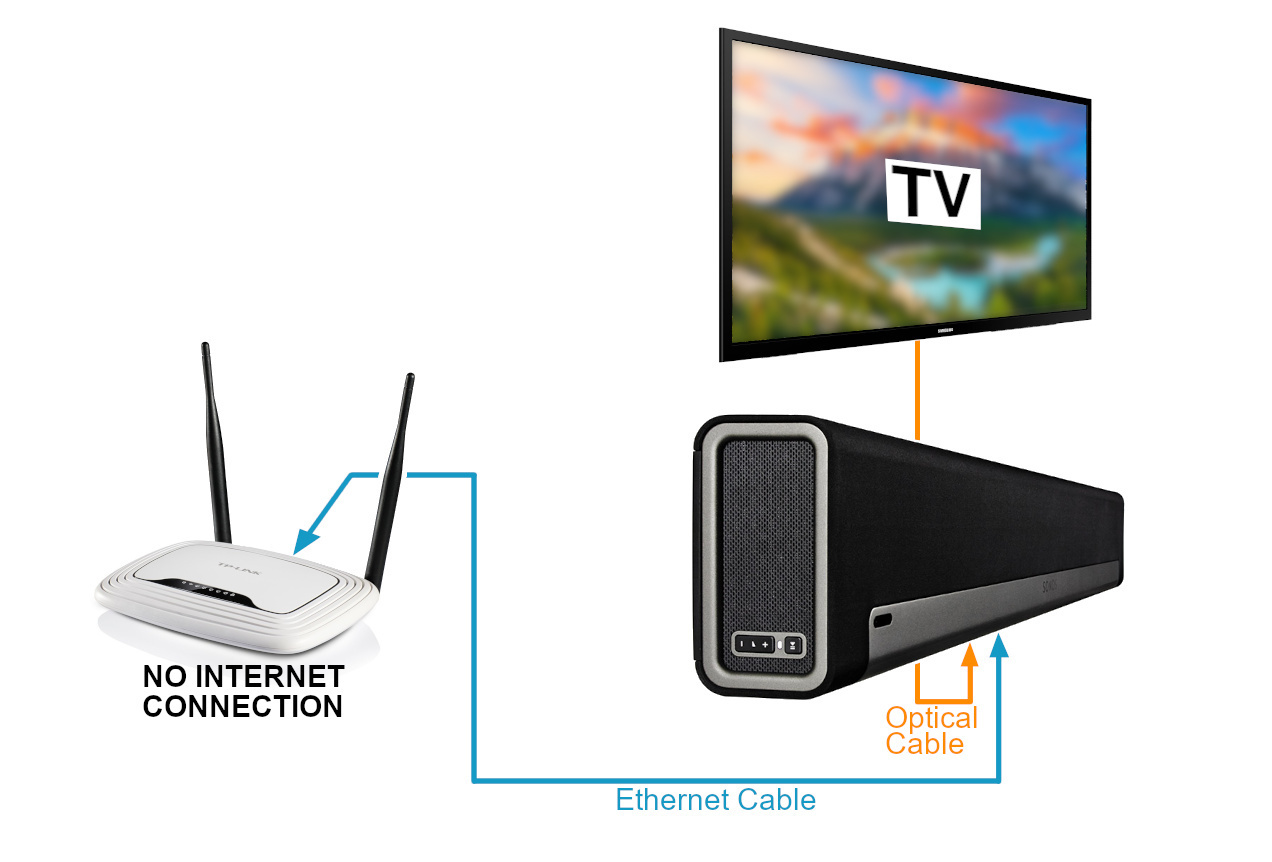
Credit: en.community.sonos.com
Choose The Right Soundbar
Choosing the right soundbar is key for a great wireless connection to your TV. It ensures clear sound and easy setup. Picking the best model depends on your TV’s compatibility and your sound preferences.
Check Wireless Compatibility
Not all soundbars connect wirelessly the same way. Some use Bluetooth, others use Wi-Fi. Check your TV’s wireless options first. Match the soundbar’s connection type to your TV’s for smooth pairing.
Look for soundbars that support common TV wireless standards. This avoids connection problems. Also, see if the soundbar needs extra devices like a wireless transmitter.
Consider Sound Quality And Features
Sound quality varies between models. Look for clear bass and crisp highs for movies and music. Some soundbars offer surround sound or special audio modes.
Think about features like voice control, multiple input options, and remote control. These can improve your experience. Choose a soundbar that fits your room size and listening needs.

Credit: www.youtube.com
Prepare Your Tv For Connection
Before you connect your soundbar to your TV wirelessly, it’s essential to get your TV ready. Preparing your TV properly ensures a smooth and stable connection, reducing the chances of annoying interruptions. Let’s walk through the key steps to set up your TV for a seamless wireless audio experience.
Enable Bluetooth Or Wi-fi
Most wireless soundbars connect via Bluetooth or Wi-Fi, so your TV needs to have one of these options turned on.
- Bluetooth:Check your TV’s settings menu for a Bluetooth option. If it’s off, switch it on and make your TV discoverable.
- Wi-Fi:For soundbars using Wi-Fi, ensure your TV is connected to the same network as your soundbar.
Some TVs automatically detect nearby devices once Bluetooth or Wi-Fi is enabled. Have you noticed how some TVs hide these settings deep within menus? Take a moment to explore or consult your manual—it saves frustration later.
Update Tv Software
Keeping your TV’s software up to date is crucial. Updates often fix bugs and improve wireless connectivity features, making pairing smoother.
- Navigate to your TV’s settings and look for “Software Update” or “System Update.”
- If an update is available, download and install it while your TV is connected to the internet.
Imagine trying to connect your soundbar with outdated software—it’s like using an old map in a new city. Regular updates keep your TV compatible with the latest wireless standards and devices.
Pair Soundbar With Tv
Connecting your soundbar to your TV wirelessly can enhance your viewing experience. Wireless connections reduce clutter and offer more flexibility in speaker placement. Follow these steps to pair your soundbar with your TV effortlessly.
Activate Soundbar Pairing Mode
Start by turning on your soundbar. Look for the pairing button on the soundbar or remote. Press and hold it until the LED light flashes. This indicates the soundbar is ready to pair. Ensure the soundbar is close to the TV to avoid connection issues.
Search And Connect On Tv
Access the TV settings menu. Navigate to the Bluetooth or audio settings section. Your TV should start searching for nearby devices. When your soundbar appears in the list, select it. The TV and soundbar should now connect. Adjust the TV audio settings for optimal sound quality.
Use Alternative Wireless Methods
Wireless soundbar connections are not limited to Bluetooth alone. Some soundbars and TVs support other wireless options to deliver better sound quality and flexibility. These alternative methods can provide a stable connection and often cover longer distances. Explore these options to find the best fit for your setup.
Connect Via Wi-fi Networks
Many modern soundbars can connect to your TV using Wi-Fi. This option allows for higher audio quality compared to Bluetooth. Both devices must be on the same Wi-Fi network for this to work.
- Check if your soundbar and TV support Wi-Fi audio streaming.
- Access the TV’s audio settings and select your soundbar from the Wi-Fi devices list.
- Some systems use apps to manage the connection; download the app if needed.
- Once connected, the soundbar receives audio wirelessly through your home network.
This method works well for smart TVs and soundbars with built-in Wi-Fi. It reduces interference and often improves sound clarity.
Use Wireless Transmitters
Wireless transmitters offer another way to connect your soundbar and TV. These devices send audio signals over radio frequencies or other wireless channels.
- Purchase a compatible wireless audio transmitter and receiver kit.
- Plug the transmitter into your TV’s audio output port (optical, AUX, or RCA).
- Connect the receiver to your soundbar’s audio input.
- Power on both units and pair them following the manufacturer’s instructions.
This setup works even if your soundbar or TV lacks built-in wireless features. It can also extend the range beyond typical Bluetooth limits.
Troubleshoot Connection Issues
Connection problems can stop your soundbar and TV from working together. Troubleshooting helps fix common issues fast. Follow simple steps to find and solve the problem. This saves time and avoids frustration.
Check Device Compatibility
Make sure your TV and soundbar support wireless connection. Check the user manuals or product websites for Bluetooth or Wi-Fi features. Some older devices may not connect wirelessly. Confirm the soundbar supports the same wireless technology as your TV.
Reset Devices And Retry
Turn off both the TV and soundbar. Unplug them from power for 30 seconds. Plug them back in and turn them on. This clears minor bugs and refreshes settings. Try pairing the devices again after the reset.
Minimize Interference
Wireless signals can be blocked or weakened by objects. Keep the soundbar and TV close without walls or furniture in between. Avoid other electronics near the devices during connection. Turn off Wi-Fi routers or cordless phones if they cause disturbance.
Optimize Sound Settings
Optimizing your sound settings is key to getting the best audio experience from your wireless soundbar. Even after connecting it to your TV, fine-tuning the volume and bass levels can make a huge difference. You’ll notice clearer dialogue, richer music, and more immersive sound effects by adjusting a few simple settings.
Adjust Volume And Bass
Start by setting the volume to a comfortable level on both your TV and soundbar. Avoid maxing out the TV volume because the soundbar is designed to handle most of the audio output. If you feel the sound lacks depth or punch, try increasing the bass slightly.
Many soundbars have a remote or an app that lets you tweak bass settings directly. Test different bass levels while watching various content types—movies, sports, or music—to find what sounds best to you. Have you ever noticed that action scenes feel flat without enough bass? That’s why this adjustment matters.
Select Audio Output Source
Your TV might have multiple audio output options, so make sure you choose the one that routes sound to your soundbar wirelessly. Typically, this means selecting Bluetooth or Wi-Fi as the audio output source in your TV’s sound settings menu.
Sometimes TVs default to internal speakers even after pairing with a soundbar. Double-check the audio output source to avoid this common issue. If your TV supports it, enabling features like HDMI ARC or eARC can improve sound quality and simplify control.
Wondering why your soundbar isn’t responding? It often comes down to the wrong audio output source. Spend a few moments here, and you’ll enjoy seamless, high-quality sound without cables cluttering your space.
Maintain Wireless Connection
Maintaining a strong wireless connection between your soundbar and TV is key to enjoying uninterrupted, high-quality audio. A dropped signal or lag can quickly ruin your viewing experience. By paying attention to a few practical tips, you can keep your wireless link stable and reliable.
Keep Firmware Updated
Firmware updates often include important fixes and improvements for wireless performance. Check both your TV and soundbar settings regularly for available updates. Installing the latest firmware can resolve connectivity issues and enhance compatibility.
Don’t ignore those update notifications—even if everything seems fine. I once delayed updating my soundbar’s firmware and faced random audio dropouts. After updating, the connection became rock solid, proving how crucial this simple step is.
Position Devices For Best Signal
Where you place your TV and soundbar matters. Obstacles like walls, furniture, or even other electronics can weaken the wireless signal between devices.
- Keep the soundbar and TV within the recommended range, usually within 30 feet.
- Avoid placing the soundbar inside a closed cabinet or behind thick objects.
- Try to position the soundbar and TV so they face each other directly, minimizing interference.
Have you noticed your sound cutting out when your phone is charging nearby? That’s interference at work. Experiment with device placement and see how your connection improves.
Credit: visapoint.travel
Frequently Asked Questions
How Do I Connect My Soundbar To Tv Wirelessly?
To connect wirelessly, enable Bluetooth on both TV and soundbar. Pair them via TV settings. Follow on-screen instructions to complete connection.
Can I Use Wi-fi To Connect Soundbar To Tv?
Yes, some soundbars support Wi-Fi connections through apps or smart TV features. Check compatibility and follow manufacturer’s app instructions.
What If My Tv Doesn’t Support Bluetooth?
Use a Bluetooth transmitter connected to your TV’s audio output. Pair the transmitter with your soundbar for wireless audio.
Will Wireless Connection Affect Sound Quality?
Wireless connections may slightly reduce sound quality due to compression. However, most modern soundbars maintain excellent audio performance wirelessly.
Conclusion
Connecting your soundbar to your TV wirelessly is simple and convenient. Just follow the steps carefully and take your time. This setup improves your sound experience without messy cables. Enjoy clear audio and a neat space. Wireless connection lets you move devices easily.
Try different settings to find the best sound for you. Keep your devices charged and close for a stable link. With patience, your soundbar will work smoothly with your TV. Now, your home entertainment feels better and easier to use.