Are you ready to take your TV sound to the next level? Connecting your Sony soundbar to your TV with HDMI is easier than you think—and it makes a huge difference in your viewing experience.
Imagine crisp, clear audio that fills the room, making every movie, show, or game more exciting. In this guide, you’ll discover simple steps to get your soundbar hooked up quickly and correctly. Keep reading, and you’ll be enjoying powerful sound in no time.

Credit: www.youtube.com
Check Hdmi Ports
Checking the HDMI ports is the first step to connect your Sony soundbar to your TV. HDMI ports let audio and video travel through a single cable. Knowing which ports to use ensures the best sound quality and easy setup.
Most modern TVs and soundbars have several HDMI ports. These ports can have different labels and functions. Identifying the correct HDMI port on both devices is important for proper connection.
Locate Hdmi Arc Port On Your Tv
Look for the HDMI port labeled “ARC” on your TV. ARC means Audio Return Channel. This port sends audio signals from the TV to the soundbar. Connecting the soundbar to the HDMI ARC port allows you to control volume with one remote.
Identify Hdmi Input Ports On The Soundbar
Check the back or side of your Sony soundbar for HDMI input ports. These ports receive audio signals from the TV. Some soundbars also have an HDMI output port, so verify which port accepts input.
Check Hdmi Cable Compatibility
Use a high-speed HDMI cable to connect your devices. Ensure the cable supports ARC or eARC if available. A good cable prevents sound dropouts and keeps audio clear.

Credit: www.youtube.com
Select The Right Hdmi Cable
Selecting the right HDMI cable ensures clear sound and picture from your Sony soundbar to your TV. Not all HDMI cables support the same quality or features. Using the correct cable prevents connection problems and poor audio performance.
Choosing the best HDMI cable depends on your TV and soundbar model. Some cables handle higher resolution and audio formats better. Knowing what to buy saves time and frustration.
Select An Hdmi Cable With Arc Or Earc Support
ARC (Audio Return Channel) and eARC allow audio to travel both ways between devices. Your Sony soundbar and TV must both support ARC or eARC for this function. Pick an HDMI cable labeled with ARC or eARC compatibility to ensure sound flows correctly.
Choose High-speed Hdmi Cables For Better Quality
High-speed HDMI cables support higher resolutions like 4K and advanced audio formats. These cables offer faster data transfer, improving sound clarity and video quality. Look for “High-Speed HDMI” on the cable packaging to get the best results.
Check Cable Length And Build Quality
Pick a cable length that fits your setup without too much slack. Longer cables may weaken the signal, causing glitches. Strong, well-made cables resist damage and last longer. Copper wiring and gold-plated connectors improve performance.
Connect Soundbar To Tv
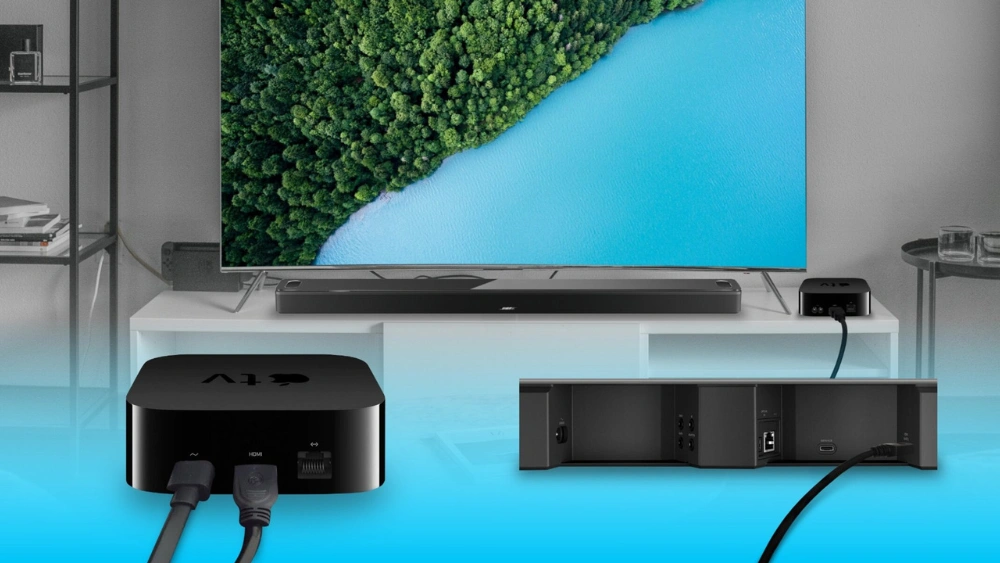
Connecting a Sony soundbar to your TV with HDMI is simple and fast. Use an HDMI cable to link the soundbar’s HDMI ARC port to the TV’s HDMI ARC port. This setup delivers clear sound without extra cables.
Connecting your Sony soundbar to your TV can transform your viewing experience. Imagine the thrill of hearing every whisper and explosion, just as the filmmakers intended. If you’ve recently purchased a soundbar, or you’re considering it, understanding how to connect it properly using HDMI is crucial. It’s not just about plugging in cables; it’s about optimizing your setup for the best sound quality possible. Let’s dive into the steps to ensure your soundbar enhances every movie night.Locate Hdmi Arc Port
First, you need to locate the HDMI ARC port on your TV. ARC stands for Audio Return Channel, and it’s designed to simplify your connection setup. Check the back panel of your TV; you’ll likely find it labeled as “HDMI ARC”. This port allows your TV to send audio signals back to the soundbar, creating a seamless audio experience. Have you ever struggled with multiple remote controls? The HDMI ARC port helps you control both your TV and soundbar using just one.Plug In Hdmi Cable
Once you’ve found the HDMI ARC port, it’s time to plug in the HDMI cable. Connect one end of the HDMI cable to the HDMI ARC port on your TV and the other end to the corresponding port on your soundbar. Make sure the cable is securely inserted, as a loose connection can affect sound quality. A friend once shared how his soundbar kept disconnecting because he hadn’t pushed the cable in fully. Don’t let that happen to you—check it twice!Secure Connections
With the HDMI cable in place, ensure all connections are secure. Tightly fasten the cable to prevent any accidental disconnections. You might want to organize your cables using clips or ties to keep them neat and tidy behind your TV stand. Is your soundbar positioned correctly? It should be centered below your TV for optimal sound distribution. A well-placed soundbar can make all the difference in your audio experience. Connecting your Sony soundbar to your TV with HDMI is straightforward, but attention to detail is key. These steps ensure a smooth setup, providing you with the ultimate sound experience. Are you ready for crystal-clear audio and enhanced entertainment?Configure Tv Settings
Configuring your TV settings is vital for a smooth connection between your Sony soundbar and TV. Adjusting the right options ensures clear sound and full compatibility. Without these settings, your soundbar may not receive audio signals correctly.
Enable Hdmi Arc
Access your TV’s main menu using the remote control. Find the settings or setup section. Look for HDMI settings and select it. Locate the HDMI ARC option. Turn it on to allow audio to pass through the HDMI cable. This setting lets your TV send sound to the soundbar easily. Ensure you connect the HDMI cable to the port labeled ARC on both devices.
Set Audio Output To Soundbar
Return to the audio or sound settings on your TV. Find the audio output or speaker selection option. Choose the external speaker or soundbar as the output device. This change directs audio signals to your Sony soundbar instead of the TV speakers. Check that the volume control on the TV remote adjusts the soundbar’s volume. This step confirms your soundbar is active and ready for use.
Adjust Soundbar Settings
Adjusting the soundbar settings ensures the best audio quality and smooth control. Proper settings let the soundbar work well with your TV. Small changes can improve your listening experience greatly.
Select Hdmi Input
Choose the correct HDMI input on your soundbar. Most soundbars have multiple HDMI ports. Use the remote or buttons on the soundbar to pick the input connected to your TV. This step lets the soundbar receive audio signals from the TV. Without the right input, you won’t hear sound through the soundbar.
Enable Hdmi Control (cec)
Turn on HDMI Control, also called CEC, to link your TV and soundbar. This feature lets devices communicate through HDMI. Enable HDMI Control on both your TV and soundbar settings menus. It allows the TV remote to control the soundbar volume. It also lets the soundbar turn on and off with the TV. This makes using your devices easier and more convenient.
Test The Connection
Once you have connected your Sony soundbar to your TV using an HDMI cable, it’s essential to test the connection to ensure everything works smoothly. Testing confirms that the soundbar is properly recognized by the TV and that audio signals pass through without issues. This step saves you time and frustration before settling in for your favorite shows or movies.
Play Audio Content
Start by playing any audio or video content on your TV, such as a streaming app, a movie, or even a TV channel. Choose something with clear dialogue or distinct sound effects to make it easier to spot problems.
If you don’t hear any sound from the soundbar, double-check the HDMI cable connection and the TV’s audio output settings. Sometimes, you need to manually select the soundbar as the audio output device in your TV’s menu.
Check Sound Quality
Listen carefully to the audio coming through the soundbar. Is it clear, balanced, and free from distortion? Pay attention to volume levels, bass depth, and clarity of voices or music.
Try adjusting the soundbar’s volume and TV settings to find the best audio experience. If the sound seems off, consider testing with a different HDMI cable or checking for firmware updates on your soundbar.
Troubleshoot Common Issues
Troubleshooting common issues can save time and improve your sound experience. Many users face simple problems when connecting a Sony soundbar to a TV via HDMI. Understanding basic fixes helps you enjoy clear sound quickly.
Try checking cables, settings, and connections before calling support. Most problems are easy to solve with a few quick steps. Below are common issues and how to fix them.
No Sound From Soundbar
- Check if the soundbar is powered on and volume is up.
- Ensure the HDMI cable is firmly connected to the HDMI ARC port on the TV and soundbar.
- Set the TV’s audio output to HDMI ARC in the sound settings menu.
- Disable the TV’s internal speakers if they cause sound conflicts.
- Try using a different HDMI cable to rule out cable damage.
Hdmi Arc Not Working
- Confirm that both your TV and soundbar support HDMI ARC.
- Enable HDMI-CEC on both devices; this allows them to communicate.
- Restart both the TV and soundbar to reset the connection.
- Update firmware on both devices to fix compatibility issues.
- Use the correct HDMI port labeled “ARC” on the TV.
Sync Problems
- Audio and video may be out of sync due to processing delays.
- Adjust the audio delay or lip-sync settings in the TV menu.
- Try switching the soundbar to a different audio mode or input.
- Test with different content to see if the problem persists.
- Restart both devices to clear temporary glitches.

Credit: www.youtube.com
Frequently Asked Questions
How Do I Connect Sony Soundbar To Tv With Hdmi?
To connect, use an HDMI cable from the TV’s HDMI ARC port to the soundbar’s HDMI ARC port. Enable HDMI-CEC on both devices for seamless control and better audio performance.
What Is Hdmi Arc And Why Use It?
HDMI ARC stands for Audio Return Channel. It lets your TV send audio to the soundbar via one HDMI cable, simplifying connections and improving sound quality.
Can I Use Hdmi Cable Instead Of Optical Cable?
Yes, HDMI ARC provides better audio quality than optical cables. It also supports volume control through one remote, making it more convenient.
How To Enable Hdmi-cec On Sony Soundbar And Tv?
Go to the TV settings menu, find HDMI-CEC (called BRAVIA Sync on Sony), and enable it. Then enable HDMI Control on the soundbar for syncing controls.
Conclusion
Connecting your Sony soundbar to your TV with HDMI is simple and fast. Just follow the steps carefully. Use the right HDMI cable and ports for best sound quality. Adjust settings on both devices to enjoy clear audio. This setup improves your TV sound experience greatly.
Now, you can watch movies and shows with richer sound. Enjoy your entertainment without extra fuss or complicated steps. Try it today and hear the difference yourself.