
Are you ready to unlock the full sound potential of your Samsung TV? Connecting your Samsung soundbar can transform your viewing experience, delivering clear, powerful audio that makes every movie, show, or game come alive.
But if you’re not sure how to set it up, don’t worry—you’re in the right place. This guide will walk you through simple steps to connect your Samsung soundbar to your Samsung TV quickly and easily. By the end, you’ll enjoy richer sound without any hassle.
Keep reading to get started!
Check Compatibility
Checking compatibility is the first step to connect a Samsung soundbar to a Samsung TV. It helps ensure both devices work together smoothly. Without compatibility, connection problems or poor sound quality can occur.
Compatibility depends on model numbers, available ports, and supported connection types. Knowing these details saves time and avoids frustration.
Identify Your Samsung Tv Model
Find your TV’s model number on the back or in settings. This number shows the TV’s features and supported connections. Write it down for easy reference.
Check Soundbar Model And Features
Look at your soundbar’s model number and user manual. Confirm the soundbar supports connections like HDMI ARC, optical, or Bluetooth. Compatibility depends on matching connection types.
Compare Supported Connection Types
List the connection options on both devices. Common types include:
- HDMI ARC (Audio Return Channel)
- Optical cable (TOSLINK)
- Bluetooth wireless
- Auxiliary (3.5mm jack)
Choose a connection both devices support for the best audio experience.
Verify Firmware And Software Updates
Check if both TV and soundbar have the latest updates installed. Updated firmware improves compatibility and fixes bugs. Use the TV’s settings menu and Samsung’s app for updates.
Review Samsung Support Resources
Visit Samsung’s official website for compatibility charts and guides. These resources help verify if your TV and soundbar models work well together. They also provide troubleshooting tips.
Gather Necessary Cables
Before you connect your Samsung soundbar to your Samsung TV, gathering the right cables is crucial. Having the proper cables on hand saves you from unnecessary hassle and ensures a smooth setup process. Let’s look at the cables you’ll likely need and why each one matters.
Identify Your Tv And Soundbar Ports
First, check the ports available on both your Samsung TV and soundbar. Most modern Samsung TVs and soundbars support HDMI ARC or eARC, which allows audio to travel both ways using a single cable.
If you see HDMI ARC ports, this is usually your best option for quality and simplicity. But some models might also have optical audio or even Bluetooth options, so knowing what’s available helps you pick the right cable.
Hdmi Arc Cable
An HDMI cable with ARC (Audio Return Channel) capability is often the best choice. It carries high-quality audio and lets you control the soundbar volume using your TV remote.
Make sure your HDMI cable supports ARC or eARC if your devices have those ports. This cable is usually included with your soundbar, but double-check to avoid last-minute trips to the store.
Optical Audio Cable
If HDMI ARC isn’t an option, an optical audio cable is your next best bet. It transmits digital sound signals and is widely compatible with Samsung TVs and soundbars.
Optical cables are easy to recognize by their square-shaped connectors and red or clear protective caps. Keep one handy as a reliable backup, especially if your HDMI ports are already in use.
Auxiliary Or Rca Cables
Older Samsung TVs or soundbars might require auxiliary (3.5mm) or RCA cables. These transmit analog signals, which means the sound quality won’t be as crisp compared to digital connections.
Still, these cables can work in a pinch. Check your devices’ inputs and outputs carefully to see if you’ll need these classic cables for your setup.
Power Cables And Adapters
Don’t forget the power cables for both your TV and soundbar. Sometimes, the soundbar’s power adapter might be separate or have specific voltage requirements.
Having all power cords ready ensures you won’t have to pause your setup midway. Also, consider cable management tools like clips or ties to keep everything neat once connected.
Have you ever started connecting devices only to realize you’re missing a cable? Taking a few minutes to gather all necessary cables upfront can save you from that frustration and get your home theater sounding great faster.
Connect Via Hdmi Arc
Connecting your Samsung soundbar to your Samsung TV using HDMI ARC offers a seamless audio experience with fewer cables. This method allows your TV to send sound directly to the soundbar and lets you control the volume with your TV remote. It’s a straightforward setup that enhances your home entertainment without clutter.
Locate Hdmi Arc Port
First, identify the HDMI ARC port on both your Samsung TV and soundbar. Look for the label “HDMI ARC”near the HDMI ports on your devices. Usually, it’s the HDMI port closest to the TV’s other input ports, but double-check your device manuals if you’re unsure.
Use Hdmi Cable
Grab a high-speed HDMI cable to connect the soundbar’s HDMI ARC port to the TV’s HDMI ARC port. Make sure the cable is fully inserted on both ends for a secure connection. This single cable will carry both audio and control signals, reducing the need for extra wires and simplifying your setup.
Enable Anynet+ On Tv
To allow your TV to communicate with the soundbar, enable the Anynet+ (HDMI-CEC) feature on your Samsung TV. Navigate to Settings > General > External Device Manager > Anynet+ (HDMI-CEC)and turn it on. This lets you control the soundbar volume and power using your TV remote, making the experience smooth and intuitive.

Credit: www.youtube.com
Connect Via Optical Cable
Use an optical cable to link your Samsung soundbar directly to your Samsung TV. Connect the cable from the TV’s optical out port to the soundbar’s optical input. This setup delivers clear digital audio for a better listening experience.
Connecting your Samsung soundbar to your Samsung TV using an optical cable is a straightforward process that enhances your audio experience significantly. Optical cables are known for their ability to transmit high-quality sound with minimal interference. This method is particularly beneficial if you’re aiming for a crisp and clear audio output without diving into complex setups. Let’s walk through the steps to ensure you get the best sound possible from your devices.Find Optical Out Port
Begin by locating the optical out port on your Samsung TV. This port is typically labeled as “Optical Out” or “Digital Audio Out.” It’s usually found on the back panel of the TV alongside other connection options like HDMI and USB ports. If you have a wall-mounted TV, you might need to gently pull it away from the wall to access these ports. Once found, you’re ready to move on to the next step.Use Optical Cable
With the optical out port located, grab your optical cable and connect one end to the TV’s optical out port. The cable has a distinct square shape, ensuring it only fits into the correct port. Make sure it’s securely inserted to avoid any loose connections that could lead to sound disruptions. The other end of the cable needs to be connected to the optical input port on your soundbar. This completes the physical connection between your TV and soundbar.Select Optical Input On Soundbar
Once the cable is connected, it’s time to configure your soundbar to receive sound through the optical connection. Using the remote control or the buttons on the soundbar itself, navigate to the input settings. Select the optical input option, often labeled as “Optical” or “D-In” on Samsung soundbars. This tells the soundbar to channel the sound from the TV through the optical connection. Have you ever noticed how different your favorite movie sounds when the audio quality is optimized? By selecting the correct input, you’re ensuring that every dialogue, soundtrack, and special effect comes through with clarity and precision. Isn’t it fascinating how a simple cable can make such a difference in your viewing experience? This straightforward setup not only enhances audio quality but also keeps your entertainment area neat and organized without unnecessary wires. So, what are you waiting for? Dive into your next movie night with sound that matches the stunning visuals of your Samsung TV.Pairing With Bluetooth
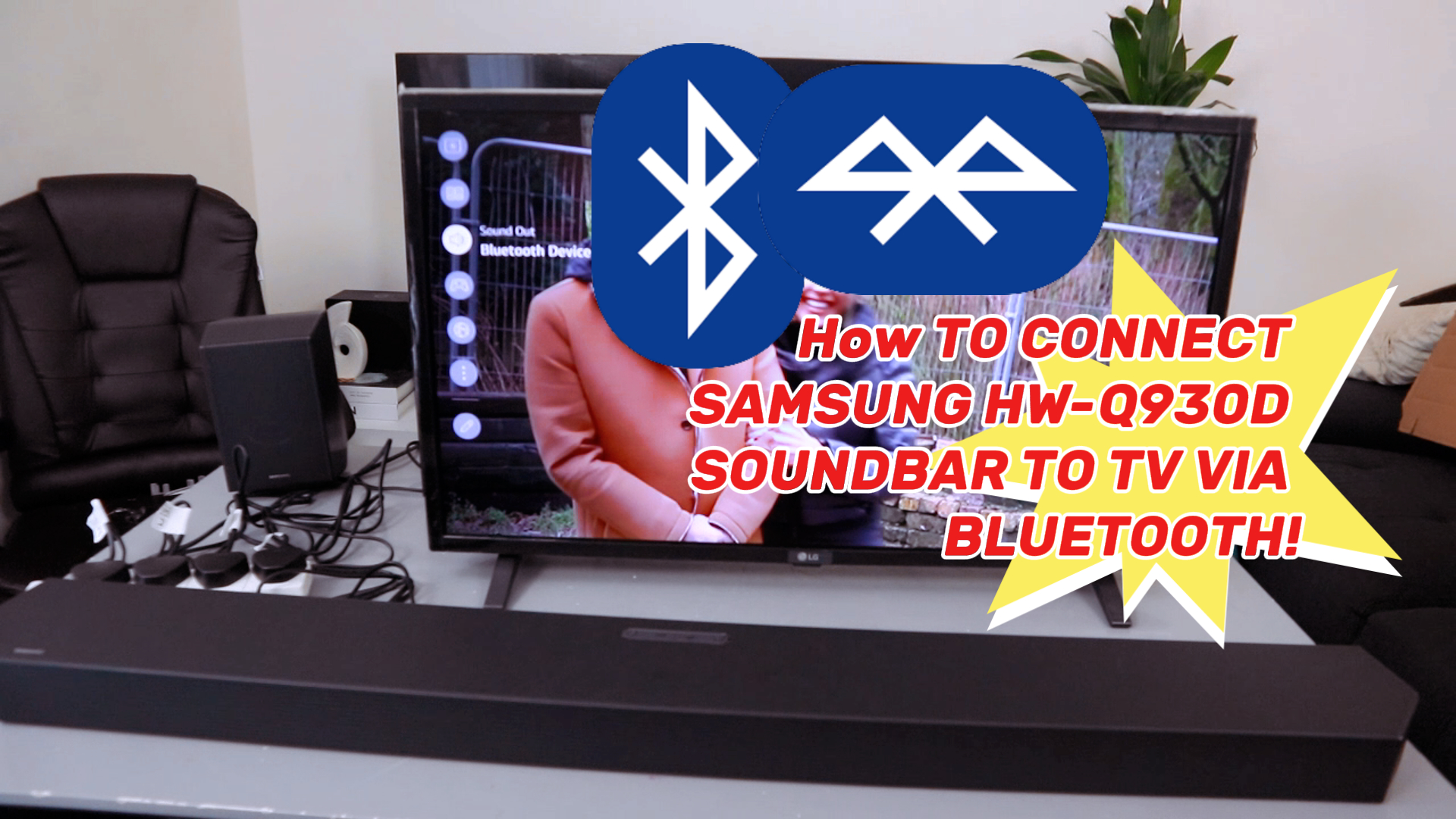
Pairing your Samsung soundbar with your Samsung TV via Bluetooth offers a wireless, neat setup. It removes cable clutter and lets you enjoy rich sound freely. This section guides you through the simple Bluetooth connection process.
Activate Bluetooth Mode
Power on your Samsung soundbar. Press the Bluetooth button on the remote or soundbar panel. The Bluetooth indicator light starts blinking. This shows the soundbar is ready to connect.
Search For Soundbar On Tv
Turn on your Samsung TV and open Settings. Navigate to Sound > Sound Output > Bluetooth Speaker List. The TV begins scanning for nearby Bluetooth devices. Find your soundbar’s name in the list.
Complete Pairing Process
Select the soundbar’s name on the TV screen. Wait a moment for the devices to connect. A confirmation message appears once pairing is successful. Test the sound by playing TV audio to confirm connection.
Configure Sound Settings
Configuring the sound settings is key to getting the best audio experience from your Samsung soundbar and TV. You want to make sure the TV sends sound to the soundbar correctly, the volume is balanced, and the sound quality meets your expectations. Let’s break down how to adjust these settings so your setup sounds great.
Set Tv Audio Output
First, you need to tell your Samsung TV to send audio to the soundbar instead of its built-in speakers. This step is crucial because if the TV is still set to internal speakers, your soundbar won’t work properly.
- Go to the TV’s Settings menu.
- Select Soundor Audio.
- Find the Speaker Settingsor Sound Outputoption.
- Choose your soundbar from the list (it usually appears as Receiver (HDMI)or Opticaldepending on your connection).
Have you checked if your TV supports automatic sound output switching? It can make life easier by detecting your soundbar without manual changes.
Adjust Soundbar Volume
Once your TV is sending audio to the soundbar, you should fine-tune the volume. The soundbar’s volume level might not sync perfectly with your TV remote right away.
- Use your soundbar’s remote or app to set a comfortable base volume.
- Check if your TV remote controls the soundbar volume—if not, consider enabling HDMI-CEC or Anynet+ on your TV.
- Adjust volume gradually while watching different types of content to find the sweet spot.
Have you noticed certain shows sound louder or softer? Adjusting volume dynamically can prevent you from constantly reaching for the remote.
Test Sound Quality
After setting the output and volume, it’s important to test the sound quality. This helps confirm everything is working and the audio matches your room’s acoustics.
- Play a variety of content: movies, music, and dialogue-heavy shows.
- Listen for clarity, bass response, and whether voices come through clearly.
- If the sound seems off, explore your soundbar’s sound modes or equalizer settings to tweak bass, treble, and surround effects.
Did you try moving the soundbar slightly? Small adjustments in placement can dramatically change your audio experience.
Troubleshoot Connection Issues
Connection issues between a Samsung soundbar and TV can disrupt your audio experience. Fixing these problems often requires simple checks and updates. Follow these steps to troubleshoot and restore clear sound.
Check Cable Connections
Ensure all cables are firmly plugged into the correct ports. Loose or wrong connections cause no sound or poor audio quality. Examine HDMI, optical, or AUX cables for damage. Replace any frayed or broken cables immediately. Confirm the TV audio output matches the cable type used.
Restart Devices
Power off both the TV and soundbar. Unplug them from the power source for 30 seconds. This resets the internal system and clears temporary glitches. Plug devices back in and turn them on. This simple step often restores proper connection and sound output.
Update Firmware
Old software can cause compatibility problems. Check for the latest firmware updates on both soundbar and TV. Use the settings menu or Samsung’s support site to find updates. Installing new firmware improves performance and fixes bugs affecting connection.

Credit: www.youtube.com
Credit: us.amazon.com
Frequently Asked Questions
How Do I Connect Samsung Soundbar To Samsung Tv Wirelessly?
To connect wirelessly, enable Bluetooth on both devices. Select the soundbar from your TV’s Bluetooth settings to pair. This allows easy audio streaming without cables.
Can I Use Hdmi Arc To Connect Samsung Soundbar?
Yes, HDMI ARC is ideal for Samsung soundbars and TVs. Connect the HDMI cable to ARC ports on both devices for high-quality audio and control through one remote.
Why Is My Samsung Soundbar Not Connecting To Tv?
Check if both devices are on the same input and Bluetooth is enabled. Also, ensure firmware is updated and cables are properly connected to fix issues.
How To Set Samsung Tv Audio Output To Soundbar?
Go to TV settings, select “Sound,” then “Sound Output. ” Choose your Samsung soundbar from the list for clear, enhanced audio output.
Conclusion
Connecting your Samsung soundbar to your Samsung TV is simple and quick. Use the right cable or Bluetooth to link them easily. Adjust the settings on both devices for the best sound quality. Enjoy clear audio for movies, shows, and music.
This setup improves your viewing experience without extra hassle. Follow these steps, and your home entertainment will feel complete. No need for extra tools or skills. Just connect, adjust, and enjoy great sound today.