
Have you ever wanted to share your phone’s screen on a bigger display but didn’t know where to start? Connecting your phone to a projector with an HDMI cable is easier than you think.
Whether you’re giving a presentation, watching videos, or sharing photos, this simple connection can make your content come alive on the big screen. You’ll discover step-by-step how to link your phone to a projector using HDMI, so you can enjoy clear, smooth visuals without any hassle.
Keep reading, and you’ll be ready to impress your audience in no time.
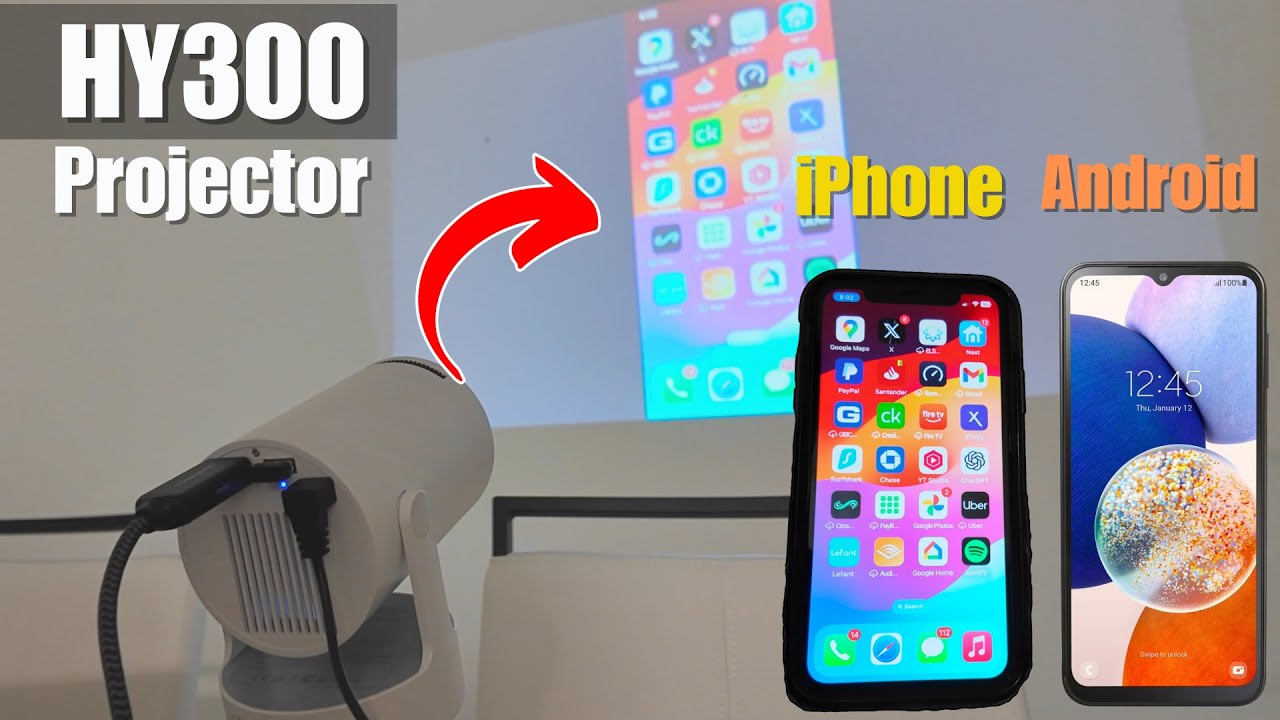
Credit: www.youtube.com
Check Your Phone’s Hdmi Compatibility
Checking your phone’s HDMI compatibility is essential before connecting it to a projector. Not all phones support direct HDMI output. Knowing your phone’s capabilities helps choose the right connection method. It also prevents connection issues and saves time.
Identify Hdmi Or Mhl Support
Some phones have built-in HDMI output through their charging port. Others support MHL (Mobile High-Definition Link), which allows HDMI output using an adapter. Check your phone’s specifications online or in the user manual. Look for terms like “HDMI output,” “MHL support,” or “SlimPort.” If your phone supports these, it can connect to a projector via HDMI.
Determine Required Adapters
If your phone lacks a direct HDMI port, an adapter is necessary. MHL or SlimPort adapters convert your phone’s USB or charging port to HDMI. Ensure the adapter matches your phone’s port type—USB-C, Micro USB, or Lightning. Some adapters also require external power. Verify this to avoid connection problems during use.

Credit: www.youtube.com
Gather Necessary Equipment
Before you can enjoy sharing your phone’s screen on a big projector, gathering the right equipment is key. Missing a crucial cable or adapter can turn a simple setup into a frustrating puzzle. Let’s break down what you need to have ready so your connection goes smoothly and without interruptions.
Choose The Right Hdmi Cable
Not all HDMI cables are created equal. Your choice depends on the type of HDMI port on your projector and the resolution you want to achieve.
- Standard HDMI:Works for most projectors and supports up to 1080p resolution.
- High-Speed HDMI:Needed if you want to stream in 4K or higher quality.
- Length matters:Measure the distance between your projector and where you’ll place your phone to avoid cables that are too short or overly long.
I once grabbed a cheap, short HDMI cable and ended up scrambling to find an extension before my presentation. Don’t let that happen to you!
Select Compatible Adapters
Phones rarely have a full HDMI port, so adapters bridge the gap between your device and the projector. Picking the right one depends on your phone’s charging port.
- USB-C to HDMI:Most modern Android phones and newer iPhones with USB-C ports use this adapter.
- Lightning to HDMI (Lightning Digital AV Adapter):For iPhones with the Lightning connector.
- Check compatibility:Not all adapters support video output; verify before buying.
Think about how many times you’ve grabbed an adapter only to find it won’t work with your device. Double-check the specs to save time and money.
Prepare Power Sources
Connecting your phone and projector can drain your battery quickly. Ensuring you have power sources ready can keep your setup running longer.
- Phone charger:Keep your phone plugged in during use to avoid interruptions.
- Projector power:Confirm the projector is near an outlet or has a fully charged battery if portable.
- Spare cables and power banks:These can be lifesavers if outlets aren’t nearby.
During a recent outdoor movie night, having a power bank saved the day when my phone’s battery dipped below 10%. What’s your backup plan for power?
Connect Phone To Projector
Connecting your phone to a projector using an HDMI cable is a straightforward way to share videos, presentations, or photos on a larger screen. Whether you’re preparing for a meeting or setting up a movie night, knowing how to properly link your devices can save you time and frustration. Let’s look at the key steps to get your phone and projector talking smoothly.
Plug In Adapters And Cables
Most modern projectors support HDMI input, but your phone might not have a direct HDMI port. Check if your phone uses a USB-C or Lightning port. You may need an adapter like USB-C to HDMI or Lightning to HDMI to make the connection.
Once you have the right adapter, connect it to your phone’s charging port. Then, plug one end of the HDMI cable into the adapter and the other end into the projector’s HDMI input. Simple cables can sometimes be the cause of connection issues, so using good quality ones matters.
Secure Connections
Loose connections cause signal drops or no display at all. After plugging in, gently press each connection to ensure they fit snugly. Avoid forcing cables as it may damage ports or connectors.
Also, double-check that the projector is set to the correct HDMI input source. You can usually select the input via the projector’s remote or on-screen menu. Have you ever spent minutes troubleshooting only to realize the projector was on the wrong input? This small step saves a lot of hassle.
Adjust Projector Settings
Adjusting the projector settings is crucial for a clear and sharp display. Proper settings ensure your phone’s content shows correctly on the big screen. This step helps avoid blurry images, wrong colors, and poor alignment.
Select Hdmi Input Source
Turn on your projector and phone. Use the projector remote or buttons to open the input menu. Find the list of input options. Choose the HDMI port where your phone is connected. This action tells the projector to use the phone as the video source. Without selecting the correct HDMI input, the projector will not show your phone’s screen.
Optimize Display Settings
Check the projector’s display settings after selecting the HDMI input. Adjust the resolution to match your phone’s output for the best picture quality. Set the brightness and contrast so the image is clear and easy to see. Use the focus control to sharpen the image. If the image looks stretched or cut off, change the aspect ratio to fit the screen properly. Small tweaks here make a big difference in viewing comfort.
Troubleshoot Common Issues
Connecting your phone to a projector using HDMI should be straightforward, but sometimes, unexpected hiccups can occur. If your screen isn’t displaying as it should, don’t panic. There are a few common issues that you can troubleshoot to resolve the problem. Let’s dive into some practical solutions that might just save the day.
Check Cable And Adapter Functionality
Start by examining the HDMI cable and any adapters you’re using. Sometimes, the simplest solution is the most effective. Ensure that the cable isn’t damaged or frayed. A worn-out cable can cause connection issues. If you have another HDMI cable or adapter, try swapping them out to see if the problem persists.
- Inspect connectors for dirt or debris.
- Test with a different cable or adapter.
- Ensure connections are secure.
Have you ever had a cable suddenly stop working after weeks of perfect use? It happens more often than you’d think. Keeping a spare handy can be a lifesaver.
Restart Devices
Before you delve into more complex solutions, a simple restart might do the trick. Turn off your phone and projector, then power them back on. This can refresh the connection and solve minor glitches. It’s amazing how often this basic step resolves technical issues.
Think about it: when was the last time you restarted your phone? Devices need a break too, and this might just solve your HDMI woes.
Update Software And Drivers
Outdated software can lead to compatibility issues. Check for any available updates for your phone’s operating system or the projector’s firmware. Updating can improve performance and eliminate bugs that might be causing connection problems.
- Navigate to your phone’s settings and check for system updates.
- Consult the projector’s manual for firmware update instructions.
- Consider updating HDMI drivers if applicable.
Have you ever experienced a sudden improvement in device performance after an update? Keeping software up-to-date ensures your tech is running smoothly.
Are you still encountering problems after trying these solutions? It might be time to consult the manual or seek professional assistance. However, often these simple steps can resolve the majority of connectivity issues. What do you think? Can these tips help you maintain a seamless connection between your phone and projector?

Credit: www.youtube.com
Tips For Better Projection Quality
Improving the quality of your projection makes a big difference in how your content appears on the big screen. Small adjustments can boost clarity, color, and overall viewing experience. Let’s look at some practical tips to enhance your projection quality when connecting your phone to a projector via HDMI.
Adjust Screen Resolution
Matching your phone’s screen resolution to the projector’s native resolution ensures sharper images. Check your phone’s display settings and set the resolution to fit the projector’s capabilities.
If the resolution is too high or too low, the image might look stretched or blurry. Have you noticed pixelation when projecting videos? Changing the resolution often fixes that problem quickly.
Manage Ambient Lighting
Ambient light can wash out your projected image, making it hard to see. Try to dim or turn off nearby lights for a clearer picture.
If you can’t control the lighting completely, use a projector screen with higher gain or position the projector in a darker corner. Have you ever tried watching a movie projected in a bright room? It rarely looks good without adjustments.
Position Projector Properly
Where you place your projector affects focus and image size. Keep it level and centered with the screen to avoid distortion or keystone effects.
Experiment with the distance between your projector and screen. Moving it closer or farther changes the size and sharpness. Have you noticed blurry edges when your projector is too close or off to the side? Correct positioning can solve that issue.
Frequently Asked Questions
How Do I Connect My Phone To A Projector With Hdmi?
Use an HDMI cable or adapter compatible with your phone. Connect the phone’s output port to the projector’s HDMI input. Switch the projector to the correct HDMI source to display your phone screen.
What Adapter Do I Need For Phone To Hdmi Projector?
You may need a USB-C to HDMI or Lightning to HDMI adapter. Choose one compatible with your phone model to ensure a stable connection. This adapter lets your phone output video through the HDMI cable.
Can All Phones Connect To Projectors Via Hdmi?
Most modern phones support HDMI output with the right adapter. Older or budget phones may lack this feature. Check your phone’s specifications to confirm HDMI compatibility before connecting.
Why Is My Phone Not Showing On The Projector?
Ensure the HDMI cable and adapter are securely connected. Select the correct HDMI input on the projector. Restart both devices if the display doesn’t appear immediately.
Conclusion
Connecting your phone to a projector with HDMI is simple and quick. Just use the right cable or adapter for your device. Make sure both devices are powered on and set to the correct input. This method works well for showing videos, presentations, or photos on a bigger screen.
Now, enjoy a clear and bright display from your phone. No extra apps or complicated steps needed. Try it yourself and see how easy it can be.