
If you use a Magic Mouse 2, you know how smooth and sleek it feels in your hand. But what happens when the battery runs low?
Knowing exactly how to charge your Magic Mouse 2 can save you from unexpected interruptions and keep your workflow smooth. In this guide, you’ll discover simple, quick steps to power up your mouse the right way. Keep reading to make sure your Magic Mouse 2 never leaves you waiting.

Credit: www.linkedin.com
Magic Mouse 2 Charging Basics
Understanding the basics of charging your Magic Mouse 2 is key to keeping it ready for use without interruptions. The design of this device is sleek and minimal, which means charging might not be as straightforward as with other gadgets. Let’s clear up where to plug in and what chargers work best to keep your mouse powered up efficiently.
Charging Port Location
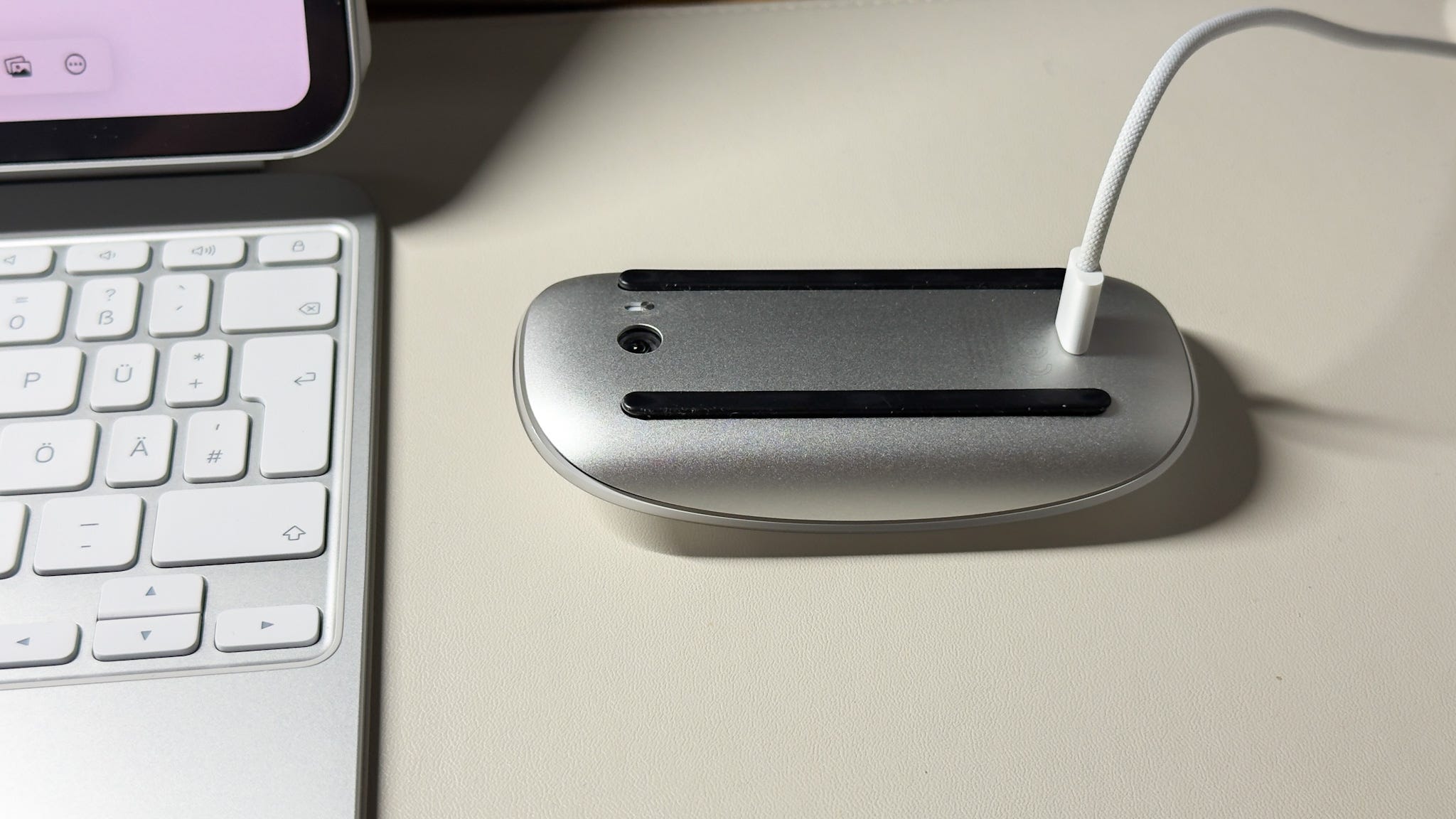
The Magic Mouse 2 doesn’t have a visible charging port on its sides or front like many other wireless devices. Instead, the charging port is cleverly placed underneath the mouse, right on its bottom surface. This design choice keeps the top smooth and clean but means you can’t use the mouse while it’s charging.
If you’ve ever tried to charge your mouse while using it, you might have noticed the awkward positioning. This placement requires you to flip the mouse over and connect the Lightning cable to its underside. It’s a small inconvenience, but it ensures the mouse’s profile remains slim and stylish.
Compatible Chargers
The Magic Mouse 2 uses a Lightning to USB cable for charging, the same cable that comes with many Apple devices. You can use any USB power adapter that supplies 5V and 1A or more for charging. Chargers from iPhones, iPads, or even your MacBook’s USB ports will work just fine.
While wireless charging isn’t an option for this mouse, using a reliable charger will speed up the process and protect the battery’s health. Avoid using cheap or unbranded chargers—they might charge your mouse but could damage the battery over time. Think about your charging habits: do you prefer to charge overnight or top it off during the day? Both methods work, but consistent charging helps maintain battery longevity.
Credit: medium.com
Step-by-step Charging Process
Charging your Magic Mouse 2 is straightforward once you know the right steps. Paying attention to the process can save you time and avoid any frustration from unexpected power loss. Let’s walk through the essential actions to get your mouse powered up efficiently.
Prepare Your Magic Mouse 2
Start by placing your Magic Mouse 2 on a flat surface with the bottom side facing up. You’ll notice the Lightning port located here—this is where the charging cable connects. Make sure the mouse is clean and free from dust around the port to ensure a stable connection.
Think about the last time your mouse died mid-task—did you have a charger ready? Keeping your charging cable handy near your workspace can prevent that inconvenience.
Connect To Power Source
Use the Lightning to USB cable that came with your mouse. Plug the Lightning end into the port on the bottom of your Magic Mouse 2. Then, connect the USB end to a power source like a USB wall adapter, computer, or power bank.
- Prefer a wall adapter for faster charging.
- Charging via a computer USB port works but may take longer.
- A power bank can be handy for on-the-go charging.
Have you ever noticed your mouse’s charging speed varies? Choosing the right power source makes a real difference.
Check Charging Status
After connecting, check your Mac’s battery status to see if the Magic Mouse 2 is charging. Click the Bluetooth icon in the menu bar and hover over your Magic Mouse 2 to view the current battery level. You can also open System Preferences > Bluetooth for detailed information.
Keep in mind, the Magic Mouse 2 charges quickly—typically reaching a full charge within a couple of hours. If it doesn’t show as charging, double-check your connections and the power source.
Curious how long your mouse can last on a full charge? Apple claims it can run for about a month, but your usage habits will influence that.
Tips For Faster Charging
Use a good-quality charging cable and connect to a fast power source for quicker charging. Keep the Magic Mouse 2 turned off while charging to save time. Avoid using low-power USB ports like those on keyboards.
Charging your Magic Mouse 2 efficiently is crucial to ensure you never face downtime during your work or leisure activities. While the process is straightforward, optimizing charging methods can save time and enhance performance. Below are some practical tips for faster charging that can make a significant difference.Use Official Chargers
When it comes to charging your Magic Mouse 2, using the official charger is your best bet. Apple designs its chargers to work seamlessly with their devices, ensuring optimal power delivery. Third-party chargers might promise quick charging, but they often fall short, leading to longer charging times or potential damage. Stick to the original charger to maintain efficiency and protect your device.Avoid Using While Charging
Using your Magic Mouse 2 while it’s charging can slow down the process considerably. Imagine trying to fill a bucket with water while it’s being drained at the same time. If you can, give your mouse a break and let it charge undisturbed. This simple act can cut down charging time significantly, allowing you to return to work sooner.Charge In Optimal Conditions
The environment plays a role in charging efficiency. Charging in a cooler, dry place is ideal. Excessive heat can affect charging speed and potentially harm your battery. Think about where you usually charge your devices. Is it near a window where sunlight streams in? If so, moving your charger to a cooler, shaded spot could enhance charging speed. Would you consider adjusting your charging habits to boost efficiency? These minor tweaks can lead to major improvements in how quickly your Magic Mouse 2 returns to full power.Battery Care And Maintenance
Taking good care of your Magic Mouse 2’s battery can extend its lifespan and keep it performing smoothly. Small habits make a big difference in how long your battery lasts and how often you need to recharge. Let’s look at some practical tips you can apply today to maintain your mouse’s battery health.
Prevent Overcharging
Leaving your Magic Mouse 2 plugged in after it reaches 100% can reduce battery efficiency over time. The mouse uses a lithium-ion battery, which prefers partial charges rather than staying fully charged for hours.
Try to unplug the charging cable once the battery is full. If you charge overnight, consider using a smart plug with a timer or a USB charger that stops power flow automatically.
Regular Usage Tips
Using your Magic Mouse 2 regularly helps keep the battery active and healthy. Batteries that sit idle for long periods can lose capacity faster.
If you don’t use your mouse daily, aim to charge and use it at least once a week. This practice keeps the battery chemistry balanced and prevents it from deteriorating prematurely.
Battery Health Indicators
Keep an eye on your mouse’s battery level through your Mac’s Bluetooth settings or the battery widget. Sudden drops or rapid battery drain can signal battery health issues.
Apple doesn’t provide detailed battery health stats for the Magic Mouse, but if you notice consistently poor performance, it might be time to reset or replace the battery. Have you ever experienced unexpected shutdowns during work? That’s often a sign to check battery status.
Troubleshooting Charging Issues
Charging issues with the Magic Mouse 2 can disrupt your workflow. Troubleshooting helps identify and fix these problems quickly. This section covers common charging problems and easy fixes.
Mouse Not Charging
Check the Lightning cable connection first. Make sure the cable fits snugly into the mouse port. Try a different cable or charger to rule out a faulty accessory.
Inspect the charging port for dirt or debris. Clean it gently with a dry, soft brush if needed. Avoid using liquids or sharp objects.
Verify the power source is working. Plug the charger into another outlet or USB port. Confirm the power source delivers enough current.
Slow Charging Problems
Slow charging often happens due to low power output. Use a charger with at least 5W power for faster charging. USB ports on older computers may not supply enough power.
Remove any case or cover from the mouse before charging. Cases can block the charging connection. Charge the mouse in a cool, dry place to avoid overheating.
Check the mouse battery health in your Mac’s System Information. A worn-out battery may charge slowly or hold less power.
Resetting The Magic Mouse 2
Resetting can fix unresponsive charging or connection issues. Turn off the mouse by sliding the switch on the bottom to off.
Wait for about 10 seconds before turning it back on. This action resets the internal hardware.
Forget the mouse from your Mac’s Bluetooth settings. Then, reconnect it by pairing again. This clears any software glitches affecting charging.

Credit: www.ebay.ca
Frequently Asked Questions
How Do I Charge A Magic Mouse 2?
To charge a Magic Mouse 2, connect a Lightning cable to its port underneath. Plug the other end into a USB power source. Charging takes about 2 hours for a full battery.
Can I Use Magic Mouse 2 While Charging?
No, you cannot use Magic Mouse 2 while charging. The charging port is on the bottom, making it unusable during charging.
How Long Does Magic Mouse 2 Battery Last?
A full charge lasts approximately one month with typical use. The battery life varies depending on usage intensity and settings.
What Type Of Cable Charges Magic Mouse 2?
Magic Mouse 2 uses a Lightning to USB cable. This is the same cable used for charging iPhones and iPads.
Conclusion
Charging your Magic Mouse 2 is simple and quick. Just connect the Lightning cable to the mouse’s charging port. A full charge can last several weeks. Avoid using the mouse while charging to save time. Keep your charger handy to prevent interruptions.
Regular charging keeps your mouse ready to use. This small step ensures smooth work or play. Enjoy the convenience of a wireless mouse without worry.