
Are you frustrated when your wireless keyboard suddenly stops working just because the battery died? You’re not alone.
Knowing how to charge your wireless keyboard quickly and correctly can save you from those annoying interruptions. You’ll discover simple steps to keep your keyboard powered up and ready whenever you need it. Keep reading to learn easy tips that make charging hassle-free and ensure your typing never slows down.
Credit: www.tiktok.com
Types Of Wireless Keyboards
Wireless keyboards come in various types, each with unique features. Knowing these types helps you understand charging methods better. Some connect through Bluetooth, while others use radio frequency (RF) signals. Power sources also differ, affecting how you charge or replace batteries.
Bluetooth Keyboards
Bluetooth keyboards link directly to devices like laptops or tablets. They do not need a separate receiver. Charging depends on the model—some have built-in batteries, while others use replaceable ones. You often charge them via USB cables or wireless charging pads.
Rf Wireless Keyboards
RF keyboards connect through a small USB receiver. This receiver plugs into your computer to create a wireless link. Most RF keyboards use standard batteries, like AA or AAA. You replace batteries when they run out rather than charging them.
Rechargeable Vs Battery-powered
Rechargeable keyboards include batteries you can charge repeatedly. They save money and reduce waste over time. Battery-powered keyboards require you to swap out batteries when dead. They are simple but may need frequent replacement depending on use.
Preparing To Charge
Preparing to charge your wireless keyboard is an important first step. It ensures a smooth charging process. This preparation helps avoid damage and saves time. Follow these simple tips to get ready for charging.
Locate The Charging Port
Find the charging port on your wireless keyboard. It is usually on the back or side. Look for a small slot or connector. Some keyboards use USB-C, while others use micro-USB. Knowing the port type helps you choose the right cable.
Check Battery Indicators
Look for battery level indicators on the keyboard. Some models have LED lights that show charge status. Others display battery info on your computer screen. Check these indicators to see if charging is needed. This step prevents unnecessary charging.
Gather Necessary Cables
Collect the cables required for charging. Use the cable that fits your keyboard’s charging port. Avoid using damaged or frayed cables. A good cable ensures safe and fast charging. Keep the cable near your charging area for convenience.
Charging Methods
Wireless keyboards usually charge via USB cables or charging docks. Some models use replaceable batteries, while others have built-in rechargeable cells. Simply connect the keyboard to a power source and wait until it reaches full charge.
Charging your wireless keyboard ensures it’s always ready for use. Different methods offer flexibility based on your preference and setup. Explore these charging methods to find what works best for you.
Using Usb Cables
USB cables are a straightforward option. They connect directly to your device. Most wireless keyboards come with a USB cable. Simply plug one end into the keyboard’s charging port. The other end goes into a power source. This could be a computer or a wall adapter. USB cables charge quickly. They are easy to use and widely available.
Charging Docks And Pads
Charging docks and pads offer convenience. Place your keyboard on the dock or pad. Make sure it’s aligned correctly. These devices usually connect to a power source. They charge multiple devices simultaneously. Charging docks and pads reduce clutter. They are often sleek and stylish.
Wireless Charging Options
Wireless charging is modern and efficient. It requires a compatible keyboard. Use a wireless charging pad or mat. Place the keyboard on the pad. Ensure it’s positioned correctly. Wireless charging eliminates cables. It’s simple and neat. Just remember to check compatibility first. This option can be a bit slower, but it’s hassle-free.
Charging Tips
Proper charging habits extend your wireless keyboard’s battery life. Follow simple tips to charge efficiently and protect your device. Good charging practices help maintain performance and save energy.
Optimal Charging Times
Charge your keyboard during low usage periods, like overnight or while working. Avoid short, frequent charges; longer sessions are better. Most keyboards fully charge within 2-3 hours. Check your device’s manual for exact times.
Avoiding Overcharging
Unplug the charger once the keyboard is full. Overcharging can reduce battery life. Many modern keyboards stop charging automatically when full. Still, disconnecting early prevents unnecessary power use and heat build-up.
Maintaining Battery Health
Keep the battery between 20% and 80% charged. Avoid letting it drain completely or stay full for long. Store the keyboard in a cool, dry place when not in use. Clean charging ports regularly for better connection.
Troubleshooting Charging Issues
Charging problems with wireless keyboards can be frustrating. Many users face issues that stop their device from working properly. Troubleshooting helps identify the root cause and fix it fast. This section covers common charging problems and easy solutions.
Keyboard Not Charging
Check the charging cable for damage. A broken cable stops power flow.
Make sure the charging port is clean. Dust can block the connection.
Try a different power source or USB port. Sometimes the outlet or port is faulty.
Restart the keyboard after plugging it in. This can reset the charging process.
Look for indicator lights. No light often means no charge is happening.
Battery Drains Quickly
Check if the keyboard is left on when not used. Power drains faster this way.
Lower the keyboard’s backlight or turn it off. Lighting uses a lot of battery.
Replace old batteries with new rechargeable ones. Old batteries lose capacity over time.
Update the keyboard’s firmware. New software can fix battery bugs.
Limit wireless interference. Other devices may cause faster battery drain.
Connection Problems
Ensure the keyboard is paired correctly with your device.
Turn off and on Bluetooth or wireless receiver to reset connection.
Keep the keyboard close to the device to avoid signal loss.
Remove other wireless devices that may cause interference.
Restart your computer or tablet to clear connection issues.
:max_bytes(150000):strip_icc()/001_How-to-Charge_Logitech-Keyboard-a00ec02959d045ce88b747836db2cd24.jpg)
Credit: www.lifewire.com
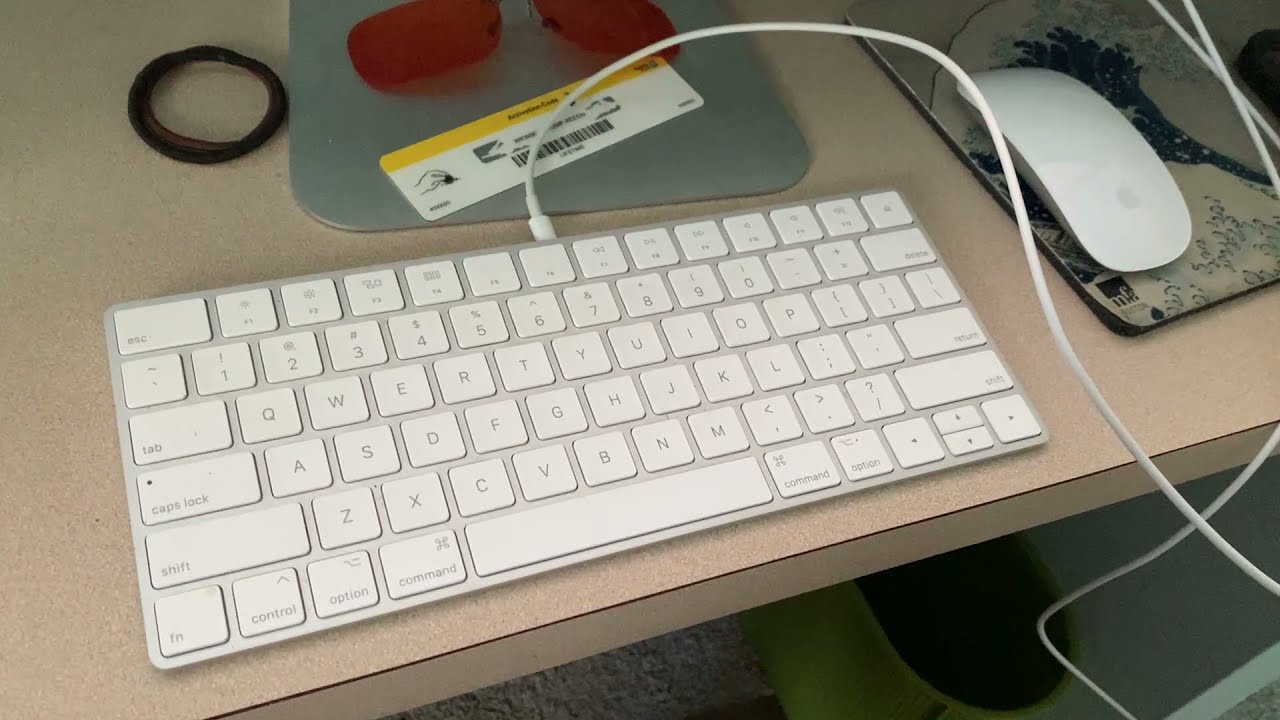
Credit: www.youtube.com
Frequently Asked Questions
How Do I Charge A Wireless Keyboard Effectively?
To charge a wireless keyboard, connect it to a power source using the provided USB cable. Use a compatible charger or USB port on your computer. Ensure the keyboard is turned off during charging for faster battery replenishment.
How Long Does It Take To Fully Charge Wireless Keyboards?
Charging time varies but typically ranges from 2 to 4 hours. Refer to your keyboard’s manual for exact timings. Avoid overcharging to maintain battery health and prolong the keyboard’s lifespan.
Can I Use Wireless Keyboards While Charging?
Most wireless keyboards support use during charging via USB connection. However, check your model’s instructions to confirm. Using it while charging ensures uninterrupted work and prevents battery drain.
What Types Of Chargers Are Compatible With Wireless Keyboards?
Wireless keyboards usually use USB-A to USB-C or Micro-USB cables. Use original or certified chargers to avoid damage. Avoid using fast chargers unless specified by the manufacturer.
Conclusion
Charging a wireless keyboard is simple and quick. Use the right cable or batteries for your model. Keep the keyboard close to the charger or device. Regular charging helps avoid interruptions while working. Clean contacts improve charging speed and connection.
Check the battery level often to stay prepared. Follow these tips for a smooth typing experience every day.