
Are you worried that your Wi-Fi network might not be as secure as it should be? Changing your Wi-Fi router’s security settings is one of the easiest and most effective ways to protect your personal information and keep unwanted guests off your network.
You’ll learn simple, step-by-step instructions to boost your Wi-Fi security quickly. By the end, you’ll feel confident that your connection is safer, giving you peace of mind every time you go online. Keep reading to find out exactly how to take control of your Wi-Fi security today.
Check Current Router Security
Checking your current router security helps protect your network from threats. It shows what safety measures are active and if updates are needed. This step ensures your Wi-Fi stays safe against hackers and unauthorized users. Let’s explore how to access and review these settings.
Access Router Admin Panel
Open a web browser on a device connected to your Wi-Fi. Enter your router’s IP address in the address bar. Common addresses include 192.168.1.1or 192.168.0.1. Press Enter to reach the login page.
Use your admin username and password to sign in. These details are often on the router label or in the manual. If you don’t know them, try default credentials like adminfor both fields. Avoid guessing too many times to prevent lockout.
Review Existing Security Settings
Locate the wireless or Wi-Fi section in the admin panel. Check the current security mode listed, such as WPA2 or WPA3. These indicate the encryption protecting your network.
Look for the Wi-Fi password or passphrase. It should be strong and not easy to guess. Also, see if the router has guest network access enabled and review its security level.
- Confirm encryption is at least WPA2 for good protection.
- Check if remote management is disabled to avoid outside access.
- Review the list of connected devices for any unknown users.
Regularly reviewing these settings helps keep your network safe and secure.
Update Router Firmware
Updating your router’s firmware keeps your device secure and running smoothly. Firmware is the software that controls your router’s functions. Manufacturers release updates to fix bugs and improve security.
Regular updates protect your network from new threats. Follow simple steps to check and install the latest firmware version.
Find Firmware Version
Start by logging into your router’s admin panel. Enter your router’s IP address in a web browser.
Use the username and password to access the settings. Look for a section called “Firmware,” “System,” or “About.”
Here, you can see the current firmware version installed on your device. Write it down for reference.
Download And Install Updates
Visit the official website of your router’s brand. Navigate to the support or downloads page.
Enter your router model to find available firmware updates. Compare your version with the latest one.
Download the update file if it is newer than your current version. Follow the instructions to upload and install it via the admin panel.
Do not turn off your router during the update. Wait until the process finishes and the router restarts.
Choose Strong Security Protocol
Choosing a strong security protocol is key to protecting your Wi-Fi network. The right protocol keeps hackers out and your data safe. It also helps your devices connect securely without problems. Most routers offer several security options. Understanding these options helps you pick the best one for your needs.
Compare Wpa2 And Wpa3
WPA2 is a widely used security protocol. It offers good protection for most home networks. It uses strong encryption to keep data private.
WPA3 is the newest protocol. It improves security with better encryption methods. It also defends against more types of cyberattacks. WPA3 works well on newer devices but may not support older ones.
| Feature | WPA2 | WPA3 |
|---|---|---|
| Encryption Type | AES | Enhanced AES with Simultaneous Authentication |
| Protection Level | Strong | Stronger |
| Device Support | Wide | Limited to newer devices |
| Resistance to Attacks | Good | Better against password guessing |
Select The Best Option
Pick WPA3 if all your devices support it. It provides the highest security level available. Choose WPA2 if you have older devices that do not support WPA3.
Many routers allow a mixed mode. This lets both WPA2 and WPA3 devices connect. Mixed mode offers flexibility but slightly lowers security.
- Check your device compatibility first.
- Use WPA3 for strong protection on new gadgets.
- Use WPA2 or mixed mode to keep older devices connected.
Updating your router’s security protocol improves network safety. Regular checks and updates keep your Wi-Fi secure over time.
Change Network Name And Password
Changing your Wi-Fi network name and password is essential for better security. It helps prevent unauthorized access and keeps your data safe. This process is simple and quick, but it requires careful choices for the new name and password.
Create A Unique Ssid
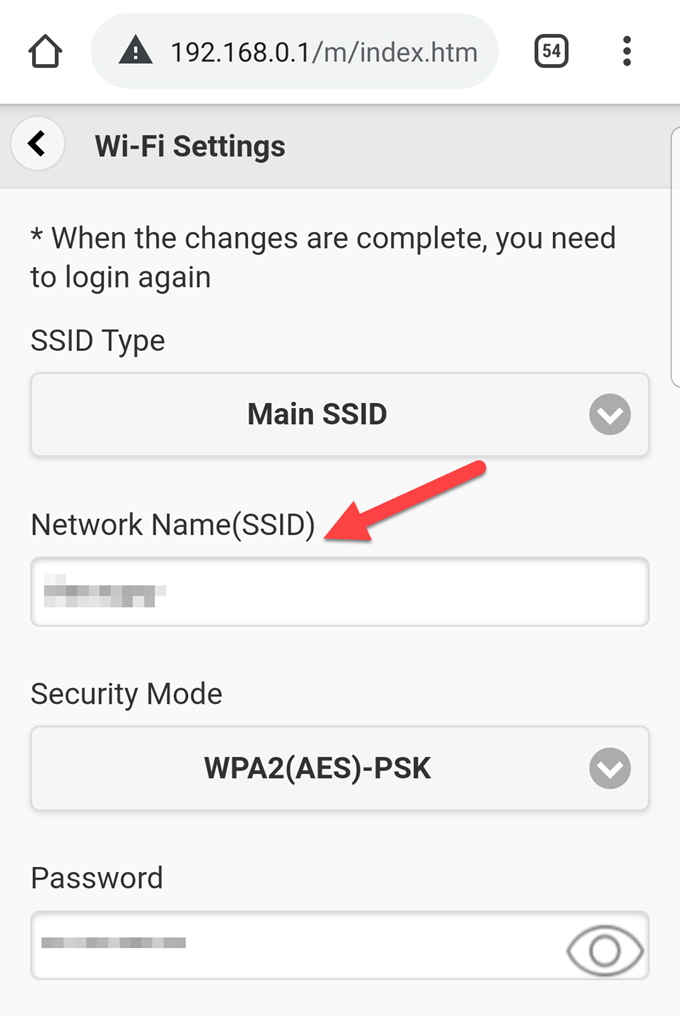
The SSID is your network name. Choose a name that stands out from nearby networks. Avoid default names like “Linksys” or “Netgear.” These names reveal your router brand and make it easier for hackers to attack.
Use a name that does not include personal information. Do not use your name, address, or birthdate. Instead, try something creative and easy to remember. A unique SSID helps you find your network quickly in crowded areas.
Set A Strong Password
A strong password protects your Wi-Fi from unwanted users. Use a mix of uppercase and lowercase letters, numbers, and symbols. Avoid simple passwords like “password123” or “12345678.”
Make your password at least 12 characters long. Use phrases or random words combined with numbers for better security. Change your password regularly to keep your network safe.
Enable Network Encryption
Network encryption protects your Wi-Fi by turning data into secret code. This stops outsiders from reading your information. Enabling encryption is essential for safe internet use. It keeps hackers from stealing passwords or personal details.
Most routers offer several encryption types. The strongest and most common is WPA2 or WPA3. Older types like WEP are weak and easy to break. Choosing the right encryption improves your network’s security.
Activate Encryption Settings
Access your router’s settings page using its IP address. Log in with your username and password.
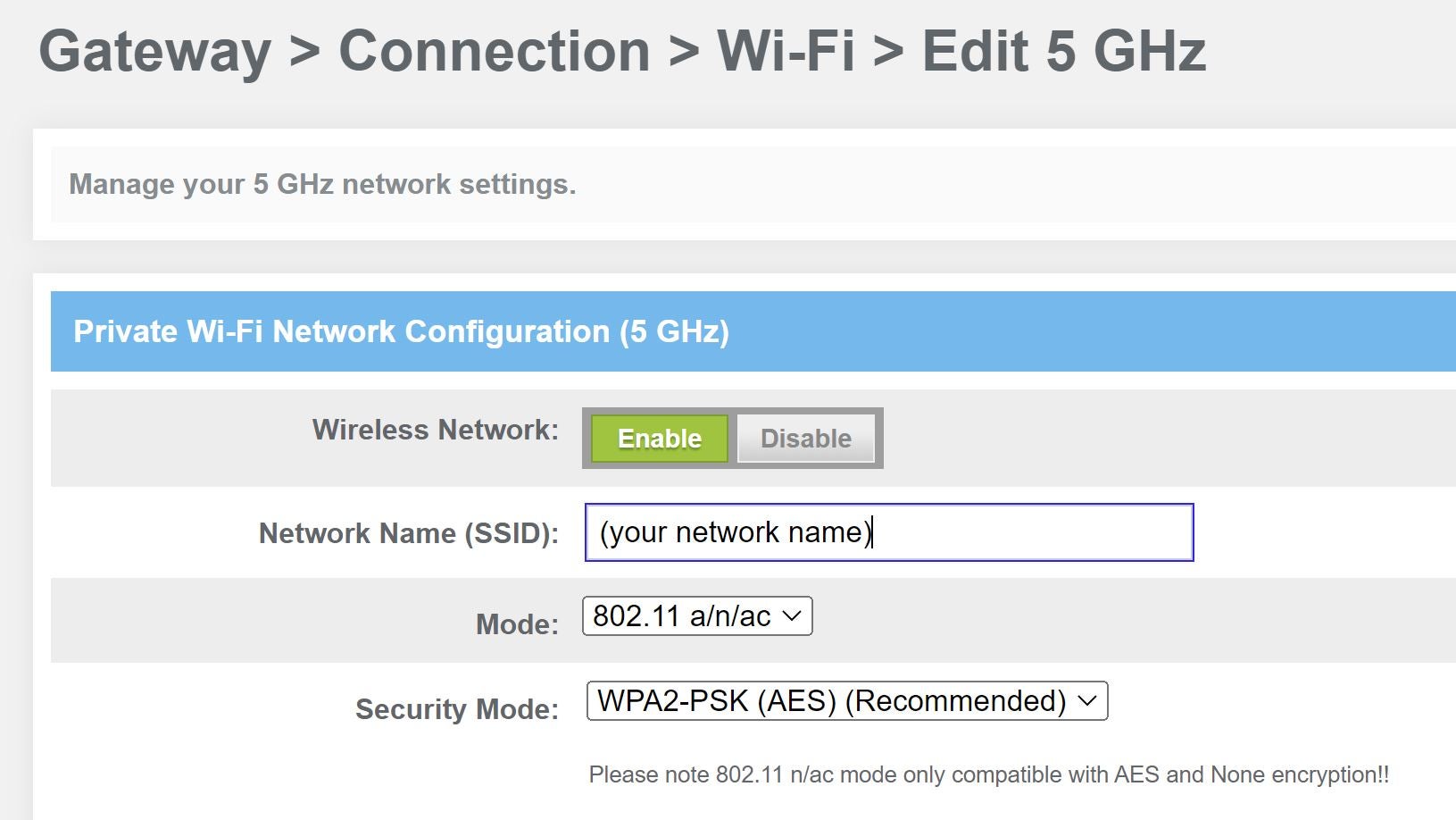
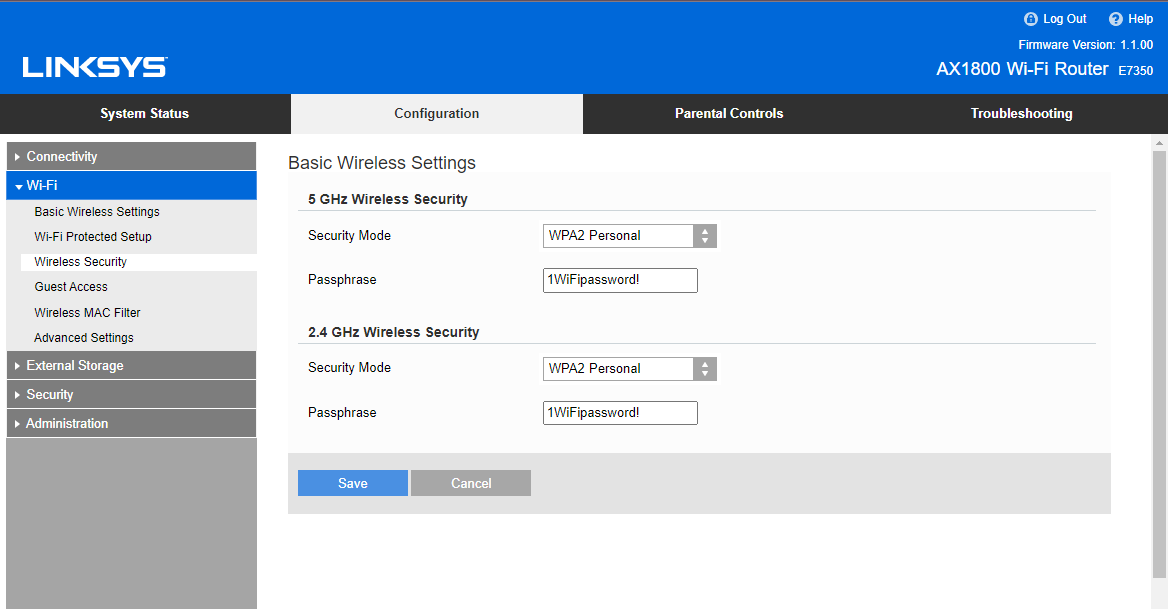
Find the wireless or Wi-Fi security section. Look for encryption options like WPA2 or WPA3.
- Select WPA2-PSK (AES) or WPA3 for best protection.
- Enter a strong password or passphrase. Use letters, numbers, and symbols.
- Save the changes and restart your router if needed.
Verify Encryption Status
Check your device’s Wi-Fi connection details. Confirm it shows WPA2 or WPA3 encryption.
Use your router’s admin page to review current settings. Look under wireless security to see the active encryption type.
Test your connection with a simple online security tool. It can confirm if your network is encrypted properly.
Credit: www.esecurityplanet.com
Configure Additional Security Features
Ensuring your Wi-Fi router is secured goes beyond just setting a strong password. Configuring additional security features can significantly bolster your network’s defenses. By taking the time to tweak these settings, you not only protect yourself from potential cyber threats but also enhance your overall internet experience. Have you ever wondered what more you can do to secure your router? Let’s dive into some practical steps you can take today.
Set Up Firewall
Most routers come with a built-in firewall that can be activated to provide an extra layer of protection. A firewall monitors incoming and outgoing traffic, blocking suspicious activity. Access your router settings through a web browser. Look for the firewall section, typically under “Security” or “Advanced Settings.” Enable it, and adjust the settings to suit your network needs.
By setting up a firewall, you create a barrier between your network and potential threats from the internet. It’s like having a security guard at the entrance of your digital home. Have you ever considered how many devices are connected to your network? A firewall helps manage them effectively.
Enable Mac Address Filtering
MAC address filtering allows you to specify which devices can access your network by their unique identifiers. This feature grants access only to devices you approve, keeping unauthorized users out. To enable it, navigate to the “Wireless” section in your router settings, find “MAC Filtering,” and add the MAC addresses of your trusted devices.
This method is akin to having a guest list at a party—only those on the list can enter. Imagine the peace of mind knowing only your devices can connect to your network. Have you ever faced issues with unknown devices using your Wi-Fi? MAC address filtering can address that.
Disable Wps
Wi-Fi Protected Setup (WPS) is designed for convenience, allowing quick connections with a push of a button. However, its simplicity can be a security risk, as it makes networks vulnerable to brute force attacks. Access your router’s settings and locate the WPS option under “Wireless” or “Advanced Wireless.” Simply disable it to prevent unauthorized access.
Disabling WPS is like removing the spare key from under the doormat. It’s a straightforward action that can drastically improve your network security. Have you ever used WPS for ease? While convenient, disabling it tightens your network’s security.
Save And Test Settings
After adjusting your Wi-Fi router security settings, saving and testing is crucial. This step ensures that all changes are active and your network remains safe. It also helps confirm that your devices can connect without issues.
Apply Changes
Click the “Save” or “Apply” button in your router’s settings page. This action stores your new security preferences. Wait a few moments for the router to update and restart if needed. Avoid closing the browser during this process to prevent errors.
Reconnect Devices
Disconnect your devices from the Wi-Fi network. Then reconnect using the updated password or security method. Some devices might forget the old settings, so you may need to enter the new password manually. Check that all devices connect successfully without errors.
Test Network Security
Use a device to browse the internet and check connection stability. Run a security scan with trusted software to detect vulnerabilities. Confirm that unauthorized devices cannot access your network. Regularly monitor your router’s admin panel for unusual activity to keep your network safe.
Credit: medium.com
Credit: helpdeskgeek.com
Frequently Asked Questions
How Do I Access My Router’s Security Settings?
To access your router’s security settings, open a web browser and enter the router’s IP address. Log in using your admin username and password. Navigate to the “Wireless” or “Security” section to view and change security settings easily.
Which Security Protocol Is Best For Wi-fi Routers?
WPA3 is the most secure Wi-Fi protocol available today. If your router doesn’t support WPA3, use WPA2. Avoid using outdated protocols like WEP, which are vulnerable to attacks. Always select the strongest encryption option for better protection.
How Often Should I Update My Wi-fi Security Settings?
Update your Wi-Fi security settings every 3 to 6 months. Regular updates help protect against new vulnerabilities and unauthorized access. Also, change your Wi-Fi password periodically to maintain network security and prevent intrusions.
Can Changing Router Security Settings Improve Internet Speed?
Changing security settings may not directly boost internet speed. However, securing your network prevents unauthorized users from consuming bandwidth. This can indirectly improve your connection’s performance and ensure faster speeds for your devices.
Conclusion
Changing your Wi-Fi router security settings keeps your network safe. Start by logging into your router’s admin page. Choose a strong password and update encryption to WPA3 or WPA2. Regularly check for firmware updates to fix security holes. This simple routine helps protect your personal data and devices.
Stay alert and make these changes often. Your Wi-Fi security matters. Easy steps can make a big difference. Keep your connection secure, private, and reliable every day.