
Is your Wi-Fi password easy to guess or shared with too many people? Changing your Wi-Fi password regularly is one of the simplest ways to protect your internet connection from unwanted users.
But if you’re unsure how to do it, don’t worry—you’re in the right place. This guide will walk you through the exact steps to change your Wi-Fi password on your router quickly and without confusion. By the end, you’ll have full control over who can access your network, keeping your data safe and your connection fast.
Ready to take charge of your Wi-Fi security? Let’s get started!
Accessing Router Settings
Accessing your router settings is the first step to change your Wi-Fi password. This process allows you to control your network’s security and customize various features. You need to connect to your router through a web browser to make these changes.
Start by finding your router’s IP address. This address helps your device communicate with the router. Then, log into the admin panel using the correct username and password. This panel gives you access to all the settings you need.
Finding The Router Ip Address
The router IP address is usually a set of numbers like 192.168.1.1 or 192.168.0.1. You can find it on the router’s label or in the user manual. Another way is to check your computer’s network settings.
- On Windows, open Command Prompt and type
ipconfig. - Look for the “Default Gateway” under your active network connection.
- On Mac, open System Preferences > Network > Advanced > TCP/IP tab.
- The number next to “Router” is your IP address.
Logging Into The Admin Panel
Open a web browser and enter the router’s IP address in the address bar. Press Enter to load the login page. You need the admin username and password to access the panel.
- These credentials are often “admin” for both username and password by default.
- Check your router’s label or manual for the exact details.
- If you changed the password before, use the updated one.
After logging in, you will see the router’s settings page. From here, you can easily find the section to change your Wi-Fi password.
Locating Wi-fi Password Settings
Finding the Wi-Fi password settings on your router is the first step to changing it. Router interfaces vary, but the process remains similar. Accessing these settings requires logging into the router’s admin panel through a web browser. This panel controls all network features, including your Wi-Fi password.
Once logged in, focus on locating the sections that manage wireless network details. These sections store the current password and allow you to create a new one. Understanding where these settings hide helps save time and avoid confusion.
Navigating To Wireless Settings
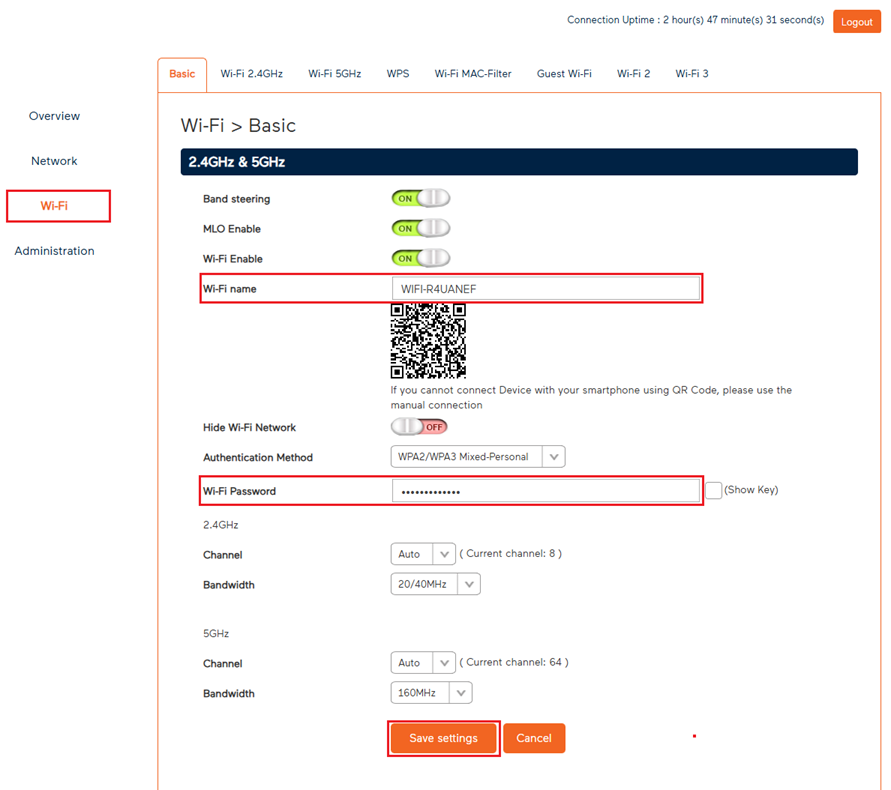
Start by looking for a menu labeled “Wireless,” “Wi-Fi,” or “Network.” This menu contains all wireless options. Often, it appears in the main navigation panel on the left or top of the page. Some routers group wireless settings under “Basic” or “Setup.”
Click on the wireless menu to open the wireless network configuration. Here, you will find options like network name (SSID), frequency band, and security settings. This section controls how devices connect to your Wi-Fi.
Identifying The Security Section
Within wireless settings, find the “Security” or “Wireless Security” tab. This section holds the Wi-Fi password field. It might be called “Password,” “Passphrase,” “Pre-shared Key,” or “WPA Key.”
The security section also shows the type of encryption used, such as WPA2 or WPA3. Choose a strong encryption type for better protection. The password field usually hides characters, showing dots or asterisks.
Changing the password here updates the access key for your wireless network. Save the changes before exiting to apply the new password.
Changing The Wi-fi Password
Changing your Wi-Fi password is a simple yet crucial task to secure your network and control who accesses your internet. Whether you’re updating it for better security or just want to reset it after sharing with guests, the process doesn’t take long. Let’s focus on how you can choose a strong password and save those changes effectively on your router.
Choosing A Strong Password
A strong Wi-Fi password protects your network from unauthorized users and potential cyber threats. Aim for a password that is at least 12 characters long and combines uppercase letters, lowercase letters, numbers, and symbols.
Try to avoid common words or easily guessable sequences like “password123” or “admin2024.” Instead, use a mix that you can remember but others can’t easily figure out. For example, something like G7!mK9pLq2@is much safer than simple words.
Think about phrases or combinations that mean something to you but look random to others. Have you ever considered turning a favorite quote into a password by using initials and numbers? This strategy makes it both strong and memorable.
Saving And Applying Changes
After you enter your new password in the router’s settings, don’t forget to save the changes. Most routers have a clear “Save” or “Apply” button at the bottom or top of the page.
Once saved, the router will usually restart or disconnect devices temporarily. This is normal and ensures the new password takes effect immediately.
Remember to update the password on all your devices, like smartphones, laptops, and smart home gadgets. Have you ever been locked out because you forgot to update your device after changing your Wi-Fi password? Save yourself that hassle by planning the switch carefully.

Credit: www.youtube.com
Reconnecting Devices
After changing your Wi-Fi password on the router, reconnecting your devices is essential. Devices that were once connected will lose access. You need to update the password on each device to regain connection. This process is usually quick and straightforward.
Updating Password On Devices
Open the Wi-Fi settings on your device. Find the network name (SSID) you use. Select it and choose the option to forget or remove the network. Then, reconnect by selecting the network again. Enter the new password when prompted. Your device will save the new password for future use.
Troubleshooting Connection Issues
Some devices might fail to connect after updating the password. Restart the device to refresh its network settings. Check if the new password is entered correctly—watch for typos. Move closer to the router to improve signal strength. Reset the network settings on the device if problems continue. These steps often fix common connection issues.
Additional Security Tips
Changing your Wi-Fi password is essential for keeping your network secure. But it’s not the only step you should take. There are additional security measures to consider. These steps can help protect your data and ensure a safer browsing experience.
Enabling Network Encryption
Network encryption scrambles your data, making it hard to access. Most routers offer encryption options like WPA2 or WPA3. Choose the strongest encryption available. This keeps your data private from prying eyes. Regularly check your encryption settings. Ensure they are always active and updated.
Regularly Updating Router Firmware
Router firmware updates fix security flaws. Manufacturers release updates to improve security and performance. Check for updates in your router settings. Set your router to update automatically if possible. This keeps your network secure with the latest protections. Regular updates prevent vulnerabilities from being exploited.
Credit: www.youtube.com
Credit: support.tpg.com.au
Frequently Asked Questions
How Do I Access My Router Settings To Change Wi-fi Password?
To change your Wi-Fi password, log in to your router’s admin panel. Enter the router’s IP address in a browser. Use your username and password to access settings. Navigate to the wireless or Wi-Fi section to update the password.
What Is The Best Password Format For Wi-fi Security?
Use a strong password with at least 12 characters. Combine uppercase, lowercase letters, numbers, and special symbols. Avoid common words or easy-to-guess sequences. A strong password enhances your Wi-Fi security and prevents unauthorized access.
Will Changing My Wi-fi Password Disconnect All Devices?
Yes, changing your Wi-Fi password will disconnect all devices. You must reconnect each device using the new password. This helps secure your network by removing unauthorized connections and ensuring only approved devices access your Wi-Fi.
How Often Should I Change My Wi-fi Password?
Change your Wi-Fi password every 3 to 6 months for security. Also, update it immediately if you suspect unauthorized access. Regular changes protect your network from hackers and keep your data safe.
Conclusion
Changing your Wi-Fi password keeps your network safe and private. Regular updates prevent others from using your internet without permission. The process is simple and quick once you access your router settings. Remember to choose a strong password with letters and numbers.
Write it down or save it somewhere safe. This small step helps protect your personal data from hackers. Stay in control of your internet and enjoy a secure connection every day.