
Is your Wi-Fi password still the default one that came with your router? If so, your network could be at risk.
Changing your Wi-Fi password is one of the simplest ways to protect your personal information and keep unwanted users off your connection. But if you’re unsure how to do it, don’t worry—you’re in the right place. You’ll learn easy, step-by-step instructions to change your router’s password quickly and securely.
By the end, you’ll have full control over who accesses your Wi-Fi, giving you peace of mind every time you connect. Keep reading to find out how!
Accessing The Router Settings
Accessing your router settings is the essential first step to changing your Wi-Fi password. This process might seem technical at first, but it’s straightforward once you know what to look for. Understanding how to find your router’s IP address and the login credentials will give you control over your network’s security.
Find The Router Ip Address
The router IP address is like the gateway to your router’s settings. Without it, you won’t be able to log in and make changes. Most routers use common default IP addresses such as 192.168.0.1or 192.168.1.1, but this can vary.
To find it on a Windows PC, open the Command Prompt and type ipconfig. Look for the “Default Gateway” under your network connection—that’s your router’s IP address.
On a Mac, go to System Preferences > Network, select your active connection, click Advanced, then TCP/IP. The router’s IP address will be listed as the “Router.”
Login Credentials Needed
Once you have the IP address, you need the login credentials to access the router settings page. These usually consist of a username and password. Many routers come with default credentials like admin/adminor admin/password.
If you haven’t changed these before, check the label on your router—it often lists the default username and password. If you or someone else already changed them and you don’t remember, you may need to reset the router to factory settings.
Keep in mind, using strong, unique passwords for your router login is just as important as securing your Wi-Fi network. Have you checked whether your router’s default password is still in use?

Credit: www.youtube.com
Navigating To The Password Section
Navigating to the password section on your Wi-Fi router may seem tricky at first, but it’s simpler than most think. The key is knowing where to look once you access the router’s settings page. This part of the process is crucial because it directly controls your network’s security.
Locate Wireless Settings
Start by logging into your router’s admin panel. Usually, you enter the router’s IP address into a web browser—common addresses are 192.168.1.1or 192.168.0.1. If you’re unsure, check the label on your router or the manual.
Once logged in, look for a section named Wirelessor Wireless Settings. This section manages all wireless network options like SSID (network name) and passwords. Sometimes, it might be under Network Settingsor Wi-Fidepending on your router’s brand.
Identify Security Options
Inside the Wireless Settings, find the part labeled Securityor Wireless Security. This is where the current Wi-Fi password lives and where you can change it. Pay attention to the security type listed, such as WPA2 or WPA3—it matters for your network’s safety.
If you spot multiple security options, choose the strongest available. WPA3 is the most secure, but WPA2 is widely supported. Avoid outdated options like WEP, as they leave your network vulnerable.
Have you ever wondered why your devices reconnect automatically after a password change? It’s because they save these security settings here. Changing this setting means you’ll need to update the password on all your devices too.
Changing The Wi-fi Password
Changing the Wi-Fi password is an essential task to keep your network secure and prevent unauthorized access. It’s a simple process that can make a big difference in protecting your personal information and maintaining fast, reliable internet. Let’s look at how you can create a strong password and ensure your changes take effect immediately.
Create A Strong Password
Your Wi-Fi password should be tough to guess but easy for you to remember. Avoid common words, names, or simple number sequences like “123456.” Instead, mix uppercase and lowercase letters, numbers, and special characters to make it strong.
Think about a phrase or combination that means something to you but wouldn’t be obvious to others. For instance, combining parts of a favorite book title with a memorable date creates a unique and secure password.
Have you ever tried to crack your own password? If it takes you a few seconds, it’s probably not strong enough. Challenge yourself to create one that would require more effort to guess.
Save And Apply Changes
After entering your new password in the router’s settings, it’s crucial to save and apply the changes properly. Look for a button usually labeled “Save,” “Apply,” or “Confirm.” Without clicking this, your new password won’t be activated.
Once saved, your router might reboot to implement the new settings. This brief interruption is normal and ensures your network is updated.
Remember, you’ll need to reconnect your devices using the new password. Keep it handy to avoid frustration, and consider updating any devices that connect automatically.
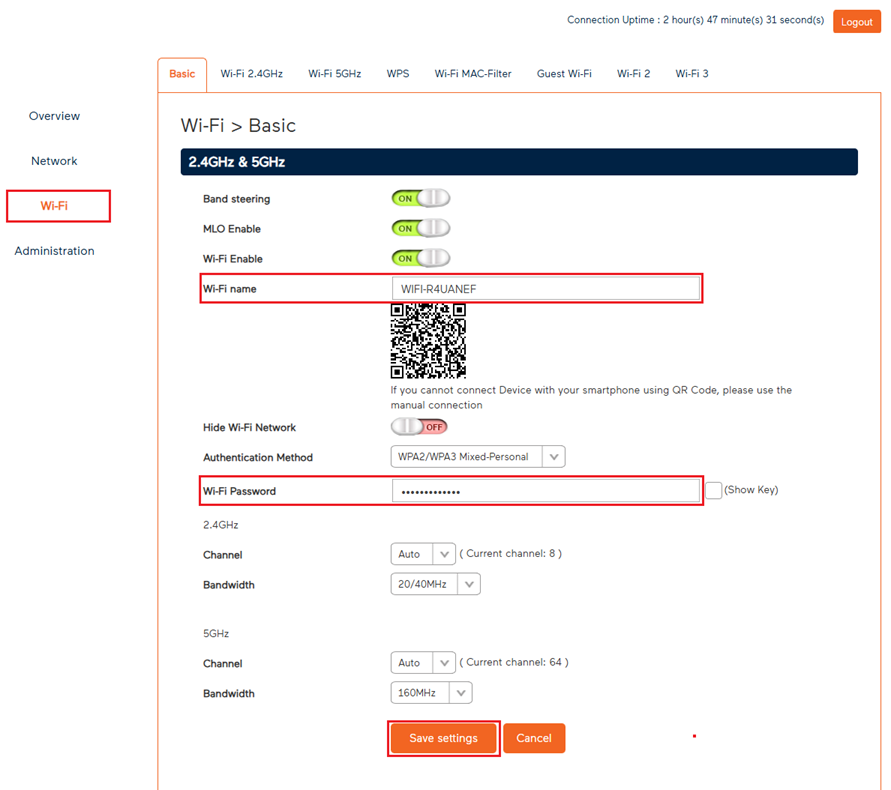
Credit: support.tpg.com.au
Reconnecting Devices
Changing your Wi-Fi router password disconnects all devices. Each device must reconnect using the new password to regain internet access. This step keeps your network secure and controls who can join.
Reconnecting Devices Changing your Wi-Fi router’s password is a necessary step to secure your network. But after the change, you’ll need to reconnect all your devices to the new network. This process might seem daunting, but with a few simple steps, you can have your devices back online in no time.Forget Old Network
First, start by forgetting the old Wi-Fi network on your devices. This ensures that your devices won’t try to connect automatically using the outdated password. On most smartphones and tablets, you can do this by navigating to the Wi-Fi settings, selecting the old network, and choosing the option to forget it. For laptops, access the network settings, find the old network, and remove it from the saved list. This step clears the slate for your devices to connect afresh. If you skip this, your device might keep attempting to connect with the old credentials, leading to frustration.Connect With New Password
Once you’ve forgotten the old network, it’s time to reconnect using the new password. Go to your device’s Wi-Fi settings and scan for available networks. Select your Wi-Fi network from the list and enter the new password when prompted. Remember, accuracy is key here. Double-check the password to avoid typos, as a single wrong character can prevent connection. After entering the password correctly, your device should connect seamlessly. Consider this: how many devices do you have at home that need reconnecting? Make a checklist if necessary, to ensure none are left behind. It’s easy to forget a smart TV or a gaming console in the corner. Taking a systematic approach ensures all your gadgets are back online, ready to stream, browse, and play without any hiccups. Embrace the process as a chance to tidy up your devices’ connection lists, ensuring only active networks are stored. This not only helps with security but also keeps your device settings neat and organized.Troubleshooting Common Issues
Troubleshooting common issues while changing your Wi-Fi router password can save you time and frustration. You might think it’s a simple task, but small hiccups like forgotten login details or password changes not taking effect can block your progress. Let’s look at how to handle these obstacles effectively.
Forgot Router Login Info
Not remembering your router’s login username or password is a common problem. Before panicking, check if your router has a label on the back or bottom with the default login details. These usually include the username, password, and IP address to access the settings.
If the defaults don’t work, you might have changed the credentials earlier. Try common combinations like “admin” for both username and password. Still no luck? Resetting the router to factory settings is the next step. Keep in mind this erases all custom settings, so you’ll need to set up your network again.
Have you ever considered writing down your router credentials or saving them in a password manager? It’s an easy way to avoid this headache next time.
Password Not Updating
You might change your Wi-Fi password in the router settings, but the update doesn’t seem to take effect. This usually happens if the router needs a reboot to apply changes. Simply restarting your router after saving the new password often resolves this.
Another reason could be browser caching or not properly saving the settings. Always double-check that you hit the “Save” or “Apply” button before exiting. Also, try clearing your browser cache or using a different browser if the interface seems unresponsive.
Have you ever tried connecting a device to the updated Wi-Fi and still couldn’t get online? That’s a sign the password didn’t update correctly. Repeating the process carefully or updating the router firmware can help fix stubborn issues.
Credit: www.youtube.com
Tips For Better Wi-fi Security
Securing your Wi-Fi network goes beyond just changing the password. You need to adopt smart habits that make your connection tough to crack. These tips will help you strengthen your Wi-Fi security and protect your personal information from unwanted access.
Use Wpa3 Encryption
Check your router settings to see if it supports WPA3 encryption. WPA3 is the latest security standard and offers much stronger protection than WPA2. It makes it harder for hackers to guess your password or intercept your data.
If your router doesn’t support WPA3, consider upgrading it. Even WPA2 is better than older protocols like WEP, which are easy to break. Ensuring your encryption is up to date is one of the simplest ways to boost your network security.
Regularly Update Passwords
Changing your Wi-Fi password regularly keeps potential intruders on their toes. A password you set a year ago is more vulnerable than one updated every few months. Make it a habit to update your password and avoid using predictable patterns.
Choose strong passwords with a mix of letters, numbers, and symbols. Avoid common words or phrases that someone could easily guess. Have you ever thought about how often you change your Wi-Fi password? If not, this might be a good time to start.
Frequently Asked Questions
How Do I Access My Router Settings To Change Password?
Open a web browser and enter your router’s IP address. Login with admin credentials to access settings. Locate the wireless or security section to change your Wi-Fi password.
What Is The Best Password To Set For Wi-fi Security?
Use a strong password with 12+ characters, combining letters, numbers, and symbols. Avoid common words or personal info to ensure better security.
How Often Should I Change My Wi-fi Router Password?
Change your Wi-Fi password every 3 to 6 months. This helps protect your network from unauthorized access and potential security risks.
Can I Change My Wi-fi Password Without Restarting The Router?
Yes, most routers apply password changes immediately without needing a reboot. Some models may require a restart; check your router’s manual to confirm.
Conclusion
Changing your Wi-Fi router password helps keep your network safe. It stops others from using your internet without permission. The process is simple and quick to do. Regularly updating your password improves security. Always choose a strong, easy-to-remember password. Doing this protects your personal data and devices.
Stay in control of your internet access every day. Take a few minutes now to secure your connection. Small steps make a big difference in online safety.