
Are you tired of switching between different apps just to play your favorite Xbox games and Steam titles? Imagine having all your games in one place, ready to launch with a single click.
Adding Xbox games to your Steam library not only simplifies your gaming experience but also lets you enjoy Steam’s powerful features like the overlay, friends list, and custom settings. In this guide, you’ll learn exactly how to bring your Xbox games into Steam quickly and easily, so you can spend less time managing your library and more time playing.
Keep reading to discover the simple steps that will change the way you game forever.
Prepare Your Xbox Games
Before adding Xbox games to Steam, some preparation is necessary. This preparation helps ensure smooth gameplay and proper recognition by Steam. Knowing your game’s compatibility and the location of its files saves time and prevents issues.
Check Game Compatibility
Not all Xbox games work well with Steam. Check if your game supports PC or is available through Xbox Play Anywhere. Games with this feature allow play on both Xbox and Windows 10/11.
Look for titles listed as Xbox Play Anywhere or that have PC versions. Some Xbox games require specific software or updates to run on a PC. Confirm your system meets these requirements before proceeding.
Locate Game Installation Folder
Finding the exact folder where your Xbox games are installed is crucial. Steam needs this path to link the games properly. The folder usually resides in the default Xbox or Microsoft Store game directory.
Common locations include:
- C:\Program Files\WindowsApps
- C:\Users\[Your Username]\AppData\Local\Packages
These folders might be hidden. Enable “Show hidden files” in File Explorer to see them. Copy the full path to use during the Steam setup process.
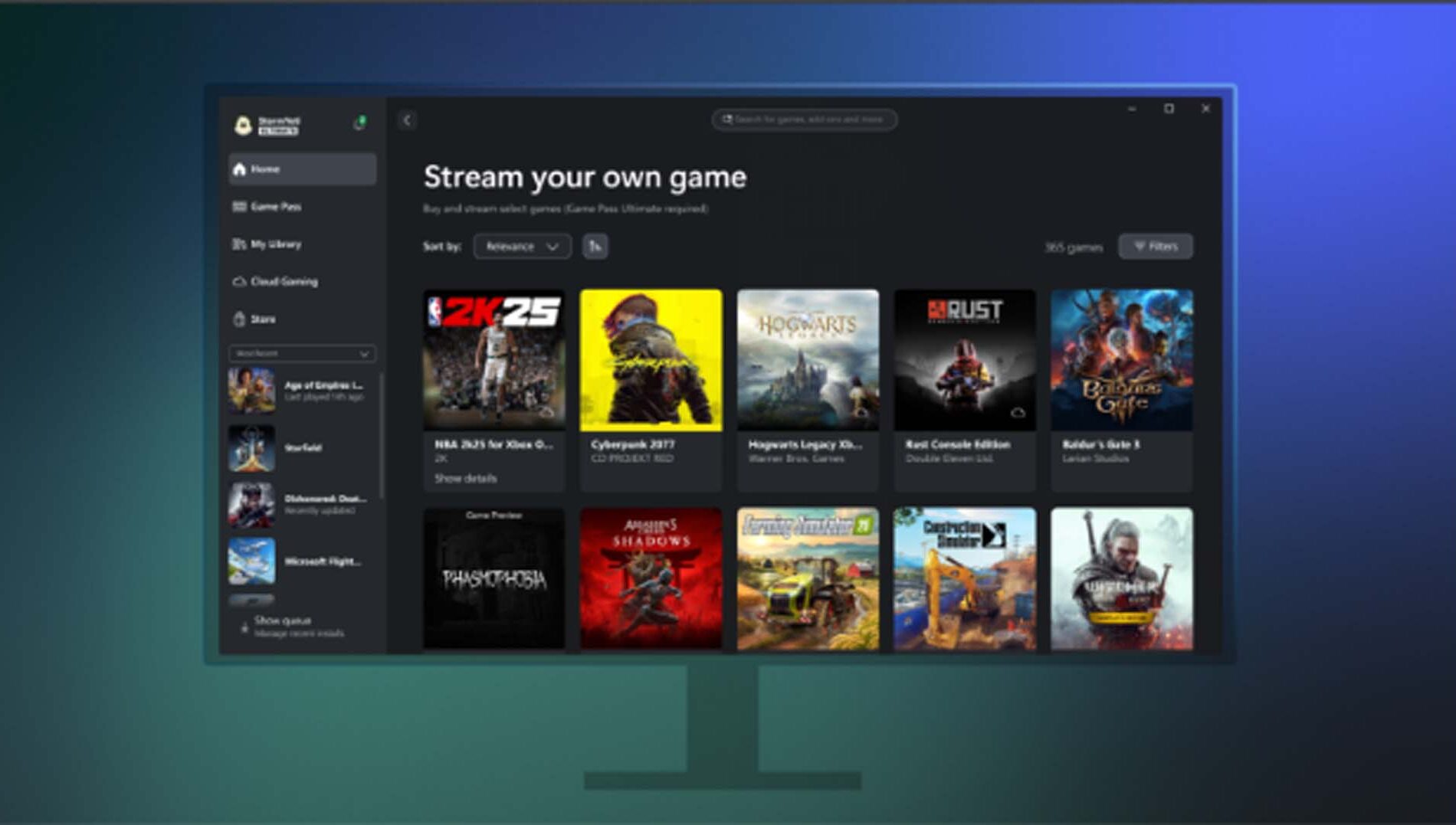
Credit: news.xbox.com
Set Up Steam For Adding Games
Setting up Steam to add Xbox games is simple and quick. This process lets you play Xbox titles through Steam’s interface. It helps keep all your games in one place for easy access. Follow the steps below to prepare Steam for adding your Xbox games.
Open Steam And Access Library
First, launch the Steam application on your computer. Make sure you are logged into your account. Click on the “Library” tab at the top of the Steam window. This area shows all your games and software. You will use this section to add Xbox games manually.
Use ‘add A Non-steam Game’ Feature
In the Library, look for the “Add a Game” button in the bottom-left corner. Click it, and then select “Add a Non-Steam Game” from the dropdown menu. A list of programs on your PC will appear. Find the Xbox game executable or app from this list.
Tick the box next to your Xbox game, then click “Add Selected Programs.” The game will now appear in your Steam Library. You can launch it directly from Steam, enjoying a unified gaming experience.
Add Xbox Games To Steam
Adding Xbox games to Steam lets you play all your titles in one place. Simply link your Xbox account and import your game library to start playing quickly. This helps keep your games organized and easy to access.
Adding Xbox games to Steam can enrich your gaming experience. This process allows you to access your favorite Xbox titles via the Steam interface, providing a seamless transition between platforms. Follow these steps to enjoy your Xbox games on Steam.Browse And Select Xbox Game Executables
Start by locating your Xbox game files on your computer. You need to find the executable files, typically ending in “.exe”. These files are usually stored in the folder where you installed the game. Use File Explorer to navigate through your directories. Once you identify the correct executable, note its location for future reference.Customize Game Properties
After selecting the game executable, open Steam and head to the “Games” menu. Choose “Add a Non-Steam Game to My Library” from the options. A window will open, allowing you to browse for the executable file you located earlier. Add the file to your Steam library. After adding, you can customize the game properties. Right-click on the game in your library and select “Properties.” Here, you can change the game name, add launch options, or assign custom icons. These adjustments help personalize your Steam experience.
Credit: www.youtube.com
Optimize Gaming Experience
Optimizing your gaming experience is key after adding Xbox games to Steam. It ensures smooth gameplay, better control, and faster loading times. Small tweaks can make a big difference in how you enjoy your games.
Configure Controller Settings
Steam offers powerful tools to customize your Xbox controller settings. You can remap buttons, adjust sensitivity, and enable vibration feedback. I once changed my trigger sensitivity and noticed immediate improvement in racing games—it felt more responsive and immersive.
To do this, open Steam’s Big Picture Mode, go to “Controller Settings,” and select your Xbox controller. Enable “Xbox Configuration Support” for full customization options.
Consider setting up different profiles for different game genres. For example, a shooter might need quicker trigger response, while a platformer benefits from precise stick movement. Have you tried customizing your controller yet? It can transform your gameplay.
Adjust Launch Options
Launch options let you control how a game starts and runs on Steam. You can add commands to improve performance or fix issues specific to Xbox games.
Right-click the game in your Steam library, select “Properties,” then “Set Launch Options.” Common commands include:
- -fullscreen: Forces the game to start in full-screen mode.
- -novsync: Disables vertical sync to reduce input lag.
- -dx11or -dx12: Forces the game to use a specific DirectX version for better graphics or stability.
Experiment with these settings to find what works best for your system and game. What launch options have you found helpful? Sharing tips can save others a lot of trial and error.
Troubleshoot Common Issues
Troubleshooting is key to adding Xbox games to Steam smoothly. Some common issues may block your progress. Identifying these problems helps fix them quickly. Focus on two main concerns: missing executables and compatibility problems. Each has simple solutions to get your games running.
Fix Missing Executables
Missing executables stop Steam from launching Xbox games. These files are needed to start the game. Check the game folder for the .exe file. If missing, the game won’t run.
Try these steps to fix it:
- Verify the game installation on your PC.
- Reinstall the game if files are incomplete.
- Look for the executable inside the Xbox app folder.
- Add the correct .exe file manually to Steam’s shortcut.
Ensure you select the right executable linked to the Xbox game. This action allows Steam to launch the game properly.
Resolve Compatibility Problems
Compatibility issues may cause crashes or poor performance. Different game platforms may not work well together.
Try these tips to solve compatibility problems:
- Run Steam and the Xbox app as administrator.
- Set the game’s compatibility mode to Windows 10 or 11.
- Update your graphics drivers for better support.
- Disable fullscreen optimizations in the game’s properties.
- Check for any Windows updates that improve gaming.
These steps improve the chance of smooth gameplay on Steam. They help the Xbox game work well within the Steam environment.

Credit: www.compromath.com
Benefits Of Adding Xbox Games To Steam
Adding Xbox games to Steam offers several clear benefits for gamers. It simplifies game management and enhances the overall playing experience. Gamers can enjoy their favorite titles in one place without switching platforms. This convenience saves time and keeps everything organized.
Unified Game Library
Combining Xbox games with Steam creates a single library for all your games. No need to open multiple apps to find a game. It helps keep track of your collection easily. This unified library makes gaming more fun and less confusing.
Access To Steam Features
Steam offers many useful features that improve gameplay. Features like friends lists, chat, and achievements become available for Xbox games. Steam’s overlay and cloud saves add extra convenience. These tools help players connect and enjoy games more fully.
Frequently Asked Questions
How Can I Add Xbox Games To Steam Library?
You can add Xbox games to Steam by using Steam’s “Add a Non-Steam Game” feature. First, open Steam and click “Games” > “Add a Non-Steam Game. ” Then, locate your Xbox game’s executable file and add it to your library for easy access.
Is It Possible To Play Xbox Games On Steam?
Yes, you can play Xbox games on Steam by adding them as non-Steam shortcuts. However, the game must be installed on your PC, and Steam won’t provide Steam-specific features like achievements or cloud saves for these games.
Will Adding Xbox Games To Steam Affect Game Performance?
Adding Xbox games to Steam doesn’t affect their performance. Steam only acts as a launcher in this case. Your game runs normally, using its original platform’s resources and settings without any impact from Steam’s overlay or features.
Can I Use Steam Controller With Xbox Games Added?
Yes, you can use a Steam controller with Xbox games added to Steam. Steam’s controller support works with non-Steam games, allowing you to customize and map controls for Xbox games launched through Steam.
Conclusion
Adding Xbox games to Steam lets you enjoy all in one place. The process is simple and saves time switching between apps. Just follow the steps carefully for smooth setup. This way, your favorite Xbox titles appear in your Steam library.
Play your games with Steam’s features and community. Keep your software updated for best results. Try it out and see how easy it is. Enjoy gaming without extra hassle or confusion.