
Are you tired of dull, flat sound coming from your Samsung Smart TV? Adding a soundbar can completely transform your viewing experience, giving you richer, clearer audio without the hassle of complicated setups.
In this guide, you’ll discover simple, step-by-step instructions to connect your soundbar quickly and easily. Whether you want booming bass for movies or crystal-clear dialogue for your favorite shows, this article will help you get the best sound from your TV in no time.
Ready to upgrade your home entertainment? Let’s dive in!

Credit: www.youtube.com
Choose The Right Soundbar
Choosing the right soundbar is crucial to enhance your Samsung Smart TV experience. A soundbar that fits well with your TV and meets your audio expectations can transform your viewing sessions. Before making a purchase, consider factors like size, features, and compatibility to get the best match for your setup.
Match Soundbar With Tv Size
Think about the size of your Samsung TV when selecting a soundbar. A large TV, such as a 65-inch or bigger, pairs best with a longer, more powerful soundbar to fill the room with balanced sound. Smaller TVs usually do well with compact soundbars that don’t overpower the screen.
Matching sizes also affects aesthetics. A soundbar wider than your TV can look awkward, while one too small might seem out of place. Have you ever noticed a tiny soundbar struggling to keep up with a giant TV? Avoid that mismatch for both sound and style.
Consider Audio Features
Look for soundbars with features that suit your listening preferences. Some include built-in subwoofers for deep bass, while others offer surround sound or voice enhancement modes. If you enjoy gaming or watching movies, features like Dolby Atmos can create a more immersive experience.
Don’t overlook user-friendly controls and connectivity options. Bluetooth and Wi-Fi support allow easy streaming from your phone or tablet. Ask yourself, which audio features will make your daily viewing more enjoyable?
Check Compatibility With Samsung Tv
Ensuring the soundbar works seamlessly with your Samsung Smart TV is essential. Check if the soundbar supports HDMI ARC or eARC connections, as these allow better control and sound quality. Samsung TVs often integrate well with Samsung soundbars, offering features like One Remote Control.
Before buying, verify the soundbar’s compatibility with your TV’s operating system and ports. This avoids frustrating setup issues and guarantees smooth operation. What’s the point of a great soundbar if it can’t connect properly to your TV?
Credit: us.amazon.com
Prepare Your Samsung Smart Tv
Preparing your Samsung Smart TV before connecting a soundbar ensures a smooth setup and the best audio experience. Taking a few moments to get your TV ready can save you from troubleshooting later. Let’s walk through what you need to check and adjust to make your soundbar work perfectly with your TV.
Locate Audio Output Ports
Start by finding the audio output ports on the back or side of your Samsung TV. Most models offer several options, such as HDMI ARC, optical audio, or a headphone jack.
- HDMI ARC:This is the best choice for sound quality and ease of use. It allows audio to travel both ways and supports advanced sound formats.
- Optical Audio Out:A solid alternative if your soundbar or TV doesn’t support HDMI ARC.
- 3.5mm Headphone Jack:Usually a last resort, as it may limit sound quality and features.
Knowing which port you’ll use helps you prepare the right cables and avoid compatibility issues.
Update Tv Firmware
Running the latest firmware on your Samsung Smart TV can fix bugs and improve compatibility with external devices like soundbars. Skipping updates might lead to connection problems or poor audio performance.
To check for updates:
- Go to Settingson your TV.
- Select Supportand then Software Update.
- Choose Update Nowif an update is available.
This simple step often resolves unexpected glitches and ensures your TV can communicate seamlessly with your soundbar.
Adjust Tv Audio Settings
Once your hardware is connected, you’ll want to tweak the audio settings to get the best sound output. Samsung TVs usually default to internal speakers, so you must switch to external audio sources.
Here’s what to do:
- Open Settingsand navigate to Sound.
- Change the Sound Outputto Receiver (HDMI)or Audio Out/Optical, depending on your connection.
- Disable the TV’s internal speakers if the option is available.
- Adjust audio formats like PCMor Bitstreamto match your soundbar’s capabilities.
Have you noticed how much clearer your shows sound just by switching from TV speakers to a soundbar? Small settings can make a big difference.
Connect Soundbar To Tv
Connecting your soundbar to your Samsung Smart TV enhances audio quality significantly. The process is simple and offers different connection options. Each method suits different setups and soundbar models. Choose the connection type that fits your equipment and preferences.
Use Hdmi Arc Connection
HDMI ARC (Audio Return Channel) allows audio to travel both ways. This means one cable handles video and sound between TV and soundbar.
- Locate the HDMI ARC port on your TV. It usually says “ARC.”
- Connect an HDMI cable from the TV’s ARC port to the soundbar’s HDMI OUT port.
- Turn on both devices and select the correct input on your soundbar.
- Enable HDMI-CEC in your TV settings to control volume with your TV remote.
This connection gives the best audio quality and simple control with one remote.
Connect Via Optical Cable
The optical cable uses light signals to send audio from TV to soundbar. It supports high-quality sound but does not carry video.
- Find the optical audio out port on your Samsung TV. It looks like a small square.
- Connect an optical cable from the TV to the soundbar’s optical input.
- Turn on the soundbar and select the optical input as the source.
- Adjust TV audio settings to output sound through the optical port.
This method is reliable and works with many soundbar models.
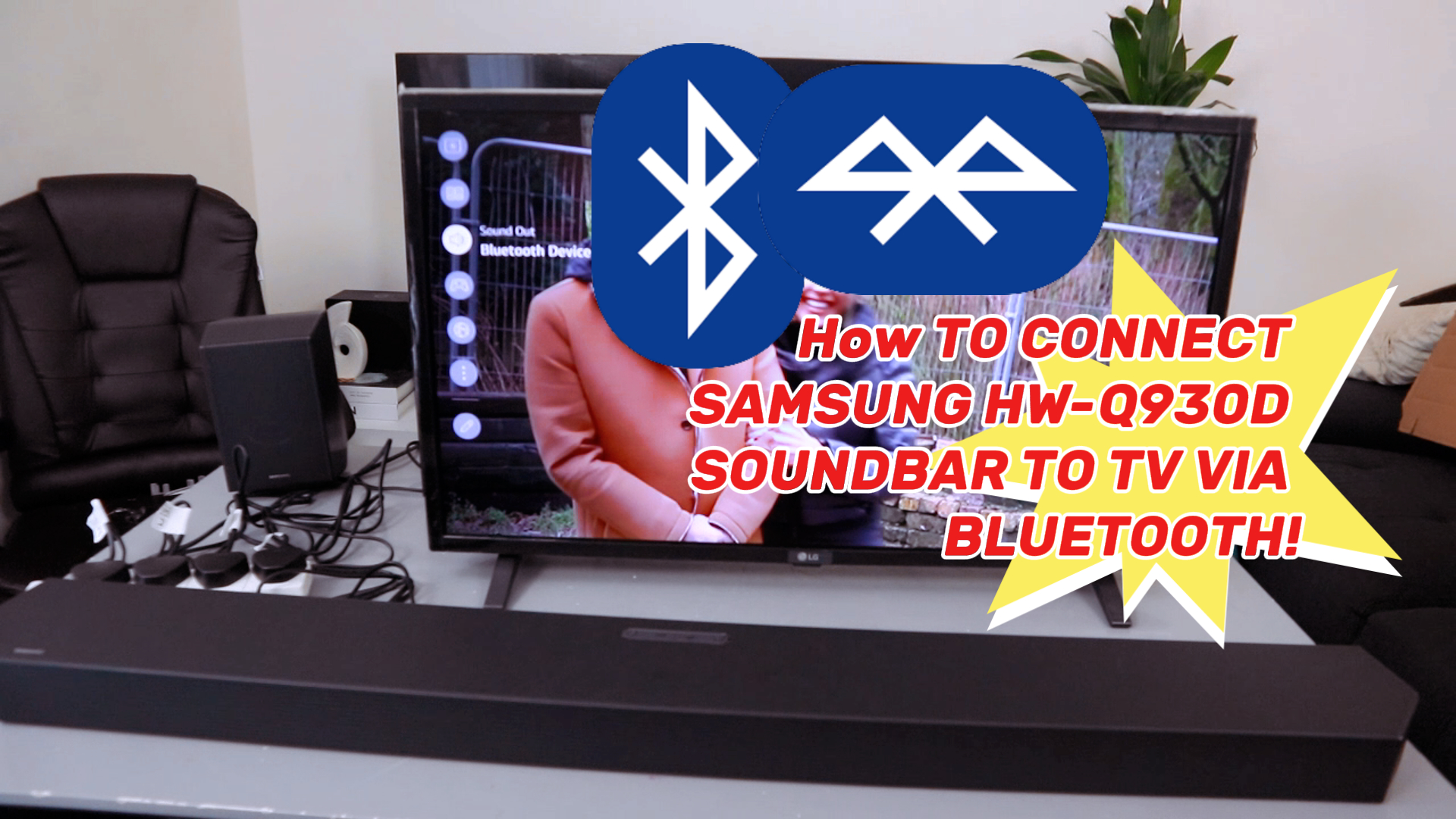
Try Bluetooth Pairing
Bluetooth lets you connect your soundbar wirelessly. It removes the need for cables and keeps your area tidy.
- Turn on Bluetooth on your Samsung TV via settings menu.
- Put your soundbar in Bluetooth pairing mode. Check the user manual if needed.
- Select your soundbar from the TV’s list of available Bluetooth devices.
- Confirm pairing and test the sound output through the soundbar.
Bluetooth is easy but may have slight audio delay compared to wired connections.
Configure Soundbar Settings
Configuring your soundbar settings is essential for the best audio experience. It ensures the soundbar works well with your Samsung Smart TV. Proper setup improves sound clarity and immersion. Follow the steps below to adjust key settings for optimal performance.
Set Input Source
Select the correct input source on your soundbar to match the connection type. This allows the soundbar to receive audio from your TV properly. Use the remote or buttons on the soundbar to switch between HDMI ARC, Optical, Bluetooth, or AUX inputs. Confirm the TV’s audio output matches the soundbar input for smooth sound transmission.
Adjust Volume And Sound Modes
Control the soundbar volume independently from the TV. Use the soundbar remote to set comfortable listening levels. Explore preset sound modes like Movie, Music, or Voice. These modes adjust bass, treble, and clarity for different content types. Choose a mode that suits your current viewing to enhance audio quality.
Enable Surround Sound Features
Many soundbars support surround sound to create a wider audio field. Enable features such as Dolby Atmos or DTS Virtual:X if available. These settings add depth and direction to the sound, making it feel more immersive. Check your soundbar menu for surround sound options and turn them on for a theater-like experience.
Troubleshoot Common Issues
Adding a soundbar to your Samsung Smart TV can significantly enhance your audio experience. However, you might encounter some issues that disrupt your enjoyment. Addressing these common problems can save you from frustration and allow you to focus on what truly matters – enjoying your favorite shows and movies with stellar sound quality. Below are some common issues you might face and practical solutions to troubleshoot them effectively.
No Sound From Soundbar
One of the most common issues is the absence of sound from the soundbar. Start by ensuring that all cables are firmly connected. An insecure HDMI or optical cable can easily cause sound issues. If connections are secure, check the sound settings on your TV. Ensure the sound output is set to the soundbar instead of the TV speakers. Also, verify the soundbar’s volume isn’t muted or set too low. A simple restart of both devices can sometimes resolve the problem.
Audio Delay Problems
Audio delay can be quite annoying, especially when the sound doesn’t match the visual display. You can adjust the audio sync settings in your TV’s sound settings. Look for options like ‘Audio Delay’ or ‘Lip Sync’ and tweak them until the sound matches the picture. Updating the firmware on both the TV and soundbar can also help, as manufacturers often release updates to fix such issues. Keep in mind that using Bluetooth connections might cause slight delays compared to wired connections.
Connectivity And Pairing Issues
Connectivity problems can stem from incompatible cables or incorrect settings. First, confirm that your soundbar is compatible with your TV model. If you’re using Bluetooth, ensure the devices are close together and that Bluetooth is enabled on both. For HDMI connections, make sure you’re using the ARC (Audio Return Channel) port on your TV, which is designed for audio devices. If pairing issues persist, resetting the soundbar and TV’s network settings can sometimes clear the problem.

Credit: www.samsung.com
Enhance Audio Experience
Enhancing your audio experience with a soundbar connected to your Samsung Smart TV transforms how you enjoy movies, music, and games. It’s not just about louder sound; it’s about clarity, depth, and immersion. Small adjustments can make a big difference in how sound fills your room.
Position Soundbar For Best Sound
Where you place your soundbar can change everything. Ideally, position it directly below or above your TV screen, centered for balanced audio. Avoid placing it inside cabinets or behind objects that can muffle the sound.
Try to keep the soundbar at ear level when you are seated. This helps the audio reach you clearly without distortion. Have you ever noticed how a slight shift in position can suddenly make dialogue easier to understand? Experiment with placement until the sound feels natural.
Use Soundbar Remote Controls
Your soundbar’s remote controls offer more than just volume adjustment. Explore features like bass boost, surround sound modes, or night mode for quieter listening. These settings tailor the sound to your preferences and room acoustics.
Many Samsung soundbars support HDMI-CEC, allowing your TV remote to control the soundbar volume. This reduces clutter and simplifies your setup. Have you tried syncing your remotes? It often surprises users how seamless the experience becomes.
Integrate With Smart Home Devices
Connecting your soundbar to smart home devices adds convenience and new ways to control your audio. Use voice commands through assistants like Alexa or Google Home to adjust volume or switch inputs without lifting a finger.
This integration allows you to create routines, such as lowering the volume automatically at night or boosting it during movie time. Do you want your TV sound to respond to your lifestyle? Smart setups can make your soundbar an active part of your home environment.
Frequently Asked Questions
How Do I Connect A Soundbar To Samsung Smart Tv?
To connect a soundbar, use an HDMI ARC, optical cable, or Bluetooth. HDMI ARC offers the best sound quality and ease of use. Ensure both devices support the chosen connection type for a seamless setup.
Can I Use Bluetooth To Link Soundbar With Samsung Tv?
Yes, if your Samsung Smart TV and soundbar support Bluetooth, you can pair them wirelessly. Go to the TV’s Bluetooth settings, search for the soundbar, and connect for cable-free audio.
What Is Hdmi Arc And Why Is It Important?
HDMI ARC (Audio Return Channel) allows audio to travel both ways between your TV and soundbar. It simplifies connections and lets you control soundbar volume using the TV remote, improving user experience.
How Do I Set Soundbar As Default Audio On Samsung Tv?
Go to your TV’s audio settings, select “Sound Output,” and choose your soundbar. This ensures audio plays through the soundbar instead of the TV speakers for better sound quality.
Conclusion
Adding a soundbar to your Samsung Smart TV improves audio quality. Follow simple steps for easy connection and setup. Choose the right cable or use Bluetooth for wireless sound. Adjust your TV settings for the best audio experience. Enjoy clearer sound for movies, shows, and games.
This small upgrade makes a big difference in entertainment. Try it yourself and hear the change today.