
Are you tired of dead zones and slow internet in parts of your home? Adding a router to expand your Wi-Fi coverage can be the simple fix you need.
Imagine streaming your favorite shows, video calling without interruptions, or working smoothly from any corner of your house. This guide will show you exactly how to set up an extra router step-by-step, so you can enjoy strong, reliable Wi-Fi everywhere.
Keep reading, and you’ll discover easy tips that anyone can follow to boost your internet coverage today.
Choosing The Right Router
Choosing the right router plays a key role in expanding your Wi-Fi coverage effectively. The perfect router improves speed, range, and device connections. It fits well with your current network and meets your needs without overspending.
Router Types And Features
Select a router based on the type that suits your home or office size. Common types include:
- Single-band routers– Work on one frequency, good for small spaces.
- Dual-band routers– Use two frequencies, reduce interference, better for medium spaces.
- Mesh routers– Multiple units work together, ideal for large areas with many rooms.
Look for features like USB ports, guest networks, and parental controls. These can add value and convenience.
Compatibility With Existing Network
Check if the new router works with your current modem and internet plan. Match the router’s speed with your internet speed to avoid bottlenecks. Confirm the router supports your network type (e.g., fiber, cable, DSL). Also, ensure it supports your current Wi-Fi standards like 802.11ac or 802.11ax for faster and stable connections.
Budget Considerations
Set a budget before buying a router. Prices vary widely based on features and brand. Basic routers cost less but may not cover large areas or support many devices. Mid-range models offer good coverage and speed for most homes. High-end routers suit heavy internet users and large homes but can be costly. Balance price with features and coverage needs to get the best value.
Preparing Your Network
Before adding a new router to boost your Wi Fi coverage, it’s crucial to prepare your network properly. Skipping this step can lead to confusion, weak signals, or even network conflicts. Taking the time to assess your current setup and organize the necessary tools will save you headaches down the road.
Checking Current Wi Fi Coverage
Start by walking around your home or office with a Wi Fi signal strength app on your phone. Notice where the signal drops or becomes unstable. Are there dead zones in corners or rooms far from your main router?
Knowing exactly where the coverage is weak helps you decide the best spot for the new router. It also prevents you from placing it too close to the main one, which can cause interference instead of improvement.
Gathering Necessary Equipment
Make sure you have all the tools and devices before starting the setup. You will need:
- A second router compatible with your current one
- An Ethernet cable long enough to connect both routers if you plan a wired setup
- Access to your main router’s admin panel (username and password)
- A computer or smartphone for configuration
Having these ready prevents delays and frustration during installation.
Backing Up Router Settings
Before making any changes, back up your current router’s settings. This step is often overlooked but incredibly important. If something goes wrong, you can quickly restore your network to its original state.
Most routers offer an option in their admin panel to export settings as a file. Save this file in a safe location. Trust me, it’s a small action that can save hours of troubleshooting later.
Connecting The New Router
Connecting a new router to expand your Wi-Fi coverage can significantly improve your internet experience. However, the setup process involves more than just plugging in cables. Careful attention to placement, connection type, and powering up ensures your network runs smoothly and covers all the areas you need.
Physical Placement Tips
Where you place your new router affects its performance a lot. Choose a central location away from thick walls and metal objects that block signals.
Higher spots, like shelves or atop furniture, often provide better coverage. Avoid placing routers near microwaves or cordless phones as they cause interference.
Think about where you need the strongest signal. If your office is in the basement, placing the router upstairs might not help much. Position it closer to areas where you spend most of your time online.
Wired Vs Wireless Connection
You can connect your new router to the existing one either with a cable or wirelessly. A wired connection, typically using an Ethernet cable, offers a more stable and faster link.
Wireless connections are easier to set up but may introduce some signal lag or interference. If you have the option, use an Ethernet cable to connect the two routers for the best performance.
Consider your home layout and cable routing possibilities. Sometimes running a cable through walls or floors is inconvenient, so wireless might be the practical choice despite potential speed drops.
Powering Up The Router
After placement and connection, plug your new router into a power outlet. Use the power adapter that comes with the device to avoid damage or malfunction.
Wait a minute or two for the router to boot up completely. Lights on the device will indicate when it’s ready – usually a steady green or blue light.
If the router doesn’t power on, check the outlet or try a different power source. Ensuring the router is fully powered is key before moving on to configuration.

Credit: www.youtube.com
Configuring Router Settings
Setting up a secondary router to expand your Wi-Fi coverage can seem daunting, but it’s all about getting the configurations right. Imagine those annoying Wi-Fi dead spots disappearing as you extend your network’s reach. The magic happens in the router settings, where a few tweaks can make all the difference. Let’s dive into the key steps to configure your router settings effectively.
Accessing Router Interface
The first step is accessing the router’s interface, which is easier than you might think. You usually need to type the router’s IP address into your browser’s address bar. This information is often found on the router itself or in the manual. Once you’re in, you’ll enter your username and password. If you’ve never changed these, they might be the default settings, like ‘admin/admin’. It’s like unlocking the door to your Wi-Fi kingdom!
Setting Up Ip Addresses
Now that you’re inside, setting up IP addresses is crucial. Your primary router will have its own IP address, usually something like 192.168.1.1. Your secondary router should be set to a different address, such as 192.168.1.2. This prevents any conflict between the routers. Think of this as assigning a unique identity to each router, ensuring smooth communication within your network.
Disabling Dhcp On Secondary Router
Disabling DHCP on your secondary router is a key step. DHCP assigns IP addresses automatically, but with two routers, this can cause chaos. You’ll want your primary router to handle DHCP tasks, so head into your secondary router’s settings and switch off DHCP. This way, your main router manages all IP assignments, keeping your network orderly and efficient.
By adjusting these settings, you’re not just expanding Wi-Fi; you’re optimizing it. Have you ever found yourself in a corner of your house, desperately trying to catch a signal? With these changes, that scenario becomes a thing of the past. Why not give it a try and see how it transforms your online experience?
Extending The Wi Fi Network
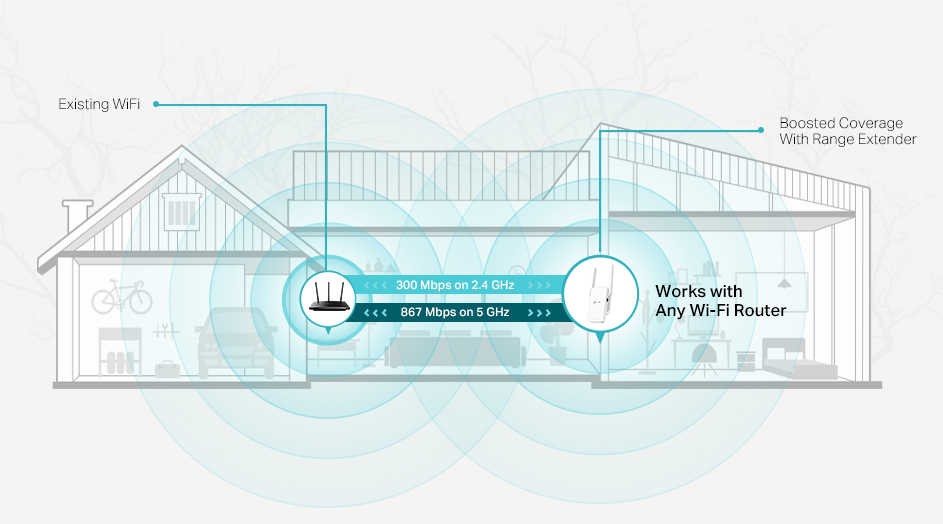
Extending the Wi Fi network helps cover dead zones and improve signal strength. Adding a router can boost your home or office internet reach. Setting it up correctly ensures smooth and stable connections everywhere. Choose the right mode based on your router’s features and your needs.
Using Access Point Mode
Access Point mode turns your router into a new Wi Fi source. Connect the second router to your main router using an Ethernet cable. This creates a wired link that shares the internet signal. Devices near the new router get strong, reliable Wi Fi. It avoids signal loss that happens in wireless-only setups.
Enabling Repeater Or Bridge Mode
Repeater mode boosts your existing Wi Fi signal wirelessly. Place the second router where the main signal is still strong. The router catches and rebroadcasts the Wi Fi to farther areas. Bridge mode connects two networks, extending coverage while keeping devices on one network. Both modes can reduce speed slightly but increase reach.
Matching Ssid And Security Settings
Set the same SSID (network name) on both routers for seamless roaming. Use the same password and security type, like WPA2, for easy connection. Different SSIDs may confuse devices, causing connection drops. Consistent settings make switching between routers smooth and automatic.
Credit: www.tp-link.com
Testing And Optimizing Signal
Testing and optimizing your Wi-Fi signal is key to expanding coverage successfully. It helps identify weak spots and improve connection quality. Small changes can make a big difference in signal strength and speed.
Checking Signal Strength
Check signal strength in different areas of your home. Use a smartphone app or the built-in Wi-Fi analyzer tool on your device. Look for bars or percentage indicators to see how strong the signal is.
Test near walls, doors, and corners. These spots often have weaker signals. Write down the results to compare and find the best router position.
Adjusting Router Placement
Place your router in a central, open spot. Avoid placing it near thick walls or metal objects. Elevate the router on a shelf or table for better coverage.
Avoid placing the router near microwaves, cordless phones, or baby monitors. These devices can cause interference and reduce signal quality. Try small movements to see if the signal improves.
Troubleshooting Common Issues
- Restart your router and repeater to clear temporary glitches.
- Update the router’s firmware for better performance and security.
- Check cables and connections to ensure they are secure.
- Reduce the number of devices connected to avoid overload.
- Change Wi-Fi channels to avoid interference from neighbors.
Use these tips to fix common signal problems and keep your network stable.
Maintaining Your Expanded Network
Maintaining your expanded Wi Fi network is essential for smooth internet access. A well-kept network prevents slowdowns and security issues. Regular attention keeps your connections strong and safe. Here are key steps to maintain your extended Wi Fi setup.
Regular Firmware Updates
Keep your router’s firmware updated. Updates fix bugs and improve performance. Check the router’s admin panel for update options. Set reminders to check for updates monthly. Updated firmware helps your network run efficiently.
Monitoring Network Performance
Watch your network speed and device connections. Use apps or built-in router tools to track performance. Identify slow spots or devices using too much bandwidth. Restart your router if speeds drop. Adjust settings to optimize coverage and speed.
Securing Your Wi Fi
Use strong passwords for your Wi Fi network. Change default router usernames and passwords. Enable WPA3 or WPA2 encryption. Turn off remote management to block outsiders. Regularly review connected devices and block unknown ones. Secure Wi Fi protects your data and devices.
Credit: www.youtube.com
Frequently Asked Questions
How Do I Connect A Second Router To My Main Router?
To connect a second router, use an Ethernet cable from the main router’s LAN port to the second router’s LAN port. Configure the second router’s IP address to avoid conflicts. Disable its DHCP server to ensure smooth network operation and extended Wi-Fi coverage.
Can Adding A Router Improve Wi-fi Signal Strength?
Yes, adding a router can extend Wi-Fi range and improve signal strength. It acts as a repeater or access point, boosting coverage in weak signal areas. Proper placement and configuration are essential for optimal performance and seamless network connectivity.
What Settings Are Required To Add A Router For Wi-fi Expansion?
You must set the second router to Access Point mode or disable DHCP. Assign a static IP within the main router’s subnet. Connect via LAN ports and configure the same SSID and password for seamless roaming across the expanded network.
Is It Better To Use A Router Or Wi-fi Extender?
Using a router as an access point generally offers better speed and reliability than a Wi-Fi extender. Routers handle traffic more efficiently and provide stronger signals, especially in large or multi-story homes, ensuring consistent Wi-Fi coverage.
Conclusion
Adding a router to your network can boost Wi-Fi coverage easily. Place the new router where the signal is weak. Connect it properly to your main router with a cable or wirelessly. Adjust settings to avoid interference and improve speed.
Test the connection in different rooms to ensure strong signal. This simple step helps reduce dead zones at home or office. Enjoy faster internet and better coverage everywhere you need it. Keep your devices connected without interruption or slowdowns. A stronger Wi-Fi network makes daily online tasks much easier.