
Are you ready to unlock the full power of your Spectrum Wi-Fi 6 router? Knowing how to access your router’s settings is the first step to faster speeds, better security, and a stronger connection throughout your home.
Whether you want to change your Wi-Fi password, update firmware, or optimize your network, this guide will show you exactly how to get inside your Spectrum Wi-Fi 6 router quickly and easily. Keep reading, and you’ll take control of your internet like never before.
Spectrum Wi-fi 6 Router Features
The Spectrum Wi-Fi 6 Router offers a range of features designed to enhance your internet experience. It brings faster speeds, improved coverage, and better device management to your home network. Understanding these features helps you get the most out of your connection.
Benefits Of Wi-fi 6 Technology
Wi-Fi 6 technology is a game-changer for home internet. It provides faster data transfer rates, which means smoother streaming and quicker downloads. If you have multiple devices connected, Wi-Fi 6 handles them more efficiently, reducing lag and buffering.
One of the standout benefits is improved battery life for your devices. The router communicates more effectively, so your phone or laptop doesn’t have to work as hard. Have you noticed fewer dead zones in your home? Wi-Fi 6’s enhanced range helps cover every corner.
Key Specifications Of Spectrum Router
| Specification | Details |
|---|---|
| Wireless Standard | 802.11ax (Wi-Fi 6) |
| Speed | Up to 1.2 Gbps |
| Frequency Bands | Dual-band (2.4 GHz & 5 GHz) |
| Number of Antennas | 4 external antennas for better coverage |
| Ports | 4 Gigabit Ethernet ports, 1 WAN port |
| Security | WPA3 encryption for enhanced protection |
These specs ensure your network runs smoothly, even with many devices connected. The gigabit ports let you connect wired devices for the fastest possible speeds. Security features protect your data without slowing down your connection.
Credit: datafeature.com
Preparing For Setup
Preparing for the setup of your Spectrum Wi-Fi 6 router ensures a smooth and fast connection. Taking time to organize equipment and understand login details prevents delays. This stage lays the groundwork for a successful installation.
Checking Equipment And Connections
Start by gathering all items included in the router box. This usually includes the router, power adapter, Ethernet cable, and setup guide. Make sure none of these are missing or damaged.
Next, find a good spot for your router. Choose a central location away from thick walls and electronic devices. This helps improve Wi-Fi coverage and signal strength.
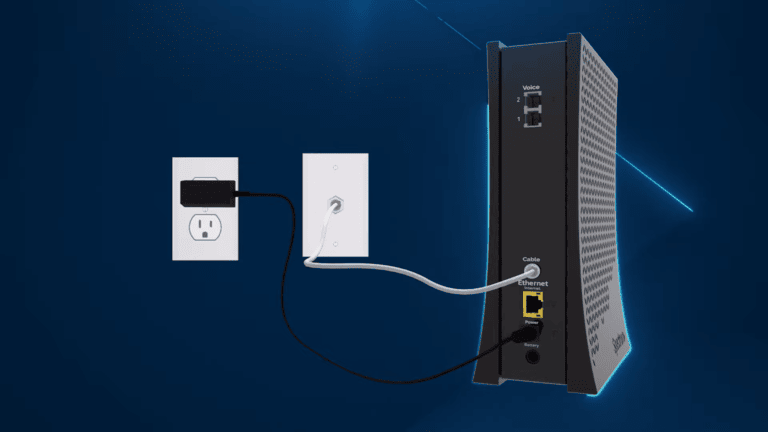
Connect the coaxial cable to your router’s input port. Plug the power adapter into an electrical outlet and connect it to the router. Finally, use the Ethernet cable to link your router to a modem if needed.
Locating Default Login Information
Look for a label on the bottom or back of your router. This label holds important details such as the default network name (SSID) and Wi-Fi password.
Find the default login username and password. These credentials let you access the router’s settings page through a web browser.
Write down the login info or keep a photo of the label. This makes it easy to reference during setup and troubleshooting.
Accessing The Router Interface
Accessing the router interface is the first step to manage your Spectrum Wi-Fi 6 router settings. This interface lets you change passwords, update firmware, and customize your network. You need a device connected to the router network to open the interface.
Connecting To The Router Network
Start by connecting your device to the Spectrum Wi-Fi 6 router. You can use Wi-Fi or an Ethernet cable. For Wi-Fi, find the network name (SSID) on the router label or in the setup guide. Enter the password shown on the router or your custom password if you changed it.
Using an Ethernet cable provides a stable connection. Plug one end into your device and the other into the router’s LAN port. Ensure your device shows it is connected before moving on.
Using A Web Browser To Login
Open a web browser on the connected device. Type the router’s IP address in the address bar. Common IPs for Spectrum routers are 192.168.1.1or 192.168.0.1. Press Enter to load the login page.
Enter the username and password. Default credentials are usually adminfor username and passwordfor password. Check your router’s label or manual for exact details. After logging in, you can access all router settings.
Troubleshooting Login Issues
Login problems can arise from incorrect IP addresses or credentials. Double-check the IP address typed in the browser. Use the IP found in your device’s network settings if defaults don’t work.
Reset your router if login credentials don’t work. Hold the reset button for 10 seconds. This restores factory settings, including default login details.
Clear your browser cache or try another browser if the page fails to load. Ensure your device is properly connected to the router network before attempting login again.

Credit: www.youtube.com
Configuring Network Settings
Configuring your Spectrum Wi-Fi 6 router’s network settings puts you in control of your home internet experience. Customizing these settings ensures your connection is secure, personalized, and optimized for your needs. Let’s focus on key areas that make a real difference in how your network performs and protects your data.
Changing Wi-fi Network Name And Password
Your Wi-Fi network name (SSID) and password are the first things you should change after setting up your router. The default name often includes the router model or a generic tag, which can make your network an easy target for hackers. Choose a unique name that’s easy for you to recognize but hard for others to guess.
When creating a password, aim for a mix of letters, numbers, and symbols. Avoid common words or simple sequences like “12345678.” A strong password significantly reduces the risk of unauthorized access to your network.
Setting Up Guest Networks
A guest network is a smart way to share your internet without giving visitors access to your main devices and files. You can enable a separate SSID specifically for guests, keeping your primary network secure.
Think about how often you have visitors who need Wi-Fi. Setting up a guest network not only protects your privacy but also allows you to control bandwidth limits and access times for guests. This keeps your main network running smoothly, even with multiple users connected.
Adjusting Security Settings
Security settings are crucial for protecting your network from cyber threats. Start by selecting the highest encryption level available—WPA3 is ideal if your router supports it. If not, WPA2 is still strong and widely used.
Consider disabling WPS (Wi-Fi Protected Setup) because it can be vulnerable to attacks. Also, regularly check for firmware updates through your router’s admin panel. Updates often include important security patches that keep your network safe.
Optimizing Router Performance
Optimizing the performance of your Spectrum Wi-Fi 6 router can enhance your internet experience. A well-tuned router provides faster speeds and a stable connection. Let’s explore key areas to optimize your router’s performance.
Updating Firmware
Regularly updating your router’s firmware is crucial. Firmware updates fix bugs and improve security. Check for updates in the router’s admin panel. Follow instructions to download and install the latest version. Keeping firmware up-to-date ensures smooth operation and better performance.
Choosing The Best Wi-fi Channel
Selecting the optimal Wi-Fi channel minimizes interference. Most routers default to crowded channels. Use a Wi-Fi analyzer app to identify less congested channels. Switch your router to a channel with minimal traffic. This adjustment can boost your network speed and reliability.
Managing Connected Devices
Monitor the number of devices connected to your network. Too many devices can slow down your internet. Access the router settings to view connected devices. Disconnect any unnecessary devices. Consider setting bandwidth limits for each device. Efficiently managing connected devices maintains a fast and stable network.
Credit: datafeature.com
Troubleshooting Common Problems
Dealing with issues on your Spectrum Wi-Fi 6 Router can be frustrating, especially when you need a fast and stable connection. Troubleshooting common problems doesn’t have to be complicated. With a few simple steps, you can often fix issues yourself without waiting on hold for support.
Resetting The Router
Resetting your router can resolve many issues by clearing temporary glitches. Locate the small reset button on the back of your router. Use a paperclip to press and hold the button for about 10 seconds until the lights blink.
This action restores factory settings, so you might need to re-enter your Wi-Fi password afterward. If you’ve made custom changes, make sure to note them down before resetting.
Fixing Connectivity Issues
Slow or dropped connections often stem from interference or outdated firmware. Try moving your router to a central location away from walls and electronic devices.
- Check for firmware updates via the Spectrum app or router settings page.
- Restart your modem and router in sequence—modem first, then router.
- Forget and reconnect your device to the Wi-Fi network.
Have you noticed certain devices or rooms where the connection drops more often? Target those areas first for adjustments.
When To Contact Support
If you’ve reset your router and tried basic fixes but still face issues, it’s time to reach out to Spectrum’s customer support. Persistent outages, hardware failures, or account-related problems require professional help.
Keep your account information and router model details handy to speed up the process. Remember, support agents can also guide you through advanced troubleshooting if needed.
Frequently Asked Questions
How Do I Log Into My Spectrum Wi-fi 6 Router?
To log in, connect to your router’s network, open a browser, and go to 192. 168. 1. 1. Enter default credentials: username “admin” and password “password” or check your router label for details.
What Is The Default Ip For Spectrum Wi-fi 6 Router?
The default IP address for Spectrum Wi-Fi 6 routers is typically 192. 168. 1. 1. Use this IP in your browser’s address bar to access the router’s admin panel.
How Can I Change Wi-fi Settings On Spectrum Router?
Log into the router’s admin page via 192. 168. 1. 1, then navigate to the Wireless or Wi-Fi settings tab. Here, you can update your network name and password.
Why Can’t I Access My Spectrum Wi-fi 6 Router?
Common issues include incorrect IP, wrong login details, or connection problems. Ensure you’re connected to the router and using the correct IP and credentials.
Conclusion
Accessing your Spectrum Wi-Fi 6 router is simple and quick. Just follow the steps clearly. This helps you manage your internet settings easily at home. You can change your network name or password anytime. Keeping your router updated keeps your connection strong.
Enjoy faster speeds and better coverage now. Stay connected without worry or hassle. Your internet experience gets smoother with this guide. Try it today and see the difference yourself.