
Have you ever picked up your smartwatch only to find the time is wrong? It’s frustrating, especially when you rely on it to keep your day on track.
Setting the correct time on your smartwatch might seem tricky, but it doesn’t have to be. In this guide, you’ll discover simple, step-by-step instructions to get your watch showing the right time quickly. Keep reading, and you’ll never miss an important moment again.
Check Your Smartwatch Model
Knowing your smartwatch model is the first step to set the time correctly. Each brand and model may have a different way to adjust settings. Identifying your model helps find the right instructions quickly.
Smartwatches often show the model name or number on the back of the device. You can also check the original packaging or receipt for this information. Some models display the name in the settings menu.
Locate The Model Number On Your Device
Turn your smartwatch over and look for small text on the back. The model number is often near the charging port or sensor. Write it down or take a picture for reference.
Check The Settings Menu
Open the main menu on your watch and find the “About” or “Device Info” section. Here, you may see the model name or number listed. This method works on most modern smartwatches.
Use The Companion App
Many smartwatches pair with a phone app. Open the app and look for device details. The app usually shows the exact model and software version.
Refer To The User Manual
Find the manual that came with your watch. It typically lists the model name on the cover or first pages. Manuals also guide you on setting the time for that model.
Search Online With Your Serial Number
Locate your watch’s serial number on the back or in settings. Use this number on the brand’s website to identify your model. This helps confirm the exact version of your watch.

Credit: www.youtube.com
Sync With Smartphone
Syncing your smartwatch with your smartphone is the easiest way to set the correct time. Your phone acts as the main device that updates your watch automatically. The process requires a stable Bluetooth connection and the use of the companion app designed for your watch brand.
Enable Bluetooth Connection
Start by turning on Bluetooth on both your smartphone and smartwatch. This allows the devices to communicate with each other. Open the settings on your phone and find the Bluetooth option. Switch it on and make sure your watch is visible for pairing.
On your smartwatch, access the connectivity settings and enable Bluetooth. Wait for your phone to detect the watch. Select your watch’s name on your phone to pair both devices. Once paired, the connection stays active as long as both devices are nearby.
Use The Companion App
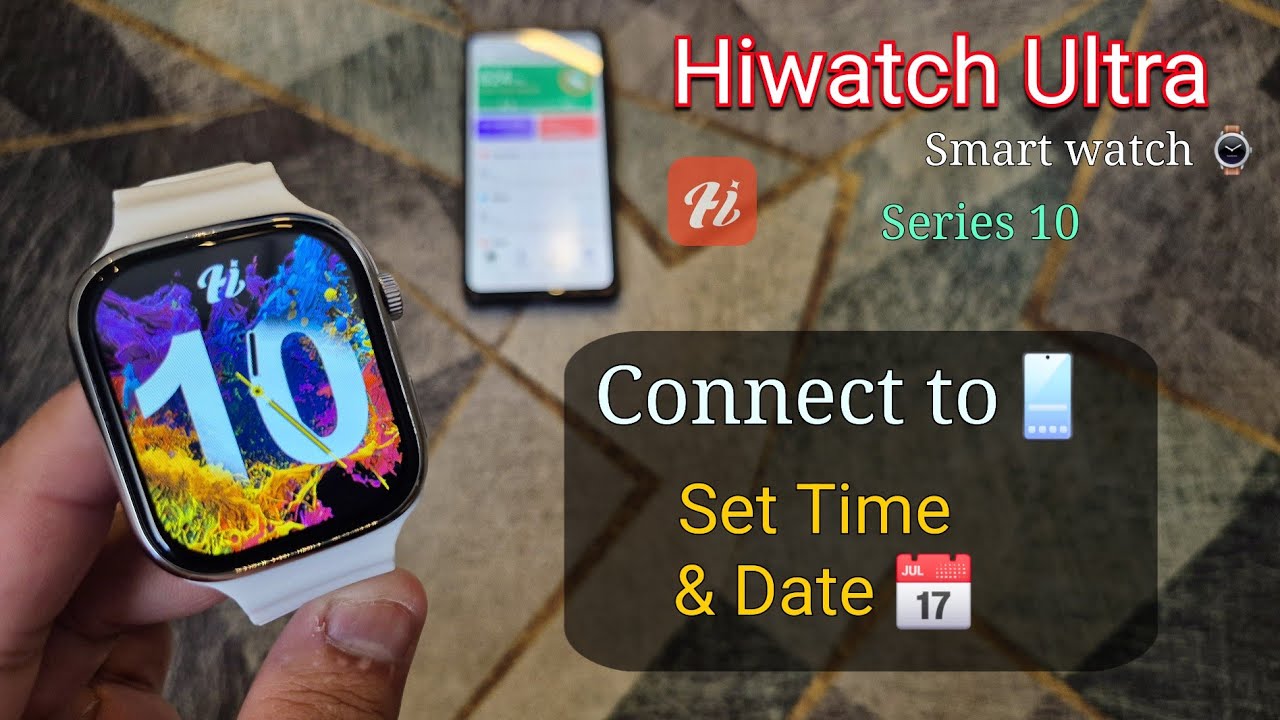
Download the official companion app for your smartwatch from your phone’s app store. Open the app and follow the instructions to connect your watch. The app will sync the time from your phone to your smartwatch automatically.
Some apps offer additional settings to customize your watch. You can adjust time zones or enable automatic time updates. The app also helps keep your watch firmware up to date, ensuring accurate timekeeping over time.
Manual Time Setting
Manual time setting allows you to control the exact time and date on your smartwatch. This is useful when your watch does not sync automatically or shows the wrong time. You can quickly fix the time by entering it yourself.
Follow simple steps to update the time on your device. The process is easy and requires only a few taps. Let’s explore how to do it.
Access Settings Menu
Start by waking your smartwatch screen. Swipe or press the main button to open the app list. Find the gear icon labeled “Settings.” Tap to enter the settings menu.
Look for options like “Date & Time” or “System.” This section controls your watch’s time settings. Tap on it to proceed.
Adjust Time And Date
Inside the Date & Time settings, turn off the automatic time option. This allows manual changes. You will see fields for hours, minutes, day, month, and year.
Tap on each field to set the correct values. Use the plus or minus buttons or scroll wheels to adjust numbers. Make sure to set AM or PM correctly if your watch uses 12-hour format.
Save Changes
After adjusting the time and date, look for a save or confirm button. Tap it to apply the new settings. Your watch will update the display immediately.
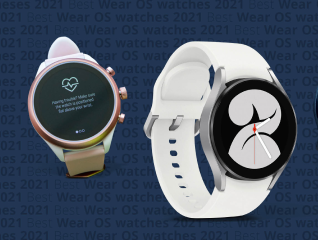
Exit the settings menu. Check the home screen to ensure the time is correct. Your smartwatch is now ready with the right time.
Credit: www.bajajfinserv.in
Automatic Time Updates
Automatic time updates keep your smartwatch’s clock accurate without manual adjustments. This feature syncs the time using data from your phone or the internet. It helps your watch stay correct during travel or daylight saving changes.
Enable Automatic Time Sync
Go to your smartwatch settings to turn on automatic time sync. Look for options like “Date & Time” or “Time Settings.” Enable the setting labeled “Automatic” or “Set time automatically.” This allows your watch to update the time by itself.
Some smartwatches may require you to sync with your phone. Ensure your watch is paired and permissions are granted for time syncing.
Connect To Wi-fi Or Cellular
Your watch needs internet access to receive time updates. Connect it to Wi-Fi or a cellular network. Open the network settings and select a reliable connection.
Without internet, the watch cannot verify the correct time. Keep your connection strong for constant updates. This ensures your watch always shows the right time no matter where you are.
Troubleshooting Time Issues
Time issues on your smartwatch can disrupt your daily routine. Often, the problem lies in simple glitches or outdated settings. Troubleshooting these issues can restore accurate time quickly. Follow easy steps to fix time errors and keep your watch reliable.
Restart Your Smartwatch
Restarting your smartwatch clears minor glitches that affect time display. Turn off your device, wait a few seconds, then turn it on again. This simple action refreshes the system and often fixes timing problems instantly.
Reset To Factory Settings
Resetting to factory settings erases all custom data and restores original software. Use this step if restarting does not solve the problem. Backup important information before proceeding. After reset, set the time again and check accuracy.
Check For Software Updates
Software updates fix bugs that cause time errors. Go to your watch’s settings menu and check for updates. Download and install any available updates. Updated software improves performance and ensures your watch shows correct time.
Credit: www.youtube.com
Tips For Accurate Timekeeping
Ensure your smartwatch is synced with your phone for accurate time. Adjust settings manually if needed and check time zones carefully. Regular updates help keep the watch running on the correct time.
Setting the time on your smartwatch might seem straightforward, but ensuring it’s accurate involves more than just a quick glance at your phone. Accurate timekeeping is crucial for maximizing the functionality of your device, whether you’re tracking fitness goals or syncing your schedule. Here are some tips to keep your smartwatch ticking precisely.Check Automatic Time Zone Settings
Your smartwatch likely has an automatic time zone setting. Make sure this feature is activated. This allows your device to adjust the time based on your current location. If you travel frequently, this can be a lifesaver, ensuring you’re never late for a meeting or appointment due to a time zone mix-up.Sync With Your Smartphone Regularly
Smartwatches often sync with smartphones for accurate timekeeping. Regular syncing is essential to keep both devices aligned. You can set your watch to sync automatically or do it manually at regular intervals. This prevents discrepancies between the two devices.Update Software Frequently
Software updates often include improvements to timekeeping accuracy. Check for updates regularly and install them as soon as they’re available. This not only enhances accuracy but also boosts overall performance. An outdated software might cause your watch to lag or display incorrect time.Avoid Extreme Temperatures
Extreme temperatures can affect the performance of your smartwatch. If you’re in a very hot or cold environment, your device might not keep time as accurately as it should. Keep your watch within recommended temperature ranges to maintain its accuracy.Use Manual Adjustment As A Last Resort
Sometimes, you might need to adjust the time manually. This should be a last resort when automatic settings and syncing aren’t working. Ensure you have the correct time from a reliable source before making manual changes. It’s easy to miscalculate without a reference. By following these tips, you can ensure your smartwatch remains a reliable companion, keeping you punctual and organized. What strategy do you find most effective for maintaining time accuracy on your device?Frequently Asked Questions
How Do I Manually Set Time On My Smartwatch?
To manually set time, open your watch’s settings app. Find the “Date & Time” option. Disable automatic time updates. Then, adjust the time and date as needed. Save changes to update your smartwatch time accurately.
Can I Sync My Smartwatch Time With My Phone?
Yes, syncing your smartwatch time with your phone is common. Enable Bluetooth and pair your devices. Most smartwatches automatically update time based on your phone’s settings for accuracy and convenience.
Why Is My Smartwatch Showing The Wrong Time?
Wrong time often results from incorrect time zone or disabled auto-sync. Check your watch’s time zone settings. Ensure automatic time update is enabled. Restart the watch if issues persist to fix syncing errors.
How Do I Fix Time Zone On My Smartwatch?
Access your watch’s settings and locate “Date & Time. ” Select the correct time zone manually if auto-detection is off. Save changes, and your smartwatch will display the correct local time.
Conclusion
Setting the time on your smartwatch is simple and quick. Most watches sync automatically with your phone or the internet. You can also set the time manually in the settings menu. Just follow the steps carefully to avoid mistakes. A correct time helps your watch work better for daily use.
Keep your watch updated to maintain accuracy. Now, enjoy using your smartwatch with the right time every day.