
Are you struggling to connect a new device to your Wi-Fi because you can’t find your Xfinity router Wi-Fi key? You’re not alone.
Without the right Wi-Fi key, your internet connection stays locked out, and frustration builds up fast. But don’t worry—finding your Xfinity Wi-Fi key is simpler than you think. You’ll discover easy steps to locate your password quickly, so you can get back online without any hassle.
Keep reading, and you’ll be connected in no time.
Credit: datafeature.com
Locate The Router Label
Locating the router label is the easiest way to find your Xfinity router Wi-Fi key. The label contains important information about your network. It shows the default Wi-Fi name and the password you need to connect.
This label is placed on the router itself. It helps you access your internet without digging into settings or apps. Knowing where to look saves time and keeps you connected quickly.
Check The Back Or Bottom Of The Router
The router label is usually on the back or bottom of the device. Look for a sticker or printed tag. It may be small but clear enough to read.
Common places include near the power port or Ethernet connections. Sometimes, it is on the underside to keep it hidden but accessible.
Identify The Default Wi-fi Key
The label lists the default Wi-Fi key as “Password,” “Wi-Fi Key,” or “Network Key.” It is a mix of letters and numbers. Use this key to connect your devices to the internet.
If you haven’t changed the password, this key works right away. Keep the key safe for future use or sharing with family members.

Credit: www.youtube.com
Access The Xfinity Router Settings
Accessing your Xfinity router settings lets you find the Wi-Fi key easily. The router settings store all network information, including the Wi-Fi password. You can change settings or check details through the admin page. Follow simple steps to reach this page and view your Wi-Fi key.
Connect To The Router Network
Start by connecting your device to the Xfinity router network. Use Wi-Fi or an Ethernet cable to connect. Make sure your device is linked to the correct network for access. Without connection, you cannot open the router settings page.
Open The Router Admin Page
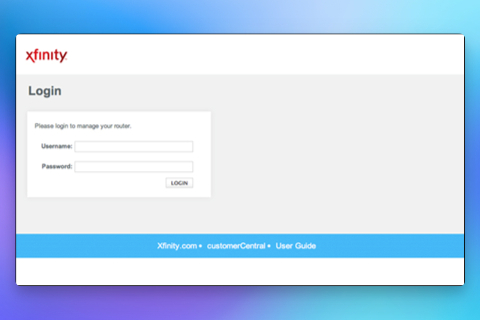
Open a web browser on your connected device. Type the router’s IP address into the address bar. Common addresses are 192.168.1.1or 10.0.0.1. Press Enter to load the admin login page.
Log In With Admin Credentials
Enter the admin username and password to log in. The default login is often “admin” for username and “password” for password. Check your router label or user manual for exact details. After login, navigate to the wireless settings to find the Wi-Fi key.
Find The Wi-fi Key In Settings
Finding your Xfinity router Wi-Fi key through the settings is a straightforward process that puts you in control of your network security. You don’t need to guess or search for a sticker on the router. Instead, accessing the router’s settings lets you see or even update your Wi-Fi password instantly.
Navigate To Wireless Settings
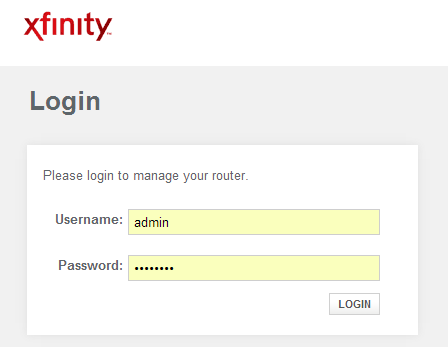
Start by opening a web browser on a device connected to your Xfinity network. Type http://10.0.0.1into the address bar and press Enter. This opens your router’s login page.
Enter your admin username and password. If you haven’t changed them, the default is usually adminfor the username and passwordfor the password. Once logged in, look for the section labeled Wireless Settingsor Wi-Fi.
This area controls your wireless network details. You’ll find options to manage your SSID (network name) and security settings here. It’s a simple menu but packed with important controls.
View Or Change The Wi-fi Password
Within the Wireless Settings, locate the field labeled Wi-Fi Password, Passphrase, or Security Key. This is your current Wi-Fi key. If you want to connect a new device or share the password, copying this exact string is key.
If you feel your password isn’t secure enough, you can change it here. Choose a strong password with a mix of letters, numbers, and symbols. After saving the new password, don’t forget to update it on all your connected devices.
Have you ever experienced a sudden Wi-Fi disconnect because you forgot your password? Accessing your router settings can quickly prevent that frustration. It’s a handy skill that saves time and keeps your network safe.
Credit: medium.com
Use The Xfinity App
The Xfinity app offers a quick way to find your router’s Wi-Fi key. It puts your network details right in your hand. This helps you connect new devices or share your Wi-Fi with friends easily.
Using the app is simple and secure. The interface is user-friendly, even for those who are not tech-savvy. Follow the steps below to access your Wi-Fi key through the app.
Download And Install The App
Get the Xfinity app from the Apple App Store or Google Play Store. It’s free and only takes a few moments to download. Make sure your phone or tablet has enough space for the app.
Once downloaded, open the app and prepare to sign in to your Xfinity account.
Sign In To Your Account
Enter your Xfinity username and password. This is the same login you use for your online Xfinity account. If you forget your details, use the app’s recovery options to reset your password.
After signing in, the app will take you to your main dashboard. This is where you manage all your Xfinity services.
Locate The Wi-fi Key
In the dashboard, find the section labeled “Internet” or “Network.” Tap on your Wi-Fi network name. The app will display your network details, including the Wi-Fi key.
Write down or copy the key to connect other devices. Keep the key safe and do not share it with strangers.
Reset The Router Password
Resetting your Xfinity router password helps secure your Wi-Fi network. It protects your connection from unauthorized access. You can change the password anytime you suspect it is compromised or forgotten. Resetting also fixes connection problems caused by incorrect settings.
When To Reset The Password
Reset the password if you cannot connect devices. Do this when you forget the Wi-Fi key. Change it after sharing your password with many people. Resetting is wise if your network is slow or unstable. Also reset if you see unknown devices connected.
Steps To Reset The Router
Find the reset button on the back of the router. Use a paperclip or pin to press it. Hold the button for about 10 seconds. Wait for the router lights to blink and restart. The router resets to factory settings after reboot.
Set A New Wi-fi Key
Access the router settings through a web browser. Enter the router’s IP address, usually 10.0.0.1, in the address bar. Log in using default username and password, often “admin” and “password.” Navigate to the wireless settings section. Create a new, strong Wi-Fi key. Save the changes and reconnect your devices using the new password.
Tips For Managing Your Wi-fi Key
Managing your Wi-Fi key is crucial for ensuring the security and efficiency of your home network. With cyber threats becoming increasingly sophisticated, safeguarding your Wi-Fi key should be a priority. Here are some practical tips that will help you manage your Xfinity router Wi-Fi key effectively.
Choose A Strong Password
When selecting a Wi-Fi password, opt for a combination that includes letters, numbers, and special characters. Avoid using obvious choices like birthdays or simple sequences like “123456”. Think of it as a digital barrier against intruders. A strong password should be at least 12 characters long and unpredictable. If you’re having trouble creating one, try using a password manager to generate a secure option.
Keep Your Password Secure
Once you’ve set up a strong password, the next step is ensuring it stays safe. Share it sparingly and only with trusted individuals. Consider writing it down and storing it in a secure location, away from prying eyes. You can also encrypt your notes digitally. Remember, your Wi-Fi key is like the key to your house; you wouldn’t hand it out to strangers.
Update Password Regularly
Changing your Wi-Fi password periodically is a simple yet effective security measure. Aim to update it every few months. This helps prevent unauthorized access, especially if you’ve shared it previously. Regular updates can also provide peace of mind knowing your network is protected. Ask yourself: When was the last time you updated your Wi-Fi key?
By following these tips, you can ensure your home network remains secure and reliable. Protecting your Wi-Fi key not only keeps unwanted users out but also maintains the integrity and speed of your internet connection.
Frequently Asked Questions
How Can I Find My Xfinity Router Wi-fi Key?
You can find your Xfinity Wi-Fi key on the router’s label. It’s usually called “Wi-Fi Password” or “Network Key. ” Alternatively, log in to your Xfinity account online and check the network settings to view your Wi-Fi password.
Where Is The Wi-fi Key Located On Xfinity Routers?
The Wi-Fi key is printed on a sticker on the back or bottom of your Xfinity router. Look for terms like “Wi-Fi Password,” “Network Key,” or “Security Key. ” This label contains the default password needed to connect your devices.
Can I Retrieve My Xfinity Wi-fi Key Online?
Yes, log into your Xfinity account at the official website or app. Navigate to the “Internet” section, then “Wi-Fi,” where you can view or change your Wi-Fi password easily and securely.
What If I Forgot My Xfinity Wi-fi Key?
If you forgot your Wi-Fi key, check the router label first. If lost, reset your router to factory settings to restore the default key. Alternatively, access your Xfinity online account to retrieve or reset your password.
Conclusion
Finding your Xfinity router Wi-Fi key is simple and quick. Check your router’s label or use the Xfinity app. You can also log in to your Xfinity account online to see the key. Keep your Wi-Fi key safe and private.
Sharing it carelessly can cause security problems. Now you can connect your devices without trouble. Stay connected and enjoy your internet easily at home.