
Want to enjoy crystal-clear, stunning visuals on your Samsung Smart TV? Enabling 4K resolution is the key to unlocking the full potential of your screen.
But how do you make sure your TV is set up correctly to deliver those sharp, vibrant images? If you’ve been wondering, “How do I enable 4K on my Samsung Smart TV? ” you’re in the right place. This guide will walk you through simple steps to get your TV displaying in breathtaking 4K quality, so every movie, game, and show looks better than ever.
Keep reading, and you’ll be amazed at what your TV can really do.
Check Tv Model And Specs
Before you can enjoy stunning 4K resolution on your Samsung Smart TV, you need to make sure your TV model supports it. Not every Samsung TV is built for 4K, so knowing your model’s capabilities is crucial. Checking your TV’s specs helps you avoid frustration and ensures you get the best picture quality possible.
Identify 4k Compatibility
Start by locating your TV’s model number. You can usually find this on the back of the TV or in the settings menu under “About This TV.” Once you have the model number, visit Samsung’s official website or search online to see if your TV supports 4K resolution.
Some Samsung models are labeled with terms like “Ultra HD” or “4K UHD,” which is a quick way to spot compatibility. If your model is older or only supports Full HD (1080p), it won’t be able to display 4K content. Knowing this upfront saves you time and helps you decide if you need to upgrade your TV.
Review Supported Hdmi Versions
Even if your Samsung TV supports 4K, the HDMI ports might limit your experience. HDMI 1.4 can handle 4K at 30Hz, but for smooth 4K playback at 60Hz, HDMI 2.0 or higher is necessary. Check your TV’s manual or specs sheet to find out which HDMI version it supports.
Using the right HDMI cable is just as important. A High-Speed HDMI cable is a must for 4K streaming. If you use an older or standard HDMI cable, you might notice lower resolution or no 4K signal at all.
Ask yourself: Have you checked both your TV’s HDMI version and the cable you’re using? This simple step can make a big difference in your viewing experience.
Credit: www.reddit.com
Access Picture Settings
Accessing the picture settings on your Samsung Smart TV is essential to enable 4K resolution. These settings control the display quality and ensure you get the best viewing experience. Adjusting the picture options lets you optimize sharpness, brightness, and resolution for 4K content.
Start by opening the settings menu on your TV. This area holds all the options needed to customize your screen display. Finding the right section within settings will help you quickly change to 4K mode.
Navigate To Settings Menu
Press the Home button on your Samsung remote. This opens the main menu on your TV screen. Use the arrow keys to scroll to the gear icon labeled “Settings.” Press Enter or OK to access the settings menu.
Inside the settings, you will find various options. Look for general or system settings if you do not see picture settings immediately. The layout may differ slightly depending on your TV model.
Select Picture Or Display Options
Within the settings menu, locate the “Picture” or “Display” option. This section controls all aspects of your TV’s image quality. Click on it to open detailed picture settings.
Check for resolution settings here. Make sure your TV is set to 4K UHD or Auto. This ensures the TV uses the highest available resolution for connected devices.
Adjust other picture features like brightness, contrast, and sharpness to improve your viewing experience. These changes help make 4K content look clear and vibrant on your Samsung Smart TV.
Enable 4k Resolution
Enabling 4K resolution on your Samsung Smart TV can dramatically improve your viewing experience. It brings out sharper details and richer colors that standard HD just can’t match. But simply having a 4K TV doesn’t guarantee you’re watching in true 4K quality—you need to adjust the settings to activate it.
Choose 4k Resolution Manually
Sometimes, your Samsung Smart TV might default to a lower resolution to save bandwidth or because of the source device’s settings. To make sure you’re seeing content in 4K, you can manually select the resolution.
Here’s how you do it:
- Open the Settingsmenu on your TV.
- Navigate to Pictureor Picture Size Settings.
- Look for the option labeled Screen Resolutionor similar.
- Select 3840 x 2160 (4K UHD)from the list of available resolutions.
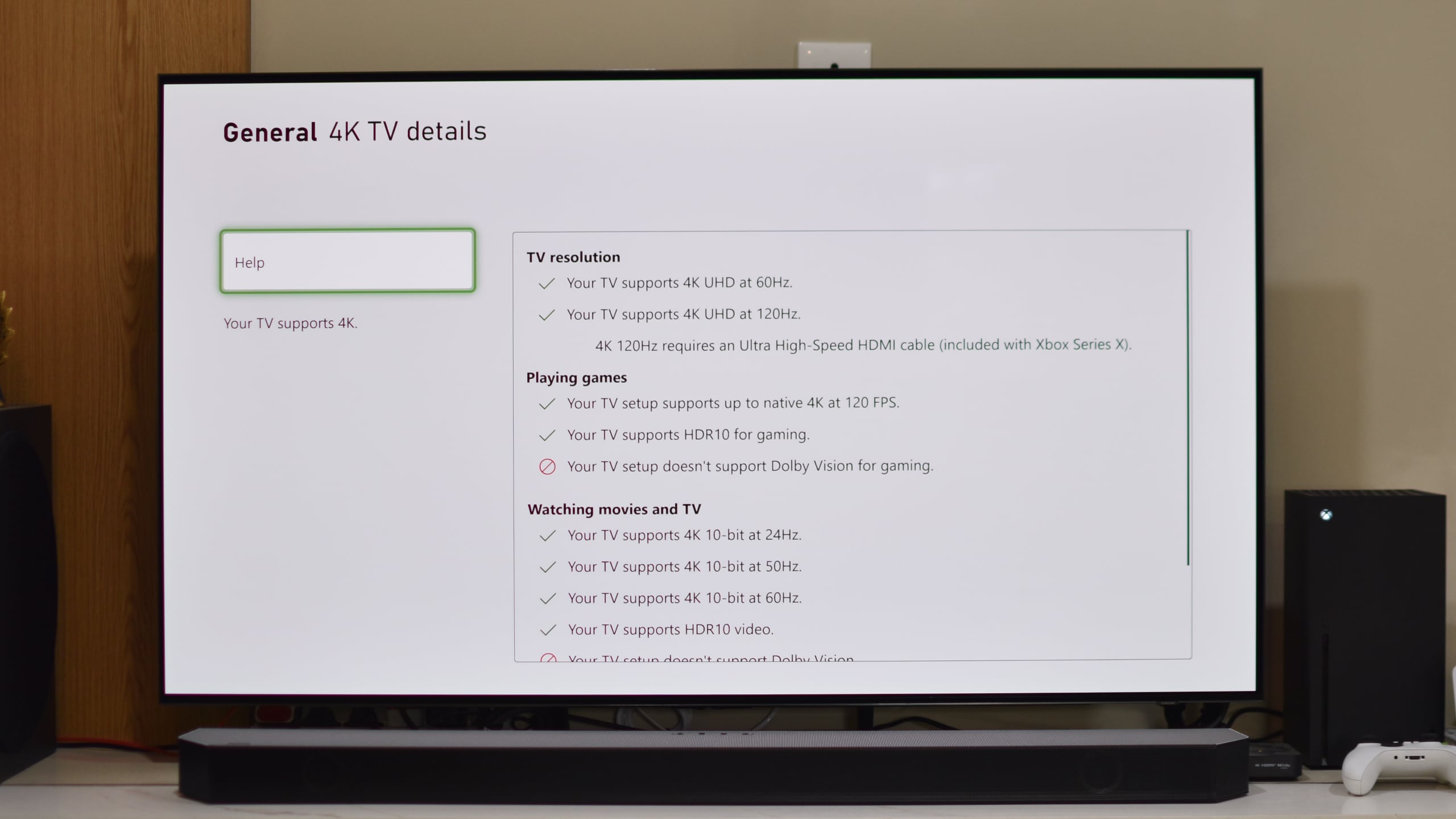
If you don’t see the 4K option, check that your input device (like a 4K Blu-ray player or streaming box) supports 4K output and is connected via HDMI 2.0 or higher.
Activate Uhd Color Mode
Even after setting the resolution, some Samsung TVs require you to enable UHD Color mode on the HDMI port to deliver full 4K HDR quality. Without this, colors and brightness won’t be as vibrant as they should be.
Follow these steps to activate UHD Color:
- Press the Homebutton on your remote and go to Settings.
- Find and select General> External Device Manager.
- Choose HDMI UHD Color.
- Toggle the UHD Color option ON for the HDMI port where your 4K device is connected.
Activating this mode ensures your TV uses the full bandwidth of HDMI 2.0, allowing 4K HDR content to display correctly. Have you ever noticed your 4K content looking dull or washed out? This setting often fixes that issue.
Credit: www.sammobile.com
Adjust Hdmi Input Settings
Adjusting HDMI input settings is essential for a crisp 4K display on your Samsung Smart TV. Correct settings ensure your TV processes the full quality of the video signal. Without this, your TV might show lower resolution or poor color quality.
Optimizing the HDMI input helps your TV handle high-bandwidth content smoothly. This step improves clarity and color accuracy. Let’s look at key settings for a better 4K experience.
Enable Hdmi Uhd Color For Ports
HDMI UHD Color lets your TV accept higher data rates. This means better color depth and brightness for 4K content. Enable this feature on the HDMI port connected to your 4K device.
To enable HDMI UHD Color:
- Go to the TV’s Settings menu.
- Select General, then External Device Manager.
- Find HDMI UHD Color and turn it on for the specific HDMI port.
This setting improves image quality and supports HDR content. It is necessary for true 4K playback on Samsung TVs.
Use High-speed Hdmi Cables
Standard HDMI cables cannot always carry 4K signals properly. High-speed HDMI cables are designed for higher bandwidth. They support 4K resolution at 60Hz and HDR.
Look for cables labeled as “High-Speed” or “Premium High-Speed.”
- These cables reduce signal loss.
- Ensure smooth video without flickering or dropouts.
- Compatible with HDMI 2.0 or newer for best results.
Using the right cable is vital. It helps your TV display crisp and vibrant 4K images.
Optimize External Devices
Optimizing external devices is key to enjoying 4K content on your Samsung Smart TV. Many devices can enhance your viewing experience. Adjust their settings for the best picture quality. Below, find simple steps to configure streaming devices and game consoles for 4K output.
Configure Streaming Devices
Streaming devices deliver 4K content straight to your TV. To enable 4K, start by accessing the device settings. Look for video resolution options. Select 4K or UHD if available. Ensure your streaming service supports 4K content. Some may require a premium subscription. Check the HDMI cable type used. Opt for a high-speed HDMI cable for better 4K performance. Verify your internet speed. Slow connections might hinder 4K streaming. Aim for a speed of at least 25 Mbps.
Set Game Consoles To 4k Output
Gaming in 4K offers stunning visuals. To enable 4K on consoles, go to system settings. Find the video output section. Change the resolution to 4K. Some games might not support 4K. Check game settings for resolution options. Update your console software regularly. Updates often improve 4K compatibility. Use an HDMI cable that supports 4K. Regular cables might limit output quality. Ensure your TV is set to 4K input mode. This ensures the console sends the best signal.

Credit: www.youtube.com
Update Firmware
Keeping your Samsung Smart TV’s firmware updated is essential to enjoy the best 4K experience. Firmware updates often include improvements that enhance picture quality, add new features, and fix bugs that could affect performance. If your TV isn’t running the latest software, you might miss out on important enhancements needed to enable 4K resolution properly.
Check For Software Updates
Start by checking if your Samsung TV has any available software updates. You can do this directly from the TV’s settings menu, which makes the process straightforward and quick.
- Press the Home button on your remote.
- Navigate to Settingsand select Support.
- Choose Software Update, then select Update Now.
If an update is available, your TV will notify you. If not, you’ll see a message confirming your firmware is current. Regularly checking ensures you don’t miss crucial updates that improve 4K playback.
Install Latest Tv Firmware
Once you find an update, installing it is a simple but vital step. Keep your TV connected to the internet during this process to avoid interruptions.
- Allow the TV to download the firmware update.
- Do not turn off or unplug the TV during installation.
- Your TV will restart automatically once the update is complete.
After the update, test your 4K content again to see if the quality has improved. Have you ever noticed that a firmware update fixed an issue you thought was permanent? That’s the power of keeping your TV’s software fresh.
Troubleshoot Common Issues
Encountering issues while trying to enable 4K on your Samsung Smart TV can be frustrating. Common problems like the absence of a 4K option or a blurry display often have simple fixes. Understanding these issues helps you get the most out of your TV’s stunning resolution.
Fix No 4k Option Available
If you don’t see the 4K option on your Samsung TV, start by checking the HDMI port you’re using. Not all HDMI ports support 4K at 60Hz—look for ports labeled “HDMI 2.0” or “HDMI UHD.”
Also, verify that your HDMI cable is rated for 4K (High-Speed HDMI or Premium High-Speed HDMI). Older cables may limit resolution and prevent the 4K option from appearing.
Another quick check is to ensure your source device (like a Blu-ray player or streaming box) supports 4K output and is set to output 4K resolution. Sometimes the problem lies with the device, not the TV.
Resolve Blurry Or Dark Display
A blurry or dark 4K picture can ruin your viewing experience. First, adjust the Picture Size settings on your TV—select “16:9” or “Screen Fit” instead of “Zoom” or “Wide.” This prevents image distortion and blurriness.
Next, tweak the Brightness and Backlight settings. Increasing these can brighten the image without washing out colors. You can also enable the “HDR+” mode if your content supports HDR to improve picture clarity and brightness.
Sometimes, your TV’s firmware needs updating to fix display issues. Navigate to the settings menu and check for software updates. Keeping your TV updated can solve many unexpected problems and improve performance.
Frequently Asked Questions
How Do I Check If My Samsung Tv Supports 4k?
To check 4K support, look for “UHD” or “4K” on your TV model. Also, visit Samsung’s official website for your model’s specifications.
How To Enable 4k Resolution On Samsung Smart Tv?
Go to Settings > Picture > Picture Size Settings > Picture Size. Choose “16:9 Standard” or “Screen Fit” to enable 4K resolution.
Why Is My Samsung Tv Not Showing 4k Content?
Make sure you use a high-speed HDMI cable and connect to a 4K source. Also, enable UHD color in the TV’s expert settings.
Can I Stream 4k Videos On Samsung Smart Tv?
Yes, use apps like Netflix or YouTube that support 4K streaming. Ensure your internet speed is at least 25 Mbps for smooth playback.
Conclusion
Enabling 4K on your Samsung Smart TV improves your viewing experience. Check your TV settings and HDMI cables first. Use the correct input that supports 4K resolution. Adjust the picture mode to see clearer images. Streaming apps may need updates for 4K content.
Enjoy sharper, more colorful pictures with these simple steps. Watching movies and shows feels more lifelike now. Try these tips to get the best picture quality. Your Samsung TV can deliver stunning 4K visuals easily.