
Are you wondering if you can download apps on your LG 4K Smart TV? Imagine turning your TV into a personalized entertainment hub, filled with all your favorite apps just a click away.
Whether you want to stream movies, catch up on shows, or explore new games, having the right apps can make a huge difference. But can your LG 4K Smart TV handle it? Keep reading, and you’ll discover exactly how to get the most out of your TV by downloading apps easily and quickly.
This could change the way you watch forever.
Lg 4k Smart Tv Features
The LG 4K Smart TV offers a combination of advanced features designed to enhance your viewing experience and give you more control over your entertainment. Whether you’re streaming your favorite shows, playing games, or browsing apps, understanding the core features can help you make the most out of your device. Let’s break down what makes these TVs stand out.
Display And Resolution
The LG 4K Smart TV boasts a stunning 4K Ultra HD resolution, which means you get four times the pixels of a standard Full HD TV. This sharpness brings out incredible details, making every scene look more lifelike and immersive.
Colors are vibrant and accurate, thanks to LG’s advanced panel technology. The deep blacks and bright highlights improve contrast, so whether it’s a dark night scene or a sunny landscape, you see more depth and clarity.
Operating System
LG Smart TVs run on the webOS platform, known for its intuitive and user-friendly interface. Navigating through apps and settings feels smooth, even for those who aren’t tech-savvy.
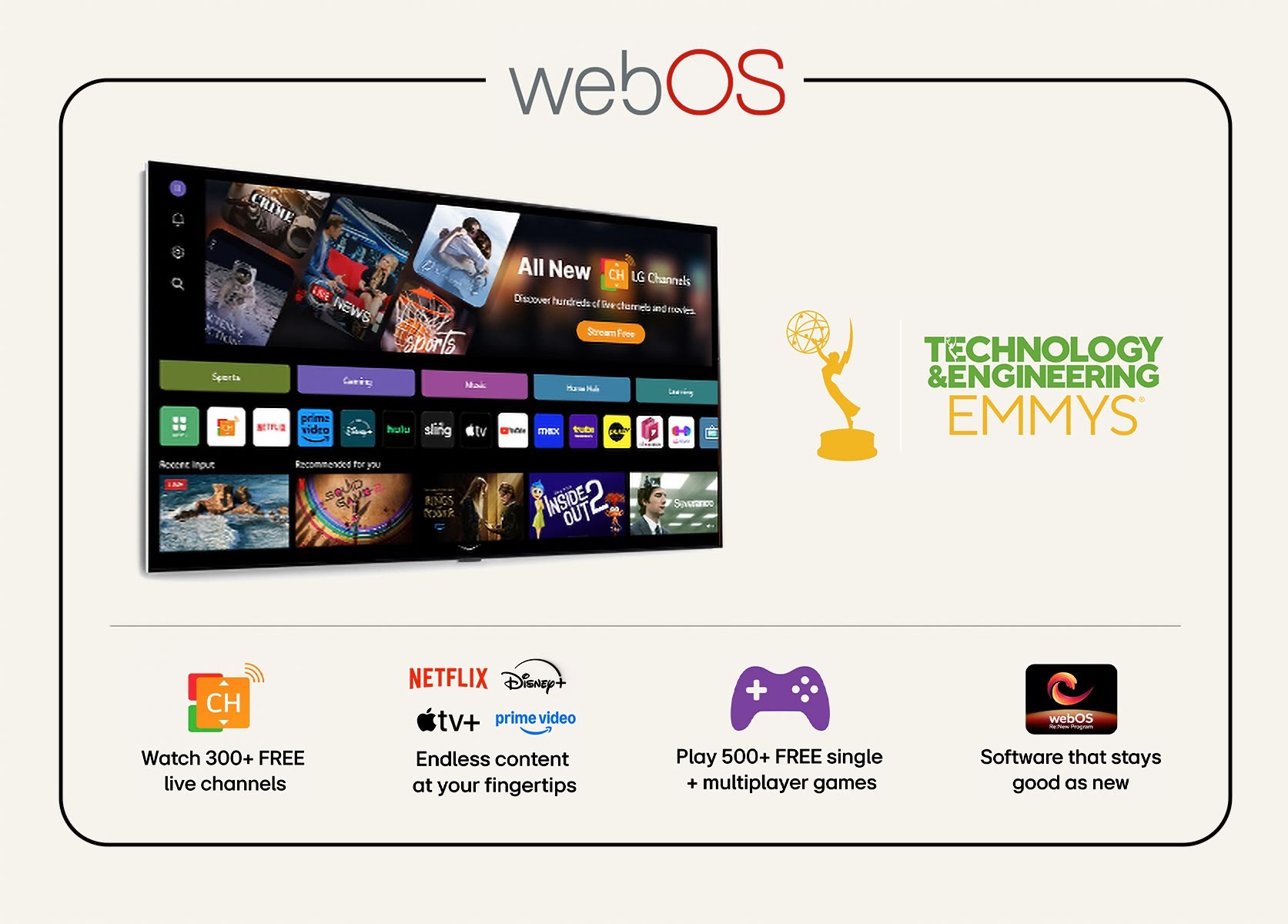
webOS allows you to download a variety of apps directly from the LG Content Store. This means you can add streaming services, games, and utility apps without needing another device.
Connectivity Options
LG 4K Smart TVs come equipped with multiple connectivity options to fit your lifestyle. You’ll find several HDMI ports, USB inputs, and support for Wi-Fi and Ethernet connections.
These options make it easy to connect gaming consoles, soundbars, external drives, or even your smartphone. Have you tried screen mirroring your phone to your TV? It’s a great way to share photos or videos with friends and family on the big screen.
App Availability On Lg Smart Tvs
LG 4K Smart TVs offer a variety of apps to enhance your viewing experience. The availability of apps depends on the model and the webOS version. Some apps come pre-installed, while others can be downloaded from the LG Content Store. The platform supports several app formats, allowing access to popular streaming and utility apps.
Pre-installed Apps
LG Smart TVs come with several apps already installed. These include popular streaming services and essential tools. Common pre-installed apps are:
- Netflix
- YouTube
- Amazon Prime Video
- Disney+
- LG Channels
These apps are ready to use right after setup. They provide easy access to popular content.
Supported App Formats
LG Smart TVs use the webOS platform. This platform supports apps designed for webOS. Apps are available through the LG Content Store. The store offers native apps built specifically for LG TVs. These apps run smoothly and are optimized for TV screens.
Apps that require Android or iOS are not supported. Also, traditional desktop apps cannot be installed. LG focuses on apps made for smart TV use.
Popular Apps Compatible
Many popular apps work well on LG 4K Smart TVs. Some of these include:
- Hulu
- Spotify
- Plex
- Vudu
- Apple TV+
These apps cover entertainment, music, and streaming needs. Users can download and update them from the LG Content Store.
How To Download Apps
Downloading apps on your LG 4K Smart TV is a straightforward process that can significantly enhance your viewing experience. Whether you want to stream movies, play games, or access social media, knowing how to find and add apps is essential. Let’s break down the steps so you can start customizing your TV right away.
Accessing The Lg Content Store
Begin by turning on your LG 4K Smart TV and pressing the Home button on your remote. This opens the main menu where you can find the LG Content Store icon, usually represented by a shopping bag or a similar symbol.
Click on the LG Content Store to enter the app marketplace. This is your gateway to all available apps designed specifically for LG TVs. The interface is user-friendly, so take your time exploring the different categories and recommendations.
Searching For Apps
If you have a specific app in mind, use the search function at the top of the LG Content Store screen. Simply type the app’s name using the remote or voice commands if your remote supports it.
Not sure what to look for? Browse through categories like Entertainment, News, or Games to discover popular and new apps. The search results will show you options with app ratings and descriptions to help you decide.
Installing Apps
Once you find an app you want, select it to open its details page. Here, you’ll see an Install button—click it to begin downloading the app to your TV.
After installation, the app icon will appear on your home screen or in your app list for easy access. You can open it anytime and even rearrange the icons to keep your favorites handy.
App Management Tips
Managing apps on your LG 4K Smart TV can greatly improve your viewing experience. Keeping apps updated, removing those you don’t use, and managing storage effectively ensures your TV runs smoothly and stays clutter-free. Let’s dive into some practical tips that can help you take control of your apps.
Updating Apps
Keeping your apps updated is crucial for performance and security. LG’s webOS usually prompts you when updates are available, but you can also check manually through the LG Content Store.
Regular updates fix bugs and add new features, making your apps run better. Have you noticed an app slowing down? It might be time to check for updates.
Removing Unwanted Apps
Apps you rarely use take up valuable space and can slow down your TV. Removing them frees up resources and declutters your app list.
To uninstall an app, highlight it on the home screen, press and hold the OK button, then select “Delete” or “Uninstall.” It’s quick and easy, and you can always reinstall later if needed.
Managing Storage
Your LG TV has limited storage, so managing it wisely is important. Besides deleting apps, clear cache or data for apps that store a lot of temporary files.
If you find your TV running slow, check storage under settings. You might be surprised how much space gets taken up by apps and their data. What apps do you really need on your TV?
Troubleshooting App Issues
Having trouble with apps on your LG 4K Smart TV can be frustrating, especially when you’re all set for a movie night or eager to explore a new streaming service. Whether it’s a downloading issue or unexpected app behavior, knowing how to troubleshoot can save you from unnecessary stress. Let’s dive into common app issues you might face and how to tackle them effectively.
App Not Downloading
If an app refuses to download on your LG 4K Smart TV, start by checking your internet connection. A stable connection is crucial for downloading apps.
Ensure your TV’s software is updated. Outdated software can cause compatibility issues with new apps.
Finally, verify if there’s enough storage space. You might need to delete unused apps or files to make room for new downloads.
App Crashes Or Freezes
Experiencing app crashes can be a real buzzkill. First, try restarting your TV. It sounds simple, but a reboot can solve many minor glitches.
If the issue persists, check if the app itself needs an update. Developers often release updates to fix bugs or improve performance.
Sometimes, uninstalling and reinstalling the app can help refresh its settings and resolve crashing issues.
Connectivity Problems
Connectivity issues can disrupt your streaming experience. Start by checking your Wi-Fi signal strength. Weak signals can lead to app connectivity problems.
Consider moving your router closer to your TV or using a wired connection for better stability.
Ensure your TV’s network settings are correctly configured. A simple reset of your network settings might be all it takes to restore connectivity.

Credit: apps.apple.com
Alternative App Installation Methods
If you find the LG 4K Smart TV’s built-in app store limiting, don’t worry—there are other ways to get more apps onto your screen. Alternative app installation methods can help you enjoy a wider range of content and tools without relying solely on the official store. These options might require a bit more effort but often open doors to apps that enhance your TV experience.
Using Usb Drives
One way to add apps is by using a USB drive. Some LG TVs allow you to sideload apps by downloading the app’s installation file (usually an APK) onto your USB and then connecting it to your TV.
This method depends on your TV’s compatibility and security settings. You should ensure the app you want is safe and compatible with the TV’s system to avoid any issues.
Screen Mirroring And Casting
If installing apps directly sounds tricky, screen mirroring or casting from your phone or computer is a practical alternative. This lets you use apps on your mobile device and see them on your TV without actually installing anything on the TV itself.
Most LG Smart TVs support Miracast or Chromecast built-in, making it easy to share videos, games, or apps. Have you tried streaming a game or a live event this way? It’s often smoother than you expect.
Third-party App Stores
Some users explore third-party app stores as a way to access apps not available in LG’s official store. These stores can offer a wider variety, but they come with risks such as security concerns and potential compatibility problems.
Before trying a third-party store, check reviews and user feedback carefully. Are you comfortable with the possible risks for the chance to try new apps? If so, this could expand your TV’s functionality beyond its default limits.
Maximizing App Experience
Getting the most out of apps on your LG 4K Smart TV makes your viewing experience smoother and more enjoyable. It’s not just about downloading apps, but also about how you interact with them and set up your TV for peak performance. Small tweaks can lead to big improvements in responsiveness and ease of use.
Optimizing Internet Speed
Apps on your LG 4K Smart TV rely heavily on a strong internet connection. If you notice buffering or slow loading times, check your Wi-Fi signal strength first. Moving your router closer or using a wired Ethernet connection can significantly boost speed.
Consider restarting your router regularly to clear temporary issues. You can also test your internet speed through the TV’s browser or a speed test app to see if you’re getting the bandwidth needed. Faster internet means smoother streaming and quicker app navigation.
Using Remote Control Features
Your remote control is more powerful than you might think. Many LG remotes come with voice command features that let you search for apps, control playback, or even open settings without typing. This saves time and reduces hassle.
Learn shortcuts and special buttons on your remote. For instance, some remotes have a dedicated Netflix or YouTube button for one-click access. Using these features can make app navigation faster and less frustrating.
Customizing App Layout
You don’t have to stick with the default app arrangement on your LG TV. Customize your home screen by moving your favorite apps to the front for quick access. This way, you spend less time scrolling and more time enjoying content.
Delete apps you rarely use to keep the interface clean. Group similar apps together or arrange them by your viewing habits. This small change can make your TV feel more personal and easier to use every day.

Credit: www.youtube.com
Credit: www.lg.com
Frequently Asked Questions
Can I Install Apps Directly On Lg 4k Smart Tv?
Yes, you can download and install apps directly from the LG Content Store on your LG 4K Smart TV. The process is simple and quick, allowing you to access popular streaming services and utilities with ease.
Does Lg 4k Smart Tv Support Third-party Apps?
LG 4K Smart TVs primarily support apps available in the LG Content Store. Installing third-party apps not listed there is generally not supported and may require workarounds that are not officially recommended.
How Do I Update Apps On Lg 4k Smart Tv?
To update apps, go to the LG Content Store, navigate to “My Apps,” and select “Update All. ” This keeps your apps running smoothly and ensures you have the latest features and security patches.
Are All Popular Streaming Apps Available On Lg 4k Smart Tv?
Most popular streaming apps like Netflix, Amazon Prime Video, and Disney+ are available on LG 4K Smart TVs. However, app availability can vary by region and TV model, so check the LG Content Store for your specific device.
Conclusion
LG 4K Smart TVs allow you to download many popular apps easily. The LG Content Store offers a variety of choices. You can find streaming, games, and utility apps there. Not all apps are available, but key ones usually are.
Downloading apps is simple and quick on these TVs. This makes your viewing experience more fun and flexible. So, enjoy your LG Smart TV with the apps you want. It brings more entertainment right to your living room.