
Have you ever wondered if your GoPro can do more than just capture adventure videos? What if you could turn it into a high-quality webcam for your video calls, streaming, or online meetings?
Using your GoPro as a webcam can give you sharper, clearer video, making your online presence stand out. But is it really possible? And if so, how easy is it to set up? Keep reading to find out how you can transform your GoPro into a powerful webcam and elevate your video experience instantly.
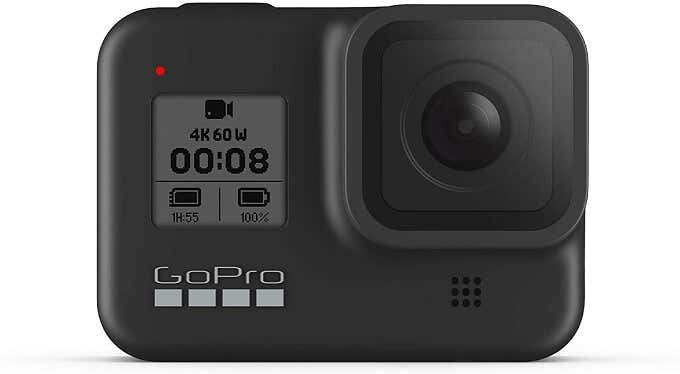
Credit: www.online-tech-tips.com
Gopro Models Compatible With Webcam Mode
Using a GoPro as a webcam is a popular choice for clear video quality. Not all GoPro models support this feature. It is important to know which models work with webcam mode. Compatibility depends on the camera model and its firmware. This section explains the supported cameras and how to check your device.
Supported Cameras And Firmware Requirements
Only recent GoPro models support webcam mode. These models include:
- GoPro HERO8 Black
- GoPro HERO9 Black
- GoPro HERO10 Black
- GoPro HERO11 Black
Older models do not have native webcam support. They need extra hardware to work as webcams.
Firmware must be updated to the latest version. GoPro releases updates to improve webcam functionality. Check the official GoPro website for firmware details.
Checking Your Gopro’s Compatibility
Turn on your GoPro and connect it to your computer using a USB cable. Open the GoPro Webcam desktop app. The app detects compatible cameras automatically.
If your camera is supported, the app shows a live preview. If not, it may prompt for a firmware update or indicate incompatibility.
Verify the model and firmware version on your GoPro. Use the GoPro app or device settings to check. This helps confirm if webcam mode works on your device.
Setting Up Your Gopro As A Webcam
Setting up your GoPro as a webcam lets you enjoy high-quality video for calls and streaming. The process is simple but requires some tools and software. Follow these steps carefully to get your GoPro ready for use as a webcam.
Required Cables And Accessories
Start by gathering the right cables and accessories. You need a USB-C cable that fits your GoPro model. Most GoPro cameras use USB-C, but check your device to be sure.
- USB-C to USB-A or USB-C to USB-C cable (depending on your computer ports)
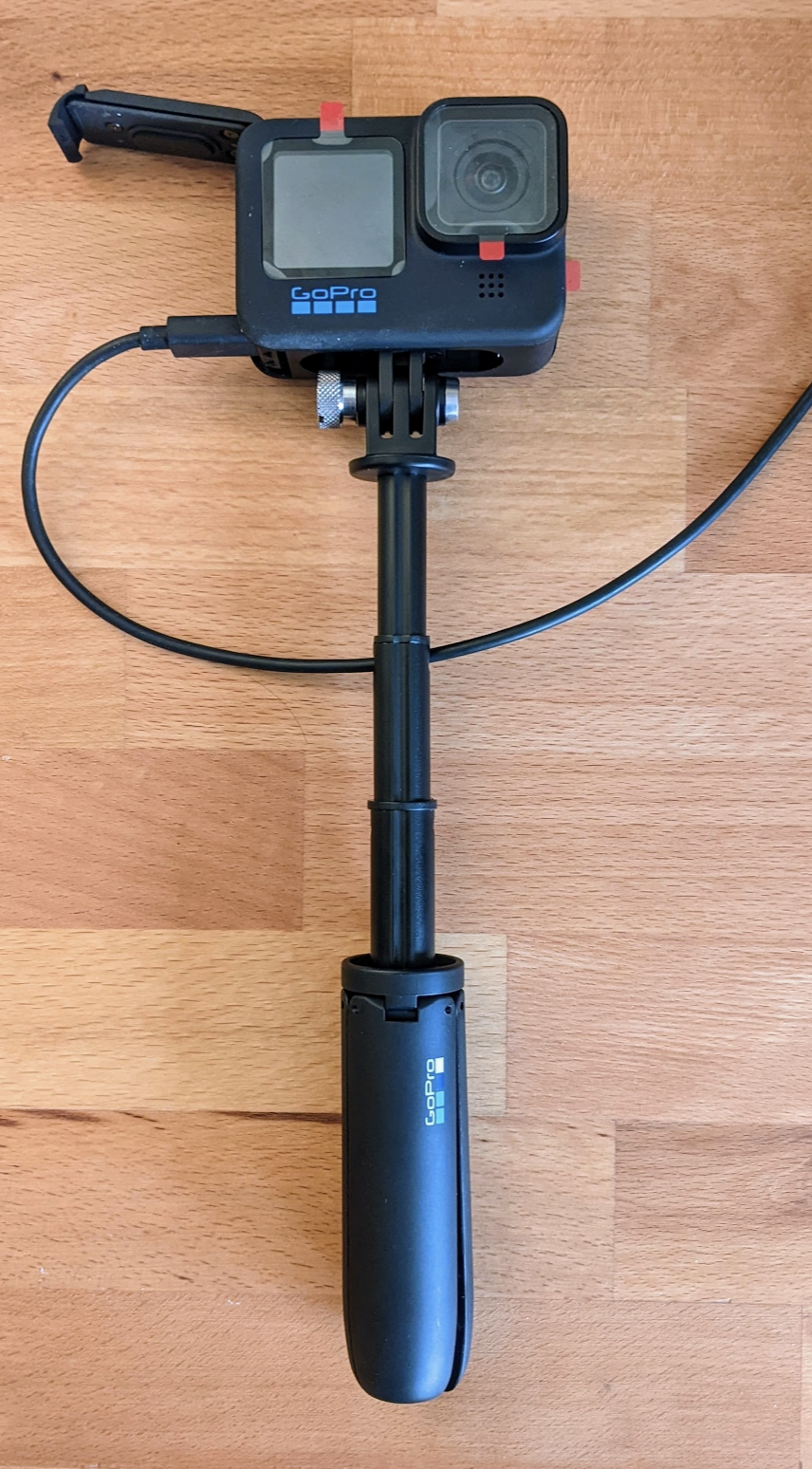
- A stable tripod or mount to hold your GoPro steady
- Optional: External power source or charger to keep your GoPro powered during use
Installing Necessary Software
Download and install the official GoPro Webcam software on your computer. This software allows your computer to recognize the GoPro as a webcam device.
- Visit the GoPro website to get the latest webcam utility
- Follow on-screen instructions to complete the installation
- Restart your computer after installation for smooth operation
Connecting To Your Computer
Connect your GoPro to the computer using the USB cable. Turn on your GoPro and set it to webcam mode if available.
- Plug the USB cable into the GoPro and the computer
- Wait for the GoPro Webcam software to detect the camera
- Select the GoPro as the video source in your video conferencing or streaming app
Optimizing Video Quality For Streaming
Using a GoPro as a webcam can drastically improve your streaming quality. While GoPros are primarily designed for action-packed adventures, they can be fine-tuned for stationary use. Optimizing video quality is key when transitioning your GoPro to a webcam, whether you’re streaming a gaming session or conducting a virtual meeting. Let’s dive into some tweaks that can make a significant difference.
Adjusting Resolution And Frame Rate
Your GoPro allows you to adjust the resolution and frame rate, helping you tailor the video quality to suit your needs. Start by setting the resolution to 1080p for a crisp and clear image. While 4K might seem enticing, it requires more bandwidth and can slow down your stream.
Regarding frame rate, 30 frames per second (fps) is ideal for most streaming purposes. It provides smooth motion without overwhelming your system. If your content involves fast movements, consider bumping it up to 60fps for better fluidity.
Lighting Tips For Clearer Video
Lighting can make or break your video quality. Ensure your face is well-lit by using natural light or a ring light. Position your light source in front of you rather than behind, minimizing shadows and enhancing clarity.
Avoid harsh overhead lights that create unflattering shadows. If you’re streaming at night, using soft LED panels can provide consistent lighting. Experiment with angles to find what looks best on camera.
Using External Microphones
Audio quality is just as important as video quality. The GoPro’s built-in microphone might not capture sound as effectively as an external microphone. Investing in a quality microphone can elevate your streaming experience.
Consider using a USB or wireless microphone for clear, professional-grade sound. Pay attention to placement; a microphone too close can pick up unwanted noise, while too far can make you sound distant. Finding the sweet spot will enhance your audio output significantly.
Credit: vdespa.medium.com
Streaming Platforms And Software Integration
Using your GoPro as a webcam opens up exciting possibilities for streaming and video calls. However, seamless integration with popular streaming platforms and software is key to making the most of it. Understanding how to connect your GoPro to different applications helps you deliver high-quality video without technical headaches.
Using Gopro With Zoom And Microsoft Teams
Both Zoom and Microsoft Teams support external cameras, so your GoPro can easily replace a standard webcam. To do this, connect your GoPro via USB or HDMI capture card, then select it as the video source in the app’s settings.
Make sure your GoPro is set to webcam mode, which is available on models like the GoPro HERO8 and newer. This setup improves video clarity for your meetings and presentations.
Have you noticed how much better your video looks when you switch to a GoPro? It can make a big difference in professional settings where image quality matters.
Streaming On Twitch And Youtube
Streaming live on Twitch or YouTube with a GoPro requires capturing its video feed into your streaming software. Many streamers use HDMI capture cards to feed their GoPro’s output directly into their computers.
This approach results in crisp, wide-angle footage that stands out from typical webcam streams. You can also experiment with different mounts and angles to create more dynamic content.
What unique perspectives could your GoPro bring to your streams that a regular webcam cannot?
Configuring Obs Studio With Gopro
OBS Studio is a favorite for streamers, and it works well with GoPro cameras connected via capture cards. Once your GoPro is connected, add a new video capture source in OBS and select your GoPro device.
Adjust settings like resolution and frame rate to match your streaming goals. You can also combine your GoPro feed with overlays, alerts, and other visual elements within OBS.
Spending a few minutes setting up your GoPro properly in OBS can make your streams look far more professional and engaging.
Troubleshooting Common Issues
Using your GoPro as a webcam can be a game-changer for video quality, but it’s not always smooth sailing. You might face some hiccups along the way that can disrupt your streaming or video calls. Let’s tackle those common issues head-on so you get the best experience without frustration.
Fixing Connection Problems
Connection issues are the most common problem when using a GoPro as a webcam. First, check that your USB cable is fully compatible and supports data transfer, not just charging. Cheap or damaged cables often cause your computer not to recognize the camera.
If your GoPro isn’t showing up as a webcam, try switching USB ports. Sometimes, USB 3.0 ports work better than USB 2.0, especially for video devices. Also, make sure you’ve put your GoPro in the correct webcam mode and updated to the latest firmware.
Have you ever spent hours troubleshooting only to find a cable at fault? That’s why investing in a good-quality cable can save you loads of time and headaches.
Resolving Video Lag And Glitches
Video lag can kill your streaming flow. One quick fix is to lower the resolution and frame rate on your GoPro’s webcam settings. High settings might be too demanding for your computer to handle smoothly.
Close any unnecessary apps running in the background to free up system resources. Sometimes, the software you use for streaming may need an update to work better with your GoPro.
Have you checked your computer’s performance during streaming? Using Task Manager or Activity Monitor can reveal if your CPU or RAM is maxed out, causing lag.
Addressing Audio Sync Issues
Audio sync problems often arise because the audio and video streams are processed separately. One practical tip is to use an external microphone connected directly to your computer rather than relying on the GoPro’s built-in mic.
If you must use the GoPro’s audio, try adjusting the sync settings in your streaming software. Most programs allow you to delay audio or video by a few milliseconds to realign them.
Have you noticed your voice lagging behind your video during calls? Even small adjustments can make a big difference in creating a seamless experience for your audience.
Alternative Methods To Use Gopro As Webcam
If you’re looking to use your GoPro as a webcam, there are several alternative methods that can help you achieve high-quality video without relying solely on official software. These options give you flexibility and can fit different setups and budgets. Understanding these methods will help you decide which one works best for your specific needs.
Using Capture Cards
A capture card can turn your GoPro into a reliable webcam by converting its HDMI output into a USB signal your computer can recognize. This method often provides the best video quality and low latency, perfect for streaming or video calls.
To use this method, you’ll need an HDMI cable compatible with your GoPro and a capture card such as Elgato Cam Link or similar devices. Simply connect your GoPro to the capture card, then plug the capture card into your computer’s USB port.
One advantage here is that your computer treats the GoPro like a regular webcam, so compatibility with popular platforms like Zoom or OBS is seamless. Have you checked if your capture card supports your GoPro model’s HDMI output format? That compatibility can make or break this setup.
Wireless Streaming Options
If you prefer a cable-free setup, wireless streaming is an option, though it can be a bit trickier and may introduce some delay. Apps like GoPro’s own Quik or third-party software can stream your GoPro footage over Wi-Fi to your computer.
This method usually requires your GoPro and computer to be on the same network. You can then use software that captures the stream and treats it as a webcam input. Keep in mind, network speed and stability greatly affect video quality here.
Wireless streaming is handy if you want to place your GoPro in a different room or angle without worrying about cables. Have you ever tested your Wi-Fi’s upload and download speeds? They can determine if wireless streaming will be smooth or frustrating.
Comparing Gopro With Traditional Webcams
Choosing the right webcam affects video calls, streaming, and online meetings. GoPro cameras offer an alternative to traditional webcams. Both have pros and cons. Understanding these differences helps pick the best device for your needs.
Image Quality And Features
GoPro cameras provide high-resolution video with wide-angle lenses. They capture sharp, vibrant images even in low light. Traditional webcams have lower resolution but work well in normal lighting. Webcams often include built-in microphones and autofocus. GoPros may need extra setup for audio and focus control.
Portability And Flexibility
GoPros are compact and rugged. They can attach to helmets, tripods, or other surfaces easily. This makes them versatile for different filming angles. Traditional webcams usually stay on a desk or monitor. They are less flexible but simpler to use for stationary setups.
Cost And Value
GoPro cameras are more expensive than most webcams. They offer extra features that suit outdoor and action use. Webcams are budget-friendly and designed specifically for video calls. For everyday online meetings, webcams provide good value. GoPros add cost but boost video quality and versatility.
Tips For Pro-level Streaming Setup
Setting up your GoPro as a webcam can elevate your streaming quality, but nailing a pro-level setup requires attention to more than just the camera itself. Small details like how you stabilize your camera, arrange your background, and manage your battery can make a huge difference in how professional your stream looks and feels.
Stabilizing Your Camera
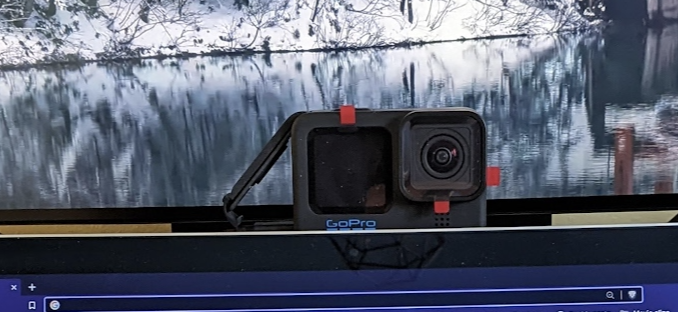
Shaky footage can distract your viewers and lower the quality of your stream. Use a sturdy tripod or a dedicated camera mount to keep your GoPro steady. If you’re streaming while moving, consider a gimbal or a handheld stabilizer to smooth out the motion.
Think about your camera’s placement too. Position it at eye level to create a natural and engaging viewpoint for your audience.
Background And Framing
Your background sets the tone for your stream. Avoid cluttered or distracting spaces; instead, choose a simple, clean backdrop. Adding soft lighting behind or around you can separate you from the background and add depth.
Frame yourself so your head and shoulders fill the screen comfortably. Too much empty space can make your stream look less polished, while too little can feel cramped. Ask yourself if your background tells the right story about your stream’s vibe.
Maintaining Battery Life
Streaming can quickly drain your GoPro’s battery, interrupting your flow. Plug your GoPro into a power source using a USB cable designed for continuous charging. If you’re mobile, consider external battery packs to keep your stream going without breaks.
Keep an eye on your camera’s temperature too; overheating can cause shutdowns. Taking short breaks or lowering camera settings can help manage this during longer sessions.
Credit: vdespa.medium.com
Frequently Asked Questions
Can I Connect My Gopro Directly To A Pc?
Yes, you can connect your GoPro to a PC using a USB-C cable and GoPro Webcam software. This setup allows your GoPro to function as a high-quality webcam for video calls and streaming.
Which Gopro Models Work As Webcams?
Most recent GoPro models like HERO8, HERO9, HERO10, and HERO11 support webcam functionality. Older models may not support this feature natively, requiring additional capture cards or adapters.
Do I Need Special Software To Use Gopro As Webcam?
Yes, GoPro provides a free Webcam utility for Windows and macOS. This software enables your computer to recognize the GoPro as a webcam instantly for video conferencing apps.
Can Gopro Webcams Improve Video Quality?
Absolutely! GoPros offer superior video quality with high resolution and wide-angle lenses. They provide better image clarity compared to most built-in laptop or desktop webcams.
Conclusion
Using a GoPro as a webcam is possible and useful. It offers better video quality than many webcams. Setup is simple with the right cables and software. Keep in mind battery life and connection stability. This option suits those needing clear, sharp video.
Try it out to see if it fits your needs. It can make your video calls and streams look better. Simple steps and a little practice will help you succeed.