
Are you looking to upgrade your video calls or live streams without spending a fortune on a new webcam? You might already have the perfect tool sitting on your desk — your GoPro.
But can you actually use a GoPro as a webcam? Imagine turning your action camera into a crystal-clear video device that makes every call and stream look professional. You’ll discover exactly how to do that, what you need, and the simple steps to get started.
Keep reading, because what you learn here could change the way you connect online forever.

Credit: www.youtube.com
Choosing The Right Gopro Model
Choosing the right GoPro model matters for webcam use. Not every GoPro works well as a webcam. Some models offer better video quality and easier setup. Picking the right one saves time and gives a better video experience. It helps to know which models fit your needs.
Compatible Gopro Versions
Not all GoPros support webcam functionality. The most common models that work include:
- GoPro HERO8 Black
- GoPro HERO9 Black
- GoPro HERO10 Black
- GoPro HERO11 Black
These models have built-in webcam modes or support USB streaming. Older GoPros often need extra hardware or software to work.
Features To Look For
Choose a GoPro with features that improve webcam use:
- High resolution video (1080p or higher)
- Stable USB connection for plug-and-play
- Good low-light performance
- Easy setup with webcam mode
- Wide-angle lens for better framing
- Long battery life or USB power support
These features help deliver clear and smooth video. They reduce technical issues during calls or streams.
Credit: community.gopro.com
Setting Up Your Gopro For Webcam Use
Setting up your GoPro as a webcam can transform your video calls and live streams with crisp, high-quality footage. But getting everything ready isn’t just about plugging it in. You need the right tools and clear steps to connect your GoPro smoothly to your computer.
Required Accessories
Before you start, make sure you have a few key accessories. First, a USB-C cable is essential to link your GoPro to your computer. Not all cables support video transfer, so choose one that’s designed for data and power.
Next, consider a tripod or mount to hold your GoPro steady during your calls. This keeps your video stable and professional-looking. Also, if your GoPro model doesn’t support webcam mode natively, you might need a capture card to convert the camera’s HDMI output into a webcam signal.
- USB-C data cable (high-quality)
- Tripod or mounting stand
- Capture card (if required by your GoPro model)
- Fully charged battery or continuous power supply
Connecting To Your Computer
Start by powering on your GoPro and connecting it to your computer with the USB-C cable. Some models enter webcam mode automatically, but others require you to enable this feature in the camera’s settings.
Once connected, open your video conferencing or streaming software. Select your GoPro as the video source. If your computer doesn’t recognize the camera, check for any necessary drivers or software updates from GoPro’s website.
Have you noticed any delay or lag? Try closing other apps that might use your camera or USB ports. This simple tweak can improve your connection quality dramatically.
Configuring Gopro Webcam Software
Many people don’t realize their GoPro can double as a webcam. It’s a great way to improve video quality for online meetings. Configuring the GoPro webcam software is straightforward. Once set up, your GoPro offers stunning clarity for video calls.
Installing The Gopro Webcam App
Begin by downloading the GoPro Webcam app from the official site. Ensure your camera is updated to the latest firmware. Connect your GoPro to your computer using a USB cable. Open the app and follow the on-screen instructions. The app will guide you through the setup process step by step. You will see the webcam icon in your taskbar once installation is complete.
Adjusting Video Settings
The GoPro Webcam app allows you to tweak video settings easily. Click the webcam icon to access these settings. Choose the resolution that suits your needs. Higher resolution means better video quality but may require more bandwidth. Set the field of view to narrow if you prefer a close-up shot. Experiment with different settings to find the best fit for your environment. Make sure to save your changes before exiting the app.
Optimizing Video Quality
Getting the best video quality out of your GoPro when using it as a webcam means paying attention to a few key details. It’s not just about having a good camera; the way you set up your environment affects how clear and professional your video looks. Small adjustments to lighting and camera placement can make a big difference in how you appear on screen.
Lighting Tips
Good lighting can turn an average video into a crisp, clear stream that keeps viewers engaged. Natural light is your best friend—position yourself facing a window for soft, even lighting on your face. Avoid harsh backlighting because it turns you into a silhouette, making it hard for others to see you clearly.
If natural light isn’t available, use a desk lamp or ring light placed behind your webcam. Make sure the light source is diffused to reduce shadows and glare. Experiment with the angle of the light until your face is evenly lit without bright spots or dark patches.
Framing And Angles
How you frame yourself in the shot matters more than you might think. Position the GoPro at eye level to create a natural and engaging connection with your audience. Looking down or up at the camera can feel awkward and less professional.
Leave some space above your head and center yourself in the frame. Too close, and it feels cramped; too far, and you lose detail. Try different angles to see what works best, but always keep your background tidy to avoid distractions.
Using Gopro With Popular Video Platforms
Using a GoPro as a webcam works well with many popular video platforms. It offers better video quality than many built-in laptop cameras. Setting up your GoPro with these platforms can enhance your video calls and meetings.
Zoom And Microsoft Teams
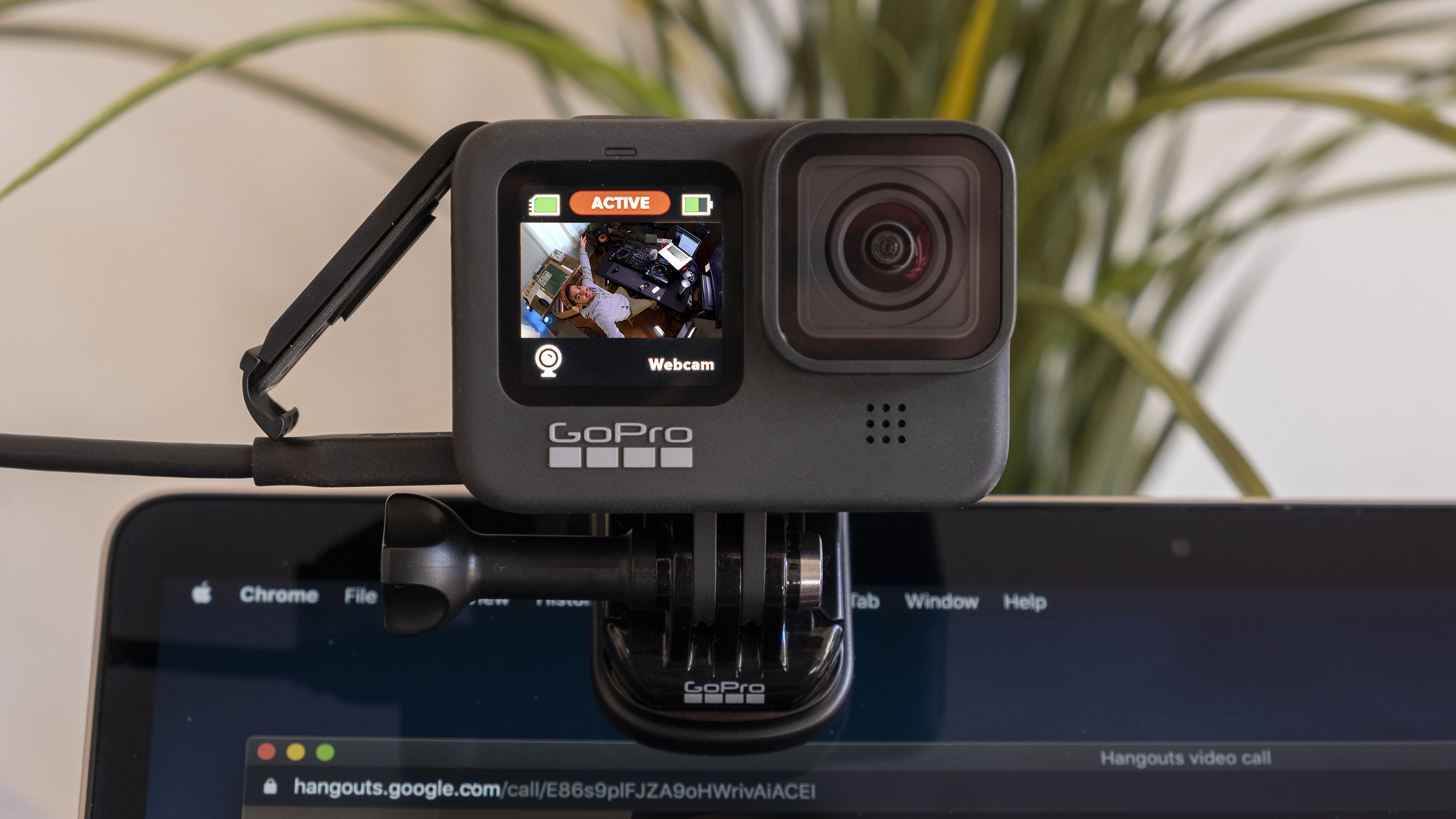
Zoom and Microsoft Teams support using a GoPro as a webcam with simple setup steps. Connect your GoPro to your computer using a USB cable or capture card. Then, select the GoPro as your video source in the app settings.
Make sure to set your GoPro to webcam mode or use the GoPro Webcam desktop utility. This ensures your camera streams video smoothly. Both platforms handle the GoPro feed like any other webcam.
Skype And Google Meet
Skype and Google Meet also accept GoPro video input with the right configuration. Use a capture card or the official GoPro Webcam software for the connection. After that, choose the GoPro device in the video settings of these apps.
This setup improves video clarity and offers wide-angle views. It is perfect for presentations or casual chats. Testing the video before calls helps prevent issues during meetings.
Troubleshooting Common Issues
Using a GoPro as a webcam can elevate your video calls and streams, but sometimes issues pop up that can be frustrating. Troubleshooting these common problems helps you get back to smooth, high-quality video without wasting time or energy. Let’s dive into the typical challenges you might face and how you can fix them quickly.
Connection Problems
If your GoPro isn’t showing up as a webcam, start by checking the USB connection. Try different USB ports on your computer—some ports might not provide enough power or bandwidth.
Also, ensure your GoPro’s firmware is up to date. Outdated software can cause compatibility issues with your computer’s operating system or webcam software.
Have you checked the cable? Not all USB cables support data transfer; some only charge devices. Use the cable that came with your GoPro or a high-quality data cable.
Sometimes, your computer’s privacy settings block the camera. Check if apps have permission to access the camera and microphone.
Video Lag And Quality Drops
Notice lag or fuzzy video? This often comes down to bandwidth or processing power. Close unnecessary apps to free up system resources and improve video smoothness.
Reducing your video resolution can also help. If you’re streaming at 4K, try switching to 1080p or 720p to reduce lag without sacrificing too much quality.
Is your USB connection stable? A loose cable can cause intermittent video drops. Secure the cable firmly and avoid moving your GoPro during use.
If you use wireless connection options, interference from other devices can degrade quality. Try switching to a wired connection to see if that resolves the issue.
Alternative Methods To Use Gopro As Webcam
If you want to use your GoPro as a webcam but don’t want to rely on the official GoPro webcam utility, there are alternative methods that can work just as well. These options give you flexibility depending on your setup and the equipment you already have. Let’s look at how you can set up your GoPro using an HDMI capture card or third-party software.
Hdmi Capture Card Setup
One popular way to use your GoPro as a webcam is by connecting it through an HDMI capture card. This method requires your GoPro to have an HDMI output, which most recent models do.
- Connect your GoPro to the capture card using a micro HDMI to HDMI cable.
- Plug the capture card into your computer via USB.
- Set your streaming or video call software to recognize the capture card as the video source.
This setup provides high-quality video with low latency. It’s perfect if you want a reliable and professional webcam feed. However, capture cards can vary in price and compatibility, so check if your computer supports the device before buying one.
Third-party Software Options
If you prefer a software-based approach, several third-party programs can turn your GoPro into a webcam without extra hardware. These apps capture the GoPro’s video feed over Wi-Fi or USB and make it available to your computer.
- OBS Studio:Paired with plugins or NDI tools, OBS can capture your GoPro stream and share it as a webcam source.
- EpocCam:Allows wireless connection between your GoPro and PC or Mac, turning the camera into a webcam.
- CamLink alternatives:Software like SparkoCam can simulate webcam input using your GoPro’s feed.
These solutions may introduce some delay or require fine-tuning for the best quality. Have you tried any software setups that worked well for you? Experimenting with different tools might reveal a setup that fits your workflow perfectly.
Credit: www.techradar.com
Frequently Asked Questions
Can A Gopro Replace A Regular Webcam?
Yes, a GoPro can replace a regular webcam. It offers high-quality video and wide-angle views. You need the right cables and software for connection. It works well for streaming and video calls.
How Do I Connect A Gopro As A Webcam?
Connect your GoPro via USB to your computer. Use GoPro’s Webcam utility or capture card software. Make sure your GoPro is set to webcam mode. This setup allows your computer to recognize the GoPro as a camera.
What Gopro Models Support Webcam Functionality?
GoPro HERO8, HERO9, HERO10, and later models support webcam use. Earlier models may need HDMI capture devices. Check your model’s compatibility before attempting to use it as a webcam.
Is Gopro Webcam Quality Better Than Standard Webcams?
GoPro webcams often provide superior video quality. They have higher resolution and better low-light performance. However, they may require more setup compared to plug-and-play webcams.
Conclusion
Using a GoPro as a webcam can improve video quality. It works well for video calls and streaming. Make sure your GoPro model supports webcam mode. Connecting it is usually simple with the right cable and software. Keep in mind battery life and camera settings.
This option offers flexibility for many users. It’s a good choice if you want better video without buying a new webcam. Try it out and see how it fits your needs.