
Are you tired of struggling with your TV’s sound? Maybe the built-in speakers just don’t cut it, and you’re wondering if you can connect a Bluetooth speaker to your TV.
The good news is, you probably can—and it might be easier than you think. Imagine enjoying crystal-clear sound without messy wires getting in your way. Stick with me, and by the end of this article, you’ll know exactly how to boost your TV’s audio using a Bluetooth speaker, step by simple step.
Ready to upgrade your viewing experience? Let’s dive in!

Credit: manuals.plus
Bluetooth Compatibility
Bluetooth compatibility is key to connecting a speaker to your TV. Not all TVs support Bluetooth audio output. Knowing whether your TV can pair with a Bluetooth speaker saves time and effort.
Some TVs have built-in Bluetooth, while others need extra devices. Also, Bluetooth speakers come in various types. Each type offers different features and connection methods.
Check Tv Bluetooth Support
Start by checking your TV’s manual or settings menu. Look for Bluetooth or wireless audio options. Many smart TVs have Bluetooth, but some older models do not.
If your TV supports Bluetooth, it usually lists compatible device types. Some TVs only support headphones, not speakers. Confirm what your TV can connect to before buying a speaker.
Types Of Bluetooth Speakers
- Portable Bluetooth Speakers:Small, battery-powered, easy to move around.
- Home Audio Bluetooth Speakers:Larger, designed for better sound quality at home.
- Soundbars with Bluetooth:Combine TV speakers and Bluetooth, improving TV audio and wireless connection.
Each speaker type connects differently. Portable speakers pair like phones or tablets. Soundbars often connect directly through the TV’s Bluetooth settings.
(48)-f6caa8d2-d535-4f77-ad11-9627667f9e3d.jpeg)
Credit: www.tataneu.com
Connecting Methods
Connecting a Bluetooth speaker to your TV can enhance your viewing experience by delivering clear and powerful sound. There are several ways to establish this connection, each with its own set of steps and requirements. Understanding these methods helps you pick the easiest and most effective option for your setup.
Direct Bluetooth Pairing
Many modern TVs come with built-in Bluetooth, allowing you to pair your speaker directly. You just need to turn on Bluetooth on both devices and select your speaker from the TV’s list of available devices. This process is similar to pairing your phone with wireless headphones and usually takes less than a minute.
However, some TVs might not support audio output over Bluetooth or have limited compatibility. Have you checked if your TV’s manual mentions Bluetooth audio support? This simple check can save you time and frustration.
Using A Bluetooth Transmitter
If your TV doesn’t support Bluetooth, a Bluetooth transmitter can be a handy solution. This small device plugs into your TV’s audio output ports—such as the headphone jack, RCA, or optical port—and sends the audio signal wirelessly to your Bluetooth speaker.
Bluetooth transmitters vary in range and latency, so look for one that supports aptX Low Latency if you want to avoid audio lag during movies or gaming. Have you ever noticed a delay between the picture and sound? A good transmitter can fix that.
Connecting Via Tv Apps
Some smart TVs offer apps that can stream audio to Bluetooth speakers or other wireless devices. This method works well if both your TV and speaker support the same app or streaming protocol, like Google Cast or Apple AirPlay.
This option often provides better sound quality and more control over playback. It might require setting up accounts or linking devices, but it’s worth trying if direct pairing isn’t smooth.
Setup Steps
Check if your TV supports Bluetooth and turn it on. Put your speaker in pairing mode and select it from the TV’s Bluetooth menu. Wait for the devices to connect, then enjoy sound through your Bluetooth speaker.
Connecting a Bluetooth speaker to your TV can transform your viewing experience by offering richer sound quality. The setup process is straightforward, allowing you to enjoy your favorite shows and movies with enhanced audio. Whether you’re tech-savvy or a newbie, these steps will guide you through the process smoothly.Enable Bluetooth On Tv
First, you need to ensure that your TV’s Bluetooth is turned on. You can usually find this option in the settings menu under “Sound” or “Network Settings.” Navigating through the settings might vary depending on your TV brand. Check your TV manual for specific instructions if needed. If your TV doesn’t support Bluetooth, a Bluetooth transmitter can be a handy alternative.Pairing Your Speaker
Once Bluetooth is enabled, initiate pairing mode on your Bluetooth speaker. This often involves pressing a dedicated button until a light starts flashing. On your TV, go to the Bluetooth settings and select “Add Device” or “Pair New Device.” Your speaker should appear on the list of available devices. Click on your speaker’s name and wait for the connection confirmation. You might hear a beep or see a notification on the screen.Troubleshooting Connection Issues
Sometimes, the connection might not be seamless. Ensure your speaker is in pairing mode and within the TV’s Bluetooth range. Try turning off other Bluetooth devices nearby to avoid interference. Restarting both the TV and speaker can also resolve minor glitches. If issues persist, consider updating your TV’s firmware or checking the speaker’s compatibility with your TV model. Isn’t it fascinating how a simple tweak can elevate your audio experience so dramatically?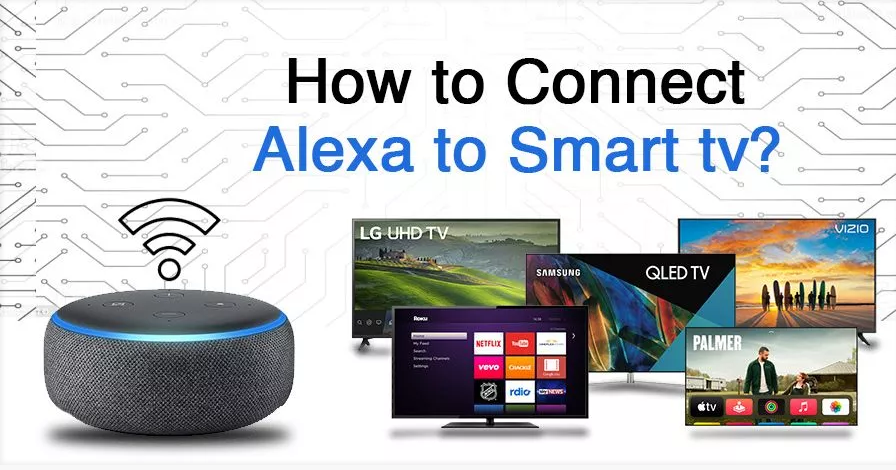
Credit: dcbrilliant.ac.tz
Sound Quality Tips
Connecting a Bluetooth speaker to your TV can improve your audio experience. Sound quality depends on several factors. Adjusting settings and choosing the right speaker helps deliver clear and synced sound. Follow these tips to enhance your TV’s audio output via Bluetooth.
Minimize Audio Delay
Audio delay can make dialogue and sound effects feel out of sync. Use speakers with low latency Bluetooth technology. Look for Bluetooth speakers that support aptX Low Latency codec. Keep your speaker close to the TV to reduce signal lag. Avoid obstacles between the TV and speaker that might block the Bluetooth signal.
Adjusting Tv Sound Settings
Most TVs allow sound customization. Go to your TV’s audio menu and check for Bluetooth or external speaker options. Turn off TV speakers if the option exists. Adjust equalizer settings to balance bass, midrange, and treble. Reduce sound delay by enabling lip-sync or audio delay features if available.
Choosing The Right Speaker
Pick a speaker that matches your room size and TV type. Larger rooms benefit from bigger speakers with powerful sound. For small spaces, compact speakers work well. Check speaker battery life and charging options. Consider speakers with multiple connectivity options for flexibility. Quality matters more than price for a better listening experience.
Alternative Audio Options
Looking beyond Bluetooth, there are several alternative audio options to enhance your TV sound experience. These choices can fit different setups and preferences, offering you flexibility and improved sound quality. Let’s explore some practical ways to connect your TV to external speakers or audio devices without relying solely on Bluetooth.
Wired Speaker Connections
Wired connections remain a reliable way to get clear audio from your TV. Many TVs have audio output ports like 3.5mm headphone jacks, RCA connectors, or optical audio out. Using these ports, you can plug in wired speakers or home theater systems directly.
One tip is to check the type of cables your TV supports before buying speakers. For instance, optical cables carry digital signals and often provide better sound quality than analog connections. Have you ever noticed how much crisper sound gets with a simple wired connection?
Using Soundbars
Soundbars are an excellent middle ground if you want better sound without complicated setups. They connect easily with TVs through HDMI ARC, optical, or even aux cables. Plus, they often come with built-in subwoofers, giving your audio a richer, fuller feel.
If you’re tight on space or don’t want multiple speakers scattered around, a soundbar can be your best friend. Many models offer wireless subwoofers, so you still get some wireless convenience without the hassle of Bluetooth pairing issues. Does your current TV sound system make dialogue clear enough?
Casting Audio From Mobile Devices
If your TV supports casting protocols like Chromecast or AirPlay, you can stream audio from your phone or tablet to your TV speakers or connected sound system. This method bypasses the need for Bluetooth speakers and leverages your existing smart devices.
You might find this useful when watching content from apps that don’t natively support your TV but do on your phone. It’s also handy if your TV’s Bluetooth is limited or unreliable. How often do you use your phone as a remote or media hub for your TV?
Frequently Asked Questions
Can I Connect Any Bluetooth Speaker To My Tv?
Most modern TVs support Bluetooth audio. Check your TV’s Bluetooth version and compatibility. Some older TVs may need adapters to connect Bluetooth speakers.
How Do I Pair A Bluetooth Speaker With My Tv?
Turn on your TV’s Bluetooth and set the speaker to pairing mode. Select the speaker from the TV’s Bluetooth devices list to connect.
Will Bluetooth Audio Cause A Delay On My Tv?
Bluetooth audio can cause slight delay, affecting lip-sync. Some TVs and speakers support low-latency codecs to minimize this issue.
Can I Use Multiple Bluetooth Speakers With One Tv?
Most TVs connect to only one Bluetooth speaker at a time. Using multiple speakers may require special Bluetooth transmitters or apps.
Conclusion
Connecting a Bluetooth speaker to your TV is simple and useful. Most modern TVs support Bluetooth connections. Just pair the speaker with the TV through settings. This helps improve sound quality without extra wires. Keep the speaker close to the TV for a strong signal.
Some older TVs may need an adapter to connect. Enjoy your favorite shows with better sound easily. Try different speakers to find the best match. Now, your TV sound can be clear and wireless.