
Have you ever wondered if your router’s Wi-Fi password is different from other passwords you use? It’s a simple question, but the answer can save you time and protect your home network.
Knowing whether your Wi-Fi password changes or stays the same is key to keeping your devices connected and your information secure. Keep reading, and you’ll discover the secrets behind router Wi-Fi passwords—so you can take control and avoid common mistakes that many people make.
Your connection’s safety might depend on what you learn next.
Router Vs Wi-fi Passwords
Many people assume the router password and the Wi-Fi password are the same, but they actually serve different purposes. Understanding the distinction can help you better secure your home network and troubleshoot connectivity issues. Let’s break down what each password means and why both matter.
Default Router Passwords
Every router comes with a default password, often printed on a label attached to the device. This password lets you log into the router’s admin panel where you can change settings, update firmware, and manage connected devices.
Manufacturers use simple default passwords like “admin” or “password,” making it easy for anyone to access your router if you don’t change it. Have you ever left this default unchanged and wondered why your network felt vulnerable? Changing it is one of the first steps to secure your network.
Wi-fi Network Passwords
The Wi-Fi password is what you enter to connect your phone, laptop, or tablet to your wireless network. It controls access to your internet connection but doesn’t grant access to router settings.
This password is usually set by you or inherited from the router’s default wireless key. Unlike the router password, its main job is to prevent unauthorized devices from using your internet. If someone knows your Wi-Fi password, they can use your bandwidth and possibly access shared files.
Purpose Of Each Password
The router password protects the backend of your network. It keeps outsiders from changing your network’s configuration, which could cause disruptions or security risks.
The Wi-Fi password controls who can use your internet and join your local network. It’s the frontline defense against unauthorized internet access.
Think about this: if your Wi-Fi password is strong but your router password remains the default, could someone still hijack your network settings? Securing both passwords is crucial for full protection.

Credit: www.youtube.com
How Router Passwords Work
Router passwords control access to your home network. They protect your Wi-Fi from unwanted users. Routers have two main passwords: one for the Wi-Fi network and another for the router’s settings. These passwords serve different purposes but work together to keep your connection safe.
Accessing Router Settings
To manage your router password, access the router settings first. Use a web browser and enter the router’s IP address. Common addresses include 192.168.0.1 or 192.168.1.1. Then, log in with the admin username and password. These credentials are often on a sticker on the router.
Once logged in, you can view and change many settings. Passwords are stored in a secure section of the interface. Access here allows you to control your network’s security.
Changing The Router Password
Changing the router password is simple but important. Navigate to the wireless security or Wi-Fi settings page. You can change the Wi-Fi password to something unique and strong. Use a mix of letters, numbers, and symbols for better security.
Also, you can change the admin password for the router’s settings. This step prevents others from changing your router setup. Save the new passwords and reconnect your devices using the updated Wi-Fi password.
Security Implications
Strong router passwords protect against hackers and unauthorized users. A weak password allows easy access to your network. This can lead to slower internet and stolen personal information.
Changing default passwords reduces the risk of attacks. Regular updates keep your network safe. Avoid sharing your passwords openly. Good password habits maintain your online privacy.
How Wi-fi Passwords Work
Understanding how Wi-Fi passwords work helps you manage your home or office network more effectively. These passwords act as a key, allowing only authorized devices to access the internet through your router. Knowing the connection process and how changing passwords affects devices can save you time and avoid connectivity issues.
Connecting Devices To Wi-fi
When you want to connect a new device to your Wi-Fi, you must enter the correct password. This password is set on the router and is required to authenticate your device’s access. Without it, your device can see the network but won’t be able to connect.
Each device stores this password once you enter it, so you don’t have to type it again unless the password changes or the device forgets the connection. Have you ever noticed how some devices reconnect instantly while others ask for the password again? This depends on how the device manages saved networks.
Changing Wi-fi Password
Changing your Wi-Fi password is a common step to improve security or control who can access your network. You do this by logging into your router’s settings, usually through a web browser. Once you update the password, it applies to all devices trying to connect from that moment on.
Be ready to update the password on all your connected devices after a change. Otherwise, they will lose internet access. This process is straightforward but can be annoying if you have many gadgets connected, like smart TVs, phones, or home assistants.
Impact On Connected Devices
When the Wi-Fi password changes, every device currently connected will be disconnected automatically. They will ask for the new password to regain access. This keeps your network secure but requires you to update each device manually.
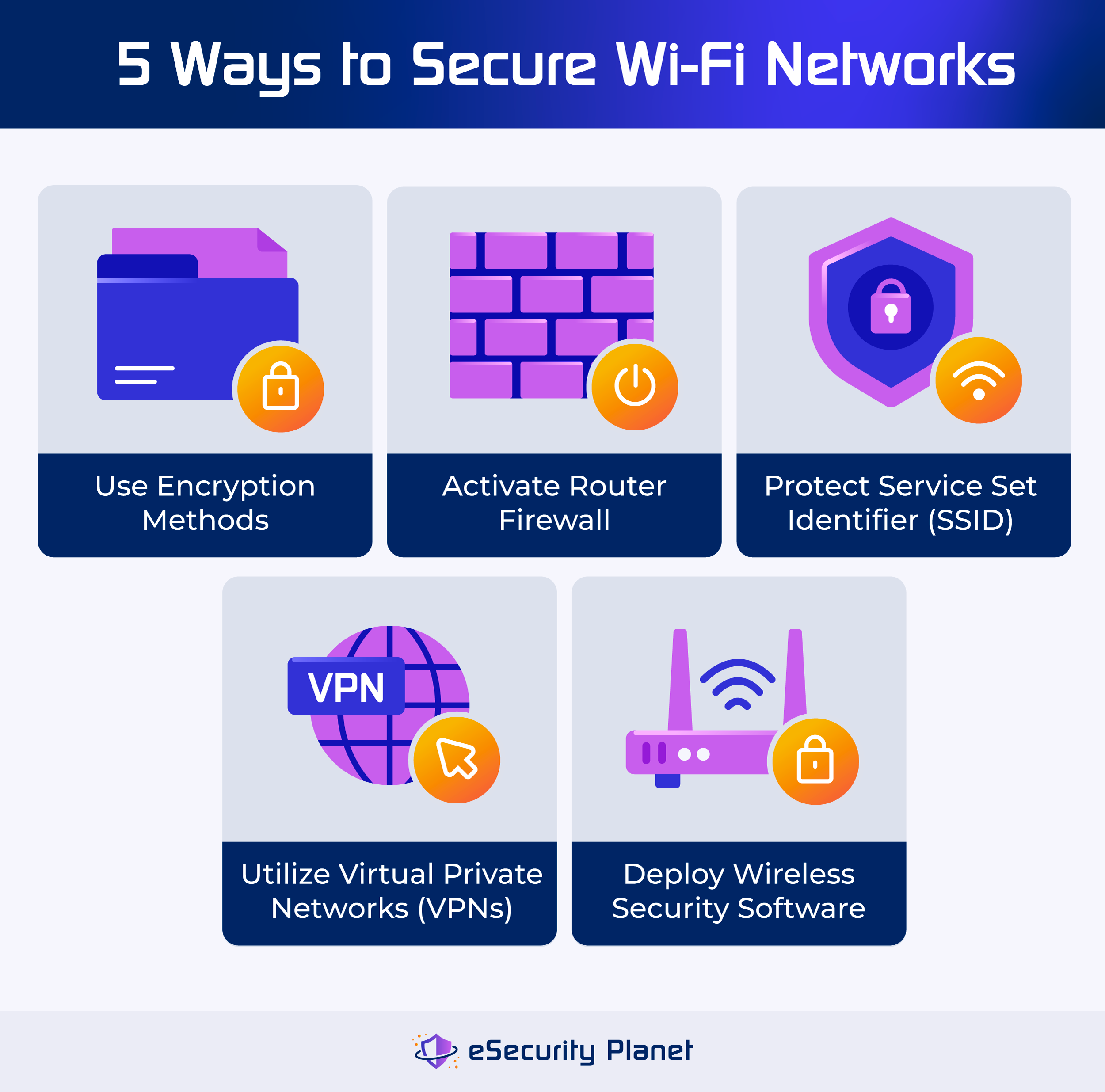
Think about how often you change your password and whether it’s worth the hassle. If you share your network with guests or family, frequent password changes might cause more frustration than benefits. Instead, consider setting up a guest network to keep your main Wi-Fi more secure without constant password updates.
Credit: www.esecurityplanet.com
Common Misconceptions
Many people confuse router passwords and Wi-Fi passwords as the same. This misunderstanding leads to weak security and easy access for intruders. Knowing the difference improves your home network safety.
Are Router And Wi-fi Passwords The Same?
Router and Wi-Fi passwords serve different purposes. The router password controls access to the router settings. The Wi-Fi password allows devices to connect to the internet through the router.
People often assume the passwords are identical, but they are not. Each password protects a different part of the network.
Why They Should Be Different
Having separate passwords strengthens your network protection. If someone guesses the Wi-Fi password, they cannot change router settings. If the router password is strong, outsiders cannot control your router remotely.
Using unique passwords limits damage if one password is compromised. It keeps your network safer and more secure.
Risks Of Using Default Passwords
Default passwords are easy targets for hackers. These passwords are well-known and often printed on the router label. Attackers use them to gain full control of your network.
Leaving default passwords unchanged puts your data and devices at risk. Always create strong, unique passwords to protect your network.
Best Practices For Password Management
Managing your router Wi-Fi password is crucial for security. It’s important to follow best practices to keep your network safe. This involves choosing strong passwords, updating them regularly, and using password managers effectively.
Choosing Strong Passwords
Strong passwords are your first line of defense. Use a mix of letters, numbers, and symbols. Avoid using personal information like names or birthdays. The longer the password, the better the security.
Regularly Updating Passwords
Regular updates prevent unauthorized access. Change your Wi-Fi password every few months. It helps keep your network secure from potential threats. Make it a habit to update passwords frequently.
Using Password Managers
Password managers simplify the task of remembering passwords. They store and encrypt your passwords securely. This tool helps generate strong passwords. It also saves time and ensures your passwords are safe.

Credit: www.reddit.com
Troubleshooting Password Issues
Dealing with router Wi-Fi password issues can be frustrating, especially when you need quick access to the internet. Whether you’ve forgotten your password or suspect it’s not working as it should, knowing how to troubleshoot effectively can save you time and stress. Let’s dive into practical ways to handle common password problems so you regain control of your network.
Resetting Router Password
If you can’t remember your router’s password, resetting it to factory settings is often the fastest solution. This action wipes out all custom settings, including your Wi-Fi password, and returns everything to the default configuration. You usually find a small reset button on the back or bottom of the device—press and hold it for about 10 seconds using a paperclip or similar tool.
After resetting, access your router’s admin page using the default username and password printed on the device or in its manual. From there, you can create a new, strong Wi-Fi password. Keep in mind that resetting also disconnects all devices, so be ready to reconnect them with the new password.
Recovering Wi-fi Password
Sometimes you don’t need to reset the router to recover your Wi-Fi password. If you’ve saved it on a device before, you might be able to retrieve it easily. On Windows, for example, you can view saved Wi-Fi passwords through the Network & Internet settings under “Manage known networks.”
On smartphones, password recovery is less straightforward but apps or device settings might help if you’ve previously connected to the network. Another option is to log into your router’s admin panel and check the wireless settings section, where the current Wi-Fi password is often visible or editable.
When To Contact Support
What if resetting or recovering the password doesn’t solve your issue? It might be time to reach out for professional help. Contact your internet service provider or the router manufacturer if you face persistent login problems, router malfunctions, or suspect security breaches.
Support teams can guide you through complex troubleshooting steps or even replace faulty hardware. Don’t hesitate to ask—sometimes a quick call or chat can prevent hours of frustration and keep your network secure.
Frequently Asked Questions
Are Router And Wi-fi Passwords Always Different?
Router and Wi-Fi passwords can be different. The router password controls access to settings. The Wi-Fi password lets devices connect to the network. Many routers use default passwords but users can change both independently for security.
Can I Use The Same Password For Router And Wi-fi?
Yes, you can use the same password for both. However, it’s safer to have different passwords. Separate passwords reduce risk if one is compromised. Changing default credentials improves network security significantly.
How Do I Find My Router’s Wi-fi Password?
You can find the Wi-Fi password on the router label or in its settings page. Access the router’s admin panel via IP address. Navigate to wireless settings to view or change the Wi-Fi password.
Why Should Router And Wi-fi Passwords Be Different?
Different passwords enhance your network’s security layers. Router password protects configuration access. Wi-Fi password controls device connectivity. Using unique passwords prevents unauthorized access to both settings and network.
Conclusion
Router Wi-Fi passwords often differ from the default router password. Each device and network can have unique codes for security. Changing these passwords helps keep your internet safe. Remember to use strong, easy-to-remember passwords. Regularly updating them reduces the risk of hackers.
Knowing the difference protects your home network better. Always check your router settings for password details. Simple steps make your Wi-Fi more secure and reliable. Safe connections start with the right passwords.