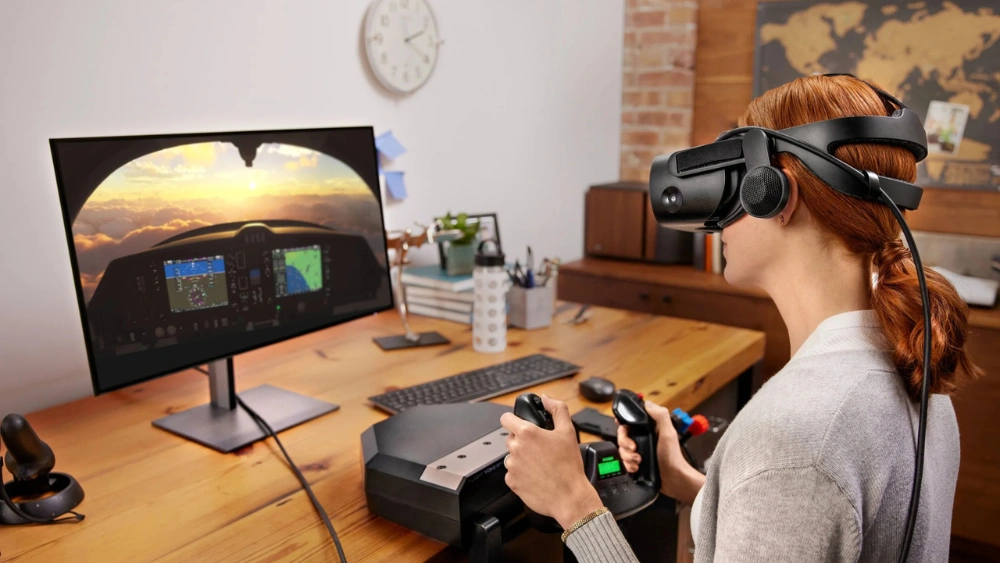
Are you ready to dive into virtual reality but unsure how to connect your VR headset to your PC? You’re not alone.
Setting up your VR headset might seem tricky at first, but with the right steps, you can be fully immersed in no time. In this guide, you’ll discover simple, clear instructions that make the process easy and stress-free. By the end, you’ll know exactly how to get your headset up and running, so you can start exploring amazing virtual worlds without delay.
Keep reading—your VR adventure is just a few clicks away!
Choosing The Right Vr Headset
Choosing the right VR headset is important for a smooth virtual reality experience. Different headsets offer different features, prices, and comfort levels. Picking the best one depends on what you want to do with VR and how powerful your PC is.
Some VR headsets are designed for gaming, while others focus on ease of use or high-quality visuals. Comfort matters too, especially for long sessions. It helps to know the popular options and which ones work well with PCs.
Popular Vr Headset Models
- Oculus Quest 2 – Known for wireless use and good price.
- Valve Index – Offers high-quality visuals and excellent controllers.
- HP Reverb G2 – Focuses on sharp display and comfort.
- HTC Vive Pro – Great for room-scale tracking and detailed graphics.
- Pico Neo 3 – Standalone headset with PC connection option.
Compatibility With Pc
Not every VR headset works with all PCs. Check your PC’s specs before buying. Most headsets require a strong graphics card and enough USB ports.
| VR Headset | Minimum GPU | Connection Type | Operating System |
|---|---|---|---|
| Oculus Quest 2 | NVIDIA GTX 1060 | USB-C or Oculus Link | Windows 10 or higher |
| Valve Index | NVIDIA GTX 1070 | DisplayPort + USB | Windows 10 or higher |
| HP Reverb G2 | NVIDIA GTX 1080 | DisplayPort + USB | Windows 10 or higher |
| HTC Vive Pro | NVIDIA GTX 970 | DisplayPort + USB | Windows 10 or higher |
| Pico Neo 3 | NVIDIA GTX 1060 | USB-C or Wi-Fi | Windows 10 or higher |
Make sure your PC meets or beats the headset’s requirements. This avoids lag and poor performance. Also, consider the connection type for ease of setup.
Preparing Your Pc For Vr
Getting your PC ready for VR is more than just plugging in your headset. It involves ensuring your hardware and software can handle the demands of virtual reality. Taking the time to prepare your PC properly can save you from frustration and improve your VR experience significantly.
Checking System Requirements
Start by verifying if your PC meets the minimum and recommended specs for your VR headset. Look at the processor speed, RAM, graphics card, and operating system. Most VR systems require at least an Intel i5 or equivalent, 8GB of RAM, and a modern GPU like NVIDIA GTX 1060 or better.
Check the official website for your headset’s specific requirements. If your PC falls short, think about upgrading the components before you connect the headset. Running VR on underpowered hardware leads to lag, poor visuals, and discomfort.
Updating Graphics Drivers
Outdated graphics drivers can cause crashes, stuttering, or failure to detect the VR headset. Visit your GPU manufacturer’s site—NVIDIA, AMD, or Intel—and download the latest drivers. This small step ensures your graphics card can communicate efficiently with your VR device.
Sometimes, automatic updates miss these critical driver updates. I once struggled with a headset that refused to launch games until I manually updated the driver. Don’t overlook this simple fix.
Freeing Up Usb Ports
VR headsets require multiple USB connections—often USB 3.0 for high data transfer speed. Check how many ports your PC has and avoid using USB hubs that may reduce performance. If you don’t have enough ports, consider installing an internal USB expansion card.
Unplug unnecessary devices to free up ports and reduce power load. Have you ever tried to connect your headset only to find your USB ports are all in use? Clearing this clutter can be the difference between a smooth setup and endless troubleshooting.
Connecting Your Vr Headset
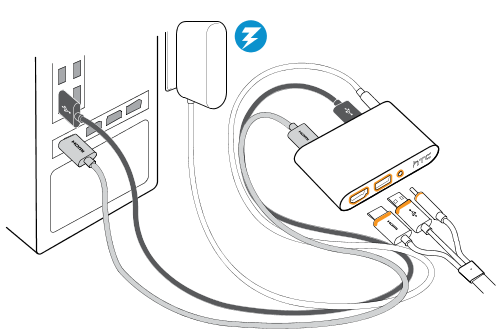
Plug your VR headset into the PC using the USB and HDMI ports. Install the necessary drivers for seamless performance. Launch the VR software and adjust settings for optimal experience.
Connecting a VR headset to your PC opens a world of immersive experiences. Whether playing games or exploring virtual landscapes, a seamless connection enhances the adventure. With options like wired and wireless setups, choose the best method for your needs. Follow these simple steps to get started.Wired Connection Setup
Setting up a wired connection is simple and reliable. Gather your cables, including HDMI and USB. Connect the HDMI cable to your PC’s graphics card. Plug the USB cable into an available USB port. Ensure your headset’s drivers are installed. Check your PC settings to verify the connection. Adjust display settings for optimal performance. With everything in place, launch your VR software and enjoy.Wireless Connection Options
Wireless connections offer freedom to move around. Use a compatible wireless adapter or built-in headset feature. Ensure both devices are on the same Wi-Fi network. Install necessary software for the wireless connection. Follow the setup instructions provided by the headset manufacturer. Test the connection for stability and performance. Adjust settings if needed for smooth operation. Enjoy the untethered VR experience.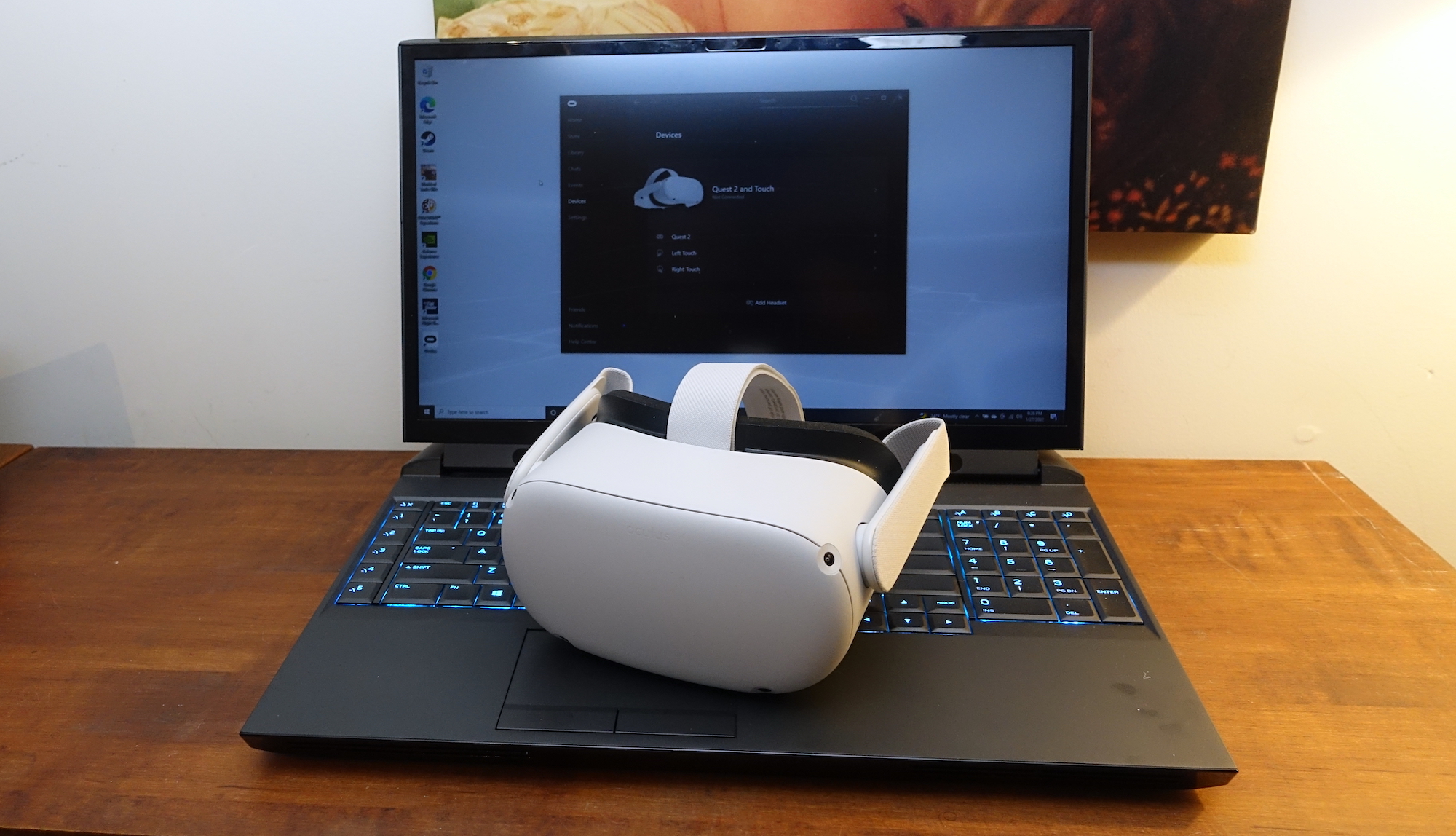
Credit: www.tomsguide.com
Installing Required Software
Installing the required software is a key step to connect your VR headset to a PC. This software allows the PC and headset to communicate smoothly. It also manages settings and updates for the best VR experience.
Most VR headsets need specific platform software. This software provides access to VR games and apps. It also checks if your PC meets the VR hardware needs.
Vr Platform Downloads
Start by visiting the official website of your VR headset brand. Download the VR platform software designed for your device. Common platforms include SteamVR, Oculus, and Windows Mixed Reality.
- Choose the correct version for your PC’s operating system.
- Save the installer file to an easy-to-find folder.
- Check your internet connection to avoid download interruptions.
Downloading from the official site ensures the software is safe and up-to-date. Avoid third-party sites to reduce security risks.
Running The Setup Wizard
After downloading, open the installer file to start the setup wizard. The wizard guides you through installation steps with clear instructions. Follow each prompt carefully to avoid errors.
- Accept the license agreement to continue.
- Select the installation location or leave the default path.
- Allow the software to install necessary drivers and updates.
Once installed, launch the VR platform software. It may ask you to create or log in to an account. This step allows you to access VR content and services.
Completing the setup wizard prepares your PC for VR headset connection. The software will detect your device and help with final adjustments.
Configuring Vr Settings
Configuring your VR settings is a crucial step to ensure an immersive and comfortable experience with your VR headset on PC. Proper setup helps avoid issues like motion sickness, blurry visuals, or audio lag, which can quickly break the sense of presence. Let’s focus on two essential areas: display and audio settings, plus calibrating sensors and controllers.
Adjusting Display And Audio
The visual clarity and sound quality directly impact how real your VR environment feels. Start by setting the resolution and refresh rate that your PC and headset support. Higher refresh rates reduce motion blur, making fast movements smoother.
Check your headset’s display settings through the VR software on your PC. You might find options to adjust brightness, contrast, or even color balance. Tweak these until the visuals feel natural and comfortable for your eyes.
Audio is just as important. If you use built-in headphones, test the sound volume and spatial audio settings. For external headsets or speakers, ensure the correct device is selected in your PC’s sound settings. Clear directional audio helps you react quickly in VR games or apps.
Calibrating Sensors And Controllers
Accurate tracking of your movements depends on correctly calibrated sensors and controllers. Most VR platforms have a calibration wizard—don’t skip this step. It usually involves placing sensors in specific spots and scanning your play area.
Take your time walking around the designated space with your controllers active. This helps the system map your movements and adjust sensor sensitivity. If your controllers drift or don’t respond well, recalibrate to improve precision.
Consider the layout of your room. Avoid reflective surfaces or bright lights near sensors, as they can interfere with tracking. Have you ever noticed your hand movements lagging or jittering? Adjusting sensor placement often fixes this issue.
Credit: www.youtube.com
Troubleshooting Common Issues
Troubleshooting common issues helps keep your VR headset running smoothly with your PC. Problems can arise from connection errors or poor performance. Identifying these issues quickly saves time and frustration. The following tips address frequent problems and ways to fix them.
Connection Problems
Check all cables are firmly plugged into the right ports. Loose or damaged cables often cause connection failures. Restart your PC and VR headset to refresh the connection.
Verify your PC meets the headset’s hardware requirements. Use the official software or app to detect the headset. Update your graphics drivers and VR software regularly.
Disable any USB power-saving settings. These settings can stop your headset from receiving enough power.
- Try different USB ports, preferably USB 3.0 or higher.
- Close other programs that might interfere with VR connection.
- Ensure the headset firmware is up to date.
Performance Optimization
Lower graphics settings in VR apps to improve frame rates. Smooth performance reduces motion sickness and enhances experience. Close background applications to free up system resources.
Adjust the refresh rate and resolution in your VR software settings for balance. Use a wired internet connection instead of Wi-Fi for streaming VR content.
Keep your PC cool to avoid overheating, which can slow performance. Regularly clean your PC and headset vents from dust.
- Use Task Manager to monitor CPU and GPU usage.
- Update Windows and VR drivers for best compatibility.
- Run VR software in administrator mode for better access to system resources.
Tips For A Smooth Vr Experience
Getting your VR headset connected to your PC is just the beginning. To truly enjoy virtual reality, you need to ensure everything runs smoothly. A seamless VR experience depends on both the care of your hardware and your comfort during use.
Maintaining Hardware
Your VR headset is a delicate device. Keep the lenses clean by using a microfiber cloth to avoid scratches and blurry visuals. Dust and sweat can damage sensors, so wipe down the headset regularly after each session.
Check your cables for any signs of wear or damage. Loose or frayed cables can interrupt your VR experience or cause hardware failure. Also, make sure your PC drivers and VR software are updated to prevent glitches and improve performance.
Enhancing Comfort
Comfort is key to enjoying VR for longer periods. Adjust the headset straps to fit snugly but not too tight, preventing headaches or pressure marks. Use a VR cover or face pad made from breathable material to reduce sweating and skin irritation.
Take breaks every 30 minutes to avoid eye strain and motion sickness. Have you noticed how small changes in headset fit can drastically improve your comfort? Experiment with different adjustments until your setup feels just right.
Credit: www.vive.com
Frequently Asked Questions
How Do I Connect A Vr Headset To My Pc?
To connect a VR headset to your PC, use the recommended USB and HDMI/DisplayPort cables. Install the required software or drivers. Follow the headset’s setup instructions carefully to ensure proper connection and performance.
What Are The Pc Requirements For Vr Headset Compatibility?
Your PC must meet the VR headset’s minimum specs. Typically, a powerful GPU, sufficient RAM, and a fast processor are needed. Check your headset’s official website for exact requirements before connecting.
Can I Use Wireless Vr Headsets With My Pc?
Yes, some VR headsets support wireless connections via Wi-Fi or dedicated wireless adapters. Ensure your PC and headset support wireless features. Wireless may introduce slight latency compared to wired connections.
Why Is My Vr Headset Not Detected By Pc?
If your PC does not detect the VR headset, check cable connections first. Update your graphics drivers and VR software. Restart your PC and headset, and verify USB and display ports are functional.
Conclusion
Connecting your VR headset to a PC is easier than it seems. Follow the steps carefully and check your cables and settings. Make sure your PC meets the headset’s requirements for smooth use. Test your connection before starting any VR experience.
Keep your software updated for the best results. Enjoy exploring virtual worlds with your newly connected headset. Simple setup leads to great VR adventures. Try it today and see the difference yourself.