
Have you ever found yourself staring at your tablet, completely locked out because you forgot the password? It’s frustrating, isn’t it?
You need access to your apps, photos, or important files, but that locked screen feels like an impossible barrier. Don’t worry—you’re not alone, and there are simple ways to get back in. You’ll discover easy, step-by-step methods to unlock your tablet fast and safely.
Keep reading, and regain control of your device without stress or hassle.

Credit: www.youtube.com
Common Lock Types On Tablets
Tablets often use different types of locks to keep your data safe. These locks vary in how they protect your device and how you access it. Knowing the common lock types helps you find the right way to regain access if you forget your password. Each lock type has unique features and unlocking methods.
Pin And Password Locks
PINs and passwords are the most common locks on tablets. A PIN is a short number code, usually 4 to 6 digits. Passwords can include letters, numbers, and symbols, making them stronger. These locks require you to enter the correct code to unlock the tablet. They are simple but secure if the code is hard to guess.
Pattern Locks
Pattern locks use a grid of dots. You draw a specific pattern by connecting dots in order. This lock is easy to use and quick to enter. It relies on your muscle memory to remember the shape. Patterns can be simple or complex, but they must be drawn exactly to open the tablet.
Biometric Locks
Biometric locks use your body features to unlock the device. Common types include fingerprint scanners and facial recognition. These locks are fast and convenient. They only work with your unique biometric data. If the sensor cannot read your feature, the tablet asks for a backup PIN or password.
Initial Steps To Try
Forgetting your tablet password can feel frustrating. Before trying complex solutions, start with simple, easy fixes. These initial steps often help regain access without data loss. Follow these quick methods to check for easy ways back into your device.
Using Backup Pin Or Password
Many tablets ask for a backup PIN or password after multiple wrong attempts. This option appears on the lock screen. Enter the backup code you set during setup. It helps unlock the tablet without resetting it. Keep this code safe to avoid lockouts.
Google Account Recovery
Android tablets link to your Google Account. After several failed tries, choose “Forgot Password” or similar. Sign in with your Google credentials to verify your identity. The tablet then allows you to reset the password. This method keeps your data intact.
Using ‘forgot Password’ Feature
Some tablets show a “Forgot Password” button after multiple attempts. Tap it to start the recovery process. Follow the on-screen instructions carefully. This feature may ask for security questions or alternative contact details. Use this to regain access quickly and safely.
Factory Reset Options
Performing a factory reset erases all data and restores the tablet to its original settings. This option helps regain access when the password is forgotten. Keep in mind, all personal files and apps will be deleted during this process.
Unlocking a tablet after forgetting the password can be frustrating. Factory reset options offer a solution to regain access. While this method erases data, it is effective in removing forgotten passwords. Understanding the reset process is crucial before proceeding.Reset Via Recovery Mode
To reset via recovery mode, first, turn off the tablet. Press and hold the power and volume buttons until the recovery screen appears. Use the volume buttons to navigate to “Factory Reset” and select it using the power button. This process erases all data, restoring the tablet to its original settings.Reset Through Settings Menu
Accessing the settings menu can also initiate a factory reset. Navigate to “Settings” and select “Backup & Reset.” Choose “Factory Data Reset” and confirm the action. This option is straightforward and available for most tablets, ensuring data removal and password reset.Considerations Before Reset
Before performing a factory reset, consider backing up essential data. A factory reset deletes all files, including photos and apps. Ensure the tablet is fully charged to prevent interruptions during the process. Understanding these considerations helps avoid unwanted data loss and ensures a smooth reset.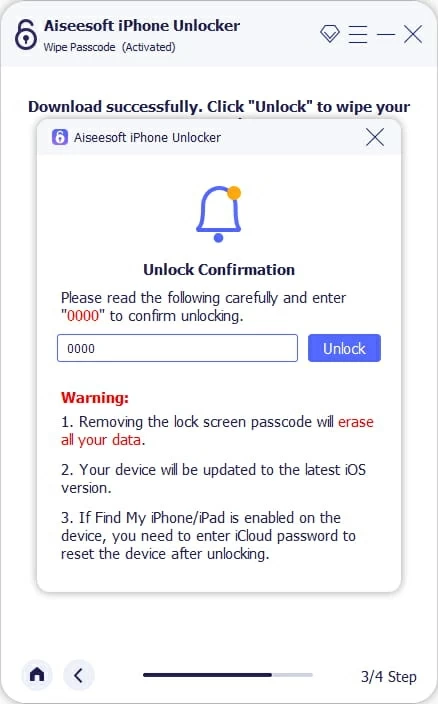
Credit: www.appgeeker.com
Using Third-party Software
Using third-party software offers a practical way to regain access to a tablet locked by a forgotten password. These tools are designed to bypass or remove the lock screen without damaging the device’s data. Many users find them helpful, especially when other recovery methods fail or are unavailable.
These programs work by communicating directly with the tablet’s system. They can reset the password or unlock the screen, often in just a few minutes. While convenient, it is important to choose reliable software to avoid potential problems.
Popular Unlock Tools
- Tenorshare 4uKey: Supports many tablet brands and models.
- Dr.Fone – Screen Unlock: Easy interface and quick results.
- iMyFone LockWiper: Works on both Android and iOS devices.
- PassFab Android Unlocker: Good for pattern, PIN, and password locks.
- iToolab UnlockGo: Offers a simple unlocking process.
Safety And Risks
Choosing trustworthy software is crucial to protect your tablet. Some tools may carry malware or cause data loss. Always download from official websites or verified sources. Check user reviews and ratings before proceeding.
Third-party software might void your device warranty. There is also a chance of permanent data deletion. Backup important files regularly to prevent loss. Be cautious and understand the terms before use.
Step-by-step Guide
- Download and install the software on your computer.
- Connect your locked tablet to the computer using a USB cable.
- Launch the software and select the unlock feature.
- Follow on-screen instructions to enter device information.
- Start the unlocking process and wait for it to complete.
- Once done, your tablet will restart without a password.
- Set up a new password or unlock pattern.
Preventive Measures For Future
Forgetting your tablet password can cause frustration and delay access. Taking simple steps now helps avoid this problem later. Setting up easy backup methods, using tools to store passwords, and saving your data regularly keep your device safe and accessible. These actions protect your information and save time.
Setting Up Backup Methods
Create alternative ways to access your tablet. Use security questions or a trusted email for recovery. Some devices allow fingerprint or face recognition. These options help regain access without losing data.
Using Password Managers
Password managers store your passwords securely in one place. They generate strong passwords and fill them automatically. This reduces the chance of forgetting your codes and keeps accounts safe.
Regular Data Backup
Backing up data often prevents loss during lockouts. Save files to cloud storage or an external drive. This ensures your photos, documents, and apps stay safe and easy to restore.

Credit: www.fonelab.com
Frequently Asked Questions
How Can I Unlock My Tablet Without A Password?
You can unlock your tablet by performing a factory reset or using recovery options. Backup data if possible, as reset erases all content.
What Is The Easiest Way To Reset A Locked Tablet?
The easiest way is to use the device’s recovery mode. Follow on-screen instructions to erase data and reset the tablet.
Can I Unlock My Tablet Using My Google Account?
Yes, some Android tablets allow unlocking via your Google account after several failed attempts. Ensure internet connectivity for this option.
Will A Factory Reset Delete All My Tablet Data?
Yes, a factory reset removes all personal data, apps, and settings. Always back up important files before proceeding.
Conclusion
Forgetting a tablet password can feel stressful. Trying simple steps can help you regain access. Use recovery options or reset methods carefully. Always back up your important data regularly. Stay calm and follow each step slowly. This way, you can solve the issue yourself.
Tablets offer tools to help you unlock safely. Keep your device secure to avoid future problems. Remember, patience and clear instructions bring success.