
Are you tired of your PS5 controller’s mic picking up every background noise? Maybe you want some privacy during your gaming sessions or just don’t want to accidentally share conversations.
Knowing how to turn off the mic on your PS5 controller can save you from awkward moments and distractions. You’ll learn simple, quick steps to mute your controller’s microphone so you stay in control of your audio. Keep reading to find out how easy it is to manage your mic and enjoy a better gaming experience.
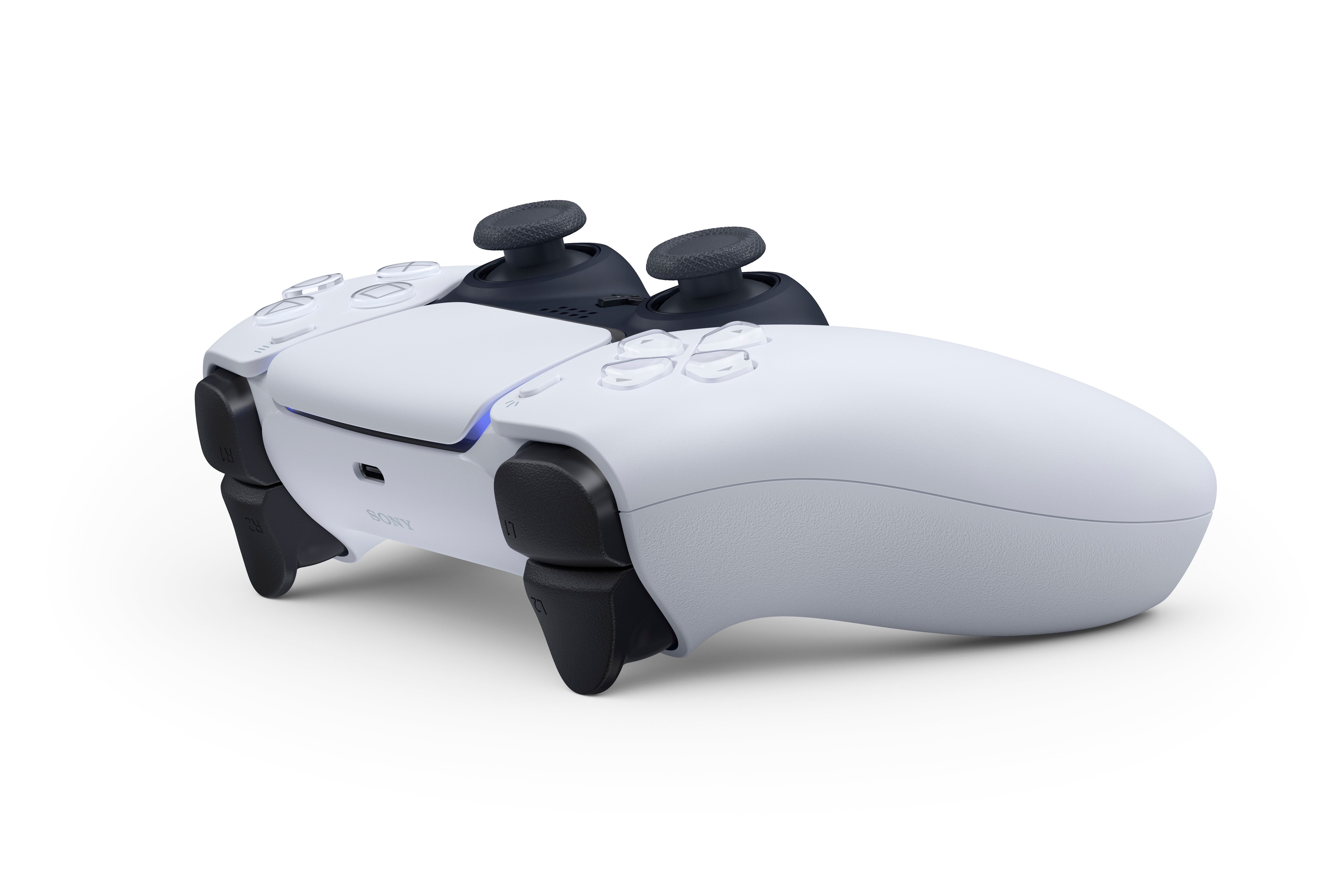
Credit: www.polygon.com
Mic Features On Ps5 Controller
The PS5 controller comes with a built-in microphone that adds a new layer of convenience to your gaming sessions. This feature allows you to chat with friends without needing an external headset. Understanding how this mic works and when to mute it can improve your gaming experience and keep your conversations clear and private.
Built-in Mic Basics
The PS5 controller’s mic is located right on the front, near the touchpad. It picks up your voice clearly without the need for extra accessories. This mic activates automatically when you join a voice chat or use voice commands on your console.
One useful tip: the mic is sensitive enough to catch background noises, so it’s important to control your environment if you want clear communication. You can also adjust the mic volume through the PS5 settings to balance your voice with game sounds.
When To Mute Your Mic
Muting your mic is essential during moments when you don’t want to share background noise or private conversations. Maybe you’re taking a break or handling something off-screen—muting keeps your friends from hearing unwanted sounds.
You can mute your mic quickly by pressing the dedicated mute button on the controller. This instant control is handy during heated game moments or when unexpected interruptions happen. Have you ever wished you could silence your mic instantly? The PS5 controller makes it easy.
Remember, keeping your mic off when not needed helps reduce distractions for everyone in your chat. It’s a small action that shows respect for your teammates and improves the overall gaming atmosphere.
Methods To Mute Ps5 Controller Mic
Muting the PS5 controller mic is simple and useful during gaming sessions. It helps avoid background noise and keeps conversations clear. Several ways exist to turn off or adjust the mic on your controller quickly.
Each method offers a fast solution to silence your microphone. Choose the one that fits your needs best.
Using The Mute Button
The PS5 controller has a dedicated mute button below the PlayStation logo. Press it once to mute the mic instantly. A red light will appear to show the mic is off.
Press the button again to unmute. This method is quick and handy during gameplay.
Via Control Center Settings
Press the PS button on the controller to open the Control Center. Navigate to the sound icon and select it.
Choose “Microphone” and toggle the mic off from there. This method allows more control over mic settings.
Adjusting Mic Volume
Access the Control Center and go to the sound settings. Here, you can lower the microphone volume instead of muting it fully.
Drag the volume slider down to reduce background noise without turning off the mic completely.
Troubleshooting Mic Issues
The PS5 controller’s built-in mic is a game-changer, offering you the freedom to communicate seamlessly while gaming. However, like any technology, it can sometimes lead to unexpected issues. Troubleshooting mic problems can be a hassle, but with a few tips and tricks, you can get back to enjoying your games without interruption. Let’s dive into some common mic issues and how you can tackle them.
Mic Not Muting
Imagine you’re in the middle of an intense game, and you suddenly realize your mic isn’t muting. It’s frustrating, right? Start by checking the mute button on the controller itself. A simple press should deactivate the mic. If this doesn’t work, navigate to the PS5’s settings menu and manually mute the microphone. It’s always a good idea to keep your controller updated, as software updates can resolve minor glitches. Have you ever had to mute your mic in a hurry, only to discover it wasn’t working? Keeping these tips in mind can save you from awkward situations.
Audio Feedback Problems
Audio feedback can be incredibly distracting, especially when you’re trying to focus on your gameplay. This often happens when your mic picks up sounds from your TV or speakers. To solve this, lower the volume of your output devices or use headphones for a more immersive experience. Additionally, ensure your mic sensitivity settings aren’t too high, which can inadvertently pick up background noise. Have you noticed any improvements after adjusting these settings? Sometimes the simplest changes make the biggest difference.

Credit: www.youtube.com
Alternative Mic Options
If you’re looking to mute the mic on your PS5 controller, exploring alternative mic options can enhance your gaming experience. Whether you want clearer voice chat or simply prefer a different setup, switching to external devices can give you more control. Let’s look at how you can use other mics and disable the controller’s built-in mic effectively.
Using External Headsets
Plugging in an external headset is one of the easiest ways to bypass the PS5 controller’s built-in mic. Most USB or 3.5mm jack headsets work seamlessly with the console.
Once connected, the PS5 automatically prioritizes your headset’s mic over the controller’s. This means your voice chat will come through the headset, offering better sound quality and less background noise.
Think about your last gaming session—did you notice any unwanted sounds from the controller mic? Switching to an external headset often solves that by isolating your voice clearly.
Disabling Controller Mic For Headset Use
To make sure only your external headset mic is active, you need to disable the controller’s mic manually. This prevents any accidental pickup from the controller’s built-in mic.
Go to the PS5 Settings > Sound > Microphone. Here, you can select your preferred input device, such as your external headset, and turn off the controller mic.
Turning off the controller mic also saves battery life on your controller, which is a bonus during long gaming sessions. Have you tried toggling these settings to customize your chat setup?

Credit: www.reddit.com
Frequently Asked Questions
How Do I Mute The Mic On My Ps5 Controller?
Press the built-in mic mute button located below the PS button. The orange light indicates the mic is off, ensuring privacy during gameplay.
Can I Disable The Ps5 Controller Mic Permanently?
You cannot permanently disable the mic, but you can mute it anytime using the mute button or adjust settings in the console menu.
Does Muting The Ps5 Controller Mic Affect Game Chat?
Yes, muting the mic stops your voice from transmitting in game chat, but you can still hear other players clearly.
How To Check If Ps5 Controller Mic Is Muted?
Look for the orange light below the PS button. If it’s glowing, the mic is muted on your controller.
Conclusion
Turning off the mic on your PS5 controller is quick and simple. You can control when to share your voice during games or chats. This helps keep your privacy and avoid unwanted sounds. Remember to check your settings regularly for the best experience.
Now, enjoy gaming without worrying about your microphone being on. Easy steps, better control, and a smoother playtime await you.