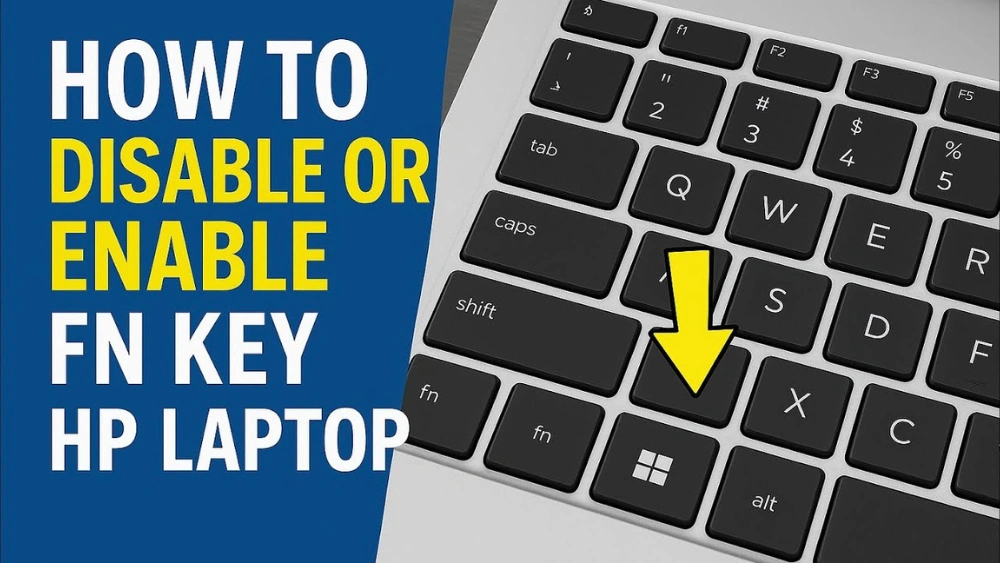
Are you struggling to use your 60% keyboard because the Fn key feels locked or unresponsive? You’re not alone.
Many users find themselves stuck, unsure how to unlock the Fn key and access essential functions quickly. Imagine being able to switch between shortcuts and commands with ease, making your typing experience smoother and more efficient. In this guide, you’ll discover simple, step-by-step methods to unlock your Fn key and get the most out of your compact keyboard.
Keep reading—your productivity is about to take a big leap forward.
Credit: www.tiktok.com
Fn Key Basics
The Fn key is a small but powerful button on many compact keyboards. It helps users access extra features without needing more keys. This is especially useful on 60% keyboards, where space is limited.
Understanding the Fn key basics helps you use your keyboard more efficiently. It acts as a modifier key, similar to Shift or Ctrl. Pressing Fn with other keys activates special functions that are not usually available.
Purpose Of Fn Key
The Fn key’s main purpose is to save space on small keyboards. It allows multiple functions on a single key. This design keeps the keyboard compact and portable.
It also helps access system commands, like adjusting volume or screen brightness. Without the Fn key, these commands would need dedicated keys. This would make the keyboard larger.
Common Fn Key Functions
- Control media playback: play, pause, skip tracks
- Adjust volume: mute, increase, decrease sound
- Change screen brightness: brighten or dim the display
- Enable or disable wireless connections like Wi-Fi or Bluetooth
- Activate special keys like Print Screen or Pause
- Switch display modes between laptop screen and external monitor
Identifying Fn Key On 60% Keyboards
Identifying the Fn key on a 60% keyboard can be a bit tricky if you’re new to compact layouts. These smaller keyboards don’t have the same key arrangement as full-sized ones, so the Fn key might look different or sit in an unexpected spot. Knowing exactly where to find it helps you use your keyboard more efficiently and access those hidden features without frustration.
Layout Differences
60% keyboards cut down on keys by removing the number pad, function row, and sometimes even the arrow keys. This means many functions are combined or accessed through the Fn key. Because of this, the Fn key often acts as a gateway to multiple secondary functions.
Unlike standard keyboards, the Fn key on a 60% board is essential for typing function keys (F1-F12), controlling media, and adjusting brightness. The key’s label can vary: it might say “Fn,” have a small icon, or sometimes be unmarked but placed logically.
Fn Key Location
On most 60% keyboards, the Fn key is found near the bottom left corner, often replacing where the right Ctrl or Windows key would be on a full-size keyboard. Sometimes it shares a key with Ctrl or is placed beside the spacebar.
Look closely at your keyboard’s bottom row for a key labeled “Fn” or something similar. If you’re still unsure, check your keyboard’s manual or manufacturer’s website—they usually provide a clear layout diagram.
Have you ever pressed random keys trying to find the Fn? Understanding its location saves you time and helps you discover all the shortcuts your keyboard offers.
Methods To Unlock Fn Key
Press the Fn Lock key or use the Fn + Esc combination to change the Fn key behavior on a 60% keyboard. Some keyboards require adjusting settings in the BIOS or using dedicated software to toggle the Fn key function.
Unlocking the Fn key on a 60% keyboard might seem challenging at first glance, especially if you’re used to larger keyboards where each function key is readily accessible. A compact 60% keyboard saves space but often requires a bit of know-how to navigate its shortcuts effectively. Here, we will explore some practical methods to help you unlock and utilize the Fn key without hassle. Whether through keyboard shortcuts, BIOS settings, or software utilities, each method offers a unique way to enhance your typing experience.
Using Keyboard Shortcuts
Keyboard shortcuts are often the quickest way to unlock the Fn key functionality. You might be surprised how a simple combination can transform your keyboard experience. Try pressing the ‘Fn’ key along with ‘Esc’ simultaneously. This toggles the Fn lock, allowing the function keys to operate without holding the Fn key each time. If that doesn’t work, consult your keyboard’s manual or website for specific shortcuts designed for your model. Many brands have unique shortcuts tailored to their hardware.
Changing Bios Settings
Changing BIOS settings might sound intimidating, but it’s more straightforward than you think. Restart your computer and enter the BIOS setup by pressing the designated key like ‘F2’, ‘Delete’, or ‘Esc’ during startup. Once inside, navigate to the ‘Advanced’ settings. Look for an option related to ‘Function Key Behavior’. Here, you can set the default operation for your Fn keys. Remember, changes in BIOS affect all users of the device.
Software Utilities
Utilizing software utilities can offer a user-friendly way to manage the Fn key settings. Many keyboard manufacturers provide specific software for their products. Download and install the software from your keyboard manufacturer’s website. These utilities often have a section for key customization where you can adjust the Fn key functionality. Alternatively, third-party software like SharpKeys can also help remap the Fn key settings. However, ensure compatibility with your keyboard before proceeding. By exploring these methods, you might uncover a trick that transforms your typing efficiency. Which method will you try first?
Customizing Function Keys
Customizing function keys on your 60% keyboard can significantly improve your productivity and comfort. Since these keyboards have limited keys, making the Fn key work exactly how you want becomes essential. You can tailor the function keys to match your workflow, whether for coding, gaming, or general use.
Remapping Keys
Remapping keys lets you assign new functions to your Fn key or other keys on your keyboard. This is especially handy if the default Fn key behavior doesn’t suit your needs. You can swap keys, disable unused ones, or create shortcuts that save time.
Many 60% keyboards support firmware customization, allowing you to remap keys directly through their software or online configurators. For example, QMK and VIA firmware let you program keys at a deep level. You don’t need to be a tech expert—these tools often have user-friendly interfaces and guides.
Have you tried remapping a key and noticed how much smoother your typing or gaming becomes? Even small changes, like turning a rarely used key into a media control, can make a big difference.
Using Third-party Software
If your keyboard doesn’t offer built-in remapping, third-party software can fill the gap. Programs like SharpKeys, AutoHotkey, or Karabiner-Elements (for Mac) allow you to customize your Fn key behavior and other keys easily.
These tools let you create profiles for different tasks. You might have one setup for work with shortcuts for spreadsheets, and another for gaming with quick access to macros. Switching between these profiles takes seconds.
Have you ever thought about how much time you could save with a few well-placed shortcuts? Third-party software gives you that power without needing to replace your hardware.
Troubleshooting Fn Key Issues
Troubleshooting Fn key issues can be frustrating but fixable. The Fn key controls many special functions on a 60% keyboard. Problems with it can block shortcuts and reduce productivity. Understanding common problems helps solve these issues faster. Some fixes are simple and quick to apply. This section explains typical Fn key problems and practical solutions.
Common Problems
- Fn key does not respond or work at all
- Fn key combinations produce incorrect outputs
- Fn key gets stuck or repeats actions unintentionally
- Keyboard layout changes unexpectedly when using Fn key
- Fn key functions locked or disabled by default
- Software conflicts affecting Fn key behavior
Quick Fixes
- Restart the computer to reset keyboard functions
- Press Fn + Esc to toggle Fn key lock on some models
- Check keyboard settings in your operating system
- Update or reinstall keyboard drivers from device manager
- Use keyboard manufacturer software to customize Fn key
- Test the keyboard on another device to rule out hardware issues
- Clean the keyboard to remove dirt causing stuck keys
Credit: www.tiktok.com

Credit: www.reddit.com
Frequently Asked Questions
How Do I Unlock The Fn Key On A 60% Keyboard?
To unlock the Fn key on a 60% keyboard, press the Fn key together with the Esc key. This toggles the Fn lock on or off, allowing you to use function keys without holding Fn.
Why Is The Fn Key Locked On My Compact Keyboard?
The Fn key is locked to save space and provide dual functions on limited keys. Locking helps access function keys without pressing Fn repeatedly on compact keyboards.
Can I Customize The Fn Key Behavior On A 60% Keyboard?
Yes, many 60% keyboards allow you to customize Fn key behavior through software or firmware settings. Check your keyboard’s manual or manufacturer’s site for specific instructions.
What If Fn Lock Doesn’t Work On My 60% Keyboard?
If Fn lock doesn’t work, try updating your keyboard drivers or firmware. Also, consult your keyboard manual for alternate key combinations or troubleshooting steps.
Conclusion
Unlocking the Fn key on a 60% keyboard is simple and quick. Try the steps shared above to change your settings. This small change can improve your typing experience. No need to stress over confusing instructions anymore. Just follow the guide and get your keyboard working the way you want.
Keep practicing to get used to the new layout. Enjoy smoother and easier control of your keys every day.